
Introduzione
Thank you for choosing the DYONDER Mini Wireless Controller. This compact gamepad is designed for enhanced gaming experiences across multiple platforms, including PlayStation 4 (PS4, PS4 Pro, PS4 Slim) and PC (Windows 10/8/7). It features dual vibration, a 6-axis sensor, and an audio function for immersive gameplay. Please read this manual carefully to ensure proper setup and operation.
Prodotto finitoview

Davanti view of the DYONDER Mini Wireless Controller, showcasing il suo design compatto.

Dimensions of the controller: 145mm (5.7 inches) length, 75mm (3 inches) height, 45mm (1.5 inches) width.
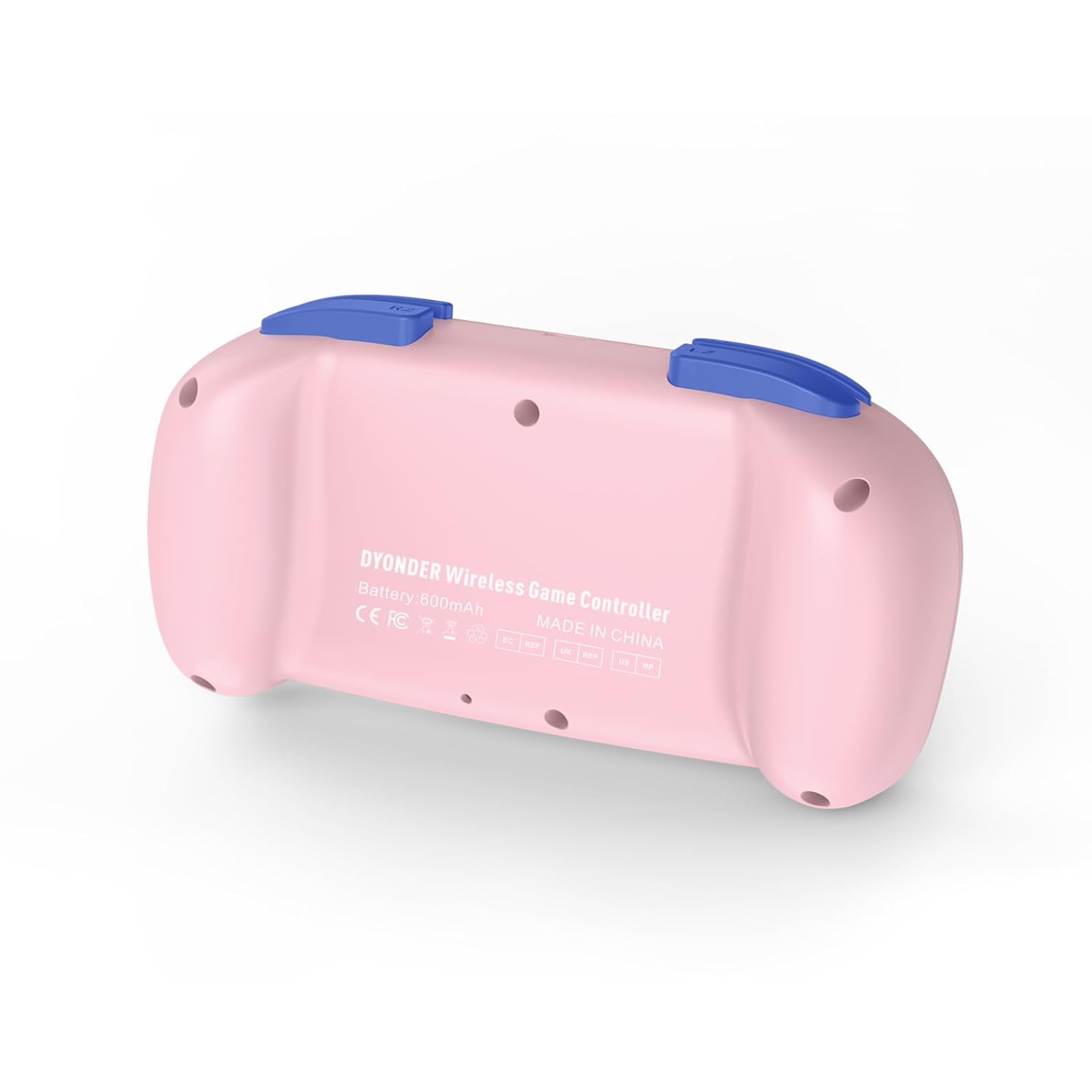
Indietro view of the controller, showing the model information and regulatory marks.

Detailed layout of the controller buttons, including Multi-touch Pad, Share Button, Options Button, D-Pad, Left Stick, Right Stick, Home Button, R1/R2, L1/L2, and Charging Port.
Caratteristiche principali:
- Doppia vibrazione: Experience immersive feedback with dual vibration motors.
- Sensore di movimento a 6 assi: Enhance dynamic feeling and control in compatible games.
- Batteria integrata da 600 mAh: Provides 10-12 hours of playing time on a 2-hour charge.
- Supporto multipiattaforma: Compatible with PS4/Pro/Slim, PC (Windows 10/8/7), iOS, and Android.
- Mini Design: Compact and easy to handle, especially suitable for smaller hands.
- Funzione audio: Includes a 3.5mm headphone jack for audio output.
Official product video demonstrating the DYONDER wireless controller for PS4, highlighting its features and design.
Impostazione e connessione
Connecting to PlayStation 4 (PS4/Pro/Slim):
- Assicurati che la tua console PS4 sia accesa.
- Connect the controller to the PS4 console using the provided USB cable.
- Press the Home button on the controller. The light bar will flash, indicating it's pairing.
- Once the light bar turns solid, the controller is successfully connected and ready for use.
- After initial pairing, you can disconnect the USB cable and use the controller wirelessly.
Connecting to PC (Windows 10/8/7):
- Connessione cablata: Connect the controller to your PC using a USB cable. The PC should automatically detect and install the necessary drivers.
- Connessione Bluetooth:
- Assicurati che il tuo PC abbia il Bluetooth abilitato.
- On the controller, press and hold the Share button and the Home button simultaneously until the light bar starts flashing rapidly.
- Sul tuo PC, vai alle impostazioni Bluetooth e cerca nuovi dispositivi.
- Selezionare il controller dall'elenco dei dispositivi disponibili da associare.
Connecting to iOS/Android Devices:
- Assicurati che il Bluetooth sia abilitato sul tuo dispositivo mobile.
- On the controller, press and hold the Share button and the Home button simultaneously until the light bar starts flashing rapidly.
- On your mobile device, go to Bluetooth settings and search for new devices.
- Selezionare il controller dall'elenco dei dispositivi disponibili da associare.
Istruzioni per l'uso
Accensione/spegnimento:
- Accensione: Press the Home button once.
- Spegni: Press and hold the Home button for approximately 10 seconds until the light bar turns off. The controller will also automatically power off after a period of inactivity.
Ricarica del controller:

The controller features a built-in 600mAh battery, providing 10-12 hours of playtime after a 2-hour charge.
- Connect the provided USB cable to the charging port on the controller and the other end to a USB power source (e.g., PS4 console, PC, or USB wall adapter).
- The light bar will slowly flash while charging and turn off when fully charged.
- A full charge typically takes about 2 hours and provides 10-12 hours of gameplay.
Using the Audio Function:
- Plug a 3.5mm compatible headset into the audio jack located on the bottom of the controller.
- Audio output will be routed through the headset.
Manutenzione
- Mantenere pulito il controller pulendolo con un panno morbido e asciutto. Evitare l'uso di prodotti chimici aggressivi o materiali abrasivi.
- Conservare il controller in un luogo fresco e asciutto, lontano dalla luce solare diretta e da temperature estreme.
- Evitare di far cadere il controller o di sottoporlo a forti urti.
- Non tentare di smontare o modificare il controller, poiché ciò invaliderebbe la garanzia.
Risoluzione dei problemi
Il controller non si connette:
- Assicurarsi che il controller sia completamente carico.
- For PS4, try connecting via USB cable first to establish the initial pairing.
- Reset the controller: Locate the small reset button on the back of the controller (often inside a small hole). Use a thin object (like a paperclip) to press and hold the button for 3-5 seconds. Then, attempt to re-pair.
- Assicurarsi che nessun altro dispositivo Bluetooth interferisca con la connessione.
Input Lag or Unresponsive Buttons/Sticks:
- Ensure the controller is within range of the console/device.
- Check for any physical obstructions between the controller and the console/device.
- Se si utilizza una connessione cablata, provare una porta USB o un cavo diverso.
- Reimpostare il controller come descritto sopra.
La batteria non mantiene la carica:
- Ensure you are using a reliable USB cable and power source.
- Se il problema persiste, contatta l'assistenza clienti.
Specifiche
| Caratteristica | Dettaglio |
|---|---|
| Marca | DYONDER |
| Numero di modello (ASIN) | B0CFQ8816Z |
| Dispositivi compatibili | PlayStation 4 (PS4/Pro/Slim), PC (Windows 10/8/7), iOS, Android |
| Tipo di controllore | Controllo di gioco |
| Quantità del pulsante | 15 |
| Piattaforma hardware | Gaming Console, PC, Mobile |
| Fonte di alimentazione | Alimentato a batteria (600 mAh integrata) |
| Tempo di ricarica | Circa 2 ore |
| Tempo di gioco | Circa 10-12 ore |
| Colore | Rosa |
Garanzia e supporto
For warranty information or technical support, please refer to the product packaging or contact DYONDER customer service directly. Keep your purchase receipt for any warranty claims.