Neideso N300

User Manual for Neideso 360° Dash Cam

Modello: N300

Introduzione

The Neideso N300 360° Dash Cam is an advanced vehicle recording system designed to provide comprehensive surveillance for your car. Featuring four Full HD 1080P channels, built-in Wi-Fi, GPS, voice control, and enhanced night vision, it ensures all-around protection and detailed recording of your journeys and parking incidents. This manual provides detailed instructions for installation, operation, maintenance, and troubleshooting to help you maximize the functionality of your dash cam.

Neideso N300 360 degree dash cam with phone app interface and various features highlighted.

Sopraview of the Neideso N300 Dash Cam and its key features.

Cosa c'è nella scatola

Si prega di verificare che tutti gli articoli siano presenti nel pacco:

  • 1 x Neideso N300 Dash Cam
  • Fotocamera 1 x posteriore
  • 1 x 64GB SD Memory Card (pre-inserted)
  • 1 supporto adesivo 3M
  • 1 x Car Charger with Type-C USB Cable (3.5m)
  • 1 cavo per fotocamera posteriore da 19.6 piedi
  • 1 x Car Wiring Tool
  • 1 x Electrostatic Film for 3M Mount
  • 1 x Manuale utente
Contents of the Neideso N300 Dash Cam box, including the main unit, rear camera, cables, mount, SD card, and tools.

All components included in the Neideso N300 package.

Impostare

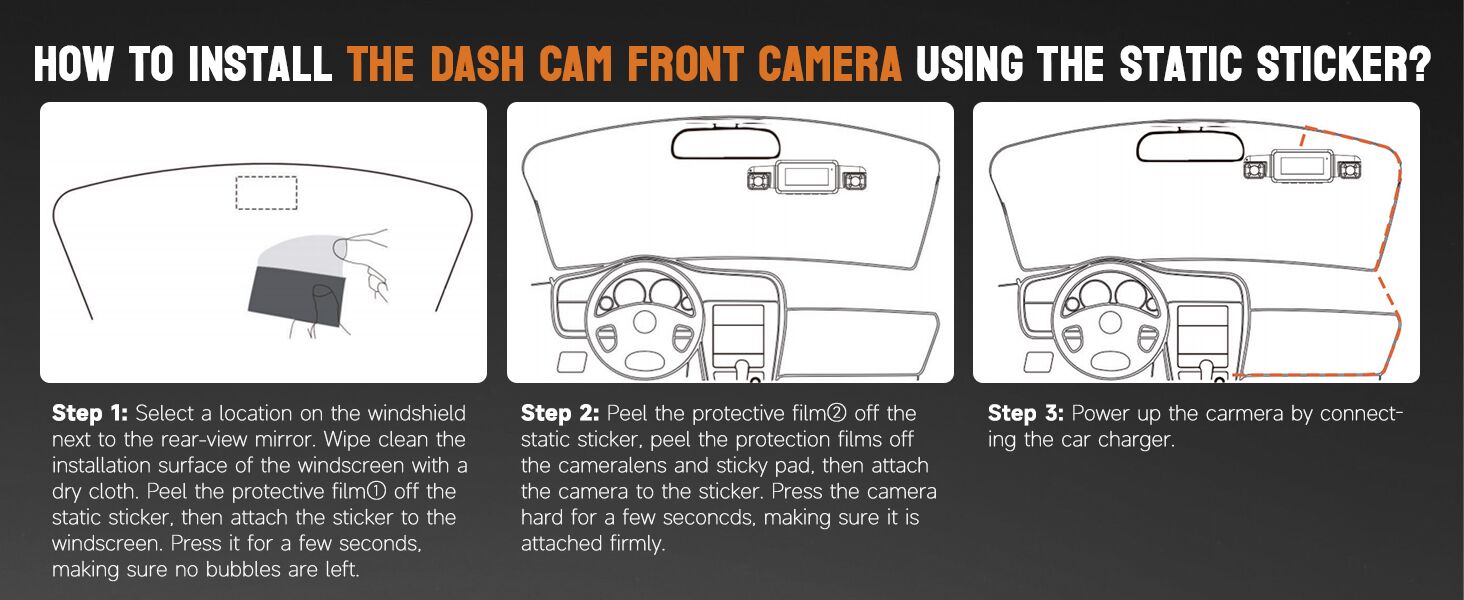
1. Installazione della Dash Cam anteriore

  1. Preparare la superficie di montaggio: Select a location on the windshield next to the rear-view mirror. Clean the installation surface of the windscreen with a dry cloth.
  2. Applicare l'adesivo elettrostatico: Peel the protective film off the static sticker, then attach the sticker to the windscreen. Press it firmly for a few seconds, ensuring no bubbles are left. Let it adhere for 30 minutes before attaching the dash cam.
  3. Collega la Dash Cam: Peel the protection films off the camera lens and sticky pad. Then, attach the camera to the sticker. Press the camera hard for a few seconds, making sure it is attached firmly.
  4. Cavo di alimentazione: Use the included trim tool to tuck the power cable along the windshield edge and A-pillar, ensuring it doesn't obstruct visibility. Connect the Type-C USB cable to the dash cam and the car charger.
Diagram showing steps for installing the front dash cam using the static sticker and routing the power cable.

Step-by-step guide for front dash cam installation.

2. Installing the Rear/Interior Camera

  1. Find Mounting Spot: Find the right spot on the rear windshield or inside the car for the interior camera. Clean the installation surface with a dry cloth.
  2. Collega la fotocamera: Peel the protective film off the static sticker, then attach the sticker to the windscreen. Peel the protection films off the camera lens and sticky pad. Select an installation location on the windscreen to fix the rear camera.
  3. Collegare il cavo: Connect the jack end of the 19.6ft rear camera cable to the interior port of the front camera. Conceal the power cord through gaps (e.g., front windshield to roof, passenger-side ceiling, rear seat to ceiling).
Diagram showing the connection of the rear camera to the main dash cam unit and power source.

Wiring diagram for the dash cam system, including front, rear, and power connections.

Istruzioni per l'uso

Accensione/spegnimento

The dash cam will automatically power on and begin recording when connected to your vehicle's power supply and the engine is started. It will power off automatically when the engine is turned off.

Recording Modes (4-Channel FHD)

The N300 supports 4-channel recording, capturing video from the front, rear, left, and right interior cameras simultaneously. You can choose from various resolution modes:

  • 4K+1080P
  • Risoluzione 2K+1080P+1080P
  • 1080P+1080P+1080P+1080P

Adjust the resolution settings via the dash cam's menu or the smartphone app.

Image showing the four camera views: front, left, right, and rear, all recording in 1080P resolution.

The N300 captures comprehensive 4-channel video footage.

Controllo vocale

Operate the dash cam hands-free using simple English voice commands. This allows you to focus on driving while managing recordings.

  • "Scatta una foto"
  • "Avvio video"
  • "Attiva/Disattiva audio"
  • "Attiva/Disattiva Wi-Fi"
  • "Turn On/Off Screen"

Note: Only the voice option in the menu is supported. Ensure minimal background noise for optimal recognition.

A person using voice commands to control the dash cam while driving, with examples of commands like 'Take Photo' and 'Video Start'.

Hands-free operation with voice control for safer driving.

Controllo Wi-Fi e app

The built-in Wi-Fi allows you to connect your smartphone to the dash cam via a dedicated app (e.g., TsCam App). This enables live preview, playback, download, and sharing of recorded videos and photos.

  1. Download the app from your smartphone's app store.
  2. Connect to the dash cam's Wi-Fi network (SSID) on your phone. The default password is usually 12345678.
  3. Apri l'app per view cibo vivotage, accesso registrato files, download them to your phone, and adjust settings.

Note: The built-in Wi-Fi is for connecting the camera to the app, not for internet access.

Smartphone screen showing the dash cam app interface with options to view, save, and share recordings.

Easily manage and share recordings using the smartphone app.

Screenshots of the app interface demonstrating steps to connect, view, and manage dash cam content.

Detailed steps for connecting to the dash cam via Wi-Fi and using the app.

GPS integrato

The integrated GPS module accurately tracks your vehicle's location, speed, and route. This data is embedded in the recorded video and can be viewed on the smartphone app or a dedicated PC player (GXPlayer).

Aereo view of a car on a road with GPS tracking points overlaid, indicating the dash cam's ability to record driving tracks.

GPS module records driving tracks for accurate evidence.

Laptop screen showing GPS tracking data on a map with video playback, and a smartphone showing the app interface.

GPS tracking data can be viewed on the app or PC player.

Super Night Vision

Equipped with 8 LED infrared lights and Wide Dynamic Range (WDR) technology, the N300 provides clear and color-accurate images even in low-light or overly bright conditions. It automatically adjusts brightness to prevent overexposure from headlights.

Comparison images showing dash cam footage in too dark, WDR corrected, and too bright conditions, highlighting improved visibility with Super Night Vision.

Enhanced night vision ensures clear recordings in challenging light.

Modalità di parcheggio 24 ore su 24

When your vehicle is parked and turned off, the dash cam automatically switches to parking mode, providing continuous surveillance. This feature requires a separate hardwire kit (ASIN: B0CDWT8BF4) for continuous power.

Two parking monitor modes are available:

  • Motion & Collision Detection: If a moving object is detected within 3-4 meters in front of the car, the dash cam will automatically start recording for 1 minute.
  • Only Collision Detection: The dash cam will record if a collision is detected.
Illustration of the 24-hour radar parking monitor detecting movement around a parked car, with a note about the required hardwire kit.

24-hour parking mode provides continuous surveillance.

Diagram illustrating two parking monitor modes: Motion Detection and Collision Detection, showing how they are triggered.

Choose between motion and collision detection for parking monitoring.

G-Sensor e registrazione in loop

The built-in G-sensor automatically detects sudden shakes or collisions. When an event is detected, the footage is locked to prevent it from being overwritten, even during loop recording. These protected files are saved in the "Event" folder for quick access.

La registrazione in loop garantisce una registrazione continua sovrascrivendo il file foo sbloccato più vecchiotage when the SD card is full. Each recording segment is typically 3 minutes long.

Graphic illustrating the G-Sensor detecting a collision and automatically locking the relevant video footage.

G-Sensor protects critical footage durante gli incidenti.

Visual representation of seamless loop recording, showing how older footage is overwritten except for locked files.

Loop recording ensures continuous operation without manual SD card management.

Wide Dynamic Range (WDR) Technology

WDR technology automatically adjusts light sensitivity to avoid high exposure to strong sunlight while also capturing clear and color-accurate images at night or in low-light conditions. This ensures balanced exposure across the entire frame.

Image demonstrating how Wide Dynamic Range (WDR) technology improves image clarity in varying light conditions.

WDR technology provides balanced exposure in diverse lighting.

Manutenzione

Una corretta manutenzione garantisce la longevità e le prestazioni ottimali della tua dash cam.

  • Gestione della scheda SD: Regularly format the SD card (at least once a month) to prevent data corruption and ensure smooth recording. Use a high-quality Class 10 or U3 microSD card.
  • Pulizia delle lenti: Gently clean the camera lenses with a soft, lint-free cloth to remove dust or smudges that may affect video clarity. Do not use abrasive cleaners.
  • Aggiornamenti del firmware: Controllare il produttore webperiodicamente per gli aggiornamenti del firmware. Mantenere il firmware aggiornato può migliorare le prestazioni e aggiungere nuove funzionalità.
  • Controllo della temperatura: Avoid exposing the dash cam to extreme temperatures for prolonged periods. If parked in direct sunlight, consider removing the dash cam or using a sunshade.
  • Ispezione dei cavi: Periodically inspect all cables for any signs of wear or damage. Replace damaged cables immediately to prevent power issues.

Risoluzione dei problemi

If you encounter issues with your Neideso N300 Dash Cam, refer to the table below for common problems and solutions.

ProblemaPossibile causaSoluzione
La dash cam non si accende.Nessuna alimentazione; cavo/caricabatterie difettoso; collegamento allentato.Check car charger connection. Ensure vehicle's power outlet is working. Try a different USB cable/charger.
La registrazione si interrompe o si blocca.Errore scheda SD; scheda SD piena; scheda SD incompatibile.Format the SD card. Use a high-quality Class 10 or U3 microSD card. Replace the SD card if damaged.
Scarsa qualità video.Lente sporca; pellicola protettiva ancora sulla lente; impostazioni di risoluzione errate.Clean the camera lenses. Remove any protective films. Adjust video resolution settings in the menu.
Problemi di connessione Wi-Fi.Password errata; app non aggiornata; interferenza.Ensure correct Wi-Fi password (default: 12345678). Update the app to the latest version. Move closer to the dash cam.
Il controllo vocale non risponde.Background noise; voice control disabled; unrecognized command.Reduce background noise. Ensure voice control is enabled in settings. Use exact commands listed in the manual.
La modalità parcheggio non funziona.Kit di cablaggio non installato; impostazioni errate.Install the required hardwire kit (ASIN: B0CDWT8BF4). Check parking mode settings in the menu.

Specifiche

Nome del modelloNeideso N300 Dash Cam
Risoluzione di acquisizione video4K+1080P / 2K+1080P+1080P / 1080P+1080P+1080P+1080P
OrientamentoFront, Rear, and Inside (4-channel)
Tecnologia di connettivitàWi-Fi, GPS
Caratteristiche speciali360 gradi view, App Control, Voice Control, Super Night Vision, 24-Hour Parking Mode (Radar Detection), G-Sensor, Loop Recording, WDR
Tipo di montaggioWindshield Mount (3M Adhesive)
Dimensioni del prodotto3.39 x 1.5 x 2.28 pollici
Peso dell'articolo6.4 once
Componenti inclusiDash Cam, Rear Camera, 64GB SD Card, 3M Mount, Car Charger, Cables, Wiring Tool, User Manual
Image showing the compact size of the dash cam with dimensions of 6.8 inches length and 1.9 inches height.

Compact design of the Neideso N300 Dash Cam.

Garanzia e supporto

Neideso products are designed for reliability and performance. For specific warranty details, please refer to the warranty card included in your product packaging or visit the official Neideso websito.

If you require technical assistance, have questions about your product, or need to claim warranty service, please contact Neideso customer support through the following channels:

  • E-mail: Refer to your product packaging or the official Neideso websito per l'indirizzo email di supporto più aggiornato.
  • Supporto online: Visit the Neideso official websito per FAQ, guide alla risoluzione dei problemi e moduli di contatto.

Please have your product model (N300) and purchase information ready when contacting support.