Introduzione
This manual provides detailed instructions for the setup, operation, and maintenance of your ATTACK SHARK M71 75% TKL Wireless Mechanical Keyboard. Please read this guide thoroughly to ensure proper use and to maximize your keyboard's performance and lifespan.

Image: The ATTACK SHARK M71 keyboard showcasing its 68% layout and key features like aluminum alloy body, three-mode connection, and RGB backlight.
Contenuto della confezione
Verificare che tutti gli articoli siano presenti nel pacco:
- ATTACK SHARK M71 Wireless Mechanical Keyboard
- Cavo di tipo C
- Ricevitore wireless 2.4G
- Keycap Puller / Switch Puller (Two-in-one tool)
- Complimentary 61 additional PBT OEM keycaps (different color layout)
- Manuale d'uso

Image: A visual representation of the items included in the ATTACK SHARK M71 keyboard package, including the keyboard, cables, and extra keycaps.
Video: Unboxing the Blueberry version of the M71 keyboard, showing the package contents and a demonstration of its typing sound.
Prodotto finitoview
The ATTACK SHARK M71 is a 75% TKL wireless mechanical keyboard featuring a full aluminum CNC chassis, multi-mode connectivity, hot-swappable switches, and RGB lighting. Its compact design and robust construction are engineered for both gaming and productivity.
Caratteristiche principali:
- Full Aluminum CNC Body: Constructed from international standard 6063 aluminum alloy for durability and a premium feel.
- Connettività a tre modalità: Supports Bluetooth 5.0/3.0, 2.4G wireless, and wired USB-C connections.
- Interruttori sostituibili a caldo: Compatible with 3/5-pin switches, allowing for easy customization without soldering.
- Struttura di montaggio della guarnizione: Incorporates anti-static IPEX switch pads, PORON sound-absorbing cotton, and PET acoustic switch pads to enhance typing feel and reduce noise.
- Illuminazione LED RGB: Features customizable RGB backlighting and a side LED light strip.
- Batteria da 4600 mAh: Garantisce un utilizzo wireless prolungato.
- PBT OEM Keycaps: Durable keycaps with GMK-like characters.
Componenti:
Familiarize yourself with the main components of your keyboard:
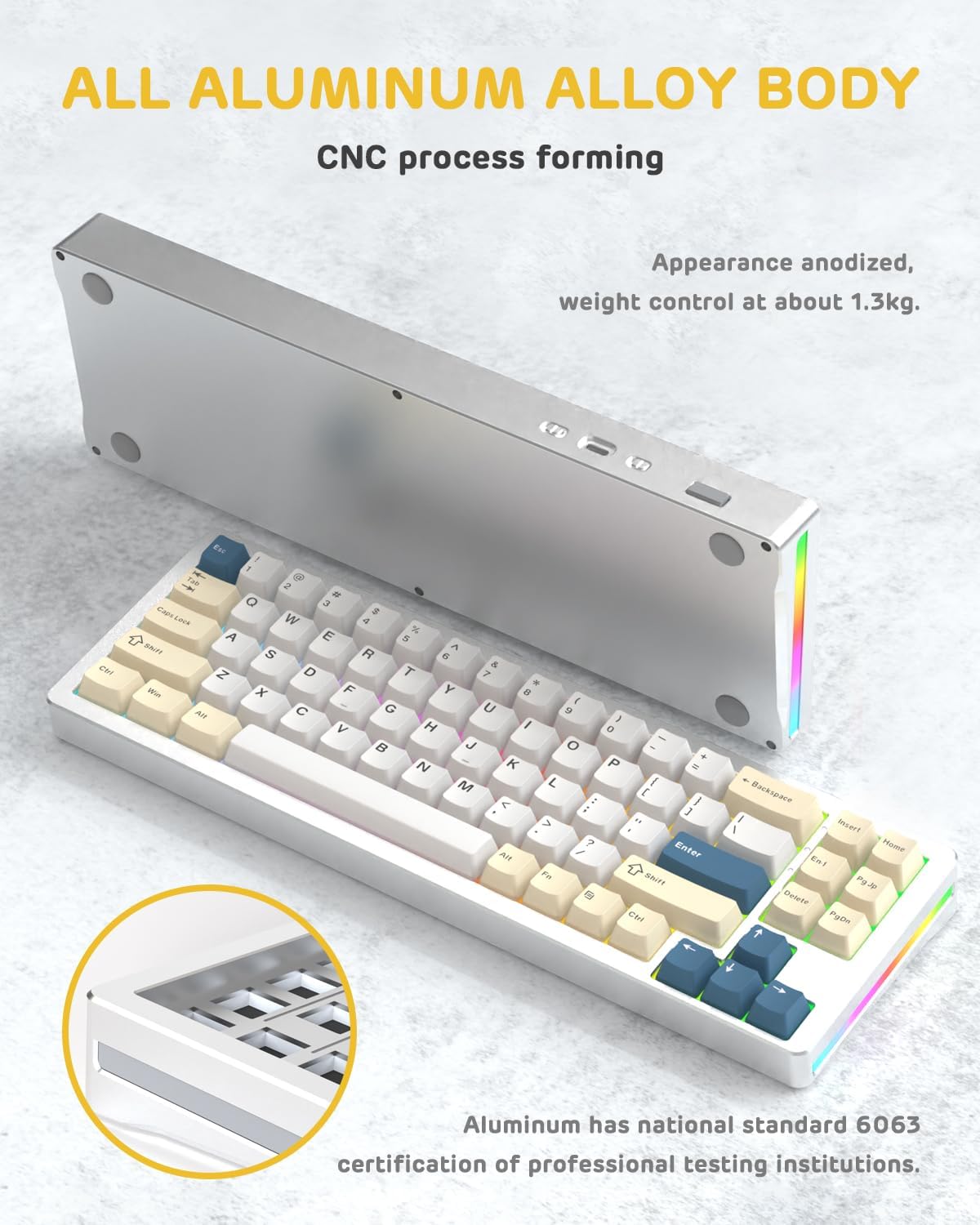
Immagine: Lato A view of the M71 keyboard highlighting its full aluminum alloy body and CNC process forming.

Immagine: Un esploso view illustrating the multi-layered gasket mount structure, including the PBT keycaps, aluminum alloy upper cover, customized switch body, PC positioning board, PORON filled cotton, anti-static IPEX switch underpad, PET singing pad, PCB board, PORON shaft seat cushion, PET sound backing pad, wing light strip, and aluminum alloy base.
Impostare
1. Connectivity Modes:
The M71 keyboard supports three connection modes: Bluetooth, 2.4G wireless, and wired USB-C.
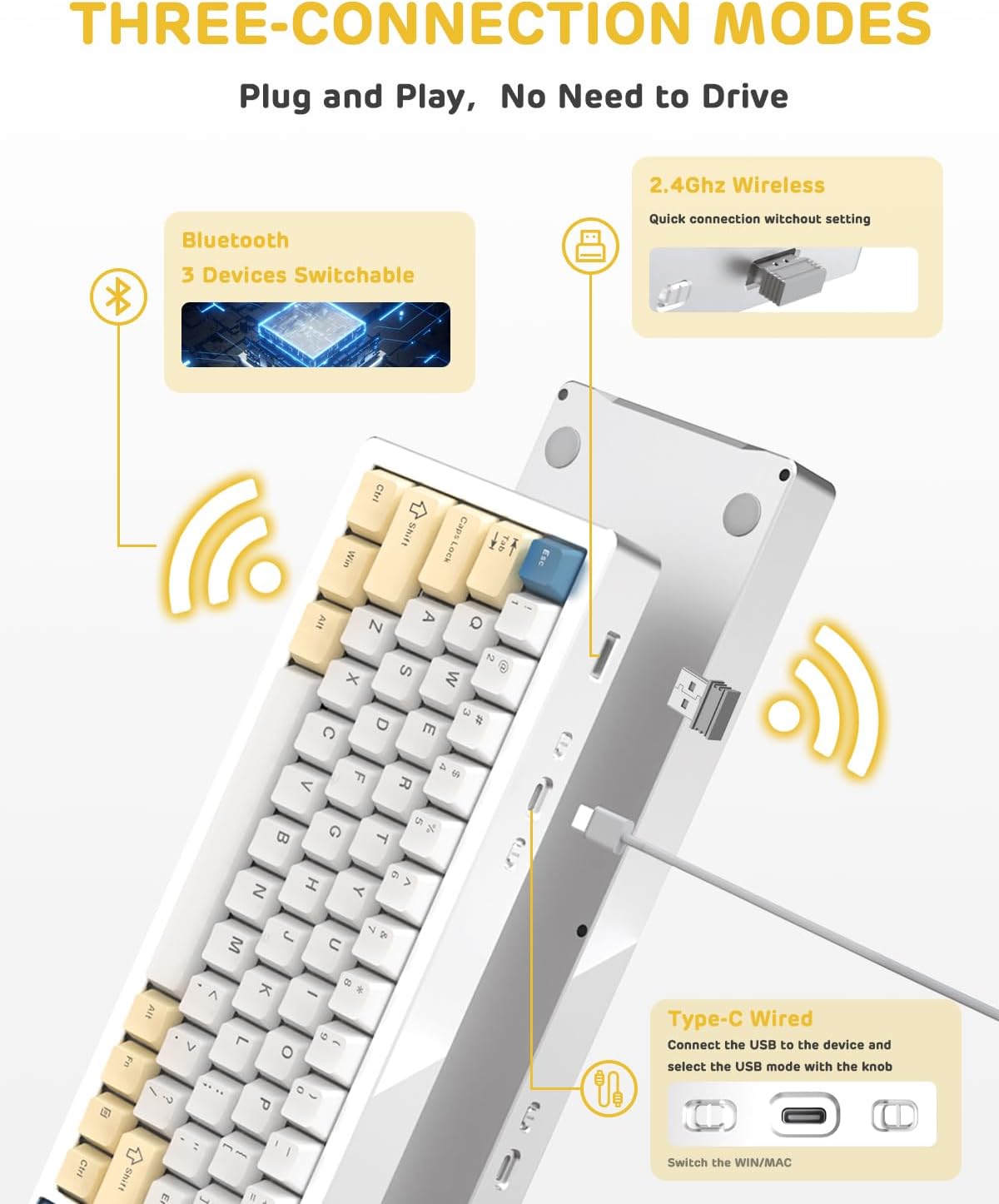
Image: A visual guide to the three connectivity options: Bluetooth for up to 3 devices, 2.4GHz wireless with a receiver, and wired Type-C connection.
Connessione cablata:
- Connect the provided Type-C cable to the keyboard's USB-C port and to your computer's USB port.
- Ensure the mode switch on the keyboard is set to the wired (USB-C) position.
- La tastiera verrà riconosciuta automaticamente dal sistema.
Connessione wireless 2.4G:
- Locate the 2.4G wireless receiver (dongle) in the package.
- Collega il ricevitore 2.4G a una porta USB disponibile sul tuo computer.
- Impostare l'interruttore della modalità sulla tastiera sulla posizione wireless 2.4G.
- La tastiera dovrebbe connettersi automaticamente.
Connessione Bluetooth:
- Impostare l'interruttore della modalità sulla tastiera sulla posizione Bluetooth.
- Sul tuo computer o dispositivo, apri le impostazioni Bluetooth e cerca nuovi dispositivi.
- The keyboard should appear as "ATTACK SHARK M71" or similar. Select it to pair.
- The keyboard can connect to up to 3 Bluetooth devices. Use Fn + 1/2/3 per passare da un dispositivo accoppiato.
2. Battery Charging and Status:
The M71 keyboard is equipped with a 4600mAh battery. To charge, connect the keyboard via the USB-C cable to a power source (e.g., computer USB port, USB wall adapter).

Image: A diagram showing how to check the battery level using Fn+ALT(R) and the visual indicators on the keyboard's side LED strip.
- Per controllare il livello della batteria in modalità wireless, premere Fn + ALT (Right). The side LED strip will indicate the charge level.
- Battery life is approximately 1-2 weeks with lighting enabled and up to 4 weeks with lighting disabled.
Istruzioni per l'uso
1. Multimedia Keys:
The keyboard features 12 multimedia keys accessible via the Fn combinazioni di tasti:
- Fn + F1-F12: Access various multimedia functions (e.g., volume control, play/pause, calculator, email).
- Fn + 1/2: Controlla la luminosità dello schermo.
2. Controllo dell'illuminazione RGB:
Customize the keyboard's RGB backlight and side LED strip:

Image: The M71 keyboard displaying its RGB backlight and side LED strip, along with a close-up of the PBT keycaps.
- Fn + Ctrl (Right): Switch between different side LED light strip modes.
- Fn + Tab: Toggle white light mode.
- Refer to the full user manual for additional lighting effect controls and customization options via the programmable software.
3. Programmable Software:
The keyboard supports a dedicated driver program for advanced customization. You can download the software from the official ATTACK SHARK website to personalize lighting effects, key assignments, and macros. The keyboard is compatible with Windows 2000/XP/Vista/7/8/10/11, Android, and iOS.
Manutenzione
1. Pulizia:
- Per pulire la superficie della tastiera, utilizzare un panno morbido e asciutto.
- For deeper cleaning, remove keycaps using the provided keycap puller and use compressed air to clear debris from between switches.
- Evitare l'uso di prodotti chimici aggressivi o materiali abrasivi.
2. Hot-Swapping Switches:
The M71 keyboard features hot-swappable sockets, allowing you to change switches without soldering.

Immagine: un primo piano view of the hot-swappable White Jade linear switches on the M71 keyboard, demonstrating how they can be easily removed and replaced.
- Spegnere la tastiera o scollegarla dal dispositivo.
- Use the switch puller tool to carefully grip the switch and pull it straight up.
- Allineare i pin del nuovo interruttore con i fori sul PCB e premere delicatamente fino a sentire uno scatto. Assicurarsi che i pin non siano piegati.
- The PCB supports both 3-pin and 5-pin switches.
Video: A demonstration of the disassembly process for the M71 keyboard, showing how to remove keycaps and switches, revealing the gasket mount structure.
Risoluzione dei problemi
| Problema | Possibile soluzione |
|---|---|
| La tastiera non risponde in modalità wireless. |
|
| I tasti non vengono registrati o vengono digitati due volte. |
|
| L'illuminazione RGB non funziona o è errata. |
|
| Problemi di associazione Bluetooth. |
|
Specifiche
| Caratteristica | Dettaglio |
|---|---|
| Modello | Numero di modello: M71 |
| Disposizione | 75% TKL (71 tasti) |
| Connettività | Bluetooth 5.0/3.0, 2.4G Wireless, USB-C Wired |
| Interruttori | Hot-swappable (3/5-pin compatible), Pre-lubed Linear White Jade Switch |
| keycaps | Tasti OEM PBT |
| Stile di montaggio | Guarnizione di montaggio |
| Materiale del telaio | Full Aluminum CNC (6063 alloy) |
| Capacità della batteria | 4600mAh |
| Illuminazione | RGB Backlight, RGB LED Side Light Strip |
| Compatibilità | Windows 2000/XP/Vista/7/8/10/11, Android, iOS, Mac |
| Dimensioni del prodotto | 13.78 cm L x 4.53 cm P x 1.22 cm A |
| Peso dell'articolo | 2.86 libbre |
Garanzia e supporto
Per informazioni sulla garanzia e supporto tecnico, fare riferimento al sito ufficiale ATTACK SHARK webo contattare direttamente il servizio clienti. Conservare la ricevuta d'acquisto come prova d'acquisto per eventuali reclami in garanzia.
Produttore: ATTACCO SQUALO
Venditore: Ajazz US
Data prima disponibilità: 4 agosto 2023