
GOWENIC GOWENIC40cvqdah35
GOWENIC 5 Inch IPS USB Mini Screen User Manual
Model: GOWENIC40cvqdah35
Prodotto finitoview
The GOWENIC 5 Inch IPS USB Mini Screen is a versatile secondary monitor designed for computer cases, providing real-time data monitoring for PC components such as CPU, GPU, and RAM. It features a vibrant IPS display, customizable themes, and a simple USB Type-C connection for ease of use. This manual provides essential information for setting up, operating, and maintaining your device.

Figure 1: GOWENIC 5 Inch IPS USB Mini Screen displaying real-time system performance data.
Caratteristiche principali
- Automatic Screen Rest: Supports Windows systems for real-time host status monitoring, including an automatic screen rest function for energy saving.
- Rotazione del grado 360: Allows for horizontal and vertical screen switching, with 360-degree rotation capability and stepless brightness adjustment for comfortable viewing.
- Monitoraggio della temperatura: Primarily used for host temperature monitoring, requiring only a USB cable for connection to the computer, eliminating the need for additional power supply.
- DIY Theme Customization: Offers a variety of built-in themes, with the option to change background images or switch themes with one click, enabling personalized design.
- Schermo IPS: Features a 5-inch IPS screen providing clear visuals, suitable for placement inside or outside the PC case. Displays CPU, GPU, usage, temperature, internet speed, date, time, volume, and weather forecast.
Guida all'installazione
1. Contenuto della confezione
Prima di iniziare, assicurarsi che tutti i componenti siano presenti nella confezione:
- GOWENIC 5 Inch IPS USB Mini Screen
- Cavo USB di tipo C.
- Desktop Stand/Bracket
- (Optional) USB Hub, additional cables (depending on specific package)

Figure 2: Included components with the GOWENIC Mini Screen, typically featuring the screen, USB cable, and a stand.
2. Connessione hardware
- Collegare il cavo USB: Locate the USB Type-C port on the mini screen. Connect one end of the provided USB Type-C cable to this port.
- Connetti al PC: Connect the other end of the USB cable to an available USB port on your computer. The screen is powered directly via USB, requiring no additional power supply.
- Posizionamento: Place the mini screen using the provided bracket. It can be positioned horizontally or vertically, inside or outside your PC case, depending on your preference and available space.

Figure 3: Interface introduction, highlighting the Type-C port for connection and a TF card slot for potential future use.

Figure 4: The mini screen connects to your PC via a single USB cable, simplifying setup.
3. Installazione del software (solo Windows)
The GOWENIC Mini Screen requires specific software for full functionality, particularly for AIDA64 data monitoring. This software is compatible with Windows operating systems only.
- Scarica il software: Visit the official GOWENIC support website or the provided download link (if available in packaging) to obtain the latest monitoring software.
- Installa il software: Follow the on-screen instructions to install the software. Ensure you grant necessary permissions for the software to access system data.
- Configura software: Launch the installed software. You may need to configure settings such as which data points to display (CPU, GPU, RAM usage, temperatures, etc.) and select your preferred theme.

Figure 5: This image illustrates the simplicity of USB-only connection and highlights the software's ability to display video and UI with low CPU usage, unlike older methods requiring HDMI or high CPU load.
Istruzioni per l'uso
1. Visualizzazione dei dati di sistema
Once the software is installed and configured, the mini screen will automatically display the selected system data. The display updates in real-time, providing continuous monitoring of your PC's performance.

Figure 6: The mini screen can display various system metrics, including temperatures for CPU, GPU, RAM, and SSD, often with customizable backgrounds.
2. Customizing Themes and Layouts
The monitoring software allows for extensive customization of the display. You can:
- Change Themes: Select from a variety of pre-installed themes to match your aesthetic preference.
- Customize Background: Upload your own images or videos to use as the display background.
- Regola layout: Modify the arrangement of data elements on the screen. The screen supports both horizontal and vertical orientations, which can be adjusted via the software or by physically rotating the screen.
- Controllo della luminosità: Regola la luminosità dello schermo per una resa ottimale viewcomfort in diverse condizioni di illuminazione.
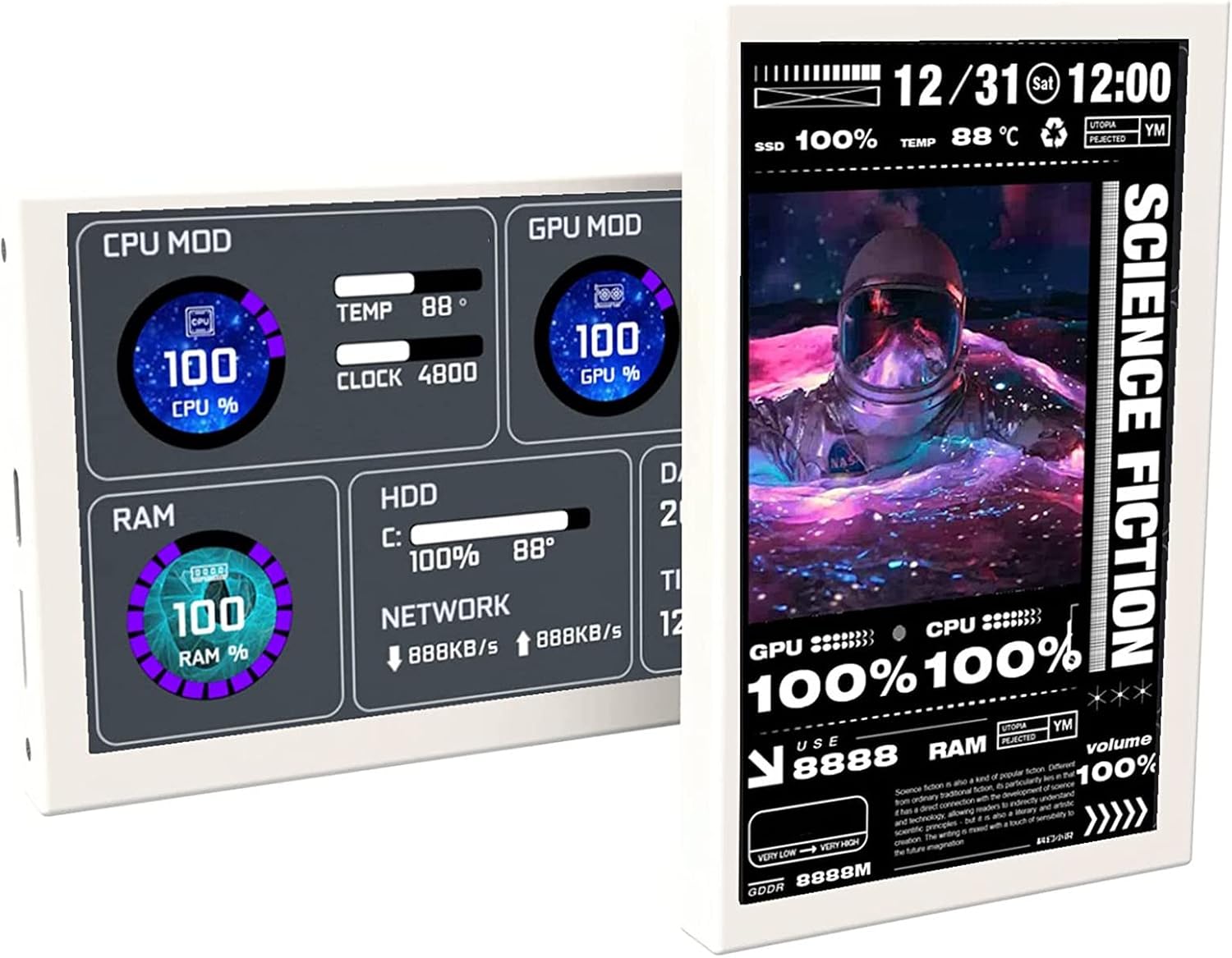
Figura 7: Esamples of customizable display layouts and orientations, including vertical and horizontal modes, showcasing CPU, GPU, RAM, and network data.

Figure 8: This image emphasizes the dynamic background capabilities and the efficiency of the self-developed software, which uses minimal system resources.
3. Riproduzione video
The mini screen is capable of playing videos, allowing for dynamic backgrounds or displaying other visual content. This feature is managed through the dedicated software.
Video 1: Demonstration of the GOWENIC 5 inch Computer Case Secondary Monitor displaying various system data and customizable themes, including video backgrounds and different orientations within a PC case.
Manutenzione
To ensure the longevity and optimal performance of your GOWENIC Mini Screen, follow these maintenance guidelines:
- Pulizia: Utilizzare un panno morbido e privo di lanugine per pulire delicatamente lo schermo e casing. Evitare detergenti abrasivi o solventi che potrebbero danneggiare il display o la finitura.
- Prevenzione della polvere: If placed inside a PC case, ensure adequate airflow to prevent dust buildup on the screen. Regularly clean the PC case to minimize dust exposure.
- Aggiornamenti software: Periodically check the official GOWENIC website for software updates. Keeping the software updated can improve performance, add new features, and resolve potential issues.
- Gestione dei cavi: Assicurarsi che il cavo USB non sia piegato o sottoposto a tensione eccessiva per evitare danni.
Risoluzione dei problemi
| Problema | Possibile causa | Soluzione |
|---|---|---|
| Lo schermo non si accende. | No power from USB port; faulty USB cable; screen malfunction. |
|
| No data displayed on screen. | Software not running; incorrect software configuration; software conflict. |
|
| Screen display is dim or too bright. | Le impostazioni della luminosità necessitano di regolazione. |
|
| L'orientamento dello schermo non è corretto. | Software orientation setting; physical screen orientation. |
|
Specifiche
| Caratteristica | Dettaglio |
|---|---|
| Marca | GOWENIC |
| Modello | GOWENIC40cvqdah35 |
| Dimensioni dello schermo | 5 pollici |
| Tecnologia di visualizzazione | Schermo LCD IPS |
| Risoluzione | 800x480 |
| Proporzioni | 16:9 |
| Frequenza di aggiornamento | Frequenza 60 Hz |
| Viewangolo di ing | 178 gradi |
| Connettività | USB Type-C (1 port) |
| Alimentazione elettrica | Alimentato tramite USB (non richiede alimentazione esterna) |
| Compatibilità | Windows OS (for monitoring software) |
| Dimensioni (circa) | 18.3 x 9.6 x 7.2 cm (Dimensioni del pacco) |
| Peso (circa) | 320 g (Parcel Weight) |
Garanzia e supporto
GOWENIC products are designed for reliability and performance. For warranty information, technical support, or to download the latest software and drivers, please visit the official GOWENIC websito o contattare il loro servizio clienti.
Produttore: GOWENIC
Data prima disponibilità: 9 maggio 2023
For further assistance, refer to the contact information provided with your product packaging or on the manufacturer's official support channels.
Ask a question about this manual
Ask about setup, troubleshooting, compatibility, parts, safety, or missing instructions. Manuals+ will review the question and use this page’s manual context to help answer it.