
Introduzione
This manual provides detailed instructions for the installation, operation, and maintenance of your podofo 4G+64G Android 13 Car Stereo. This unit is specifically designed for Honda Odyssey models manufactured between 2005 and 2010, offering an upgraded in-car entertainment and navigation experience with a 10.1-inch IPS touchscreen, wireless CarPlay, and Android Auto functionality.
Compatibilità del veicolo
This car stereo is compatible with Honda Odyssey models from 2005 to 2010. It is designed for a direct fit and includes a plug-and-play wiring harness for simplified installation.

Image: Comparison of a Honda Odyssey dashboard before and after the installation of the podofo car stereo, showing the integrated 10.1-inch display.
Nota importante sulla compatibilità
Questo prodotto lo fa non support vehicles equipped with a factory-installed central control unit featuring a large screen or original car navigation system. Please verify your vehicle's dashboard configuration before installation.

Image: Visual guide indicating compatible (standard radio, marked A) and incompatible (large screen navigation, marked B) dashboard types for Honda Odyssey.
Cosa c'è nella scatola
Il pacchetto include i seguenti componenti:
- Unità stereo per auto Android
- Antenna GPS
- Microfono esterno
- Telecamera di backup HD
- Set di cavi RCA
- Cavo USB
- Cavo di alimentazione
- Cavo di ingresso telecamera posteriore
- Installation Tool (typically plastic pry tools)

Immagine: Oltreview of the car stereo dimensions and a visual representation of the included accessories such as cables, antennas, and the backup camera.
Configurazione e installazione
Before beginning installation, ensure your vehicle's battery is disconnected to prevent electrical damage. Refer to your vehicle's service manual for specific dashboard removal procedures.
Collegamenti elettrici
- Cavo di alimentazione: Connect the main power harness to the vehicle's wiring. The included harness is designed for plug-and-play installation for Honda Odyssey 2005-2010.
- Cavi RCA: Connect audio output (FR, FL, RR, RL), auxiliary input (AUX R IN, AUX L IN), subwoofer output, and video output as needed for external amplificatori o monitor.
- Cavi USB: Connect the provided USB cables for external USB devices.
- Antenna radio: Collegare l'antenna radio del veicolo all'unità.
- Antenna GPS: Montare l'antenna GPS in una posizione con una vista libera view del cielo, ad esempio sul cruscotto o sotto il parabrezza.
- Microfono esterno: Collega il microfono esterno per migliorare la qualità delle chiamate e dei comandi vocali. Posizionalo vicino al conducente per prestazioni ottimali.
- Ingresso telecamera posteriore: Connect the HD backup camera cable to the designated input. Ensure the camera's power and ground wires are correctly connected, typically to the vehicle's reverse light circuit.
- Controllo del volante (SWC): The unit supports steering wheel controls. Connect the SWC wires according to the wiring diagram. The system may require a learning process for the controls to function correctly.
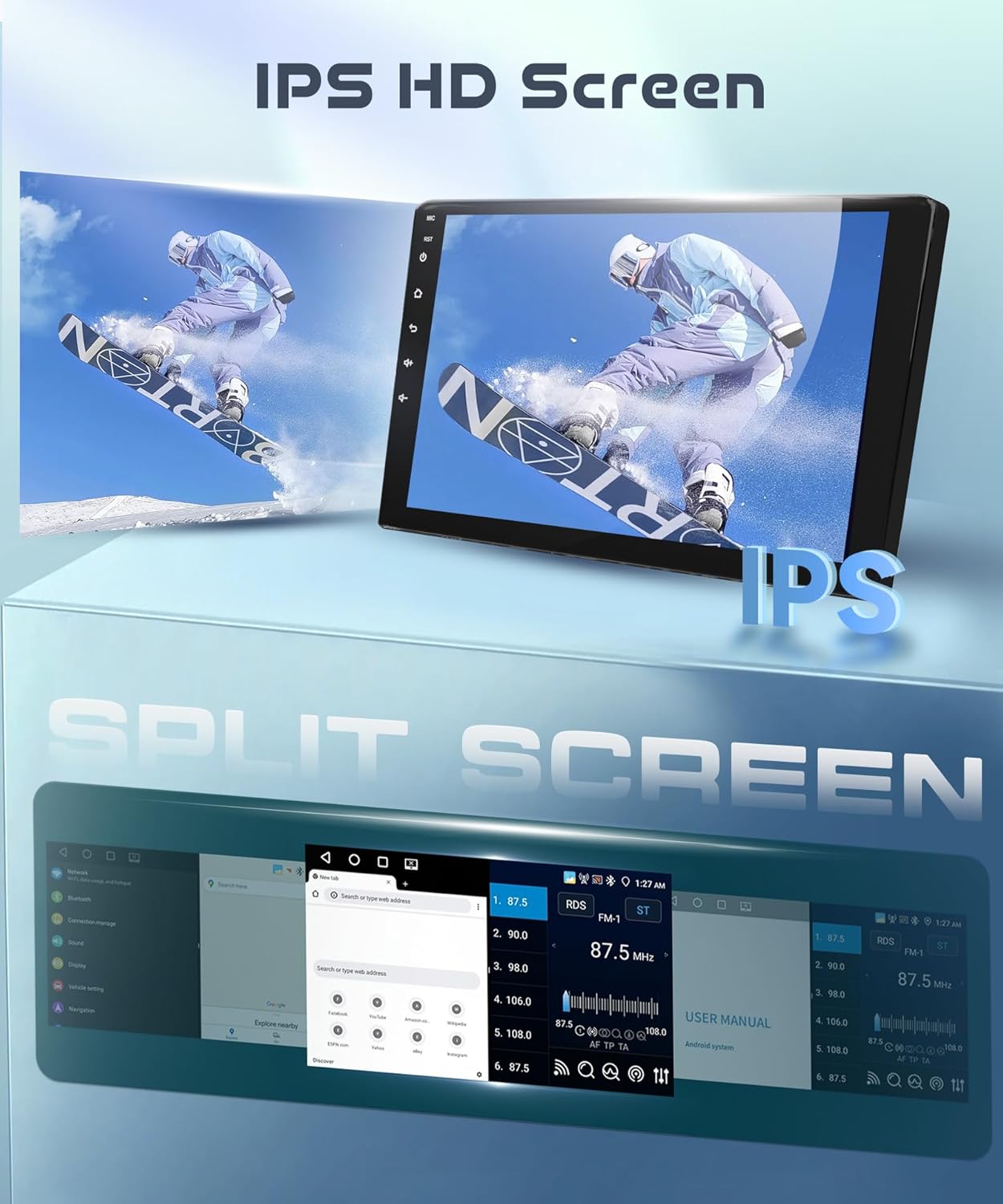
Image: Comprehensive wiring diagram illustrating all necessary connections for the car stereo, including power, audio, video, USB, GPS, and backup camera inputs.
Dashboard Integration
Once all wiring is connected, carefully mount the car stereo unit into the dashboard opening. Secure it using the appropriate mounting brackets and screws. Reassemble the dashboard trim panels.
Istruzioni per l'uso
Accensione/spegnimento
Press and hold the power button (usually located on the front panel or screen) to turn the unit on or off. A short press typically mutes or unmutes the audio.
Interfaccia touchscreen
The unit features a responsive 10.1-inch IPS touchscreen. Navigate through menus and applications by tapping, swiping, and pinching gestures, similar to a smartphone or tablet.

Image: The IPS HD touchscreen displaying vibrant colors and demonstrating the split-screen feature, allowing two applications to run simultaneously.
CarPlay senza fili/Android Auto
Connect your compatible iOS or Android smartphone wirelessly to access navigation, music, calls, and other apps directly on the car stereo display. Follow the on-screen prompts to pair your device via Bluetooth and Wi-Fi.

Image: The car stereo displaying the Wireless CarPlay and Android Auto interfaces, highlighting voice control capabilities for navigation, music, and weather.
Navigazione GPS e WiFi
The unit comes with a built-in offline map application. Connect to a Wi-Fi network or mobile hotspot to use online navigation services and download additional map data. The Wi-Fi connection also enables access to the application store for downloading Android apps.

Image: The car stereo running Android 13, displaying GPS navigation on the main screen and illustrating Wi-Fi connectivity for online content and app downloads.
Funzioni Bluetooth
Pair your phone via Bluetooth 5.0 for hands-free calling and audio streaming. Access your phone's contact list and call history directly from the stereo.
Radio FM/RDS
Sintonizzati sulle tue stazioni radio FM preferite. La funzione RDS (Radio Data System) visualizza informazioni sulla stazione, titoli dei brani e altri dati rilevanti, ove disponibili.
Riproduzione multimediale
Riproduci audio e video files from connected USB devices. The unit supports various formats. The 32-band DSP audio processor allows for precise sound adjustments to optimize your listening experience.

Image: The car stereo's interface showing the 32-band DSP audio equalizer, allowing users to fine-tune sound settings for various music genres.
Display della telecamera di retromarcia
Quando il veicolo viene innestato in retromarcia, il display passa automaticamente alla view from the connected HD backup camera, providing parking assistance with guidelines.

Image: The car stereo displaying the wide-angle view from the AHD backup camera, complete with dynamic parking guidelines for safe reversing.
Manutenzione
Per garantire la longevità e le prestazioni ottimali dell'autoradio, seguire queste linee guida per la manutenzione:
- Pulizia dello schermo: Utilizzare un panno morbido e privo di lanugine per pulire delicatamente il touchscreen. Per le macchie ostinate, strofinare leggermenteampPulisci il panno con acqua o un detergente per schermi. Evita prodotti chimici aggressivi o materiali abrasivi.
- Aggiornamenti software: Periodically check for available software updates to ensure the system has the latest features and bug fixes. Updates can typically be performed via Wi-Fi.
- Condizioni ambientali: Evitare di esporre l'unità a temperature estreme, alla luce solare diretta per periodi prolungati o a umidità eccessiva.
- Connessioni via cavo: Controllare periodicamente tutti i collegamenti dei cavi per accertarsi che siano saldi e privi di corrosione o danni.
Risoluzione dei problemi
Se riscontri problemi con l'autoradio, fai riferimento ai seguenti problemi comuni e alle relative soluzioni:
| Problema | Possibile causa | Soluzione |
|---|---|---|
| L'unità non si accende | Collegamento elettrico allentato, fusibile bruciato, problema alla batteria del veicolo. | Controllare i collegamenti dei cavi di alimentazione. Ispezionare i fusibili del veicolo. Assicurarsi che la batteria del veicolo sia carica. |
| Nessun suono | Volume muted, incorrect audio source, loose speaker wires, ampproblema del lificatore. | Controllare le impostazioni del volume e di disattivazione dell'audio. Selezionare la sorgente audio corretta. Verificare i collegamenti dei cavi degli altoparlanti. |
| La telecamera di backup non viene visualizzata | Incorrect camera wiring, faulty camera, reverse signal not detected. | Verificare i collegamenti di alimentazione e del segnale video della telecamera. Assicurarsi che il cavo di inversione del trigger sia collegato correttamente. |
| Wi-Fi disconnects frequently | Segnale debole, interferenza, problema software. | Ensure strong Wi-Fi signal. Try restarting the unit. Check for software updates. |
| I comandi al volante non funzionano | Cablaggio errato, comandi non programmati. | Verify SWC wiring. Access the steering wheel control learning function in the unit's settings to program the buttons. |
| Il sistema è lento o non risponde | Too many apps running, low memory, software issue. | Close unnecessary applications. Restart the unit. Perform a factory reset if issues persist (note: this will erase all data). |
Specifiche
| Caratteristica | Dettaglio |
|---|---|
| Marca | podofo |
| Sistema operativo | Androide 13 |
| Memoria RAM | 4 GB |
| ROM (memoria interna) | 64 GB |
| Dimensioni dello schermo | 10.1 pollici |
| Tipo di visualizzazione | IPS Touch Screen |
| Risoluzione | 1280*720 |
| Connettività | Bluetooth 5.0, USB, Wi-Fi |
| Caratteristiche speciali | Wireless CarPlay & Android Auto, GPS Navigation, FM/RDS Radio, DSP Audio, Split Screen, Steering Wheel Control, Backup Camera Support |
| Componenti inclusi | Autoradio Android, microfono esterno, antenna GPS, telecamera di backup HD |
| Tipo di montaggio | Supporto per cruscotto |
Garanzia e supporto
Informazioni sulla garanzia
This podofo car stereo unit comes with a 2-year warranty from the date of purchase. This warranty covers manufacturing defects and malfunctions under normal use. Please retain your proof of purchase for warranty claims.
Supporto tecnico
Podofo offers professional technical support for all its products. If you encounter any issues with compatibility, installation, or usage, please contact our support team. You can typically find contact information through the seller's page on the platform where you purchased the product.

Image: Guide on how to access Podofo's technical support by navigating to the seller's information on the purchase platform.