
Introduzione
This manual provides instructions for setting up, operating, and maintaining your YOCUNKER B087 3 Mode Bluetooth Wireless Keyboard and Mouse Set. This set offers versatile connectivity with support for 2.4G wireless and two Bluetooth connections, allowing simultaneous use with up to three devices. The keyboard features a rechargeable battery and a power-saving mode, while the mouse operates on a single AA battery.
Contenuto della confezione
Si prega di verificare che tutti gli articoli siano presenti nel pacco:
- Tastiera senza fili
- Mouse senza fili
- USB Receiver (stored at the bottom of the keyboard)
- Cavo di ricarica USB (per tastiera)
- Manuale d'uso

Image: The YOCUNKER B087 keyboard and mouse set, showing the keyboard, mouse, USB receiver, charging cable, and user manual.
Istruzioni di installazione
1. Mouse Battery Installation
- Rimuovere il coperchio della batteria dalla parte inferiore del mouse.
- Insert one AA battery (not included) into the battery compartment, ensuring correct polarity.
- Riposizionare il coperchio della batteria.
2. Connessione in modalità wireless 2.4G
This mode uses the included USB receiver for connection.
- Locate the USB receiver, which is stored at the bottom of the keyboard.
- Collegare il ricevitore USB a una porta USB disponibile sul computer o sul dispositivo.
- For the mouse: Slide the power switch on the bottom of the mouse to the 2.4G position (right side). The mouse will automatically connect.
- For the keyboard: Turn on the power switch located in the upper right corner of the keyboard (slide to the left). The indicator light will flash blue. The keyboard will enter 2.4G mode (default F1 mode) and connect automatically.
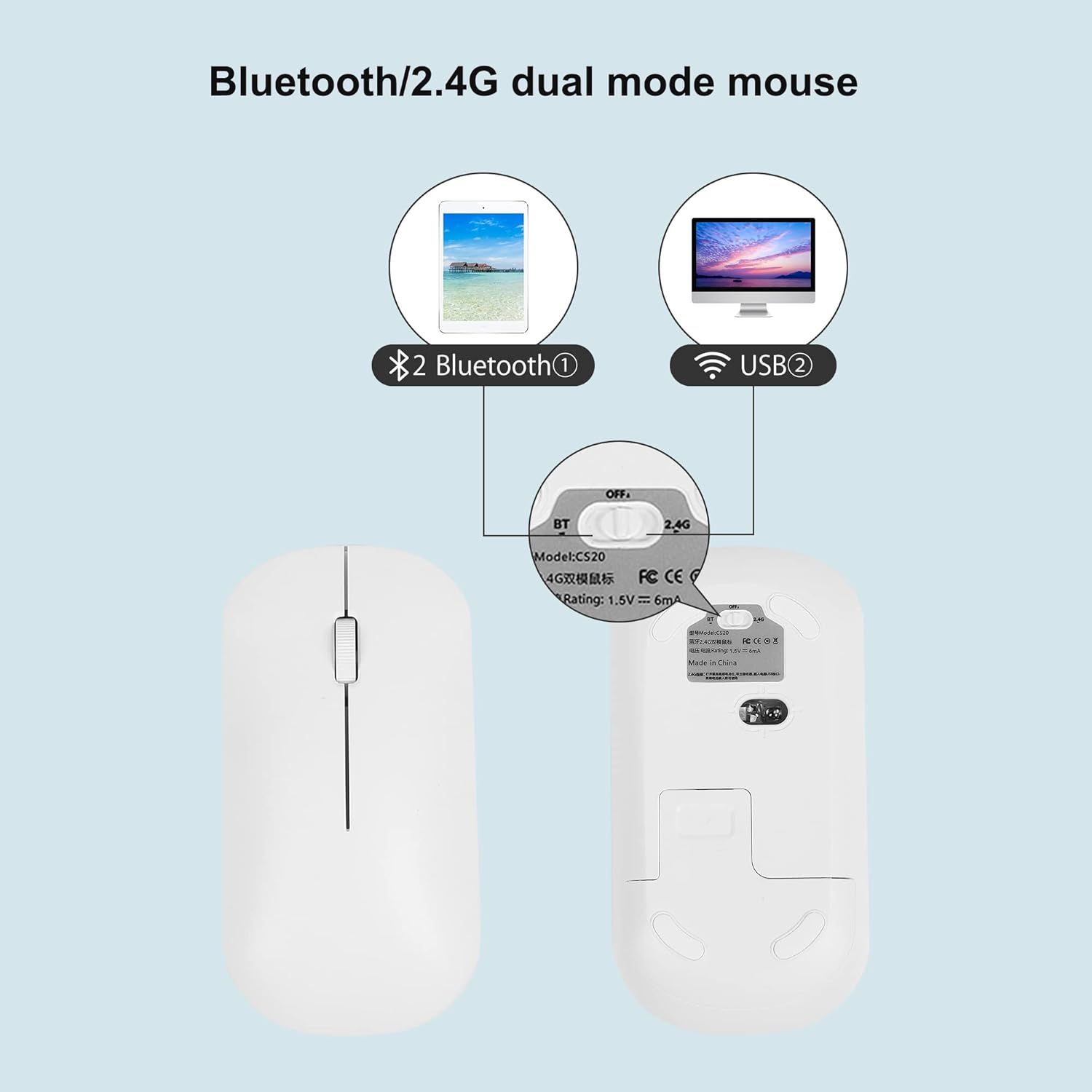
Image: The bottom of the mouse with its mode switch and the keyboard's USB receiver slot.
3. Bluetooth Mode Connection (F2/F3)
This mode allows connection to two separate Bluetooth devices.
Per il topo:
- Slide the power switch on the bottom of the mouse to the Bluetooth position (left side). The indicator light will flash blue continuously, indicating pairing mode.
- On your device (computer, tablet, smartphone), enable Bluetooth and search for nearby devices.
- Seleziona "Mouse BT5.2" from the list of available devices to connect.
Per la tastiera:
- Turn on the power switch in the upper right corner of the keyboard.
- Premere e tenere premuto il tasto F2 or F3 button for approximately 3 seconds. The Bluetooth indicator light will flash blue continuously, indicating pairing mode for the selected channel.
- On your device, enable Bluetooth and search for nearby devices.
- Seleziona "Qian Ye Keyboard" from the list of available devices to connect.

Image: The keyboard showing the F1, F2, and F3 keys used for switching between connected devices.
Istruzioni per l'uso
1. Passaggio tra dispositivi connessi
The keyboard can connect to up to three devices (one 2.4G, two Bluetooth). To switch:
- Premere il tasto F1 button to switch to the 2.4G wireless connection.
- Premere il tasto F2 button to switch to the first Bluetooth connection.
- Premere il tasto F3 button to switch to the second Bluetooth connection.
2. System Language Switching
To switch input languages on your connected device using the keyboard:
- Per Finestre: Premere Alt + Maiusc
- Per iOS: Premere Ctrl + Spazio
- Per Android: Premere Maiusc + Spazio
3. Keyboard Charging and Power Saving
The keyboard has a built-in 180mAh lithium battery.
- Ricarica: Connect the keyboard to a USB power source using the provided USB charging cable. A full charge takes approximately 2 hours.
- Modalità di risparmio energetico: The keyboard will automatically enter sleep mode after 10 minutes of inactivity. To reactivate, press any key and wait approximately 3 seconds.
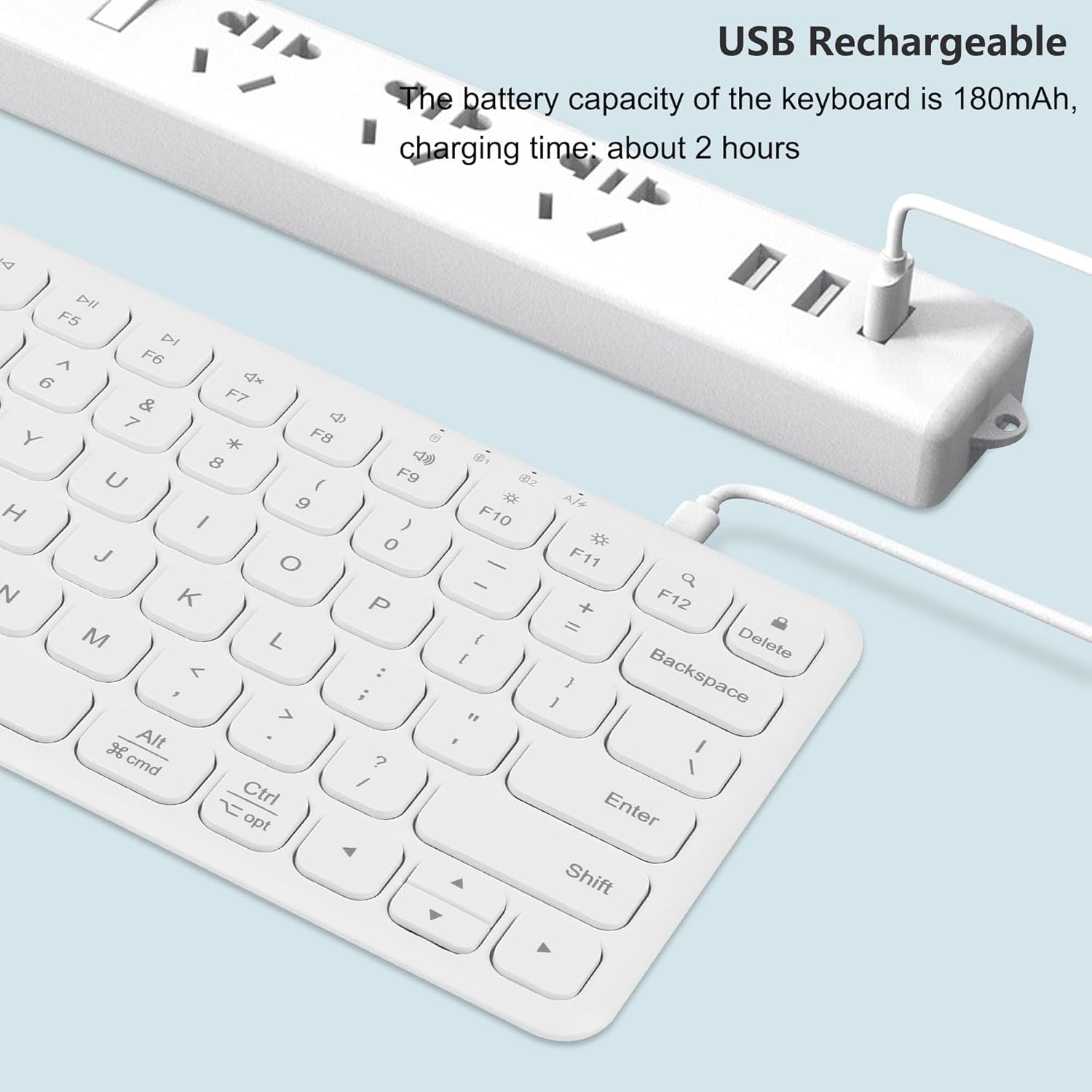
Image: The keyboard being charged via a USB cable connected to a power outlet.
Manutenzione
- Keep the keyboard and mouse clean by wiping with a soft, dry cloth.
- Evitare di esporre i dispositivi a temperature estreme, umidità o luce solare diretta.
- Do not disassemble the devices, as this may void the warranty and cause damage.
- Ensure the mouse battery is replaced when performance degrades.
Risoluzione dei problemi
- Dispositivo non connesso: Ensure the power switches on both the keyboard and mouse are turned on and set to the correct mode (2.4G or Bluetooth). For Bluetooth, ensure the device is in pairing mode and your host device's Bluetooth is enabled.
- Connessione intermittente: Check for interference from other wireless devices. Ensure the USB receiver is securely plugged in for 2.4G mode. For Bluetooth, try re-pairing the device.
- La tastiera non risponde: Check the keyboard's battery level and charge if necessary. If in power-saving mode, press any key to wake it up.
- Il mouse non risponde: Replace the AA battery in the mouse. Ensure the mouse is set to the correct connection mode.
- Ritardo o ritardo: Ensure the devices are within range of your computer/device. Reduce obstacles between the devices and the receiver/Bluetooth antenna.
Specifiche
| Caratteristica | Dettaglio |
|---|---|
| Numero di modello | B087 |
| Tecnologia di connettività | Bluetooth + 2.4G Wireless |
| Batteria della tastiera | Polimeri di litio da 180 mAh (ricaricabili, incluse) |
| Batteria del mouse | 1 batteria AA (non inclusa) |
| Dimensioni della tastiera | 298 mm x 132 mm x 20 mm (11.73 x 5.19 x 0.79 pollici) |
| Dimensioni del mouse | 113 mm x 60 mm x 38 mm (4.44 x 2.36 x 1.49 pollici) |
| Peso dell'articolo | 15.6 once (combinate) |
| Dispositivi compatibili | PC, Laptop, MacBook, Tablet (Windows, iOS, Android) |
| Caratteristiche speciali | Ergonomic design, Rechargeable keyboard, Silent click (keyboard & mouse) |

Image: Dimensions of the keyboard and mouse.
Garanzia e supporto
For warranty information or technical support, please refer to the contact details provided with your purchase documentation or visit the official YOCUNKER websito. Conservare la prova d'acquisto per eventuali reclami in garanzia.