
Introduzione
The LINQ 9-Port Pro Studio USB-C Docking Station (Model LQ48020) is a versatile multiport hub designed to expand connectivity and storage for your USB-C enabled devices. This device integrates multiple essential ports and an NVMe M.2 SSD enclosure into a single, compact unit, providing high-speed data transfer, video output, network connectivity, and power delivery.

Figura 1: Sopraview of the LINQ 9-Port Pro Studio USB-C Docking Station with connected devices, highlighting its various ports and features.
Impostare
Follow these steps to set up your LINQ 9-Port Pro Studio USB-C Docking Station:
- Connetti al dispositivo host: Plug the integrated USB-C cable from the docking station into a compatible USB-C port on your laptop, tablet, or other host device. Ensure the USB-C port on your host device supports DisplayPort Alternate Mode (Alt Mode) and Power Delivery for full functionality.
- Collegamento elettrico (facoltativo ma consigliato): For optimal performance and to charge your host device, connect a USB-C Power Delivery (PD) charger (up to 100W) to the docking station's USB-C PD input port.
- NVMe M.2 SSD Installation:
- Carefully open the NVMe enclosure cover on the docking station.
- Insert your NVMe M.2 SSD into the designated slot. Ensure it is properly seated.
- Secure the SSD with the provided fastener (if applicable).
- Chiudere bene il coperchio dell'involucro.

Figura 2: Installation of an NVMe M.2 SSD into the docking station's dedicated enclosure.
- Connetti le periferiche: Connect your desired peripherals (monitor, keyboard, mouse, Ethernet cable, SD card, USB drives) to the corresponding ports on the docking station.
Istruzioni per l'uso
The docking station provides a variety of ports for enhanced functionality:
- Porta USB-C Power Delivery (PD): Connect your USB-C power adapter to this port to charge your host device (up to 100W) and power the docking station simultaneously.
- Porta HDMI 2.0: Connect an HDMI cable from this port to an external monitor or display for video output up to 4K resolution at 60Hz.
- Porte USB 3.2 Gen 2: Utilize the USB-A and USB-C data ports for connecting external storage devices, keyboards, mice, or other USB peripherals. These ports support data transfer speeds up to 10 Gigabits per second (10Gbps).
- 2.5Gbps Multi-Gigabit Ethernet Port: Connect an Ethernet cable to this port for a stable and high-speed wired network connection, supporting speeds up to 2.5 Gigabits per second (2.5Gbps).
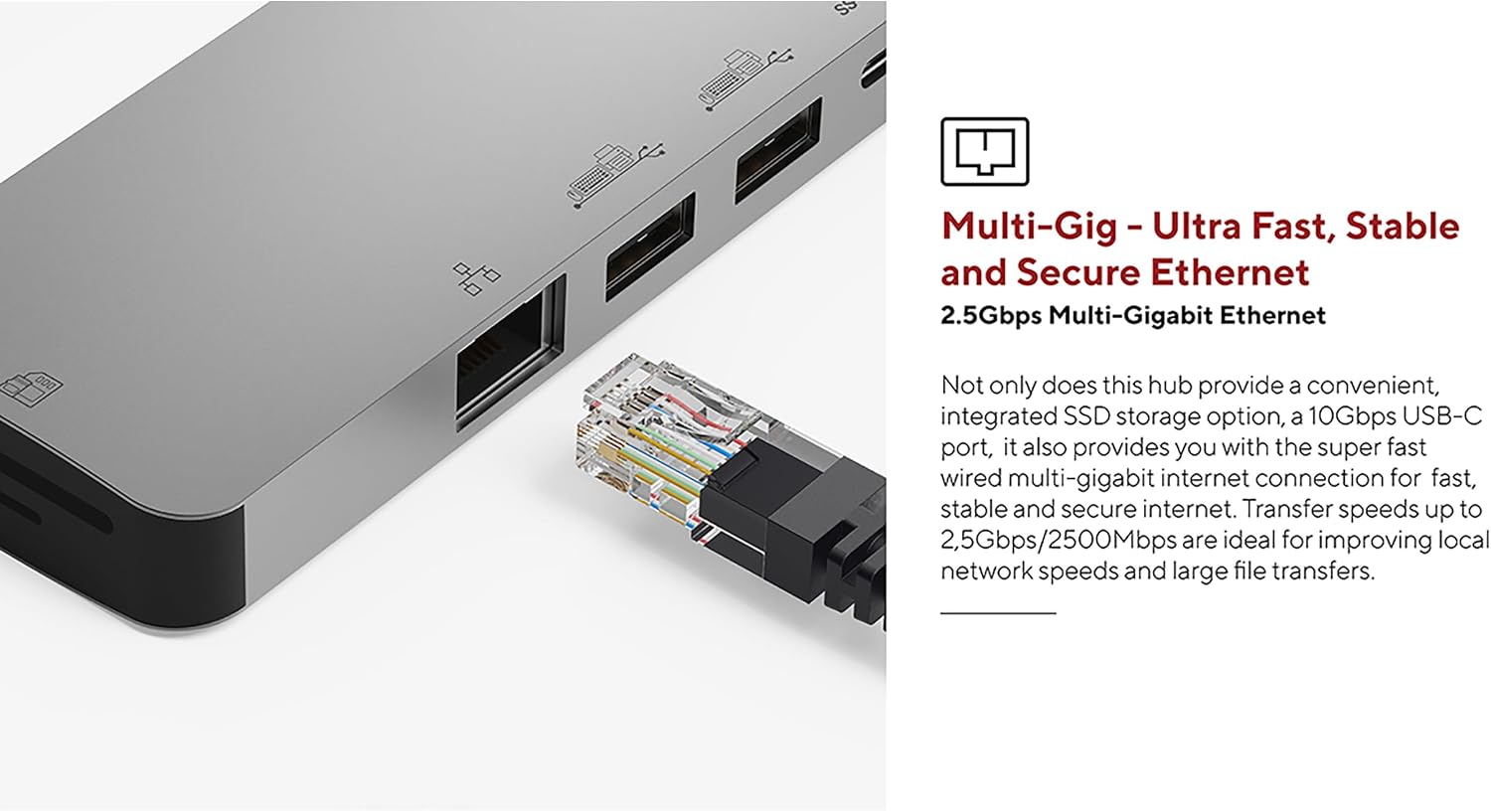
Figura 3: The 2.5Gbps Multi-Gigabit Ethernet port for high-speed wired network access.
- UHS-II SD 4.0 Card Reader: Insert an SD card into the card reader slot for fast data transfer, supporting speeds up to 300MB/s. This is ideal for photographers and videographers.

Figura 4: The UHS-II SD 4.0 Card Reader for high-speed memory card access.
- NVMe M.2 SSD Enclosure: The integrated NVMe M.2 SSD enclosure allows you to expand your storage with an NVMe SSD, providing data transfer speeds up to 10Gbps. This is suitable for fast backups and quick access to large files.

Figura 5: The docking station in use, demonstrating multiple connected peripherals.
Manutenzione
Per garantire la longevità e le prestazioni ottimali della tua docking station, segui queste linee guida per la manutenzione:
- Pulizia: Use a soft, dry, anti-static cloth to clean the exterior of the docking station. Avoid using liquid cleaners or solvents, as they may damage the finish or internal components.
- Magazzinaggio: Quando non in uso, conservare la docking station in un luogo fresco e asciutto, lontano dalla luce solare diretta e da temperature estreme.
- Ventilazione: Ensure the docking station has adequate airflow around it during operation to prevent overheating, especially when multiple high-power devices or an NVMe SSD are in use.
- Cura del cavo: Avoid bending or twisting the integrated USB-C cable excessively. Always grasp the connector when plugging or unplugging to prevent damage to the cable or port.
Risoluzione dei problemi
Se riscontri problemi con la docking station, fai riferimento ai seguenti problemi comuni e alle relative soluzioni:
- Nessuna uscita di visualizzazione:
- Assicurati che la porta USB-C del dispositivo host supporti la modalità DisplayPort Alt.
- Check that the HDMI cable is securely connected to both the docking station and the monitor.
- Verificare che la sorgente di ingresso del monitor sia impostata correttamente (ad esempio, HDMI 1, HDMI 2).
- Try connecting the monitor directly to your host device (if possible) to rule out monitor or cable issues.
- Dispositivi USB non riconosciuti:
- Assicurarsi che la docking station sia collegata correttamente al dispositivo host.
- Prova a collegare il dispositivo USB a una porta diversa della docking station.
- Connect the USB device directly to your host device to confirm it is functional.
- If using high-power USB devices, ensure a power adapter is connected to the docking station's PD port.
- Velocità di trasferimento dati lente:
- Ensure your connected devices and cables support the advertised speeds (e.g., USB 3.2 Gen 2 for 10Gbps).
- Verify that your host device's USB-C port supports the necessary bandwidth.
- Avoid using excessively long or low-quality cables.
- Problemi di connessione di rete:
- Controllare la connessione del cavo Ethernet sia alla docking station che al router/modem.
- Verify that your network drivers are up to date on your host device.
- Test your Ethernet cable and network connection with another device if possible.
- SSD NVMe non rilevato:
- Ensure the NVMe SSD is correctly installed and seated firmly in its slot.
- Check your operating system's disk management utility to see if the drive is detected but uninitialized or unformatted.
- Ensure the SSD is an NVMe M.2 drive; SATA M.2 SSDs are not supported.
Specifiche
| Caratteristica | Specificazione |
|---|---|
| Numero di modello | LQ48020 |
| Dimensioni (L x P x A) | 21.5 x 8 x 21.5 cm (approx. 4.6 x 7.92 x 0.95 cm for main unit) |
| Peso | 119 grammi |
| Materiale | Alluminio |
| Colore | Grigio |
| Totale porte | 9 |
| Connessione host USB-C | 1 (integrated cable) |
| Alimentazione tramite USB-C | Fino a 100W |
| Uscita HDMI | 4K @ 60Hz (HDMI 2.0) |
| Porte dati USB | Multiple (USB-A, USB-C) |
| Velocità di trasferimento dati USB | 10 Gigabits per second (USB 3.2 Gen 2) |
| Porta Ethernet | 2.5Gbps Multi-Gigabit |
| Lettore di schede | UHS-II SD 4.0 (up to 300MB/s) |
| Custodia SSD NVMe M.2 | Yes, up to 10Gbps (does not support SATA SSD) |
| Sistemi operativi compatibili | Linux (and generally macOS, Windows with USB-C Alt Mode support) |
Garanzia e supporto
This LINQ 9-Port Pro Studio USB-C Docking Station comes with a Garanzia del produttore di 2 anni.
For technical support, warranty claims, or further assistance, please contact your retailer or visit the official LINQ websito per le informazioni di contatto.