
1. Introduzione
This manual provides essential information for the proper installation, operation, and maintenance of your SUNMI T2s Lite 15.6-inch Android Point of Sale (POS) system. Please read this manual thoroughly before using the device to ensure optimal performance and safety. Keep this manual for future reference.
2. Informazioni sulla sicurezza
- Non esporre il dispositivo a temperature estreme, umidità o luce solare diretta.
- Evitare di far cadere o sottoporre il dispositivo a forti impatti.
- Utilizzare solo l'adattatore di alimentazione fornito con il dispositivo. L'utilizzo di un adattatore non corretto può causare danni o incendi.
- Non tentare di smontare o riparare il dispositivo da soli. Rivolgersi a personale qualificato.
- Tenere il dispositivo lontano da acqua o altri liquidi.
- Assicurare una ventilazione adeguata attorno al dispositivo durante il funzionamento.
3. Contenuto della confezione
Verificare che tutti gli articoli siano presenti nel pacco:
- SUNMI T2s Lite POS Terminal
- Adattatore di alimentazione
- Cavo di alimentazione
- Guida rapida (se applicabile)
- Scheda di garanzia (se applicabile)
Se qualche articolo risulta mancante o danneggiato, contatta immediatamente il tuo fornitore.
4. Prodotto finitoview
The SUNMI T2s Lite is an integrated Android-based POS system designed for retail environments. It features a 15.6-inch capacitive touchscreen display and various connectivity options.
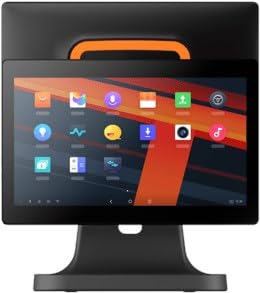
Figura 4.1: Davanti view of the SUNMI T2s Lite POS system. This image displays the main 15.6-inch touchscreen, which is the primary interface for operating the device. The design is compact and suitable for various retail settings.
4.1 componenti chiave
- Schermo touchscreen da 15.6 pollici: High-resolution (1920x1080) capacitive touch interface.
- Pulsante di accensione: Located typically on the side or rear for turning the device on/off.
- Porte USB: For connecting peripherals such as barcode scanners, external printers, or cash drawers.
- Porta Ethernet: Per la connettività di rete cablata.
- Potenza in ingresso: Per collegare l'adattatore di alimentazione.
- Fotocamera frontale: For specific applications requiring image capture.
5. Impostazione
5.1 Disimballaggio e posizionamento
- Estrarre con cautela il dispositivo e tutti gli accessori dalla confezione.
- Place the POS terminal on a stable, flat surface in a well-ventilated area.
- Ensure there is sufficient space around the device for cable connections and heat dissipation.
5.2 Collegamento dell'alimentazione
- Collegare il cavo di alimentazione all'adattatore di alimentazione.
- Plug the power adapter into the power input port on the back of the SUNMI T2s Lite.
- Collegare l'altra estremità del cavo di alimentazione a una presa elettrica dotata di messa a terra.
5.3 Initial Boot and Network Connection
- Press and hold the power button until the screen lights up. The device will boot into the Android operating system.
- Seguire le istruzioni sullo schermo per la configurazione iniziale, inclusa la selezione della lingua e del fuso orario.
- Connessione Wi-Fi: Vai a Impostazioni > Rete e Internet > Wi-Fi, seleziona la tua rete e inserisci la password.
- Connessione Ethernet: Connect an Ethernet cable from your router/switch to the Ethernet port on the device. The device should automatically connect to the wired network.
5.4 Collegamento delle periferiche
- Dispositivi USB: Plug USB peripherals (e.g., barcode scanner, external printer, cash drawer) into the available USB ports. The system will typically recognize them automatically.
- Dispositivi Bluetooth: Vai a Impostazioni > Dispositivi connessi > Bluetooth, enable Bluetooth, and pair with your desired device.
6. Istruzioni per l'uso
6.1 Accensione/Spegnimento
- Per accendere: Tieni premuto il pulsante di accensione finché lo schermo non si accende.
- Per spegnere: Press and hold the power button until a power menu appears. Select "Power off" and confirm. Alternatively, a short press of the power button will put the device to sleep.
6.2 Utilizzo del touchscreen
- Rubinetto: To select an item or activate a button.
- Toccare e tenere premuto: To open context menus or drag items.
- Scorri: Per scorrere gli elenchi o navigare tra le schermate.
- Pizzica per ingrandire: Per ingrandire o rimpicciolire le immagini o web pagine.
Navigazione del sistema operativo Android 6.3
- Schermata iniziale: The central hub for your applications and widgets.
- Cassetto delle applicazioni: Accedi a tutte le applicazioni installate.
- Pannello notifiche: Scorri verso il basso dalla parte superiore dello schermo a view notifiche e impostazioni rapide.
- Impostazioni: Configure Wi-Fi, Bluetooth, display, sound, and other system options.
6.4 Basic POS Functions
The specific POS functions will depend on the software application installed on your device. Refer to the documentation provided with your POS software for detailed instructions. Generally, you will:
- Launch your POS application from the home screen or app drawer.
- Accedi con le tue credenziali utente.
- Process transactions using the touchscreen and connected peripherals (e.g., scanning items, accepting payments).
- Print receipts if an external or integrated printer is configured.
7. Manutenzione
7.1 Pulizia del dispositivo
- Prima di pulire il dispositivo, spegnerlo e scollegarlo sempre.
- Utilizzare un panno morbido e privo di lanugine leggermente dampened with water or a mild, non-abrasive cleaner to wipe the screen and exterior surfaces.
- Non spruzzare liquidi direttamente sul dispositivo.
- Evitare l'uso di prodotti chimici aggressivi, solventi o materiali abrasivi.
7.2 Aggiornamenti software
Regularly check for and install system and application updates to ensure optimal performance, security, and access to new features. You can usually find system updates in Impostazioni > Sistema > Aggiornamento di sistema.
7.3 Conservazione
When not in use for extended periods, store the device in a cool, dry place, away from direct sunlight and extreme temperatures. If storing for a long time, ensure the battery is charged to about 50% to prolong its lifespan.
8. Risoluzione Dei Problemi
Questa sezione affronta i problemi più comuni che potresti incontrare. Per problemi più complessi, contatta l'assistenza clienti.
- Il dispositivo non si accende:
- Assicurarsi che l'adattatore di alimentazione sia collegato saldamente al dispositivo e a una presa di corrente funzionante.
- Verificare che la presa di corrente funzioni.
- Prova a tenere premuto il pulsante di accensione per 10-15 secondi per forzare il riavvio.
- Il touchscreen non risponde:
- Riavviare il dispositivo.
- Assicurarsi che lo schermo sia pulito e privo di detriti o liquidi.
- Network connection issues (Wi-Fi/Ethernet):
- Check if the Wi-Fi is enabled and you are connected to the correct network with the right password.
- For Ethernet, ensure the cable is properly connected and your router/switch is working.
- Riavvia il router/modem.
- Peripherals (e.g., printer, scanner) not working:
- Assicurarsi che la periferica sia collegata correttamente alla porta corretta.
- Check if the peripheral has its own power supply and is turned on.
- Verify that the necessary drivers or software for the peripheral are installed and configured within your POS application.
9. Specifiche
The following are key technical specifications for the SUNMI T2s Lite:
| Caratteristica | Specificazione |
|---|---|
| Marca | SUNMI |
| Produttore | Sole |
| Risoluzione del display nativa | 1920x1080 pixel |
| Tecnologia di connettività | Bluetooth, Ethernet, USB, WLAN |
| Descrizione della fotocamera | Frontale |
| ASIN | B0B53FLFT8 |
10. Garanzia e supporto
The SUNMI T2s Lite POS system comes with a standard manufacturer's warranty. Please refer to the warranty card included in your package for specific terms and conditions, including warranty period and coverage details.
For technical support, service, or warranty claims, please contact your authorized SUNMI dealer or the customer support channel specified in your purchase documentation. Ensure you have your product model number (T2s Lite) and ASIN (B0B53FLFT8) ready when contacting support.