
Introduzione
This manual provides essential instructions for setting up, operating, and maintaining your Epson EcoTank L121 A4 Ink Tank Printer. Please read this guide thoroughly before using the printer to ensure correct operation and to maximize its lifespan.

Immagine: Frontale view of the Epson EcoTank L121 A4 Ink Tank Printer. This image shows the compact design and the front paper output tray.
1. Impostazione
1.1 Disimballaggio
Carefully remove the printer from its packaging. Ensure all protective tapes and materials are removed from the exterior and interior of the printer. Keep the packaging materials for future transport if needed.
1.2 Filling Ink Tanks
The EcoTank L121 uses refillable ink tanks. Use only genuine Epson 664 series ink bottles (6641 Black, 6642 Cyan, 6643 Magenta, 6644 Yellow) for optimal performance and to prevent damage.
- Aprire il coperchio del serbatoio dell'inchiostro sul lato della stampante.
- Open the cap for the corresponding color ink tank you wish to fill.
- Carefully uncap the ink bottle and insert it into the filling port. The ink will automatically start to fill the tank. Do not squeeze the bottle.
- Una volta che il serbatoio è pieno, rimuovere la bottiglia di inchiostro e chiudere saldamente il tappo del serbatoio di inchiostro.
- Ripetere l'operazione per tutti gli altri colori.
- Chiudere il coperchio dell'unità serbatoio inchiostro.
After filling, press and hold the Manutenzione button (often depicted as a droplet or triangle with a lightning bolt) for 3 seconds to initiate ink charging. This process takes approximately 20 minutes. Do not turn off the printer during ink charging.
1.3 Collegamento a un computer
The Epson EcoTank L121 connects via USB 2.0.
- Ensure the printer is powered on and ink charging is complete.
- Collegare un'estremità del cavo USB alla porta USB della stampante.
- Collegare l'altra estremità del cavo USB a una porta USB disponibile sul computer.
1.4 Installazione del software
Insert the provided software CD into your computer's CD-ROM drive. If the installer does not start automatically, browse the CD and run the setup file. Follow the on-screen instructions to install the printer drivers and utility software. If you do not have a CD drive, download the latest drivers from the official Epson support websito.
2. Utilizzo della stampante
2.1 Caricamento della carta
The printer supports A4 paper size.
- Open the paper support and pull it up.
- Regolare le guide laterali in base alla larghezza della carta.
- Load paper print-side up into the rear paper feeder. Ensure the stack is even and does not exceed the maximum load line.
- Adjust the edge guides against the sides of the paper.
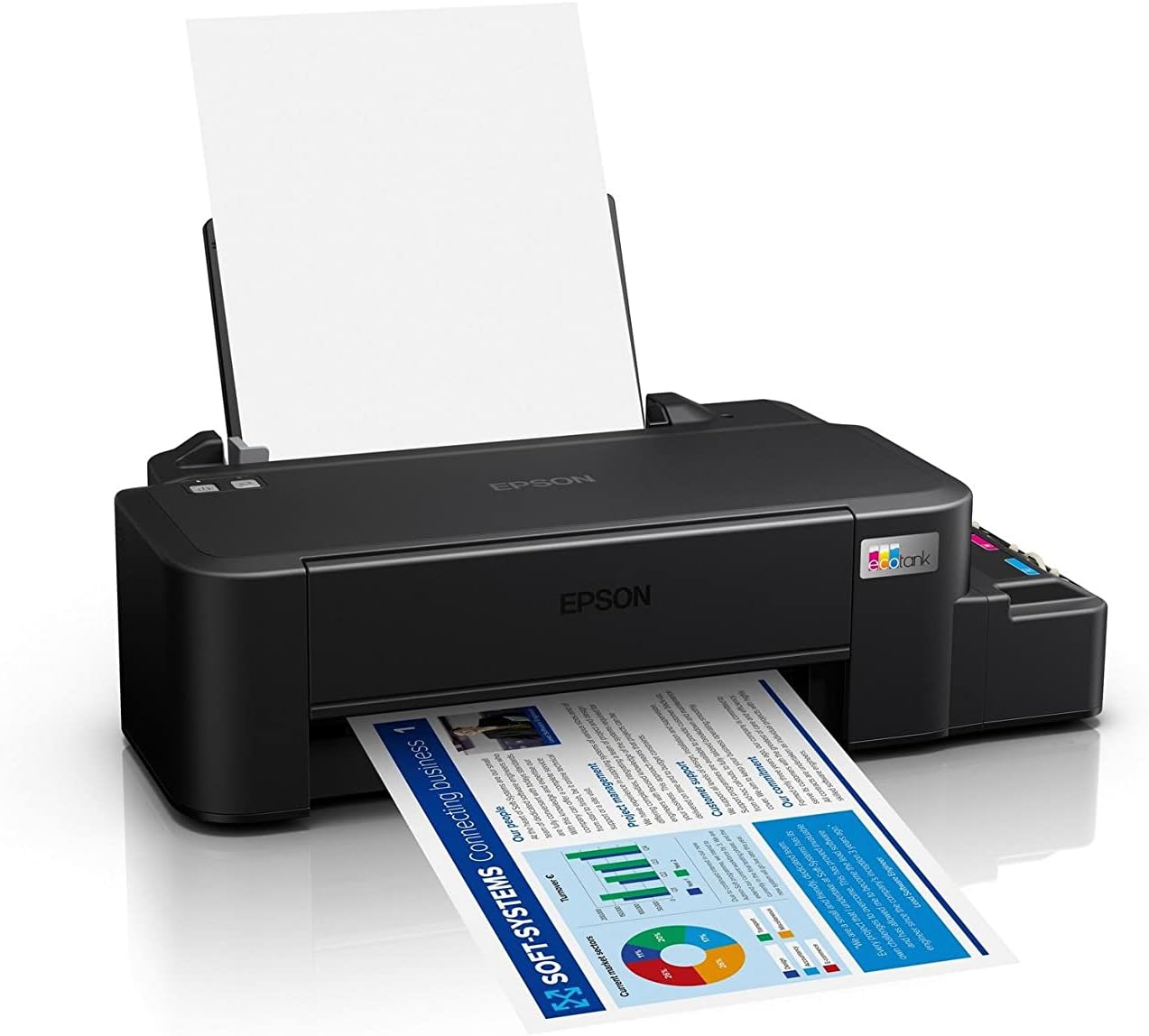
Image: The Epson EcoTank L121 printer actively printing a document. This illustrates paper being fed from the rear tray and exiting the front output tray.
2.2 Stampa di base
To print a document or image from your computer:
- Apri il documento o l'immagine che desideri stampare.
- Selezionare Stampa dal menu dell'applicazione (ad esempio, File > Stampa).
- Choose your Epson EcoTank L121 printer from the list of available printers.
- Regolare le impostazioni di stampa, come il formato della carta, la qualità di stampa e il numero di copie, in base alle esigenze.
- Clic Stampa.
3. Manutenzione
3.1 Controllo dei livelli di inchiostro
Visually inspect the ink tanks on the side of the printer. The transparent tanks allow you to monitor ink levels. Refill ink when levels approach the lower line to prevent air from entering the system, which can affect print quality.

Immagine: Angolata view of the Epson EcoTank L121 printer, highlighting the external ink tanks. This view clearly shows the four color ink reservoirs.
3.2 Pulizia della testina di stampa
If print quality declines (e.g., missing lines, incorrect colors), perform a print head cleaning. This can be done through the printer utility software on your computer:
- Open the Epson printer utility on your computer.
- Vai a Manutenzione or Utilità scheda.
- Selezionare Pulizia della testina e seguire le istruzioni sullo schermo.
Alternatively, you can perform a head cleaning by holding down the Manutenzione button on the printer for 3 seconds until the power light starts flashing. Release the button and wait for the cleaning cycle to complete.
3.3 Controllo dell'ugello
After a head cleaning, or if you suspect print quality issues, perform a nozzle check to verify if all nozzles are firing correctly. This can also be done via the printer utility software or by holding the Manutenzione button for a shorter duration (e.g., 1 second) to print a nozzle check pattern.
4. Risoluzione Dei Problemi
Questa sezione affronta i problemi più comuni che potresti riscontrare con la stampante Epson EcoTank L121.
- La stampante non risponde:
- Assicurarsi che la stampante sia accesa e collegata in modo sicuro tramite USB.
- Controlla che i driver della stampante siano installati correttamente sul tuo computer.
- Riavviare sia la stampante che il computer.
- Scarsa qualità di stampa:
- Eseguire un controllo degli ugelli per identificare quelli intasati.
- Run a print head cleaning cycle if nozzles are clogged.
- Controllare i livelli di inchiostro e, se necessario, ricaricare.
- Assicurati di utilizzare inchiostro Epson originale.
- Inceppamenti della carta:
- Spegnere la stampante e rimuovere con cautela la carta inceppata dal vassoio di alimentazione, dal vassoio di uscita o dall'interno della stampante.
- Assicurarsi che la carta sia caricata correttamente e non sia piegata o curled.
- Non sovraccaricare il vassoio della carta.
- Ink Light Flashing:
- This usually indicates low ink. Check the ink tanks and refill any low colors.
- After refilling, press the Manutenzione button to reset the ink level indicator.
Per una risoluzione dei problemi più dettagliata, fare riferimento al supporto Epson websito o il manuale elettronico completo.
5. Specifiche
| Caratteristica | Dettaglio |
|---|---|
| Marca | Epson |
| Nome del modello | EcoTank L121 |
| Tecnologia di stampa | Getto d'inchiostro |
| Tecnologia di connettività | USB 2.0 |
| Uscita della stampante | Colore |
| Risoluzione massima di stampa (colore) | 720 x 720 dpi |
| Velocità massima di stampa (nero) | 9 ppm (ISO) |
| Velocità massima di stampa (colore) | 4.8 ppm (ISO) |
| Caratteristiche speciali | Serbatoio di inchiostro ricaricabile |
| Peso dell'articolo | 2.4 chilogrammi |
| Dimensioni dell'articolo (P x L x A) | 21.5P x 46.1L x 13A centimetri |
| Dimensione massima del supporto | A4 |
| Inchiostro compatibile | Epson 664 series (6641/6642/6643/6644) |
| Stampa fronte-retro | Manuale |
6. Informazioni sulla garanzia
The Epson EcoTank L121 printer comes with a warranty of 2-years or 20,000 pages, whichever comes first. Please retain your proof of purchase for warranty claims. For full terms and conditions, refer to the official Epson warranty documentation included with your product or visit the Epson support websito.
7. Supporto
For further assistance, driver downloads, FAQs, and additional support resources, please visit the official Epson support websito:
Quando contatti l'assistenza, tieni a portata di mano il modello della stampante (L121) e il numero di serie.