
Introduzione
This manual provides essential information for setting up, operating, maintaining, and troubleshooting your Acer Aspire 3 A315-58-79LA laptop. Please read this guide thoroughly to ensure proper use and longevity of your device.
1. Impostazione
1.1 Disimballaggio e ispezione iniziale
Carefully remove the laptop and all accessories from the packaging. Inspect the device for any signs of damage. Retain the packaging for future transport or service needs.
1.2 Collegamento dell'alimentazione
Connect the AC adapter to the laptop's power input port and then plug the adapter into a power outlet. The battery will begin charging automatically. It is recommended to fully charge the battery before the first use.
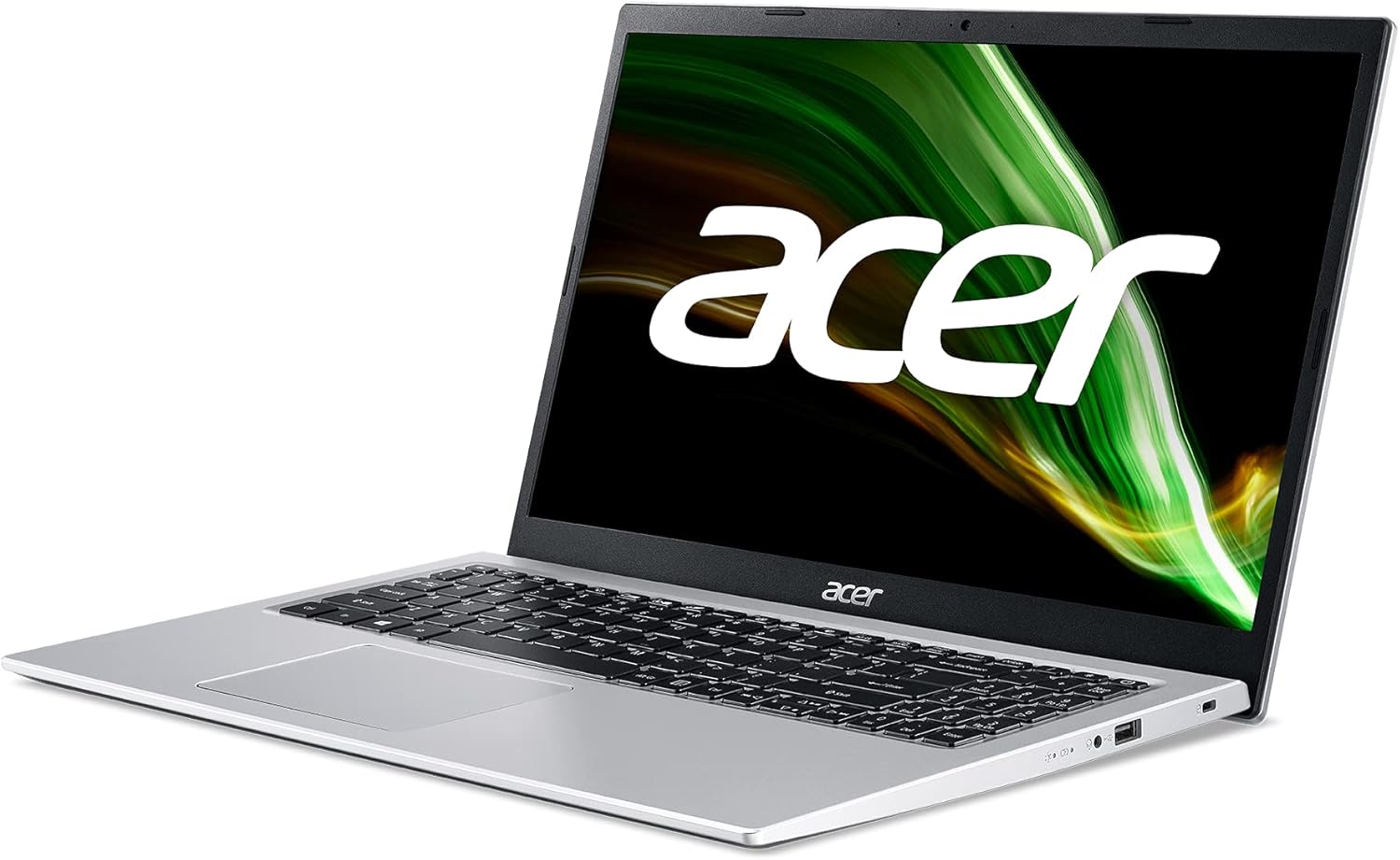
Immagine: lato destro view of the Acer Aspire 3 laptop, showing the power input port.
1.3 Primo avvio e configurazione di Windows
Press the power button to turn on the laptop. Follow the on-screen instructions to complete the Windows 11 Home setup process. This includes selecting your language, region, connecting to a network, and creating a user account.
1.4 Collegamento delle periferiche
You can connect external devices such as a mouse, keyboard, or external storage via the available USB ports. For external displays, use the HDMI port.

Immagine: lato sinistro view of the Acer Aspire 3 laptop, highlighting the HDMI and USB ports for connecting external devices.
2. Utilizzo del laptop
2.1 Modalità di accensione/spegnimento e sospensione
- Accensione: Premere il pulsante di accensione situato sulla tastiera.
- Fermare: Fare clic sul pulsante Start, quindi su "Arresta" e selezionare "Arresta il sistema".
- Sonno: Chiudere il coperchio del laptop oppure fare clic sul pulsante Start, quindi su Accensione e selezionare "Sospensione".
2.2 Tastiera e touchpad
The laptop features a QWERTY Spanish keyboard layout and a precision touchpad. Use the touchpad for navigation and gestures. Refer to Windows settings for touchpad customization.

Immagine: dall'alto verso il basso view of the Acer Aspire 3 laptop, showing the QWERTY Spanish keyboard and the integrated touchpad.
2.3 Connettività di rete
- Wifi: Access Wi-Fi settings through the Windows taskbar network icon to connect to available wireless networks. The laptop supports Wi-Fi 5 (802.11a/b/g/n/ac).
- Bluetooth: Enable Bluetooth in Windows settings to pair with compatible devices like headphones or mice (Bluetooth version 5.0).
- Collegamento Ethernet: Connect an Ethernet cable to the LAN port for a wired internet connection (up to 1000 Mbps).
3. Manutenzione
3.1 Pulizia del computer portatile
Utilizzare un panno morbido e privo di lanugine dampened with a small amount of water or a specialized screen cleaner to clean the display and exterior surfaces. Avoid harsh chemicals or abrasive materials. For the keyboard, use compressed air to remove dust and debris.
3.2 Cura della batteria
To maximize battery life, avoid extreme temperatures. Do not leave the laptop plugged in constantly after it is fully charged for extended periods. Periodically discharge and recharge the battery. The laptop uses a 1-cell Lithium Ion battery with an estimated life of 8 hours.
3.3 Aggiornamenti software
Regularly check for and install Windows updates to ensure your system has the latest security patches and performance improvements. Acer may also provide driver updates through their support websito.
3.4 Gestione dell'archiviazione
Periodicamente riview ed eliminare ciò che non è necessario files to free up storage space on the 512GB SSD. Consider using cloud storage for large files to optimize local performance.
4. Risoluzione Dei Problemi
4.1 Problemi comuni e soluzioni
- Il portatile non si accende: Ensure the AC adapter is securely connected and the power outlet is functional. Try a different power outlet. If the battery is completely drained, it may take a few minutes to show signs of life after plugging in.
- Display problems (no image, flickering): Connect an external monitor via HDMI to check if the issue is with the laptop's internal display. Restart the laptop. Update graphics drivers.
- Nessuna connessione Wi-Fi: Controlla se il Wi-Fi è abilitato nelle impostazioni di Windows. Riavvia il router e il laptop. Assicurati che i driver siano aggiornati.
- Prestazioni lente: Close unnecessary applications. Check for malware. Ensure sufficient free storage space. Update Windows and drivers.
4.2 Ripristino del sistema
Windows 11 offers recovery options to reset your PC or restore from a previous point. Access these options via Windows Settings > System > Recovery.
4.3 Quando contattare l'assistenza
If you encounter persistent issues that cannot be resolved with the above steps, or if you suspect a hardware malfunction, contact Acer customer support or an authorized service center.
5. Specifiche
| Caratteristica | Dettaglio |
|---|---|
| Nome del modello | A315-58 |
| Numero di modello del prodotto | NX.ADDEB.01L |
| Processore | Intel Core i7-1165G7 (4C/Quadcore 2.80GHz) |
| Grafica | Grafica Intel Iris Xe (integrata) |
| Memoria RAM | 16 GB DDR4 SDRAM (2800 MHz, Max 64 GB, 3 total slots) |
| Magazzinaggio | 512 GB SSD PCI Express (Solid State) |
| Sistema operativo | Windows 11 Casa |
| Display | 15.6 inches, FullHD (1920 x 1080 pixels), LED LCD |
| Connettività wireless | Wi-Fi 5 (802.11a/b/g/n/ac), Bluetooth 5.0 |
| Connettività cablata | Ethernet (1000 Mbps), HDMI (1 port), USB (3 ports) |
| Disposizione della tastiera | QWERTY spagnolo |
| Dispositivo di puntamento | Tastiera touch |
| Webcamma | Integrato |
| Microfono | SÌ |
| Altoparlanti | Altoparlanti stereo integrati |
| Batteria | 1-cell Lithium Ion, 36 Watt-hours, approx. 8 hours life |
| Dimensioni (L x P x A) | Dimensioni: 36.3 cm x 2 cm x 23.8 cm |
| Peso | 1.7 kg |
| Colore | Argento |
| Anno del modello | 2022 |
6. Informazioni sulla garanzia
This Acer Aspire 3 laptop comes with a Garanzia limitata di 3 anno. For detailed terms and conditions, including coverage, exclusions, and how to make a claim, please refer to the warranty documentation included with your product or visit the official Acer support websito.
7. Supporto
For further assistance, technical support, or to download the latest drivers and software, please visit the official Acer support websito. In genere, qui puoi trovare FAQ, guide alla risoluzione dei problemi e informazioni di contatto per il servizio clienti.
Supporto Acer Websito: www.acer.com/support