
Introduzione
This manual provides detailed instructions for the setup, operation, maintenance, and troubleshooting of your Keychron V5 Wired Custom Mechanical Keyboard. The Keychron V5 is a 96% layout keyboard featuring QMK/VIA programmability, hot-swappable switches, double-shot PBT keycaps, and compatibility with macOS, Windows, and Linux systems.
Contenuto della confezione
Si prega di verificare che tutti gli articoli siano presenti nel pacco:
- Tastiera meccanica personalizzata cablata Keychron V5
- Cavo da USB-C a USB-C
- Adattatore da USB-A a USB-C
- Estrattore per tasti
- Estrattore per interruttori
- Additional Keycaps for Windows/macOS
Impostare
Collegamento della tastiera
To connect your Keychron V5 keyboard:
- Individuare la porta USB-C sul retro della tastiera.
- Connect one end of the provided USB-C to USB-C cable to the keyboard.
- Connect the other end of the cable to a USB-C port on your computer. If your computer only has USB-A ports, use the provided USB-A to USB-C adapter.
- La tastiera verrà riconosciuta automaticamente dal sistema operativo.
System Toggle (Mac/Windows)
The Keychron V5 includes a system toggle switch to ensure full compatibility with both macOS and Windows operating systems. This switch is typically located on the back or side of the keyboard.
To switch between operating systems:
- Locate the 'Win/Mac' toggle switch.
- Spostare l'interruttore sulla posizione "Mac" per macOS o sulla posizione "Win" per Windows.
- The keyboard will adjust its key mappings accordingly.

Immagine: Lato view of the Keychron V5 keyboard, highlighting the system toggle switch and USB-C port for system compatibility.
Ergonomic Angle Adjustment
The keyboard features adjustable feet to customize the typing angle for improved ergonomics.
To adjust the typing angle:
- Capovolgere la tastiera per accedere ai piedini sul lato inferiore.
- Gently pull out the feet to extend them to your desired angle. There are usually two levels of adjustment.

Image: The Keychron V5 keyboard with its adjustable feet extended, demonstrating the ergonomic angle design.
Istruzioni per l'uso
Funzioni chiave e layout
The Keychron V5 features a 96% layout with 97 keys, efficiently retaining function keys and a num pad while saving desk space. The keyboard comes with pre-installed double-shot PBT keycaps in an OSA profile, designed for a comfortable fingertip feel and excellent oil resistance.
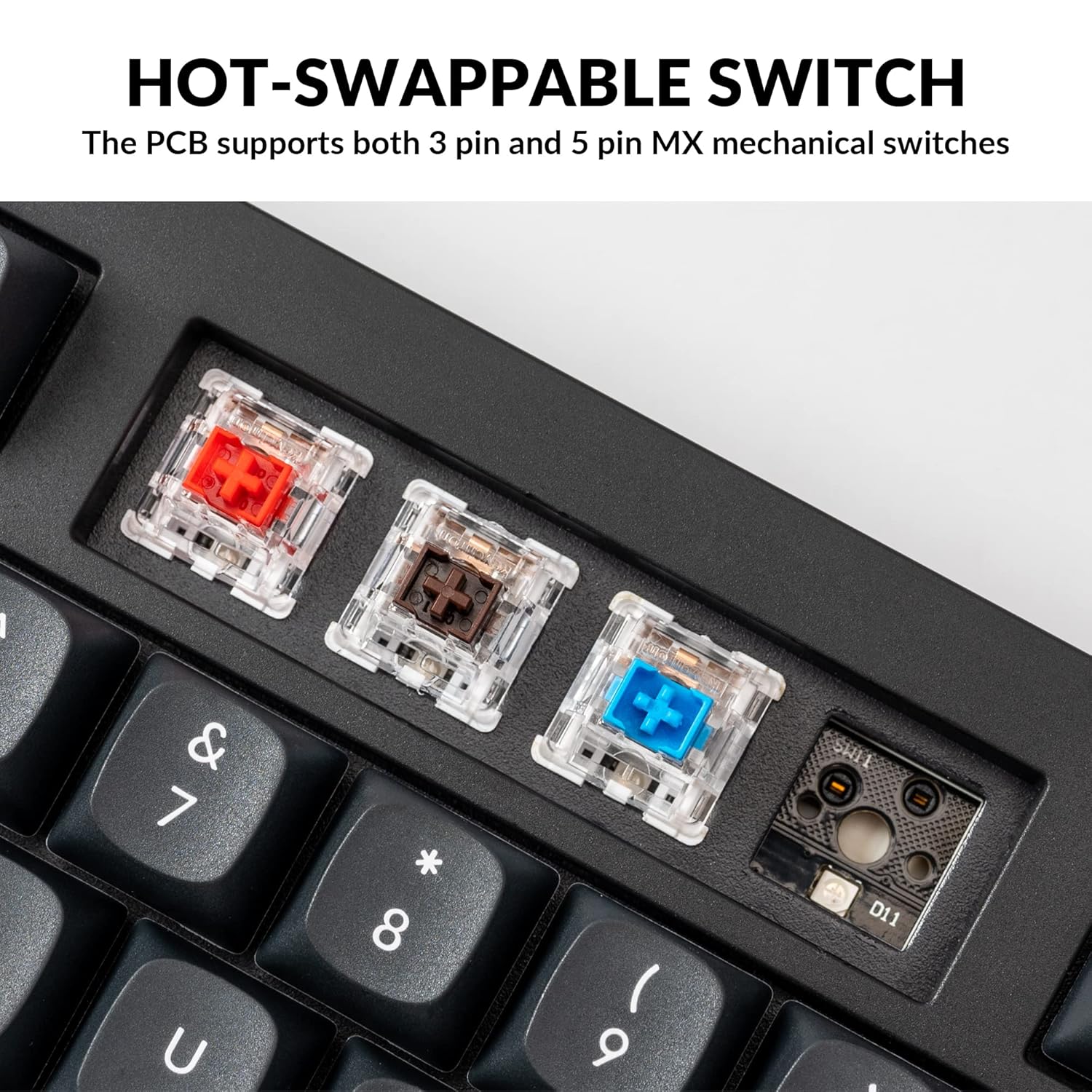
Immagine: Un completo view of the Keychron V5 keyboard, showcasinil suo layout al 96% e il design dei tasti.
Personalizzazione QMK/VIA
The Keychron V5 supports QMK/VIA firmware, allowing for comprehensive customization of key mappings, macros, and backlight effects. VIA is a graphical user interface that simplifies the programming process.
Per personalizzare la tua tastiera:
- Scarica il software VIA dal sito ufficiale Keychron websito o il repository VIA GitHub.
- Connect your keyboard to your computer.
- Launch the VIA software. The software should automatically detect your Keychron V5.
- Use the intuitive interface to remap keys, create macros, and adjust lighting settings across multiple layers.
For detailed instructions on using QMK/VIA, refer to the official Keychron documentation or community guides.

Image: A visual representation of the VIA software interface, demonstrating how users can customize key layouts and macros for the Keychron V5.
Programmable Knob
The Keychron V5 features a programmable rotary knob, which can be customized via QMK/VIA to control various functions such as volume, zoom, or scrolling.
To customize the knob's function:
- Aprire il software VIA.
- Navigate to the knob customization section.
- Assign desired functions for clockwise rotation, counter-clockwise rotation, and pressing the knob.

Immagine: un primo piano view of the programmable rotary knob on the Keychron V5 keyboard, highlighting its textured surface.
Interruttori sostituibili a caldo
The Keychron V5 is equipped with hot-swappable sockets, allowing you to change mechanical switches without soldering. It supports most 3-pin and 5-pin MX mechanical switches (e.g., Cherry, Gateron, Kailh, Panda).
The keyboard comes with pre-lubed K Pro Red linear switches, offering a smooth and responsive typing experience with a lifespan of up to 50 million keystrokes.
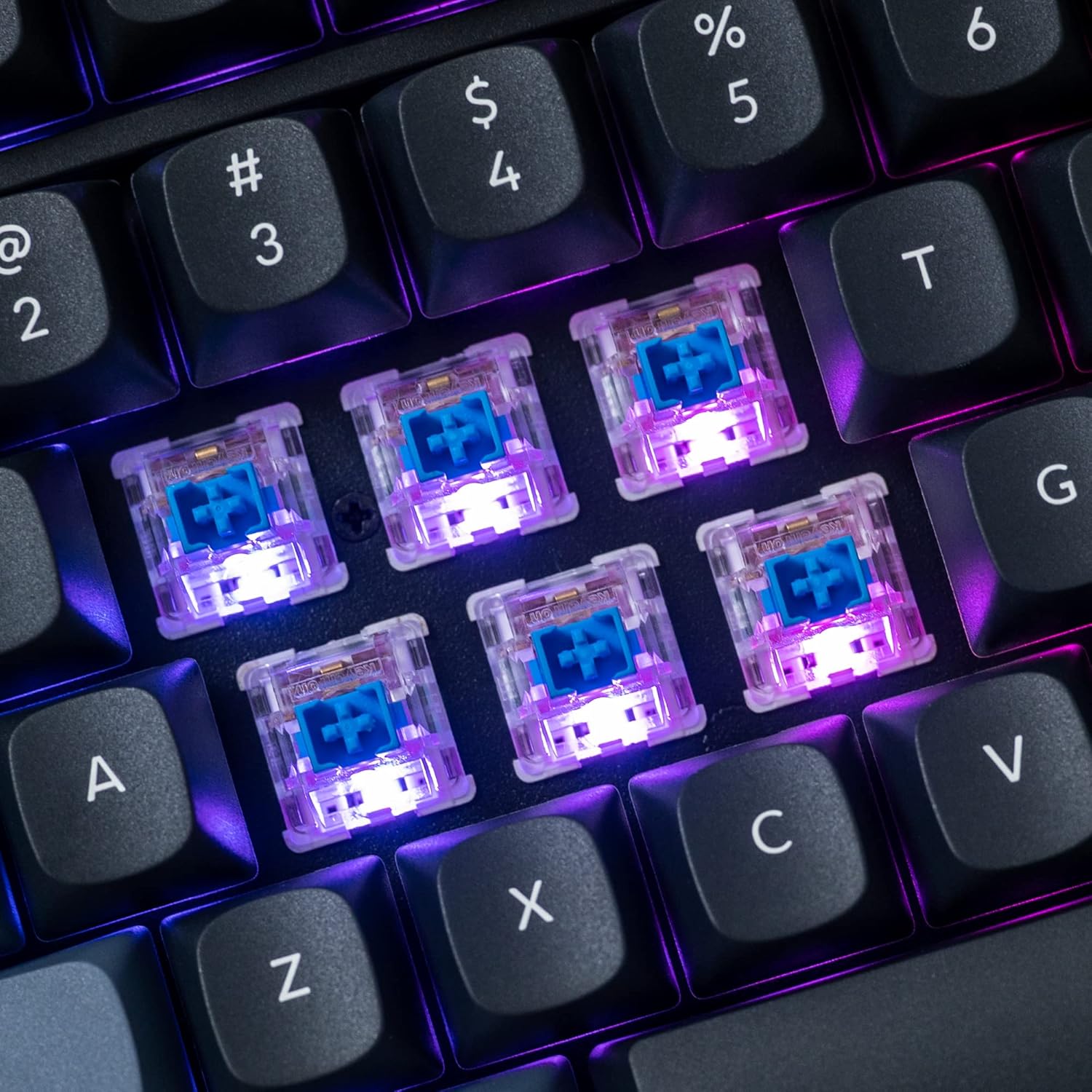
Immagine: Un dettaglio view of the hot-swappable mechanical switches on the Keychron V5 keyboard, illuminated by RGB backlighting.
Retroilluminazione
The V5 features south-facing RGB backlighting, designed to better illuminate the keyboard from the typist's angle and prevent interference when using Cherry-profile keycaps. You can customize the backlight effects and colors using the VIA software.

Image: A close-up of the double-shot PBT keycaps on the Keychron V5 keyboard, showcasing their texture and legends.
Manutenzione
Pulizia
Per mantenere la tastiera pulita e longeva:
- Tasti: Utilizzare un estrattore per tasti per rimuoverli. Pulirli con una soluzione di sapone neutro e un panno morbido, quindi risciacquarli e asciugarli accuratamente prima di riposizionarli.
- Corpo della tastiera: Pulisci il corpo della tastiera con un panno morbido eamp stoffa. Evitare l'uso di prodotti chimici aggressivi o materiali abrasivi.
- Polvere: Utilizzare aria compressa per rimuovere polvere e detriti tra i tasti e gli interruttori.
Sostituzione interruttore
Per sostituire un interruttore:
- Utilizzando l'estrattore per tasti in dotazione, rimuovere con cautela il tasto dall'interruttore che si desidera sostituire.
- Insert the switch puller tool around the top and bottom clips of the switch.
- Gently squeeze the clips and pull the switch straight up to remove it from the PCB.
- Allineare i pin del nuovo interruttore con i fori sul PCB. Assicurarsi che i pin siano dritti.
- Press the new switch firmly into place until it clicks. Ensure it is seated properly and not bent.
- Riposizionare il tasto.
Sostituzione dei tasti
Per sostituire i tasti:
- Use the keycap puller to gently remove the existing keycap by hooking it onto the keycap and pulling upwards.
- Align the new keycap with the cross-shaped stem of the switch.
- Press the new keycap firmly down until it is fully seated.
Risoluzione dei problemi
- La tastiera non risponde:
Ensure the USB cable is securely connected to both the keyboard and the computer. Try a different USB port or cable. Verify the system toggle switch is set correctly for your operating system. - Chiavi non registrate:
If specific keys are not working, the switch might be faulty or not fully seated. Try removing and re-inserting the switch. If the issue persists, replace the switch. - Problemi di retroilluminazione:
Check VIA software settings to ensure backlighting is enabled and configured correctly. If only certain LEDs are not working, it might indicate a faulty LED or switch. - Il software QMK/VIA non rileva la tastiera:
Ensure the keyboard is connected via USB. Close and reopen the VIA software. Make sure you have the correct firmware loaded if you have flashed custom firmware. - Keycaps Feel Loose:
Ensure keycaps are fully pressed onto the switch stems. If a keycap consistently feels loose, the switch stem might be damaged, or the keycap's cross-mount might be worn.
Specifiche
| Caratteristica | Specificazione |
|---|---|
| Marca | Chiave di cronaca |
| Modello | V5 |
| Descrizione della tastiera | Meccanico |
| Disposizione della tastiera | QWERTY, 96% Layout (97 Keys) |
| Tecnologia di connettività | Cablato (USB-C) |
| Dispositivi compatibili | PC (macOS, Windows, Linux) |
| Tipo di interruttore | Linear (K Pro Red) |
| Hot-swappable Support | Yes (3-pin and 5-pin MX mechanical switches) |
| keycaps | Double-shot PBT, OSA Profile |
| Retroilluminazione | RGB esposto a sud |
| Materiale di recinzione | Polybutylene Terephthalate, Silicone |
| Caratteristiche aggiuntive | QMK/VIA Programmable, Programmable Knob, Screw-in Stabilizers |
Garanzia e supporto
Keychron products are typically covered by a limited warranty. For specific warranty terms, duration, and conditions, please refer to the warranty information provided with your product packaging or visit the official Keychron websito.
For technical support, troubleshooting assistance, or to inquire about replacement parts, please contact Keychron customer service through their official website's support portal. When contacting support, please have your product model (Keychron V5) and purchase details ready.