
1. Introduzione
Welcome to the HyperX Armada 25 Gaming Monitor user manual. This document provides essential information for setting up, operating, maintaining, and troubleshooting your new monitor. The HyperX Armada 25 is designed for competitive gaming, featuring a 24.5-inch Full HD (1920x1080) IPS panel, a 240Hz refresh rate, and a 1ms response time, ensuring smooth and responsive visuals. It also includes NVIDIA G-SYNC compatibility to eliminate screen tearing and minimize input latency. A desk mount is included for convenient setup and to maximize desk space.
Caratteristiche principali:
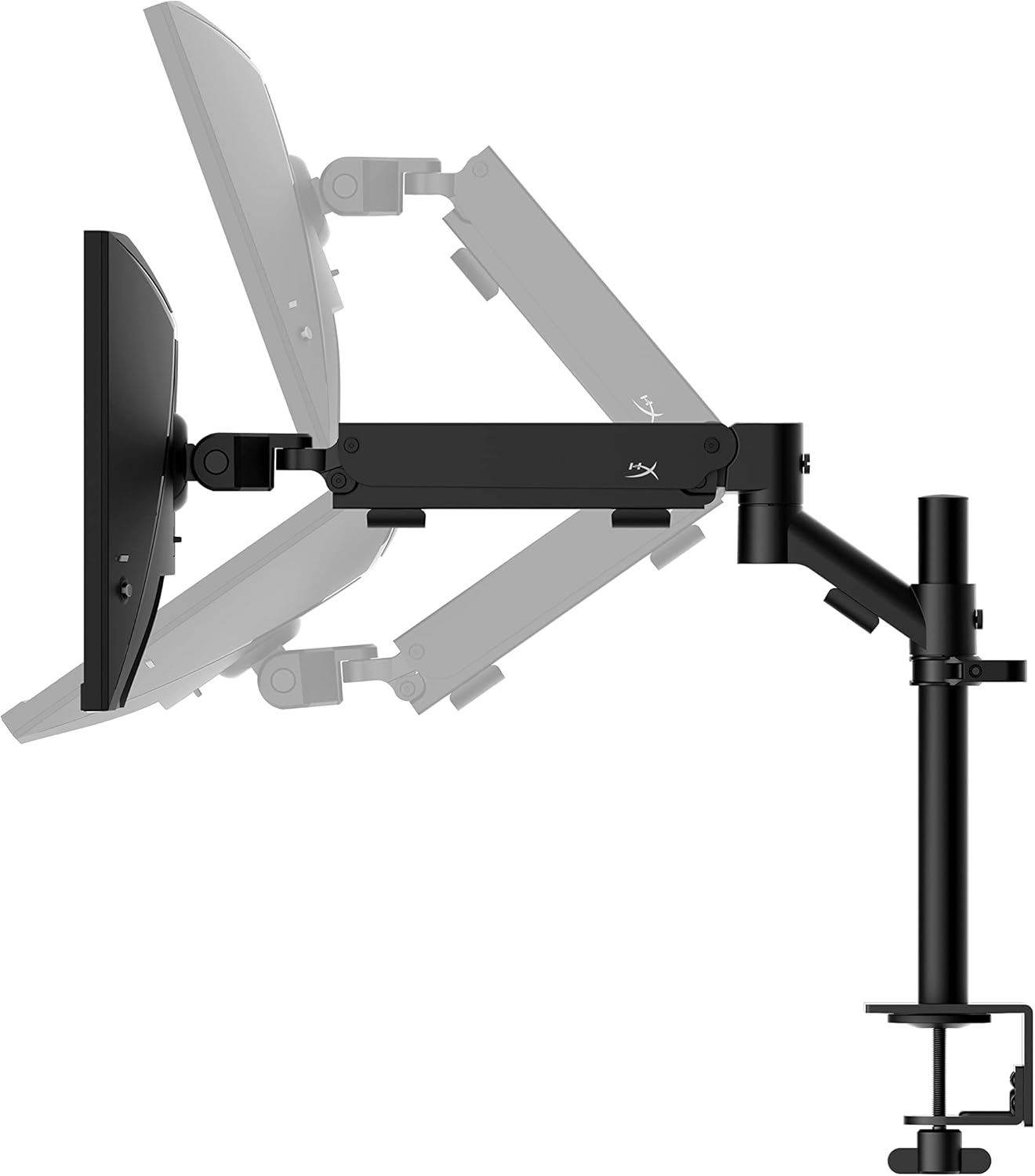
- Pacchetto All-in-One: Includes an ergonomic arm and desk mount for easy setup and space-saving.
- Elevata frequenza di aggiornamento e tempo di risposta: 240Hz refresh rate and 1ms response time for ultra-smooth gaming.
- Vibrant IPS Panel: 24.5-inch Full HD (1920x1080) IPS panel delivers stunning visuals with accurate colors and wide viewangoli di inclinazione.
- Compatibile con NVIDIA G-SYNC: Eliminates screen tearing and reduces stuttering for a fluid gaming experience.

Video ufficiale del prodotto:
2. Impostazione
This section guides you through the initial setup of your HyperX Armada 25 Gaming Monitor, including assembly and connection to your computer.
2.1. Assembling the Desk Mount
The HyperX Armada 25 comes with an integrated ergonomic desk mount. Follow the instructions provided in the separate quick start guide for detailed assembly steps. The monitor head easily snaps into the arm, allowing for quick and secure installation.

2.2. Collegamento del monitor
Connect the monitor to your computer using the appropriate cables. The HyperX Armada 25 supports both HDMI and DisplayPort connections.
- Collegare un'estremità del cavo HDMI o DisplayPort alla porta corrispondente sulla scheda grafica del computer.
- Connect the other end of the cable to an available HDMI 2.0 or DisplayPort 1.4 port on the back of your monitor.
- Collegare il cavo di alimentazione al monitor e poi a una presa di corrente.
- Premere il pulsante di alimentazione sul monitor per accenderlo.

3. Funzionamento del monitor
This section covers basic operation and navigation of the monitor's On-Screen Display (OSD) menu.
3.1. Navigazione tramite display su schermo (OSD)
The OSD menu is controlled using a joystick located on the back of the monitor. This joystick allows you to power on/off the monitor and navigate through various settings.
- Premere il joystick: Per aprire il menu OSD o confermare una selezione.
- Muovi il joystick su/giù/sinistra/destra: To navigate through menu options and adjust settings.
- Hold the joystick: To power off the monitor.

3.2. Regolazione della posizione del monitor
The ergonomic desk mount allows for flexible positioning of your monitor. You can adjust the height, tilt, swivel, and pivot to find your optimal viewangolo di ing.

4. Manutenzione
Proper maintenance ensures the longevity and optimal performance of your HyperX Armada 25 Gaming Monitor.
- Pulizia dello schermo: Utilizzare leggermente un panno morbido e privo di lanugine dampened with water or a specialized screen cleaner. Avoid using harsh chemicals, abrasive materials, or direct spraying onto the screen.
- Pulizia del Casing: Pulisci il monitor casing con un panno morbido e asciutto.
- Ventilazione: Assicurarsi che le aperture di ventilazione del monitor non siano ostruite per evitare il surriscaldamento.
- Spegnimento quando non in uso: Spegnere il monitor quando non lo si utilizza per lunghi periodi per risparmiare energia e prolungarne la durata.
5. Risoluzione Dei Problemi
Se riscontri problemi con il monitor, fai riferimento ai seguenti passaggi comuni per la risoluzione dei problemi.
- Nessun potere:
- Controllare se il cavo di alimentazione è collegato saldamente sia al monitor che alla presa di corrente.
- Assicurarsi che la presa di corrente funzioni correttamente.
- Premi il pulsante di accensione sul monitor.
- Nessun segnale:
- Verify that the HDMI or DisplayPort cable is securely connected to both the monitor and your computer.
- Assicurati che il computer sia acceso e non in modalità sospensione.
- Selezionare la sorgente di ingresso corretta tramite il menu OSD.
- Flickering Screen or Image Issues:
- Controllare che il cavo del display non sia danneggiato o che i collegamenti siano allentati.
- Assicurati che i driver della scheda grafica siano aggiornati.
- Regola la frequenza di aggiornamento nelle impostazioni dello schermo del tuo computer.
- If G-SYNC is enabled, try disabling it temporarily to see if the issue persists.
- Buttons Not Responding (OSD Joystick):
- Assicurarsi che il monitor sia acceso.
- Try restarting the monitor by unplugging and replugging the power cable.
- Clean around the joystick to ensure no debris is obstructing its movement.
6. Specifiche
Detailed technical specifications for the HyperX Armada 25 Gaming Monitor.
| Caratteristica | Dettaglio |
|---|---|
| Dimensioni del prodotto | 21.94 x 25.79 x 31.12 pollici; 16.98 libbre |
| Numero modello articolo | HyperX Armada 25 |
| Data prima disponibilità | 24 agosto 2022 |
| Produttore | Società a responsabilità limitata |
| ASIN | B0B2C1G356 |
| Dimensioni dello schermo | Diagonale da 24.5 pollici |
| Risoluzione | Full HD (1920x1080) |
| Frequenza di aggiornamento | 240 Hz |
| Tipo di pannello | IPS Panel |
| Tempo di risposta | 1 millisecondo |
| Tecnologia di sincronizzazione | Compatibile con NVIDIA® G-SYNC® |
| Included Mount | Desk Mount Included |
| Connettività | HDMI and Display Port |
7. Garanzia e supporto
For warranty information, technical support, or to access additional resources, please visit the official HyperX websito o contattare il loro servizio clienti.
- HyperX ufficiale Websito: www.hyperx.com
- Pagina di supporto al prodotto: Refer to the support section on the HyperX websito per il tuo modello specifico.