
Introduzione
This manual provides comprehensive instructions for the setup, operation, maintenance, and troubleshooting of your HP LaserJet M110w Monochrome Laser Printer. Designed for efficiency and compact spaces, this printer delivers professional-quality monochrome prints.
The HP LaserJet M110w is engineered to work exclusively with cartridges containing new or reused HP chips. Dynamic security measures are in place to block cartridges with non-HP chips. Regular firmware updates ensure the continued effectiveness of these measures, blocking cartridges that may have previously functioned. Reused HP chips enable the use of reused, remanufactured, or recycled cartridges.

Figura 1: Fronte view of the HP LaserJet M110w Monochrome Laser Printer.
Caratteristiche principali:
- Compact Design: One of the smallest laser printers in its category, ideal for limited spaces.
- High-Speed Printing: Up to 20 pages per minute (ppm) for monochrome documents.
- High Resolution: Print resolution up to 600 x 600 dpi.
- Paper Capacity: Equipped with a 150-sheet input tray.
- Mobile Connectivity: Seamless printing and scanning capabilities via the HP Smart app.
- Connectivity Options: Includes 1 high-speed USB port and wireless (Wi-Fi) connectivity.
Impostare
1. Disimballaggio della stampante
Carefully remove the printer from its packaging. Ensure all packing materials, tapes, and protective films are removed from the exterior and interior of the printer. Verify that all components listed below are present:
- Stampante HP LaserJet M110w
- Cavo di alimentazione
- HP Black LaserJet Toner Cartridge (initial yield: 300 pages)
- Installation Poster
- Manuale di riferimento
- Informazioni sulla garanzia
- Volantini
2. Collegamento del cavo di alimentazione
Connect the power cable to the printer's power port and then to a grounded electrical outlet. Do not connect the USB cable until instructed by the software installation process.
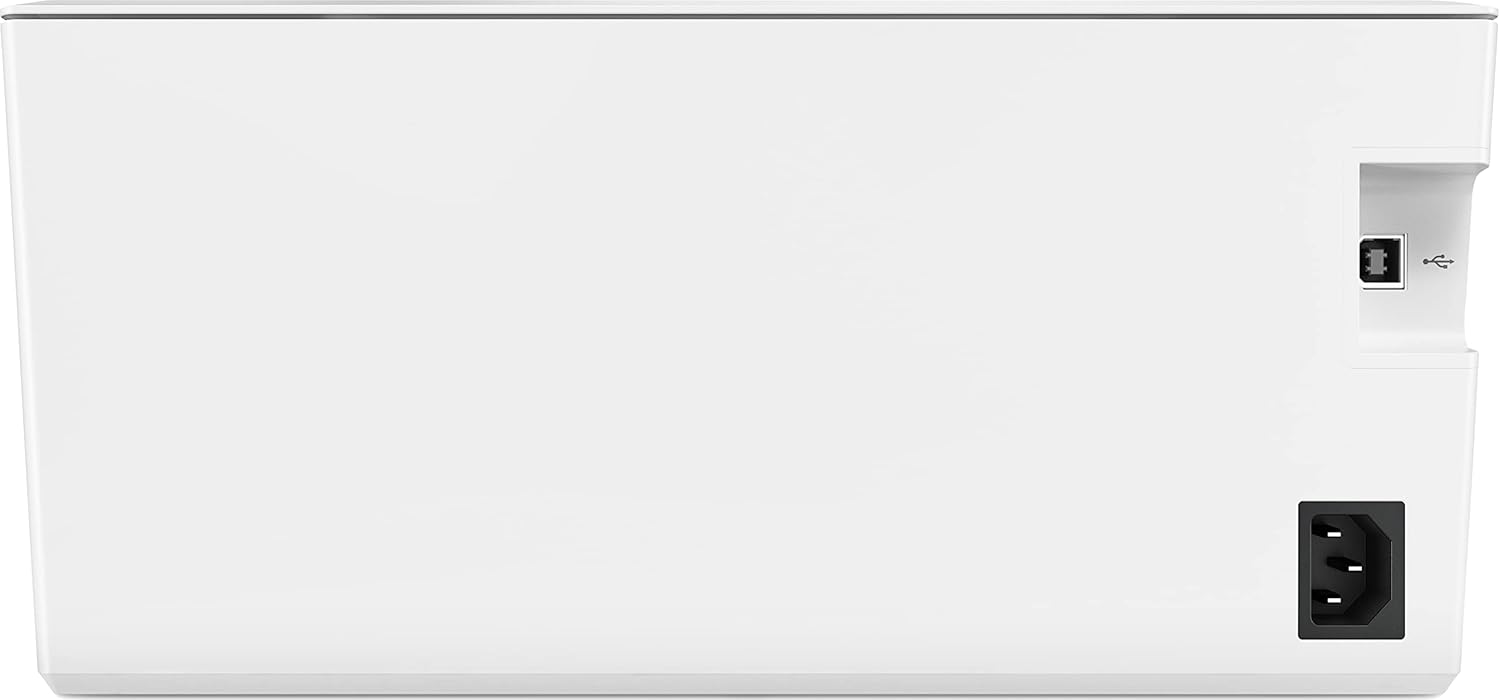
Figura 2: Posteriore view of the printer, highlighting the power input and USB port.
3. Installazione della cartuccia del toner
Open the toner access door. Remove the new toner cartridge from its packaging and gently shake it to distribute the toner. Insert the cartridge into the designated slot until it clicks into place. Close the access door.
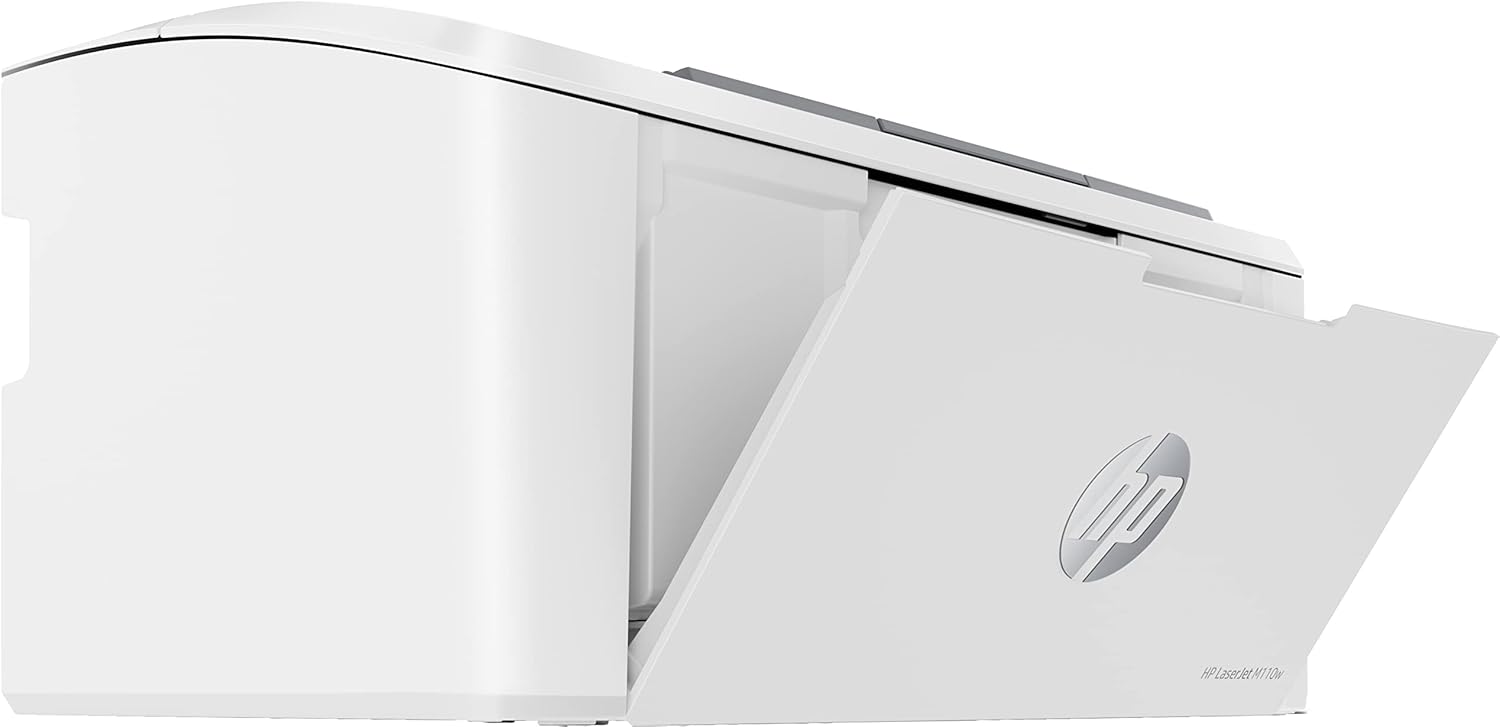
Figura 3: lato view of the printer with the toner access panel open.
4. Installazione del software e connettività
For initial setup and full functionality, it is recommended to download and install the HP Smart app on your computer or mobile device. The app will guide you through the network setup (Wi-Fi) or USB connection process.
- Configurazione senza fili: Follow the instructions in the HP Smart app to connect your printer to your Wi-Fi network. This enables wireless printing from multiple devices.
- Configurazione USB: If connecting via USB, connect the USB cable (not included) from the printer to your computer only when prompted by the HP Smart app or driver installation.
Utilizzo della stampante
1. Caricamento della carta
Open the input tray and extend the paper guides. Load up to 150 sheets of standard A4 paper into the tray. Adjust the paper guides to fit the paper stack snugly without bending the paper. The printer supports various media types, including envelopes.

Figure 4: Printer with the paper input tray extended and paper loaded.
2. Stampa di documenti
Once the printer is connected and drivers are installed, you can print documents from your computer or mobile device. For mobile printing and scanning, use the HP Smart app.
- Da un computer: Open the document you wish to print, select "Print" from the application's menu, choose the HP LaserJet M110w, and adjust print settings as needed (e.g., number of copies, paper size, duplex printing).
- Da un dispositivo mobile: Use the HP Smart app to select documents or photos from your device's storage or cloud services, then send them to the printer.
The printer supports automatic duplex (two-sided) printing, which can be enabled through your print settings.
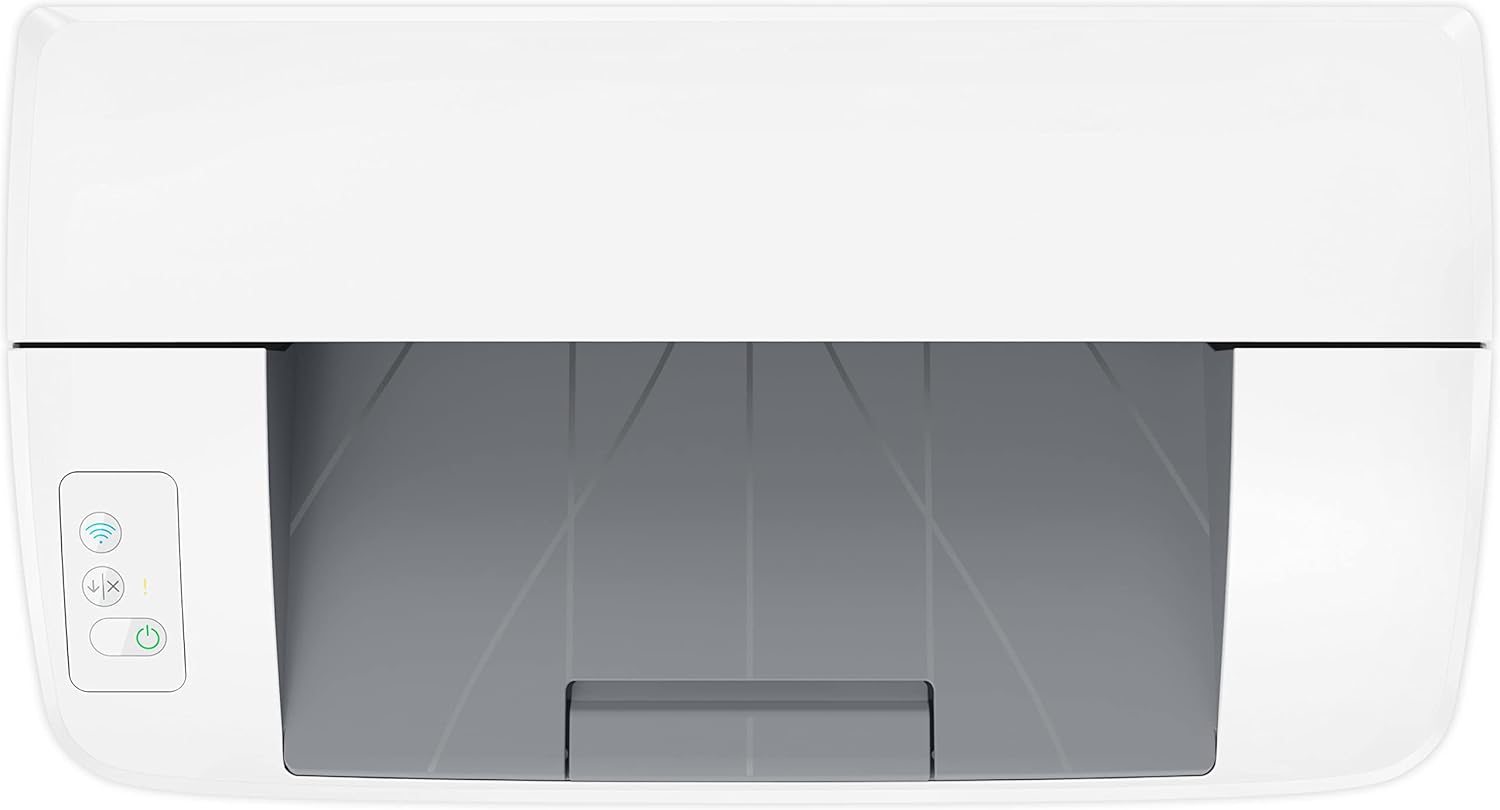
Figura 5: in alto view of the printer, showing the control panel with power and wireless indicator buttons.
Manutenzione
1. Sostituzione della cartuccia del toner
When the toner level is low, the printer's status lights or the HP Smart app will indicate that the cartridge needs replacement. To replace the cartridge:
- Aprire lo sportello di accesso al toner.
- Estrarre con cautela la vecchia cartuccia del toner.
- Unpack the new HP original toner cartridge and gently shake it side-to-side to distribute the toner.
- Inserire la nuova cartuccia nella stampante finché non si blocca in posizione.
- Chiudere lo sportello di accesso al toner.
Consider enrolling in HP Instant Ink for Toner service to automatically receive new toner cartridges when yours run low, potentially saving up to 50% on toner costs. This service includes recycling of used cartridges.
2. Pulizia della stampante
Una pulizia regolare aiuta a mantenere la qualità di stampa e prolunga la durata della stampante.
- Esterno: Wipe the exterior surfaces of the printer with a soft, lint-free cloth dampcon acqua. Non utilizzare detergenti abrasivi o solventi.
- Interno: Refer to the HP Smart app or the online support documentation for specific instructions on cleaning internal components if print quality issues persist. Avoid touching the transfer roller or other sensitive internal parts.
Risoluzione dei problemi
This section provides solutions to common issues you might encounter with your HP LaserJet M110w printer.
Problemi comuni e soluzioni:
- La stampante non risponde:
- Assicurarsi che la stampante sia accesa e che il cavo di alimentazione sia collegato saldamente.
- Check the USB cable connection (if applicable) or verify the Wi-Fi connection status.
- Riavviare sia la stampante che il computer/dispositivo.
- Inceppamenti della carta:
- Spegnere la stampante.
- Carefully open all access doors and remove any jammed paper, pulling in the direction of the paper path.
- Assicurarsi che la carta sia caricata correttamente nel vassoio di alimentazione e che non sia troppo piena.
- Scarsa qualità di stampa:
- Controllare il livello della cartuccia del toner e sostituirla se è basso.
- Assicuratevi di utilizzare cartucce di toner HP originali.
- Pulire la stampante come descritto nella sezione Manutenzione.
- Verificare che l'impostazione del tipo di carta nel driver di stampa corrisponda alla carta caricata.
- Problemi di connessione wireless:
- Assicurati che il router Wi-Fi sia acceso e funzionante.
- Check the printer's wireless indicator light. If it's off or blinking, re-run the wireless setup using the HP Smart app.
- Move the printer closer to the wireless router if possible.
For more detailed troubleshooting steps and support, visit the official HP support websito o utilizzare l'app HP Smart.
Specifiche
| Caratteristica | Specificazione |
|---|---|
| Nome del modello | LaserJet M110w |
| Numero di modello | 7MD66F#B19 |
| Tipo di stampante | Stampante laser monocromatica |
| Velocità di stampa (monocromatica) | Fino a 20 pagine al minuto (ppm) |
| Risoluzione di stampa (nero) | Up to 600 x 600 dpi (effective 1200 dpi) |
| Stampa fronte-retro | Automatico (Sì) |
| Capacità del vassoio di ingresso | 150 fogli |
| Dimensione massima del supporto | A4 |
| Tipi di media supportati | Plain paper, Envelopes |
| Connettività | USB 2.0, Wi-Fi (WLAN) |
| Dimensioni del prodotto (L x P x A) | 360 mm x 346 mm x 280 mm (circa 14.2 x 13.6 x 11 pollici) |
| Peso del prodotto | 3.8 kg (circa 8.4 libbre) |
| Consumo energetico | 361 Watt (stampa) |
| Sistemi operativi compatibili | Windows, macOS (e.g., Mac OS 10.15 Catalina and later) |
Garanzia e supporto
Informazioni sulla garanzia:
Your HP LaserJet M110w printer comes with a limited warranty. Please refer to the warranty information included in the product packaging for specific terms and conditions.
- Tipo di garanzia: Garanzia limitata
- Disponibilità ricambi: Garantito per 2 anni
- Aggiornamenti software: Guaranteed until April 13, 2030
Assistenza clienti:
For technical assistance, product registration, or to access the latest drivers and software, please visit the official HP support website. You can also find extensive FAQs and troubleshooting guides online.
Supporto HP Websito: www.hp.com/support