
1. Introduzione
The DataLocker AlphaCam W is a high-definition video conferencing camera designed for clear and reliable communication. It provides crisp images with vivid color detail and a smooth video frame rate, making it ideal for video conferences and web-based education. This manual provides essential instructions for setting up, operating, and maintaining your AlphaCam W.
2. Contenuto della confezione
- DataLocker AlphaCam W Video Conferencing Camera
- USB Cable (integrated or separate, for connection)
- Manuale dell'utente (questo documento)
3. Impostazione
The AlphaCam W is designed for easy setup without the need for additional software or drivers. Simply connect it to your computer via USB.
3.1 Collegamento della fotocamera
- Disimballare la fotocamera: Carefully remove the AlphaCam W from its packaging.
- Posiziona la fotocamera: The AlphaCam W features a versatile clip that allows it to be securely mounted on top of your monitor or laptop screen. Alternatively, it can be placed on a flat desktop surface.
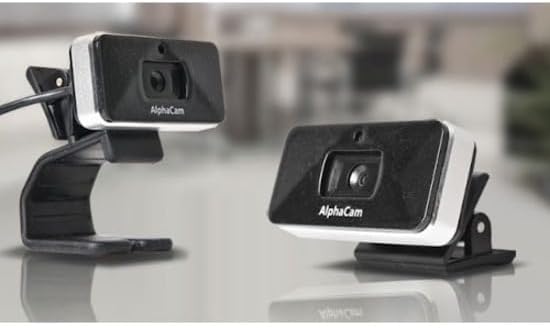
Image: The AlphaCam W can be clipped onto a monitor or placed on a flat surface.
- Connessione al computer: Plug the USB cable from the AlphaCam W into an available USB 2.0 port on your computer.
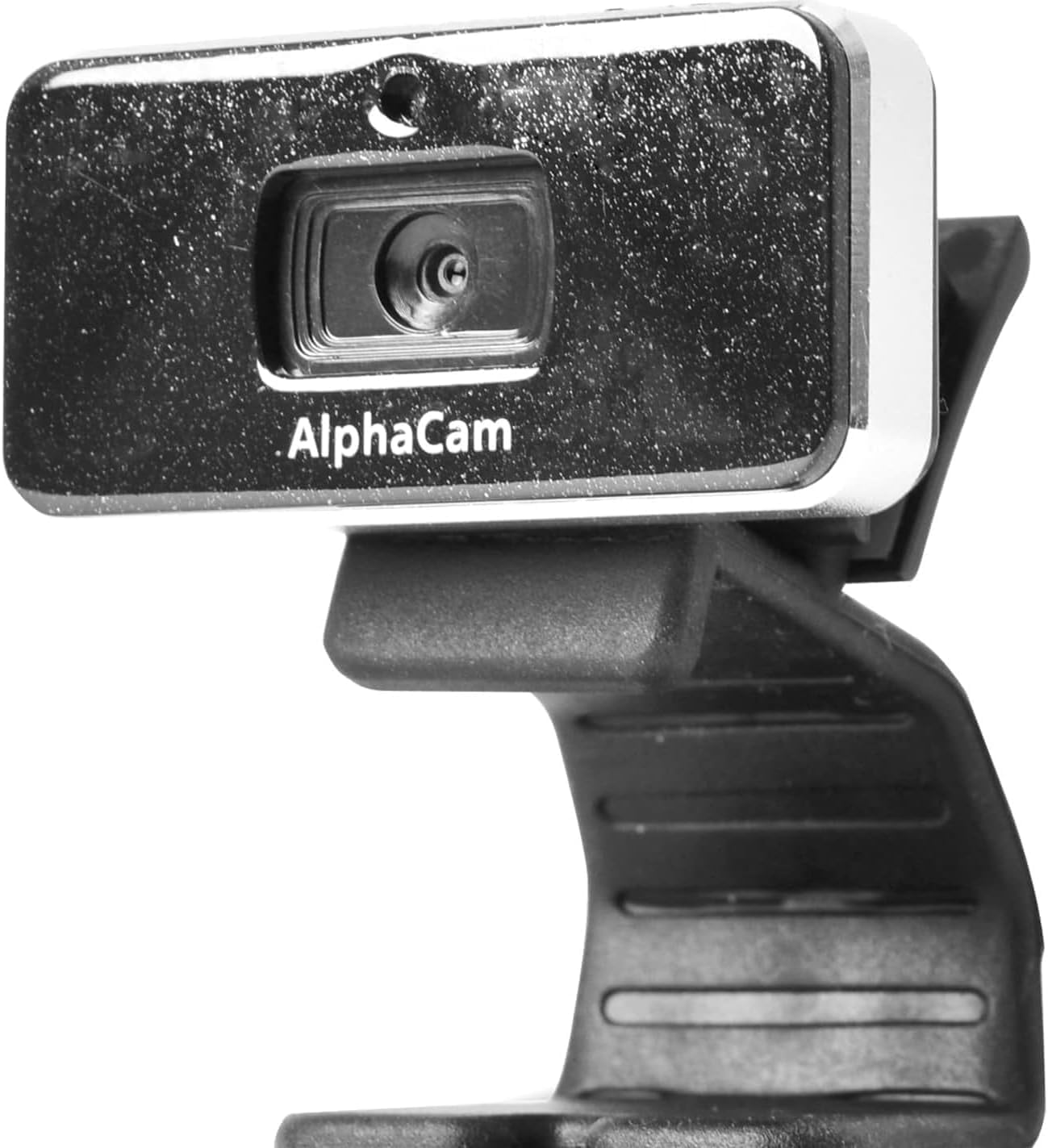
Immagine: Frontale view of the DataLocker AlphaCam W camera.
- Riconoscimento automatico: Your computer should automatically detect and install the necessary drivers for the camera. This process typically takes a few moments.
4. Istruzioni per l'uso
Once connected, the AlphaCam W is ready for use with your preferred video conferencing or streaming applications.
4.1 Utilizzo con le applicazioni
- Seleziona la fotocamera: Open your video conferencing software (e.g., Zoom, Microsoft Teams, Google Meet, Skype). Navigate to the video settings or preferences within the application.
- Choose AlphaCam W: From the list of available cameras, select "DataLocker AlphaCam W" (or similar name) as your video input device.
- Start Video: Activate your video feed within the application. The AlphaCam W will begin transmitting high-definition video at up to 1280 x 720 resolution and 30 frames per second.
4.2 Considerazioni importanti
- Microphone-Free Design: The AlphaCam W does not include an integrated microphone. This design choice helps prevent potential data leaks and eliminates conflicts with existing computer or headset microphones. You will need to use a separate microphone for audio input during calls.
- Illuminazione: For optimal video quality, ensure adequate lighting in your environment. Avoid strong backlighting that can silhouette your image.
5. Manutenzione
To ensure the longevity and optimal performance of your AlphaCam W, follow these simple maintenance guidelines:
- Pulizia della lente: Pulisci delicatamente l'obiettivo della fotocamera con un panno morbido e privo di lanugine. Per le macchie ostinate, strofina leggermenteampPulire il panno con acqua o una soluzione detergente per lenti. Evitare materiali abrasivi o sostanze chimiche aggressive.
- Pulizia del corpo: Per pulire il corpo della fotocamera, utilizzare un panno morbido e asciutto.
- Magazzinaggio: When not in use, store the camera in a clean, dry place away from extreme temperatures and direct sunlight.
- Evitare gocce: Handle the camera with care to prevent damage from drops or impacts.
6. Risoluzione Dei Problemi
If you encounter issues with your AlphaCam W, refer to the following troubleshooting tips:
6.1 No Image or Camera Not Detected
- Controllare la connessione USB: Ensure the USB cable is securely plugged into both the camera and your computer. Try a different USB port.
- Riavvia il computer: A volte un semplice riavvio può risolvere i problemi di rilevamento.
- Controllare Gestione dispositivi (Windows) / Informazioni di sistema (macOS): Verify that the camera is listed under imaging devices or USB devices. If there's an error, try updating or reinstalling drivers (though typically not required for this plug-and-play device).
- Prova un altro computer: If possible, test the camera on another computer to determine if the issue is with the camera or your original computer.
6.2 Scarsa qualità dell'immagine
- Lente pulita: Ensure the camera lens is clean and free of dust or smudges.
- Condizioni di illuminazione: Improve the lighting in your environment. Ensure light sources are in front of you, not behind.
- Impostazioni applicazione: Check the video settings within your conferencing application. Ensure the resolution is set to the highest available (e.g., 720p).
- Connessione Internet: A poor internet connection can sometimes degrade video quality during live streams.
6.3 Camera Freezes or Disconnects
- USB Port Power: Ensure the USB port is providing sufficient power. Try connecting directly to a port on your computer rather than a USB hub.
- Integrità del cavo: Ispezionare il cavo USB per eventuali segni di danneggiamento.
- Conflitti software: Close any other applications that might be using the camera or consuming significant system resources.
7. Specifiche
| Caratteristica | Dettaglio |
|---|---|
| Numero di modello | WCAM1000-G |
| Risoluzione video | Fino a 1280 x 720 (HD) |
| Frequenza dei fotogrammi | Fino a 30 fps |
| Connettività | USB 2.0 |
| Microfono | Not included (Microphone-Free design) |
| Colore | Nero |
| Dimensioni (LxWxH) | 4 x 2.75 x 5.62 pollici |
| Peso dell'articolo | 0.35 once |
| Piattaforma hardware | PC |
| Tecnologia del sensore fotografico | CMOS |
8. Garanzia e supporto
For warranty information or technical support, please refer to the official DataLocker website or contact DataLocker customer service directly. Keep your purchase receipt as proof of purchase for warranty claims.
DataLocker Official Websito: www.datalocker.com