
1. Introduzione
This manual provides essential instructions for the safe and efficient operation of your HP AF1009 Micro Cut Paper Shredder. Please read this manual thoroughly before using the shredder and retain it for future reference. This shredder is designed for home and small office use to securely dispose of sensitive documents.
2. Informazioni sulla sicurezza
Per garantire un funzionamento sicuro ed evitare lesioni o danni, osservare le seguenti precauzioni:
- Tenere mani, capelli e indumenti larghi lontani dalla fessura di inserimento della carta.
- Non inserire dita o altre parti del corpo nell'apertura del distruggidocumenti.
- Remove all staples and paper clips before using the auto-feed tray. For manual feed, the shredder can handle staples.
- Tenere sempre bambini e animali domestici lontani dal trituratore.
- Non spruzzare prodotti infiammabili o lubrificanti nel distruggidocumenti.
- Scollegare il distruggidocumenti quando non lo si utilizza o prima di pulirlo.
- Do not shred adhesive labels, continuous forms, or plastic sheets (other than credit cards).

Immagine: in alto view of the shredder with the auto-feed tray open, highlighting the "ATTENTION" warning regarding staples and clips.
3. Caratteristiche del prodotto
The HP AF1009 Micro Cut Paper Shredder offers advanced features for secure and convenient document disposal:
- Micro Cut Shredding: Transforms documents into tiny, unreadable particles (4x smaller than cross-cut) for enhanced security.
- Opzioni di doppia alimentazione:
- Vassoio di alimentazione automatica: Holds up to 100 sheets for unattended shredding.
- Slot di alimentazione manuale: Shreds up to 9 sheets at a time.
- Triturazione versatile: Capable of shredding paper, credit cards, and staples.
- Funzionamento automatico: Features auto start/stop for ease of use.
- Sensori di sicurezza: Equipped with overheat and overload sensors to protect the motor and prevent damage.
- Large Wastebasket: A 4.5-gallon pull-out wastebasket minimizes emptying frequency.
- Finestra trasparente: Allows easy monitoring of shredded waste levels.

Image: Detailed infographic illustrating the key features and capabilities of the HP AF1009 Micro Cut Shredder.
4. Impostazione
- Disimballare: Estrarre con cautela il distruggidocumenti dalla confezione.
- Posizione: Place the shredder on a flat, stable surface. Ensure the wastebasket is correctly inserted into the main unit.
- Collegamento elettrico: Collegare il cavo di alimentazione a una presa elettrica standard.
- Accensione: Locate the Power (On/Off) button on the control panel and press it to turn on the shredder. The "Ready" indicator light should illuminate.

Immagine: in alto view of the HP AF1009 shredder, showing the control panel with the power button and status indicators.
5. Istruzioni per l'uso
5.1. Using the Auto Feed Tray (up to 100 sheets)
- Ensure the shredder is powered on and the "Ready" light is illuminated.
- Sollevare il coperchio del vassoio di alimentazione automatica.
- Fan the stack of paper to prevent sticking.
- Insert up to 100 sheets of paper into the auto-feed tray. Ensure the paper is aligned and lies flat.
- Chiudere il coperchio del vassoio di alimentazione automatica. Il distruggidocumenti inizierà automaticamente a distruggere.
- Importante: Remove all staples and paper clips from documents before using the auto-feed tray.
5.2. Using the Manual Feed Slot (up to 9 sheets)
- Ensure the shredder is powered on and the "Ready" light is illuminated.
- Inserire fino a 9 fogli di carta nell'apposito vano. Il distruggidocumenti rileverà automaticamente la carta e inizierà a distruggere.
- For credit cards, insert one card at a time into the center of the manual feed slot.
- The shredder will stop automatically once the material has passed through.
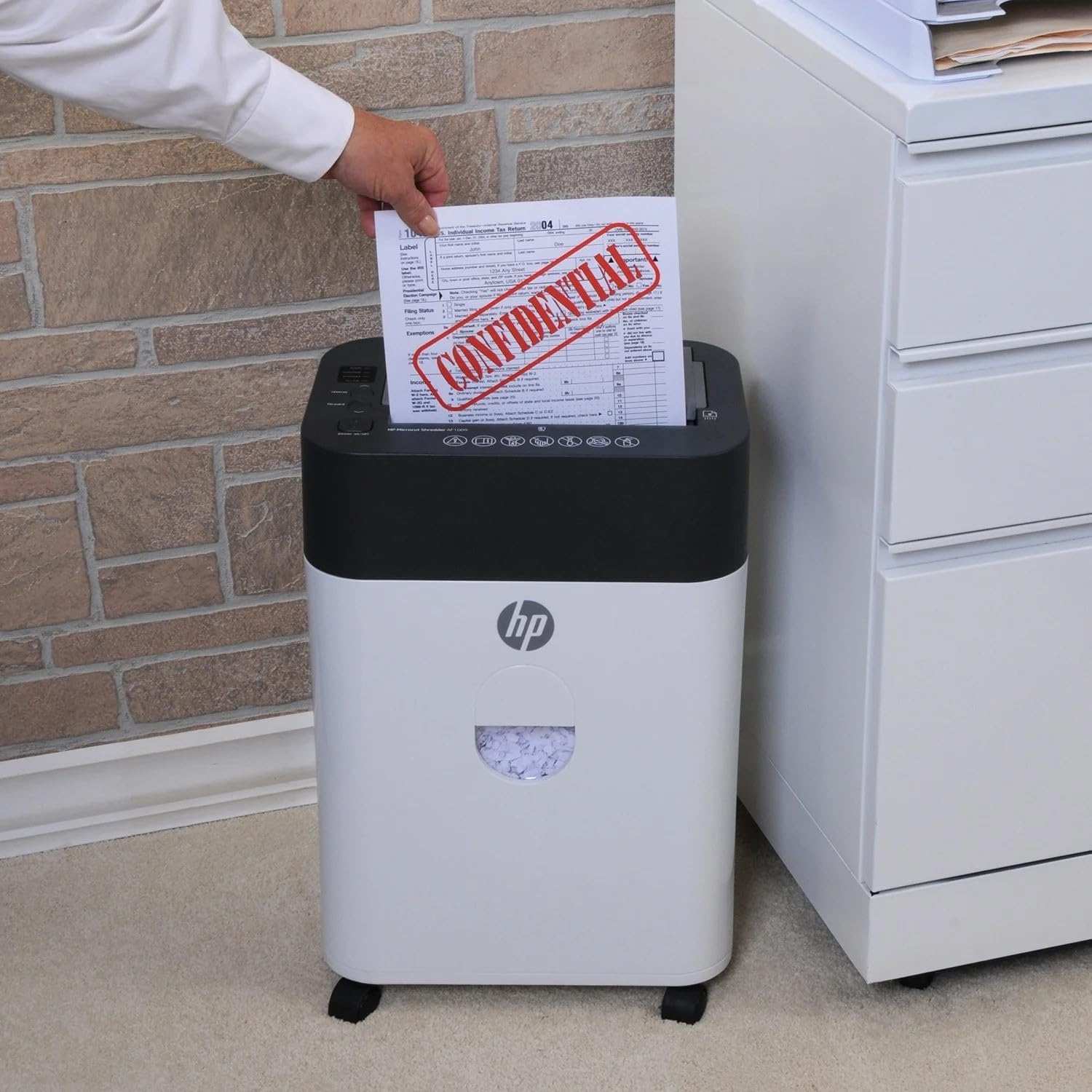
Image: Demonstrating manual paper insertion into the shredder.
5.3. Funzione inversa
In case of a paper jam or if you need to retrieve a document, use the reverse function. Press the "Reverse" button on the control panel to eject the paper. Once the paper is clear, press the "Forward" button or turn the shredder off and on again to resume normal operation.
6. Manutenzione
6.1. Emptying the Wastebasket
- Monitor the transparent window on the front of the shredder to check the waste level.
- When the "Bin Full" indicator light illuminates, or the wastebasket appears full, turn off the shredder and unplug it.
- Carefully pull out the wastebasket from the front of the unit.
- Smaltire il materiale triturato.
- Slide the wastebasket back into the shredder until it clicks into place.
- Collegare e accendere il distruggidocumenti.
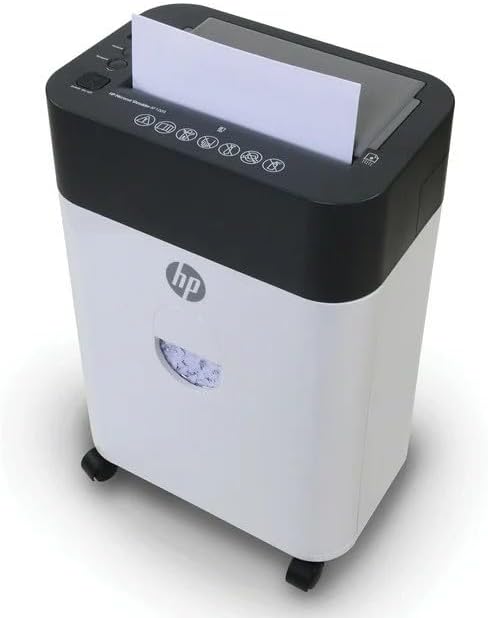
Image: The shredder's wastebasket with a transparent window, indicating when it needs emptying.
6.2. Shredder Oiling (Recommended)
Regular oiling of the shredder blades is recommended to maintain performance and extend the life of the unit. Use shredder oil (not included) and follow the instructions provided with the oil. Typically, this involves applying oil to a sheet of paper and shredding it, or directly applying oil to the blades while running in reverse (refer to oil product instructions for specifics).
7. Risoluzione Dei Problemi
Refer to the indicator lights on the control panel for common issues:
| Spia luminosa | Problema | Soluzione |
|---|---|---|
| Ready (Blue) | Shredder is ready for operation. | Nessuna azione richiesta. |
| Overheat (Red) | Shredder has been used continuously for too long and is overheating. | Turn off the shredder and unplug it. Allow it to cool down for at least 30 minutes before resuming use. |
| Overload (Red) | Too much paper was inserted, causing the motor to strain. | Press the "Reverse" button to clear the jam. Reduce the amount of paper and try again. If the jam persists, unplug the shredder and carefully remove the paper manually. |
| Bin Full (Red) | The wastebasket is full and needs to be emptied. | Turn off the shredder, unplug it, and empty the wastebasket. Reinsert the wastebasket securely. |
8. Specifiche
| Caratteristica | Dettaglio |
|---|---|
| Marca | HP |
| Numero di modello | AF1009 |
| Tipo di taglio | Microtaglio |
| Capacità di alimentazione automatica | 100 Standard Sheets |
| Capacità di alimentazione manuale | 9 fogli |
| Capacità del cestino | 4.5 galloni |
| Materiali a brandelli | Carta, carte di credito, graffette |
| Modalità di funzionamento | Automatico |
| Caratteristiche speciali | Automatic Start-Stop, Overheat Sensor, Overload Sensor |
| Fonte di alimentazione | Elettrico con cavo |
| Dimensioni dell'articolo (P x L x A) | 8.6" x 13.03" x 19.78" |
| Peso dell'articolo | 21.3 libbre |
9. Garanzia
This HP AF1009 Micro Cut Paper Shredder includes a Garanzia sulle parti di 1 anni E Garanzia di manodopera di 90 giorni from the date of purchase. Please retain your proof of purchase for warranty claims. For warranty service or support, please contact HP customer service.
10. Assistenza clienti
For further assistance, technical support, or to inquire about replacement parts, please visit the official HP website or contact their customer service department. Refer to the product packaging or the manufacturer's websito per informazioni di contatto aggiornate.