
Introduction
This manual provides detailed instructions for the installation, operation, and maintenance of your Podofo 7-inch 2-DIN Car Stereo. Please read this manual thoroughly before using the product to ensure proper function and to prevent damage. Keep this manual for future reference.
Product Overview
Front Panel Controls
The front panel features a 7-inch HD capacitive touchscreen and various physical controls for easy operation.

Image: Front Panel Layout. This image displays the front panel of the car stereo, highlighting the microphone (MIC), previous track button (PREV), power/mode button (ON/OFF), next track button (NEXT), volume control (VOL+/-), TF card slot (TF), AUX input (AUX), reset button (RES), and USB port (USB).
- MIC: Integrated microphone for hands-free calling.
- PREV (<<): Short press for previous track/station; long press for fast rewind.
- ON/OFF (O/M): Short press to change mode; long press to power on/off.
- NEXT (>>): Short press for next track/station; long press for fast forward.
- VOL+/-: Rotary knob to adjust volume. Press to mute/unmute.
- TF: MicroSD card slot for media playback.
- AUX: 3.5mm auxiliary input for external audio devices.
- RES: Reset button (use a thin object to press).
- USB: USB port for media playback and Mirror Link connection.
Product Dimensions
The unit is designed for standard 2-DIN installation slots. Please verify your vehicle's console dimensions before installation.

Image: Product Dimensions. This image shows the car stereo with its dimensions: 178mm (width), 103mm (height), and 63mm (depth).
- Width: 178 mm
- Height: 103 mm
- Depth: 63 mm
Included Components
The package includes the main car stereo unit and essential accessories for installation and operation.

Image: Included Components. This image displays the main car stereo unit, a remote control, two wiring harnesses, and a user manual.
- Podofo 7-inch 2-DIN Car Stereo Unit
- Remote Control
- Power Wiring Harness
- Speaker Wiring Harness
- Rear Camera (if included in package)
- User Manual
Setup and Installation
Proper installation is crucial for the performance and safety of your car stereo. If you are unsure about any steps, consult a professional installer.
Wiring Diagram
Refer to the following diagram for correct wiring connections. Ensure all connections are secure to prevent electrical issues.

Image: Detailed Wiring Diagram. This diagram illustrates connections for speakers (front/rear, left/right), parking sensor control, reverse camera input (CVBSIN), 12V constant power (Yellow), ground (Black), 12V ignition switch (Red), small light line (Green), power antenna/amplifier turn-on (Blue), and steering wheel control line (Brown).
- Power Connections:
- Yellow (B+): Connect to 12V constant power supply. This provides continuous power to retain settings.
- Red (ACC): Connect to 12V ignition switch power. This powers the unit on/off with the vehicle's ignition.
- Black (Ground): Connect to vehicle chassis ground.
- Speaker Connections: Connect the corresponding speaker wires (Purple, Gray, White, Green) to your vehicle's speakers. Ensure correct polarity.
- Rear Camera Input (CVBSIN): Connect the video output from the rear camera to this input.
- Reverse Trigger (Pink): Connect to the vehicle's reverse light circuit. This automatically switches to the rear camera view when reversing.
- Steering Wheel Control (Brown): Connect to your vehicle's steering wheel control wires. Refer to the "Steering Wheel Control" section for programming.
- Power Antenna/Amplifier Turn-on (Blue): Connect to the power antenna or external amplifier trigger wire.
Important Note: The yellow wire (B+) must be connected to a constant 12V power source to prevent loss of settings and radio presets when the vehicle is turned off. If settings are not saved, check this connection.
Operating Instructions
Basic Operations
- Power ON/OFF: Long press the O/M button on the front panel.
- Mode Selection: Short press the O/M button to cycle through available modes (Radio, USB, TF, AUX, Bluetooth, Mirror Link).
- Volume Adjustment: Rotate the VOL+/- knob. Press the knob to mute or unmute audio.
- Reset: If the unit malfunctions, gently press the RES button with a pointed object. This will restore factory settings.
Bluetooth Function
Connect your mobile device via Bluetooth for hands-free calling and audio streaming.

Image: Bluetooth Interface. This image shows the car stereo display in Bluetooth mode, with a dial pad for making calls and icons for music playback and phonebook access. A smartphone is also shown connecting to the stereo.
- Enable Bluetooth on your mobile device.
- On the car stereo, select the Bluetooth mode.
- Search for available devices on your phone and select "PODOFO" or a similar name.
- Confirm pairing on both devices.
- Once connected, you can make/receive calls and play music wirelessly.
FM Radio
Access your favorite radio stations with automatic search and preset storage.
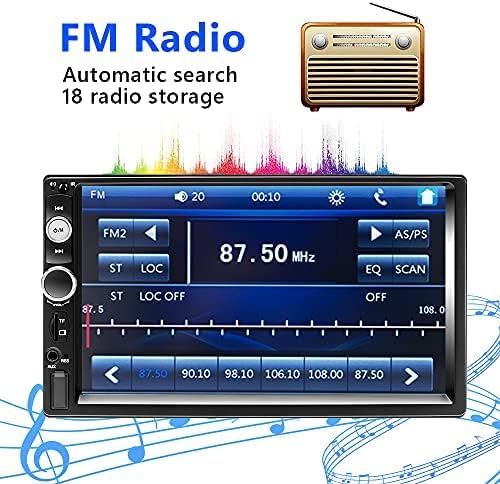
Image: FM Radio Screen. This image displays the car stereo's FM radio interface, showing frequency tuning, preset buttons (FM1, FM2, AS/PS), and station display (87.50 MHz).
- Automatic Search: Press the AS/PS button to automatically scan and save up to 18 stations.
- Manual Tuning: Use the PREV or NEXT buttons to manually tune frequencies.
- Preset Stations: Touch the numbered buttons on the screen to select a saved station.
Mirror Link Function
Display your smartphone screen directly on the car stereo's display.
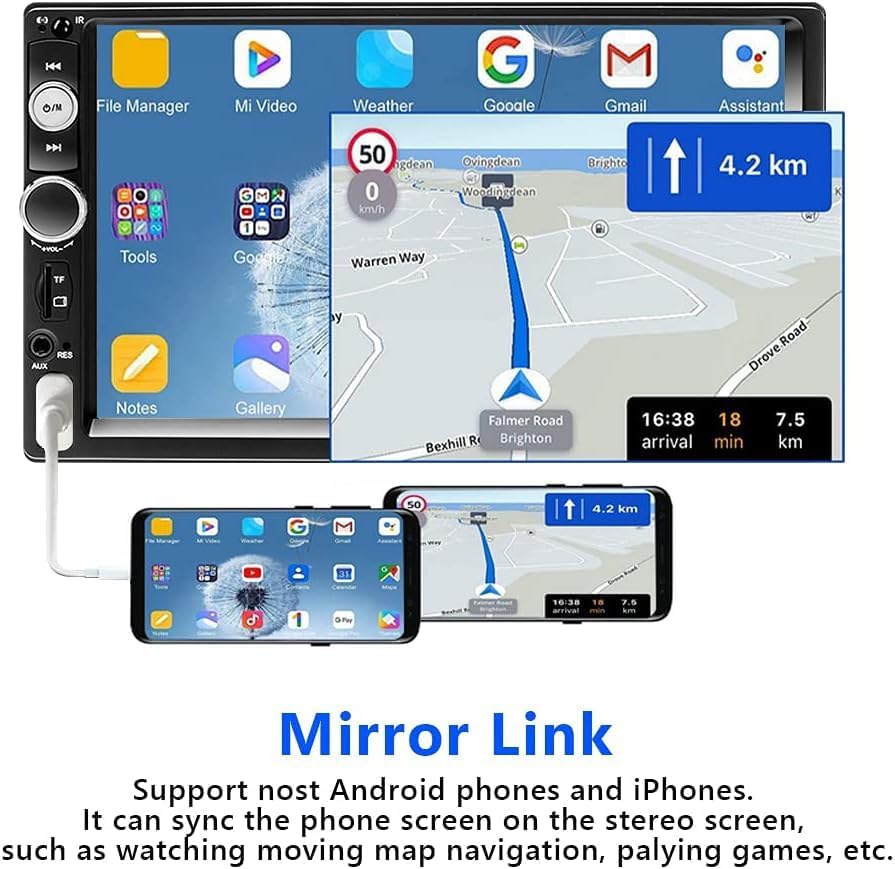
Image: Mirror Link Display. This image shows a smartphone connected via USB to the car stereo, with the phone's screen content (including navigation and app icons) mirrored onto the larger stereo display.
- Connect your Android phone (version 1.1 and earlier) or iPhone (series 5-8, iOS 13.4 and later) to the USB port using a high-quality USB cable.
- Select the "Mirror Link" mode on the car stereo.
- Follow the on-screen prompts on both your phone and the stereo to establish the connection.
- Once connected, your phone's screen will be mirrored, allowing you to view navigation, videos, or other apps.
Steering Wheel Control (SWC)
Program your vehicle's steering wheel buttons to control the car stereo.

Image: Steering Wheel Control. This image shows a person's hands on a car steering wheel, with a remote control attached, demonstrating how to control the car stereo using steering wheel buttons.
- Ensure the steering wheel control wires are correctly connected to the stereo (refer to the wiring diagram).
- Access the "Steering Wheel Control Learning" menu in the stereo's settings.
- Follow the on-screen instructions to assign functions to your steering wheel buttons. Typically, this involves pressing a function on the stereo's screen and then pressing the corresponding button on your steering wheel.
Rear Camera Function
The included rear camera provides a clear view when reversing.
- When the vehicle is shifted into reverse gear, the stereo automatically displays the rear camera feed.
- The camera provides a 170-degree viewing angle and features 12 LED lights for improved visibility in low-light conditions.
Multimedia Playback
The unit supports various media sources for audio and video playback.

Image: Multimedia Playback Icons. This image shows icons representing various media input options: U Disk (USB), TF (MicroSD card), AUX, and BT (Bluetooth).
- USB: Insert a USB drive into the USB port for audio and video playback.
- TF Card: Insert a MicroSD card into the TF slot for audio and video playback.
- AUX: Connect external audio devices (e.g., MP3 players) to the 3.5mm AUX input.
- Supported formats include AVI, WMV, MOV, MKV for video, and MP3, WAV, WMA for audio.
Maintenance
- Cleaning the Screen: Use a soft, dry cloth to wipe the touchscreen. Avoid abrasive cleaners or solvents.
- General Cleaning: Keep the unit free from dust and debris. Use a soft brush or compressed air for hard-to-reach areas.
- Avoid Liquids: Do not expose the unit to water or other liquids.
- Temperature: Operate the unit within recommended temperature ranges. Extreme temperatures can affect performance and lifespan.
Troubleshooting
| Problem | Possible Cause | Solution |
|---|---|---|
| Unit does not power on. | No power supply; incorrect wiring. | Check the Yellow (B+) and Red (ACC) power wires for proper connection to 12V sources. Ensure the Black (Ground) wire is securely connected. |
| Settings and radio presets are lost after turning off the car. | Yellow (B+) wire not connected to constant 12V power. | Ensure the Yellow (B+) wire is connected to a constant 12V power source, not an ignition-switched source. |
| No sound from speakers. | Speaker wires incorrectly connected; volume too low; unit muted. | Check all speaker wire connections for correct polarity. Increase volume. Press the volume knob to unmute. |
| Bluetooth connection fails or is unstable. | Device not in pairing mode; interference; outdated phone OS. | Ensure Bluetooth is enabled on both devices. Try re-pairing. Move closer to the unit. Update phone's operating system if necessary (especially for Mirror Link). |
| Mirror Link not working. | Incorrect USB cable; incompatible phone OS; app issues. | Use a high-quality USB cable. Ensure your phone's OS is compatible (Android 1.1 and earlier, iPhone iOS 13.4 and later). Try restarting both devices. |
| Rear camera not displaying. | Camera not connected; reverse trigger wire not connected. | Check the CVBSIN connection for the camera. Ensure the Pink (Reverse Trigger) wire is connected to the vehicle's reverse light circuit. |
| Touchscreen unresponsive. | Temporary software glitch. | Press the RES button to reset the unit. |
Specifications
| Feature | Detail |
|---|---|
| Brand | Podofo |
| Model Number | 1365669031 |
| Display | 7-inch HD Capacitive Touchscreen |
| Connectivity Technology | AUX, Bluetooth, USB |
| Wireless Technology | Bluetooth |
| Compatible Devices | Smartphone, Tablet |
| Controller Type | Android, iOS (for Mirror Link) |
| Control Method | App, Touch |
| Output Power | 60 Watts (per channel, 4 channels) |
| Audio Channels | 4.0 Surround Sound Configuration |
| Supported Audio Formats | MP3, WAV, WMA |
| Supported Video Formats | AVI, WMV, MOV, MKV |
| Dimensions (D x W x H) | 6.3 cm x 17.8 cm x 6.3 cm |
| Weight | 797 Grams |
| Internet Applications | Browser, Netflix, YouTube (via Mirror Link) |
Warranty and Support
For warranty information, please refer to the documentation provided at the time of purchase or contact your retailer. For technical support, please reach out to Podofo customer service through their official channels or the retailer where the product was purchased.
Always provide your product model number (1365669031) and purchase details when seeking support.