
1. Introduzione
This manual provides detailed instructions for the IRIVER EQwear-Q150 Wireless Keyboard and Optical Mouse Set. Please read this manual carefully before use to ensure proper operation and to maximize the product's lifespan. This set offers a comfortable and efficient wireless experience for your computer.
2. Contenuto della confezione
Verificare che tutti gli articoli siano presenti nel pacco:
- IRIVER EQwear-Q150 Wireless Keyboard
- IRIVER EQwear-Q150 Wireless Optical Mouse
- Ricevitore USB a 2.4 GHz
- Manuale dell'utente (questo documento)
3. Impostazione
Follow these steps to set up your IRIVER EQwear-Q150 Wireless Keyboard and Mouse Set:
- Installa le batterie: Open the battery compartments on both the keyboard and the mouse. Insert the required batteries (not included) according to the polarity indicators.
- Individuare il ricevitore USB: The 2.4GHz USB receiver is typically stored within the mouse for convenience during transport. Gently remove it from its slot.
- Collegare il ricevitore USB: Plug the 2.4GHz USB receiver into an available USB port on your computer. Your operating system should automatically detect and install the necessary drivers.

Figure 3.1: Connecting the 2.4GHz USB receiver to a laptop.

Figure 3.2: The USB receiver is conveniently stored within the mouse.
The keyboard and mouse are pre-paired with the receiver. Once the receiver is connected, the devices should be ready for use.
4. Istruzioni per l'uso
4.1 Utilizzo della tastiera
The IRIVER EQwear-Q150 keyboard is designed for comfortable and accurate typing:
- Design ergonomico: Features an ergonomic design for reduced hand fatigue during extended use.
- U-shaped Buttons: The unique U-shaped keycaps enhance typing accuracy and prevent typos.
- Durable Laser Printing: Keys are laser-printed and coated to prevent characters from fading over time.
- Resistenza all'acqua: Equipped with four drainage holes on the underside to protect against accidental spills of water, coffee, or other liquids.
- Inclinazione regolabile: The keyboard includes adjustable tilt legs and anti-slip rubber pads for customized typing angles and stability.

Figure 4.1: User typing on the ergonomically designed keyboard.

Figura 4.2: dettagliata view of keyboard features: U-shaped keys for accuracy, adjustable feet for comfort, and drainage holes for spill protection.
4.2 Utilizzo del mouse
The IRIVER EQwear-Q150 optical mouse provides precise control:
- Alta precisione: Features a 1600 DPI optical sensor for fast and accurate operation across various tasks, including general work, gaming, and graphic design.
- Pulsante indietro: An additional 'Backward' button is conveniently located near the thumb for easy page navigation.
- Design leggero: Weighing only 62g, the mouse is comfortable for prolonged use.
- Durata: Tested for over 3 million clicks, ensuring long-lasting performance.

Figure 4.3: The optical mouse with its convenient backward navigation button.
4.3 Connessione wireless
The 2.4GHz wireless technology ensures a stable and wide-ranging connection:
- Connessione stabile: Provides a reliable 2.4GHz wireless connection for both keyboard and mouse simultaneously.
- Gamma estesa: Enjoy a maximum operating distance of up to 10 meters (33 feet) with 360-degree coverage, allowing flexible placement.
Figure 4.4: Illustration of the 360-degree, 10-meter wireless operating range.
4.4 tasti di scelta rapida multimediali
The keyboard features dedicated multimedia hotkeys for quick access to various functions. Press the Fn key in combination with the corresponding function key:
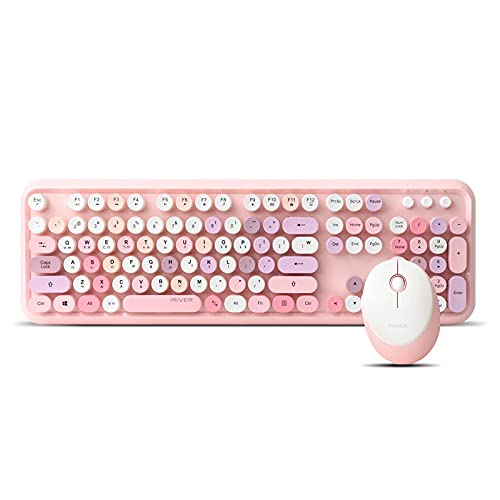
Figure 4.5: Keyboard layout with multimedia hotkeys.
| Combinazione di tasti di scelta rapida | Funzione |
|---|---|
| FN+ESC | Lettore multimediale |
| Tasto F1 | Riproduci/Pausa |
| Tasto F2 | Traccia precedente |
| Tasto F3 | Traccia successiva |
| Tasto F4 | Alza il volume |
| Tasto F5 | Abbassa il volume |
| Tasto F6 | Muto |
| Tasto F7 | Web Casa |
| Tasto F8 | Cerca |
| Tasto F9 | Il mio preferito |
| Tasto F10 | |
| Tasto F11 | Blocco tastiera |
| Tasto F12 | Il mio computer |
5. Manutenzione
Una corretta manutenzione garantisce la longevità e le prestazioni del tuo dispositivo:
- Pulizia: Utilizzare un panno morbido e asciutto per pulire la tastiera e il mouse. Per lo sporco ostinato, leggermente dampPulire il panno con acqua o una soluzione detergente delicata. Evitare prodotti chimici aggressivi o materiali abrasivi.
- Gestione delle fuoriuscite: In case of liquid spills on the keyboard, immediately disconnect it from the computer, turn it upside down to drain, and allow it to dry completely before reuse. The drainage holes are designed to assist with this.
- Sostituzione della batteria: Replace batteries promptly when performance degrades. Dispose of old batteries responsibly according to local regulations.
- Magazzinaggio: When not in use for extended periods, store the keyboard and mouse in a cool, dry place. Remove batteries if storing for several months to prevent leakage.
6. Risoluzione Dei Problemi
If you encounter issues with your IRIVER EQwear-Q150 set, refer to the following common solutions:
- Nessuna risposta da tastiera/mouse:
- Controllare che le batterie siano inserite correttamente e siano sufficientemente cariche. Sostituirle se necessario.
- Ensure the 2.4GHz USB receiver is securely plugged into a working USB port on your computer. Try a different USB port.
- Riavvia il computer.
- Connessione lenta o intermittente:
- Avvicinare la tastiera e il mouse al ricevitore USB.
- Ensure there are no large metal objects or other wireless devices (e.g., Wi-Fi routers, cordless phones) operating too close to the receiver, which might cause interference.
- Controllare i livelli della batteria e sostituirla se è scarica.
- Il cursore del mouse salta o non è preciso:
- Pulisci il sensore ottico sul lato inferiore del mouse.
- Utilizzare il mouse su una superficie pulita e non riflettente oppure su un tappetino per mouse.
- I tasti non rispondono:
- Ensure the keyboard is not in 'Keyboard Lock' mode (check FN+F11).
- If specific keys are not working, gently clean around them to remove any debris.
7. Specifiche
Detailed specifications for the IRIVER EQwear-Q150 Wireless Keyboard and Mouse Set:
Figura 7.1: Prodotto finitoview with key features and specifications.
Specifiche della tastiera:
- Conteggio chiavi: 106 chiavi
- Disposizione: QWERTY (Korean language support)
- Dimensioni: Dimensioni: 452.4 x 143.9 x 35.8 mm
- Peso: 780g
- Tipo chiave: Membrana
- Caratteristiche: Ergonomic design, U-shaped buttons, Laser printing, Water-resistant (drainage holes), Adjustable tilt, Anti-slip pads
Specifiche del mouse:
- DPI: 1600 DPI Optical
- Pulsanti: 4 buttons (including Backward button)
- Dimensioni: Dimensioni: 101.2 x 75 x 33.6 mm
- Peso: 62g
- Durata: 3 million click test
Specifiche generali:
- Connettività: 2.4GHz wireless
- Portata wireless: Up to 10 meters (360-degree)
- OS Compatibilità: Windows (Vista, 7, 8, 10), Mac OS X 10.5 or later, Linux kernel 2.6 or later, Chrome OS
- Crittografia: AES a 128 bit
- Codice UPC: 639015008413
8. Informazioni sulla garanzia
The IRIVER EQwear-Q150 Wireless Keyboard and Mouse Set comes with a limited warranty. Please refer to the warranty card included with your product for specific terms, conditions, and duration of coverage. For warranty claims or inquiries, retain your proof of purchase.
9. Supporto
For further assistance, technical support, or product-related questions, please contact IRIVER customer service or visit the official IRIVER website. Contact details can typically be found on the product packaging or the official brand websito.