
Introduzione
This manual provides essential information for setting up, operating, maintaining, and troubleshooting your HP 2022 14-inch HD Laptop. Please read this guide thoroughly to ensure proper use and to maximize the performance and longevity of your device.
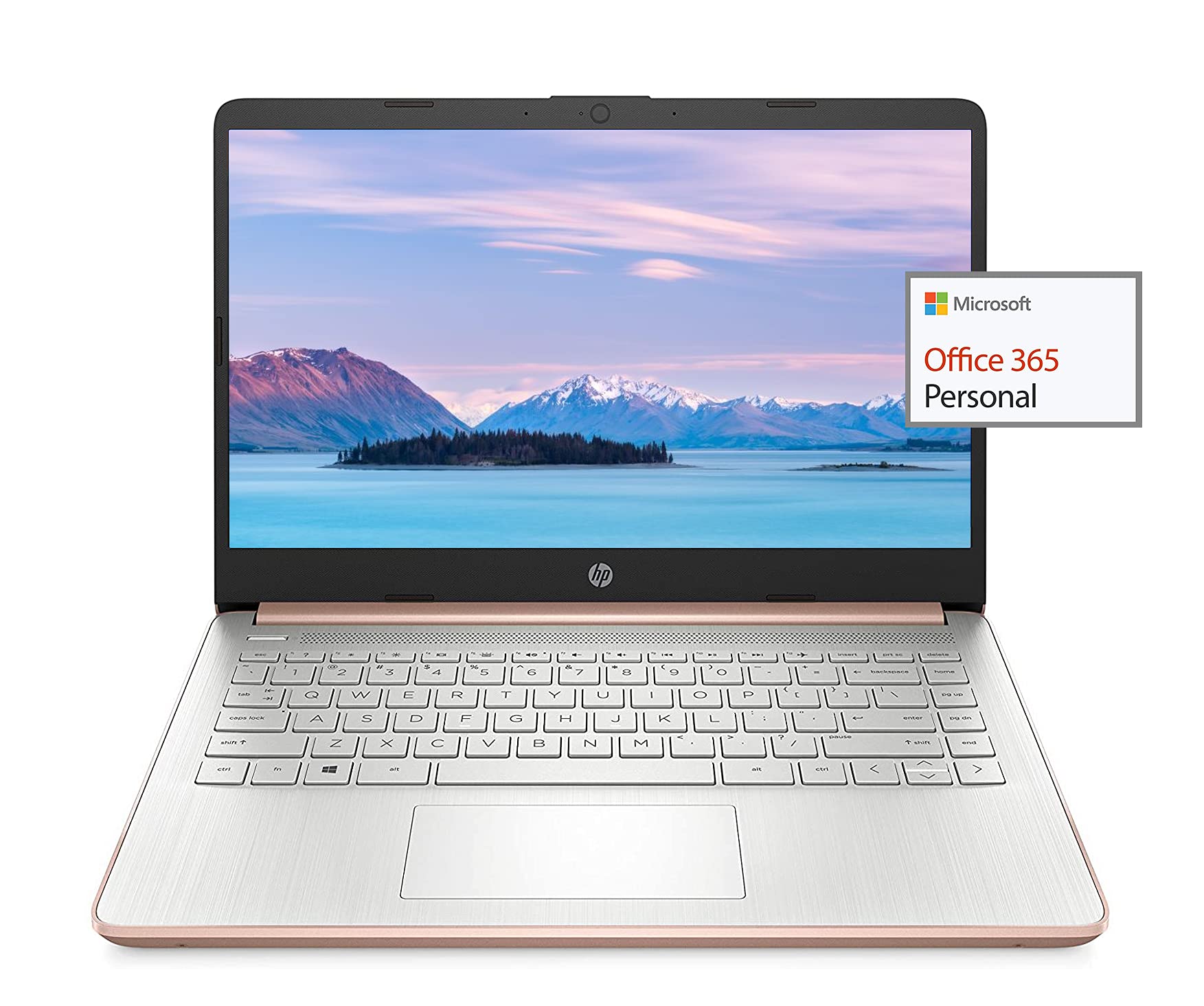
Image: The HP 14-inch HD Laptop, showcasinil suo design elegante.
Impostare
1. Accensione iniziale
Connect the power adapter to the laptop and a power outlet. Open the laptop lid. The laptop should power on automatically or by pressing the power button, typically located on the keyboard deck.
2. Configurazione del sistema operativo
Follow the on-screen prompts to complete the Windows 10 setup. This includes selecting your region, connecting to a Wi-Fi network, and creating a user account.
3. Activating Microsoft Office 365
Il tuo laptop include un abbonamento di 1 anno a Microsoft Office 365. Per attivarlo:
- Avviare una qualsiasi applicazione di Office (ad esempio Word, Excel).
- Sign in with your Microsoft account. If you do not have one, create a new account.
- Click "Activate Office" and follow the subsequent prompts.
- Complete steps 1, 2, and 3 as instructed.
- Click "Refresh" once Office is ready.
- Aprire un documento e accettare il contratto di licenza per finalizzare l'attivazione.

Image: The HP laptop displaying Microsoft Office 365 applications.
4. Disattivazione della modalità S di Windows 10
Windows 10 in S mode is designed for security and performance, exclusively running apps from the Microsoft Store. If you need to install apps from outside the Microsoft Store, you can switch out of S mode. This is a one-way switch and cannot be undone.
- Vai a Impostazioni > Aggiornamento e sicurezza > Attivazione.
- Nella sezione "Passa a Windows 10 Home" o "Passa a Windows 10 Pro", seleziona Vai allo Store.
- Sul Disattiva la modalità S (or similar) page that appears in the Microsoft Store, click the Ottenere pulsante.
- After confirming, you will be able to install apps from outside the Microsoft Store.
5. Collegamento di periferiche
Il tuo laptop è dotato di diverse porte per collegare dispositivi esterni:
- USB Type-A & Type-C: For connecting USB devices like external drives, mice, and keyboards.
- HDMI: Per il collegamento a display o proiettori esterni.
- Jack combinato per cuffie/microfono: Per ingresso/uscita audio.
- Lettore di schede multimediali: Per inserire schede SD.

Immagine: Lato view of the HP laptop, highlighting the SuperSpeed USB Type-A, USB Type-C, HDMI 1.4b, and headphone/microphone combo ports.

Immagine: lato opposto view of the HP laptop, showing the media card reader slot.
Istruzioni per l'uso
1. Gestione energetica
- Accensione: Premere il pulsante di accensione.
- Modalità risparmio: Chiudere il coperchio o premere brevemente il pulsante di accensione.
- Fermare: Vai su Start > Arresta > Spegni.
- Ricomincia: Vai su Start > Arresta > Riavvia.
2. Utilizzo dello schermo
The laptop features a 14-inch HD (1366 x 768) display with a micro-edge bezel design and WLED-backlit BrightView technology. Adjust brightness using the function keys (F2/F3) or through Windows display settings.

Image: The HP laptop display showcasing its micro-edge bezel and HD resolution.
3. Tastiera e touchpad
The standard keyboard provides comfortable typing. The integrated touchpad supports multi-touch gestures for navigation. Refer to Windows settings for customizing touchpad sensitivity and gestures.
4. Webcam e audio
The HP True Vision 720p HD camera with integrated dual array digital microphones is suitable for video calls. The laptop features HP custom-tuned dual speakers for clear audio output.

Image: The HP laptop showing the webcam in use and highlighting the dual speaker setup.
5. Connettività wireless
- Wi-Fi 5 (1x1): Connect to wireless networks for internet access. Manage Wi-Fi connections via the network icon in the taskbar.
- Bluetooth 5.0: Pair with Bluetooth-enabled devices such as headphones, speakers, or mice. Access Bluetooth settings via Windows Settings > Devices > Bluetooth & other devices.
Manutenzione
1. Cura della batteria
The laptop's battery provides up to 10.5 hours of video playback and up to 9 hours of wireless streaming. To prolong battery life:
- Evitare temperature estreme.
- Non scaricare completamente la batteria frequentemente.
- Utilize HP Fast Charge for quick recharging.
- Regola le impostazioni di risparmio energia in Windows per ottimizzare l'utilizzo della batteria.
2. Gestione dell'archiviazione
Your laptop is equipped with 256GB SSD and 64GB eMMC storage. Regularly manage your files to ensure sufficient free space. Use Disk Cleanup and Storage Sense features in Windows to remove unnecessary files.
3. Pulizia del portatile
- Utilizzare un panno morbido e privo di lanugine leggermente dampcon acqua o con un detergente per schermi specifico per il display.
- Per la tastiera e lo chassis, utilizzare un panno morbido. Evitare prodotti chimici aggressivi.
- Prima di pulirlo, assicurarsi che il computer portatile sia spento e scollegato.
4. Aggiornamenti software
Keep your operating system and drivers updated. Windows Update automatically handles system updates. Check the HP support websito per gli aggiornamenti dei driver specifici per il tuo modello.
Risoluzione dei problemi
Problemi comuni e soluzioni:
- Il portatile non si accende: Assicurati che l'adattatore di alimentazione sia collegato saldamente e che la batteria sia sufficientemente carica. Prova una presa di corrente diversa.
- Problemi di visualizzazione: Check display cable connections if using an external monitor. Adjust brightness settings.
- Nessun suono: Verify volume levels, check audio output device settings in Windows, and ensure headphones are properly connected.
- Problemi di connettività Wi-Fi: Riavvia il router e il laptop. Controlla le impostazioni Wi-Fi e assicurati che la modalità aereo sia disattivata.
- Prestazioni lente: Chiudere le applicazioni non necessarie. Verificare i processi in background. Assicurarsi di avere sufficiente spazio di archiviazione libero.
Per una risoluzione dei problemi più dettagliata o per problemi persistenti, fare riferimento al supporto HP websito o contattare il servizio clienti HP.
Specifiche
| Caratteristica | Specificazione |
|---|---|
| Marca | HP |
| Nome del modello | CV 2022 |
| Dimensioni dello schermo | 14 pollici |
| Processore | AMD 3020e (2 Cores, 4 Threads, 1.2GHz Base, 2.6GHz Max Boost) |
| Memoria RAM | 8 GB DDR4 |
| Magazzinaggio | 256GB SSD + 64GB eMMC (Total 320 GB) |
| Grafica | Grafica AMD Raon integrata |
| Sistema operativo | Windows 10 Home in S mode (upgradeable) |
| Connettività | Wi-Fi 5 (1x1), Bluetooth 5.0 |
| Porti | USB Type-A, USB Type-C, HDMI 1.4b, Headphone/Microphone Combo, Media Card Reader |
| Webcamma | HP True Vision 720p HD Camera |
| Durata della batteria (Standby) | Fino a 10.5 ore (riproduzione video) |
| Peso | 3.24 libbre |
| Dimensioni (L x P x P) | 8.86"L x 12.76"W x 0.71"S |

Immagine: Oltreview of the HP 14 laptop's key features including AMD 3020e processor, battery life, Windows 10 S mode, HP Fast Charge, and Wi-Fi 5 & Bluetooth 5.0.
Garanzia e supporto
Your HP laptop comes with a standard manufacturer's warranty. Please refer to the warranty documentation included with your purchase for specific terms and conditions. For technical support, driver downloads, and service information, visit the official HP support websito o contattare direttamente il servizio clienti HP.
Per una protezione aggiuntiva, considera l'acquistoasing extended protection plans from your retailer.