
1. Introduzione
The ZWO ASI462MC is a high-sensitivity color astronomy camera designed for capturing images of solar system objects such as the Moon and planets, as well as for electronically-assisted astronomy (EAA) of deep-sky objects. It features an advanced 2.1 megapixel CMOS sensor (IMX462) with a resolution of 1936x1096 pixels and a pixel size of 2.9 microns. The camera offers high quantum efficiency and infrared sensitivity, allowing for detailed astrophotography with low noise and reduced exposure times. Its USB3.0 interface enables fast data transfer rates of up to 136 frames per second at full resolution.
This camera is intended for use with a refractor or reflector telescope mounted on a motorized equatorial mount capable of accurate sky tracking. It is not designed for visual observation through a telescope eyepiece. Additional accessories like an autoguider or focal reducer may be required for optimal results. All necessary software and drivers are available for download from the manufacturer's official websito.
2. Contenuto della confezione
Verify that all items listed below are present in your ZWO ASI462MC camera package.
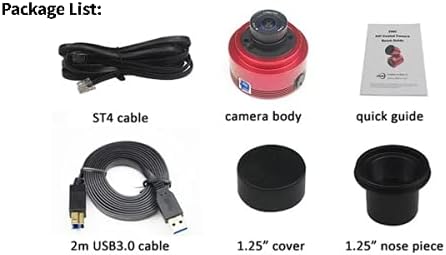
The image shows all items included in the ZWO ASI462MC package: the camera body, a 2m USB3.0 cable, an ST4 cable, a 1.25" cover, a 1.25" nose piece, and a quick guide.
- ZWO ASI462MC Camera Body
- 2-meter USB3.0 Cable
- Cavo guida ST4
- Copertura da 1.25 pollici
- Pezzo nasale da 1.25 pollici
- Guida veloce
3. Caratteristiche principali
The ZWO ASI462MC camera offers several advanced features for astrophotography:
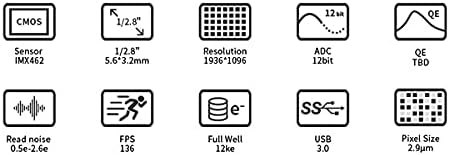
An infographic detailing the camera's core specifications: CMOS Sensor IMX462, 1/2.8" sensor size (5.6x3.2mm), 1936x1096 resolution, 12bit ADC, TBD QE, 0.5e-2.6e Read noise, 136 FPS, 12ke Full Well, USB 3.0 interface, and 2.9µm Pixel Size.
- Sensore: Advanced IMX462 CMOS sensor with 1936x1096 (2.1 megapixel) resolution and 2.9 micron pixels.
- Alta sensibilità: Exceptional sensitivity in the infrared spectrum, enhancing detail capture for planetary imaging.
- Fast Transfer: USB3.0 interface provides high-speed data transfer up to 136 frames per second at maximum resolution.
- Hub USB integrato: Includes a separate USB2.0 hub for powering accessories such as an autoguiding camera or electronic focuser.
- Design durevole: Compact, lightweight, and attractive red anodized CNC aluminum body for robust field use.
- Connettività versatile: Connects to 1.25-inch and 2-inch telescope focusers using the included T-threaded 1.25-inch nosepiece.
- Fonte di energia: Camera electronics draw power directly from your computer’s USB3.0 interface.
- Compatibilità software: Compatible with Mac OS X and Windows (32-bit and 64-bit) operating systems.
4. Impostazione
Follow these steps to set up your ZWO ASI462MC camera:
- Installa driver e software: Before connecting the camera, download and install the latest drivers and capture software from the official ZWO webposto (www.zwoastro.com). This ensures proper recognition and functionality of the camera with your computer.
- Attach Nosepiece: Screw the included 1.25-inch nosepiece onto the camera body. Ensure it is securely fastened.
- Mount Camera to Telescope: Insert the 1.25-inch nosepiece into your telescope's focuser. Secure it with the focuser's thumbscrews. If your telescope requires a 2-inch connection, you may need an additional 2-inch adapter (not included) that accepts 1.25-inch accessories.
- Connect USB3.0 Cable: Plug one end of the provided 2-meter USB3.0 cable into the camera's USB3.0 port and the other end into an available USB3.0 port on your computer. The camera will draw power directly from this connection.
- Collegare il cavo guida ST4 (opzionale): If you are using an autoguider, connect the ST4 guiding cable from the camera's ST4 port to your equatorial mount's autoguiding port.
- Connect USB2.0 Accessories (Optional): Use the integrated USB2.0 hub on the camera to connect and power compatible accessories like an electronic focuser or another guiding camera.
- Software di lancio: Open your preferred astronomy imaging software (e.g., SharpCap, FireCapture, ASICAP) and select the ZWO ASI462MC camera from the device list.
5. Utilizzo della fotocamera
Once set up, the ZWO ASI462MC is ready for image acquisition. Optimal performance requires careful attention to exposure settings and telescope tracking.

This image displays the compact, red anodized aluminum body of the ZWO ASI462MC camera, highlighting its robust construction and the central sensor area.
- Messa a fuoco: Achieve precise focus using your telescope's focuser. Live view mode in your capture software will assist in this process.
- Impostazioni di esposizione: Adjust gain, exposure time, and frame rate within your capture software. For planetary imaging, short exposures and high frame rates are typically used to capture many frames, which are then stacked to reduce atmospheric distortion. For EAA, longer exposures may be used.
- Bilanciamento del bianco: Set the appropriate white balance for accurate color representation. Many software packages offer automatic or manual white balance adjustments.
- Acquisizione dell'immagine: Begin capturing video sequences or still images. Ensure your telescope is accurately tracking the celestial object to prevent star trails or blurring.
- Archiviazione dati: Captured data can be saved in various formats (e.g., SER, AVI, FITS) depending on your software. Ensure sufficient storage space on your computer.
- Post-elaborazione: Utilize specialized astronomy software (e.g., AutoStakkert!, Registax, PixInsight) to stack and process your captured images for enhanced detail and reduced noise.
6. Manutenzione
Proper maintenance ensures the longevity and optimal performance of your ZWO ASI462MC camera.
- Pulizia della finestra del sensore: The camera features a protective optical window. If dust or smudges appear, use a specialized optical cleaning kit (blower, brush, lens cleaning solution, and microfiber cloth) designed for camera sensors. Do not touch the sensor window directly with your fingers.
- Pulizia del corpo macchina: Wipe the aluminum body with a soft, dry, lint-free cloth. Avoid using harsh chemicals or abrasive materials.
- Magazzinaggio: When not in use, store the camera in a clean, dry environment, preferably in its original packaging or a padded case, to protect it from dust, moisture, and physical damage. Use the included 1.25-inch cover to protect the sensor opening.
- Condizioni ambientali: Evitare di esporre la fotocamera a temperature estreme, elevata umidità o luce solare diretta per periodi prolungati.
7. Risoluzione Dei Problemi
If you encounter issues with your ZWO ASI462MC camera, consider the following troubleshooting steps:
- Telecamera non rilevata:
- Ensure USB3.0 cable is securely connected to both the camera and a USB3.0 port on your computer.
- Verify that the correct drivers are installed. Reinstall drivers from the ZWO websito se necessario.
- Try a different USB3.0 port or cable.
- Riavvia il computer.
- Nessuna immagine o schermo nero:
- Check if the camera is selected in your capture software.
- Ensure exposure settings (gain, exposure time) are appropriate for the light conditions.
- Verify that the telescope's dust cap is removed and the focuser is set correctly.
- Poor Image Quality (Noise, Blurring):
- Adjust gain and exposure settings to optimize signal-to-noise ratio.
- Ensure precise focus.
- Verify accurate tracking of your equatorial mount.
- Check for dust on the sensor window or telescope optics.
- Arresti anomali del software:
- Ensure your capture software is up-to-date.
- Check for conflicts with other USB devices or software.
For further assistance, refer to the ZWO official website's support section or contact their customer service.
8. Specifiche
Detailed technical specifications for the ZWO ASI462MC camera:

This image includes technical diagrams showing the physical dimensions of the camera and a spectral response graph indicating the camera's sensitivity across different wavelengths (red, green, blue), highlighting its infrared sensitivity.

These graphs provide detailed performance data for the ASI462MC, showing the relationship between gain and read noise, full well capacity, and dynamic range, crucial for optimizing image acquisition settings.
| Caratteristica | Specificazione |
|---|---|
| Modello | ASI462MC |
| Sensore | IMX462 CMOS |
| Dimensioni del sensore | 1/2.8 inch (5.6mm x 3.2mm) |
| Risoluzione | 1936 x 1096 (2.1 Megapixel) |
| Dimensione pixel | 2.9 micron |
| ADC | 12 bit |
| Max FPS (at full resolution) | 136 fotogrammi al secondo |
| Leggi rumore | 0.5°-2.6° |
| Capacità del pozzo completo | 12 mila |
| Interfaccia | USB3.0 |
| Fonte di alimentazione | USB3.0 (from computer) |
| Dispositivi compatibili | Autoguider, Electronic Focuser (via USB2.0 hub) |
| Montaggio | 1.25-inch and 2-inch telescope focusers |
| Supporto del sistema operativo | Mac OS X, Windows (32-bit and 64-bit) |
| Peso dell'articolo | 1.8 libbre |
| Produttore | Suzhou ZWO CO.,LTD |
| Codice UPC | 781509452759 |
9. Garanzia e supporto
For information regarding the product warranty, please refer to the official ZWO website or the documentation included with your purchase. ZWO provides comprehensive customer support for their products.
Official ZWO Websito: www.zwoastro.com
Sul websito, puoi trovare:
- Latest drivers and software downloads
- Detailed product manuals and guides
- Domande frequenti (FAQ)
- Informazioni di contatto del supporto tecnico
- Community forums for user discussions and tips
Always ensure you are using the latest software and drivers for optimal performance and compatibility.