
1. Introduzione
This manual provides essential instructions for the safe and efficient use of your Canon PIXMA E3470 All-in-One Inkjet Printer. The PIXMA E3470 is a compact wireless device designed for printing, scanning, and copying, offering an affordable printing experience with low running costs.
2. Informazioni sulla sicurezza
Please read all safety instructions before using the printer to prevent injury or damage to the device. Keep this manual for future reference.
- Non posizionare la stampante in luoghi instabili.
- Evitare di esporre la stampante alla luce solare diretta, a temperature elevate o a umidità eccessiva.
- Utilizzare solo il cavo di alimentazione fornito con la stampante.
- Do not attempt to disassemble or modify the printer. Refer servicing to qualified personnel.
- Tenere fuori dalla portata dei bambini.
3. Contenuto della confezione
Verificare che tutti gli articoli siano presenti nel pacco:
- Canon PIXMA E3470 Printer
- Cavo di alimentazione
- Cartucce d'inchiostro iniziali
- CD-ROM di installazione (potrebbe non essere incluso in tutte le regioni, driver disponibili online)
- Manuali e altri documenti
4. Stampante in corsoview
Familiarize yourself with the main components of your Canon PIXMA E3470 printer.

Figura 4.1: Fronte View of the Canon PIXMA E3470 Printer. This image displays the printer from the front, showing the control panel on the left, the paper output tray, and the Canon logo. The top cover for the scanner and paper input is also visible.
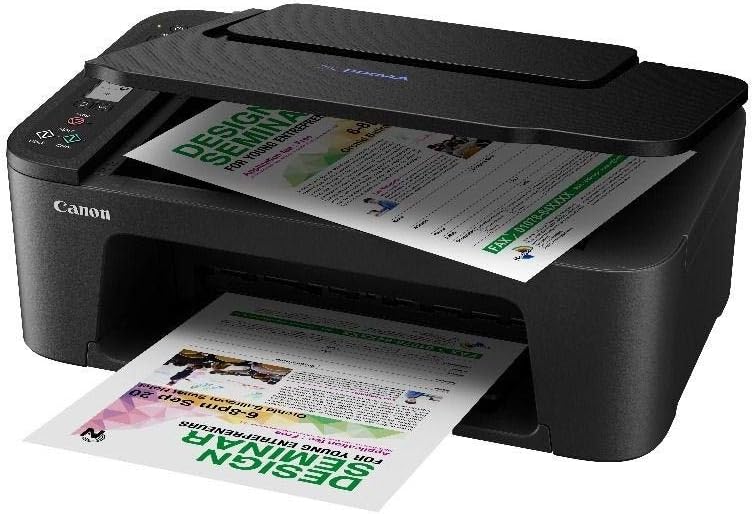
Figure 4.2: Canon PIXMA E3470 Printer with Paper Loaded. This image shows the printer from an angled top-front perspective, with documents loaded in the paper input tray and a printed page partially ejected from the output tray. This illustrates the printer in operation during a print job.
4.1 Pannello di controllo
- Pulsante di accensione: Accende o spegne la stampante.
- Schermo LCD: Mostra lo stato della stampante, i messaggi di errore e le opzioni del menu.
- Pulsanti di navigazione: Used to navigate menus on the LCD display.
- Start Button (Black/Color): Initiates black and white or color copying/scanning.
- Pulsante di arresto: Cancels current operation or exits menu.
- Pulsante Wi-Fi: Activates or deactivates Wi-Fi connectivity.
4.2 vassoi per la carta
- Vassoio posteriore: For loading various paper types and sizes.
- Vassoio di uscita: Dove vengono espulsi i documenti stampati.
4.3 Unità scanner
- Vetro piano: For scanning documents and photos.
5. Impostazione
5.1 Configurazione iniziale della stampante
- Disimballare la stampante: Rimuovere tutti i materiali protettivi e il nastro adesivo dalla stampante.
- Connetti alimentazione: Plug the power cable into the printer and then into a wall outlet. Press the Power button to turn on the printer.
- Installare le cartucce d'inchiostro: Open the printer's access cover and install the starter ink cartridges according to the on-screen instructions or quick start guide. Ensure they are securely latched.
- Caricare la carta: Open the rear tray cover and load plain A4 paper. Adjust the paper guides to fit the paper width.
5.2 Installazione del software
For full functionality, install the printer drivers and software on your computer or mobile device.
- From CD-ROM: If included, insert the setup CD-ROM into your computer and follow the on-screen instructions.
- Da Websito: Visita il supporto ufficiale Canon website for the PIXMA E3470 model to download the latest drivers and software.
5.3 Connessione al Wi-Fi
The PIXMA E3470 supports wireless connectivity for convenient printing from various devices.
- Standard Connection (Access Point Mode):
- Ensure your wireless router is on.
- Sul pannello di controllo della stampante, accedere al menu di configurazione Wi-Fi.
- Select "Standard setup" or "Easy setup" and follow the prompts to connect to your Wi-Fi network. You may need to enter your network password (WPA/WPA2 key).
- Wi-Fi Direct (Access Point Mode):
- This mode allows direct connection from a mobile device without a router.
- Activate Wi-Fi Direct on the printer via the control panel.
- On your smartphone or tablet, search for the printer's Wi-Fi Direct network and connect to it.
- Mobile Printing Services:
- Apple AirPrint™: For iOS devices, ensure your device and printer are on the same Wi-Fi network. Select the printer from the print options in your application.
- Mopria™ Print Service: For Android devices, install the Mopria Print Service app from the Google Play Store. Ensure your device and printer are on the same Wi-Fi network.
6. Utilizzo della stampante
6.1 Stampa di documenti e foto
- Assicurati che la stampante sia accesa e collegata al dispositivo.
- Load the desired paper type and size into the rear tray.
- Open the document or photo on your computer or mobile device.
- Selezionare "Stampa" dal menu dell'applicazione.
- Choose the Canon PIXMA E3470 from the list of available printers.
- Regola le impostazioni di stampa quali formato carta, tipo di supporto, qualità di stampa e numero di copie.
- For dual-sided printing, select the duplex printing option in your printer settings if supported by your operating system and application.
- Fare clic su "Stampa" per avviare il processo di stampa.
6.2 Scansione di documenti
- Place the document face-down on the platen glass, aligning it with the alignment mark.
- Chiudere delicatamente il coperchio del documento.
- On your computer, open the scanning software (e.g., Canon IJ Scan Utility) or initiate scanning from your operating system's scanning utility.
- Select scan settings such as document type, resolution, and destination folder.
- Click "Scan" to begin the process.
- Alternatively, you can initiate a scan directly from the printer's control panel by selecting the scan option and following the prompts to send the scan to a connected computer or cloud service.
6.3 Copia dei documenti
- Place the original document face-down on the platen glass.
- Chiudere il coperchio del documento.
- On the printer's control panel, use the navigation buttons to select the number of copies.
- Press the Black Start button for a black and white copy or the Color Start button for a color copy.
7. Manutenzione
7.1 Sostituzione delle cartucce d'inchiostro
When an ink cartridge runs low or is empty, a message will appear on the LCD display. Use genuine Canon ink cartridges for optimal performance.
- Assicurarsi che la stampante sia accesa.
- Aprire il coperchio di accesso della stampante. Il supporto della testina di stampa si sposterà nella posizione di sostituzione.
- Gently press down on the empty ink cartridge to release it, then pull it out.
- Unpack the new ink cartridge, remove the protective tape/film, and insert it into the correct slot until it clicks into place.
- Chiudere il coperchio di accesso. La stampante eseguirà un processo di inizializzazione.
7.2 Pulizia della stampante
- Esterno: Pulire l'esterno della stampante con un panno morbido eamppanno privo di lanugine. Non utilizzare detergenti abrasivi o solventi.
- Vetro piano: Clean the scanner glass with a soft, lint-free cloth moistened with glass cleaner.
- Pulizia interna: If print quality issues arise (e.g., streaks, faded colors), perform print head cleaning or deep cleaning from the printer's maintenance menu or through the printer driver software on your computer.
8. Risoluzione Dei Problemi
Questa sezione affronta i problemi più comuni che potresti riscontrare con la stampante PIXMA E3470.
- La stampante non si accende:
Assicurarsi che il cavo di alimentazione sia collegato saldamente sia alla stampante sia a una presa elettrica funzionante.
- Nessun potere:
Check the power connection. Try a different outlet. If the issue persists, contact support.
- La stampante non risponde/è offline:
Verify the printer is powered on. Check Wi-Fi connection status on both the printer and your device. Restart the printer and your computer/router. Ensure the correct printer is selected in your print dialog.
- Scarsa qualità di stampa:
Check ink levels and replace any empty cartridges. Perform print head cleaning or alignment from the printer's maintenance menu or software. Ensure you are using the correct paper type and quality settings for your print job.
- Inceppamenti della carta:
Carefully remove any jammed paper following the instructions on the LCD display or in the quick start guide. Ensure paper is loaded correctly and not overfilled. Use appropriate paper for the printer.
- Codici di errore:
Per i codici di errore specifici, fare riferimento al display LCD della stampante. Consultare l'assistenza Canon. website or the quick start guide for detailed explanations and solutions for each code.
9. Specifiche
Key technical specifications for the Canon PIXMA E3470 printer:
| Caratteristica | Specificazione |
|---|---|
| Numero di modello | 4464C012AA |
| Tecnologia di connettività | Wifi |
| Tecnologia di stampa | Getto d'inchiostro |
| Funzioni | Stampa, Scansione, Copia |
| Uscita della stampante | Colore |
| Dimensione massima del supporto | 8.5 x 14 pollici (legale) |
| Dimensioni dei fogli supportate | A4, A5, B5, LTR, LGL, 4 x 6", 5 x 7", Square (5 x 5") |
| Capacità massima del foglio di input | 400 (Note: This capacity may vary based on paper type and region.) |
| Velocità massima di stampa monocromatica | 7.7 ppm |
| Velocità massima di stampa (colore) | 4 ppm |
| Velocità massima di copia (bianco e nero) | 7.7 ppm |
| Stampa fronte-retro | SÌ |
| Tipo di scanner | Pianale piatto |
| Dispositivi compatibili | Smartphone |
| Peso dell'articolo | 4 chilogrammi |
| Caratteristiche speciali | Pronto per la rete |
Note: Specifications are subject to change without notice. For the most current information, please refer to the official Canon websito.
10. Garanzia e supporto
Per informazioni sulla garanzia, fare riferimento alla scheda di garanzia inclusa con il prodotto o visitare il sito ufficiale Canon website for your region. Technical support and additional resources, including driver downloads and FAQs, are available on the Canon support websito.
Ufficiale canonico Websito: www.canon.com


