
Weiser 9GED25000-004
Weiser Halo WiFi Smart Lock with Touchscreen
Manuale di istruzioni
Model: 9GED25000-004
Introduzione
The Weiser Halo WiFi Smart Lock with Touchscreen offers advanced security and convenient access control for your home. This smart lock connects directly to your existing home Wi-Fi network, eliminating the need for a separate hub. With the Weiser app, you can operate, manage, and monitor your lock remotely from anywhere with an internet connection. This manual provides detailed instructions to help you install, set up, operate, and maintain your Weiser Halo Smart Lock.

Figure 1: Weiser Halo WiFi Smart Lock (Exterior and Interior Units)
Contenuto della confezione
Prima di iniziare l'installazione, verificare che tutti i componenti siano presenti nella confezione:
- Interior Assembly Unit
- Exterior Assembly Unit
- Chiusura regolabile
- Piastra d'urto
- Piastra di montaggio
- Anello adattatore
- 4 batterie AA
- Vassoio batteria
- SmartKey® Tool
- 2 Weiser® Keys
- Viti (varie dimensioni)
- Istruzioni per l'installazione (questo manuale)
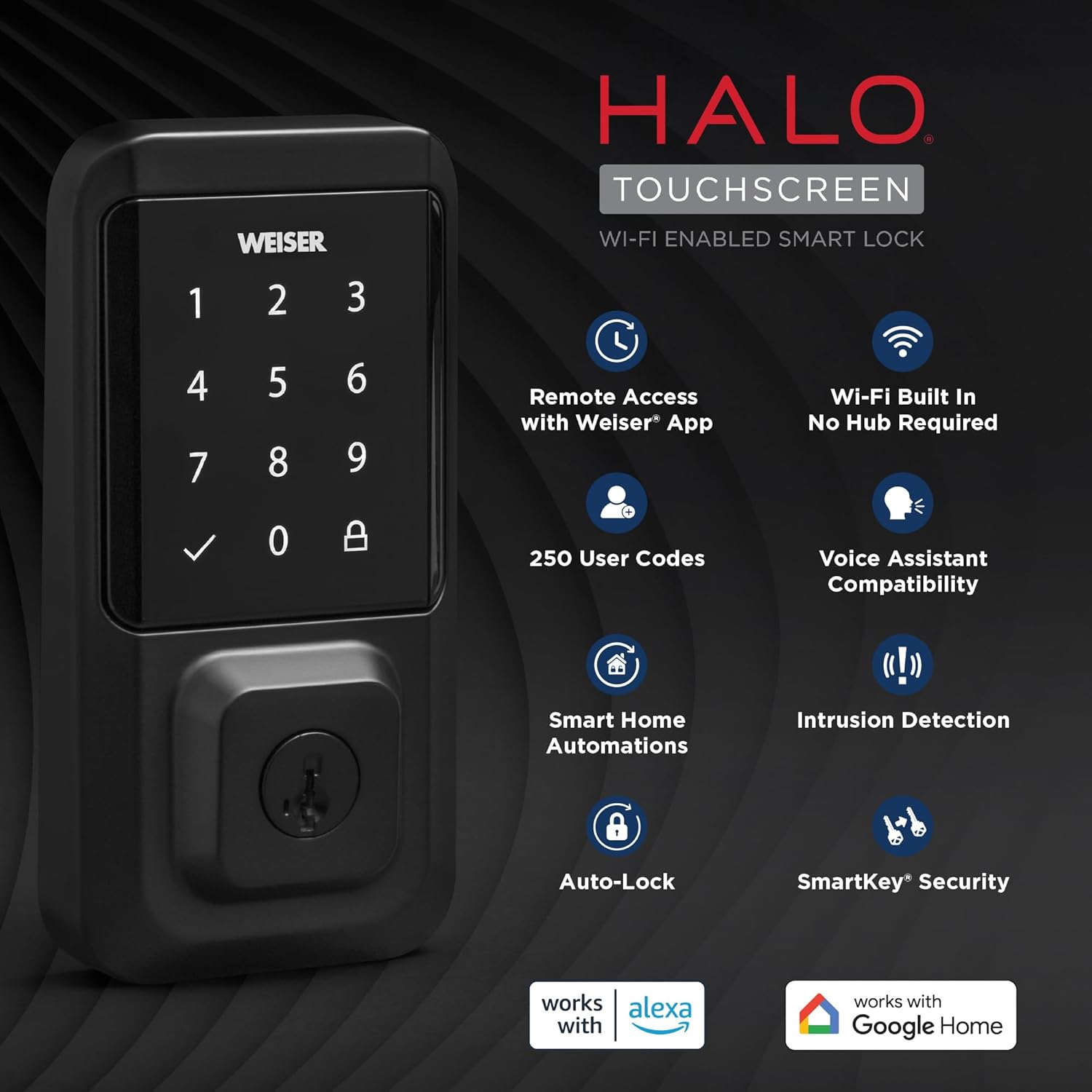
Figura 2: Componenti inclusi
Guida all'installazione
The Weiser Halo Smart Lock is designed for easy installation, typically requiring only a screwdriver. It fits most standard doors 1-3/8" to 1-3/4" thick with an adjustable backset (2-3/8" or 2-3/4").
- Prepara la porta: Ensure your door is properly prepped for a deadbolt. Check the bore hole and backset dimensions.
- Installa il fermo: Insert the adjustable latch into the door edge. Ensure the latch is oriented correctly with the 'UP' arrow facing upwards.
- Installare il gruppo esterno: Place the exterior keypad assembly onto the door, feeding the cable through the bore hole.
- Installare la piastra di montaggio: Secure the mounting plate to the door using the provided screws, ensuring it aligns with the exterior assembly.
- Installare il gruppo interno: Connect the cable from the exterior assembly to the interior assembly. Carefully tuck the excess cable into the recess. Attach the interior assembly to the mounting plate with the remaining screws.
- Installa le batterie: Insert the 4 AA batteries into the battery tray and slide the tray into the interior assembly.
- Perform Door Handing: After installation, the lock will automatically perform a door handing process to learn the orientation of your door. Follow the prompts on the lock or in the Weiser app.

Figura 3: Processo di installazione semplice
Configurazione e connettività
The Weiser Halo Smart Lock connects directly to your home Wi-Fi network for remote access and smart home integration.
- Download the Weiser App: Cercare the 'Weiser App' on the Apple App Store or Google Play Store and install it on your smartphone.
- Creare un account: Apri l'app e segui le istruzioni sullo schermo per creare un nuovo account utente.
- Aggiungi il tuo lucchetto: In the Weiser app, select the option to add a new device. Follow the in-app prompts to connect your Halo Smart Lock to your home's Wi-Fi network. This process typically involves putting the lock into pairing mode and entering your Wi-Fi credentials.
- Accesso remoto: Once connected, you can lock and unlock your door remotely from your smartphone using the Weiser app, from anywhere with an internet connection.

Figure 4: Control Your Lock From Anywhere
Operazione
Sblocco e blocco
- tastiera: Enter your valid user code on the touchscreen keypad, then press the checkmark button to unlock. To lock, simply press the lock icon on the keypad.
- Chiave: Use the physical key provided to manually unlock or lock the deadbolt.
- Weiser App: Use the lock/unlock function within the Weiser app on your smartphone.
- Pollice in giù: From the interior, manually turn the thumb turn to lock or unlock the deadbolt.
Managing User Codes
The Weiser Halo Smart Lock can store up to 250 unique user codes. You can create permanent, one-time, or scheduled entry codes through the Weiser app.
- Aggiunta di codici: In the Weiser app, navigate to the 'Access Codes' section and follow the instructions to add new codes. You can assign names to codes for easy identification.
- Eliminazione dei codici: Codes can be deleted at any time through the app.
- Scheduling Codes: Set specific days and times for codes to be active, ideal for guests or service providers.

Figure 5: Share Guest Access
Funzione di blocco automatico
The auto-lock feature automatically locks your door after a set duration following entry or exit, providing hands-free locking and enhanced peace of mind. This duration can be customized within the Weiser app.

Figure 6: Auto-Lock Functionality
Integrazione della casa intelligente
The Weiser Halo Smart Lock is compatible with popular voice assistants like Amazon Alexa and Google Assistant (functionality primarily from Android devices). This allows for voice control and integration into smart home routines.
- Controllo vocale: Use voice commands to lock your door (e.g., "Alexa, lock the front door.").
- Automazioni: Set up custom automations, such as locking the door at a specific time each night or turning on lights when the door is unlocked.
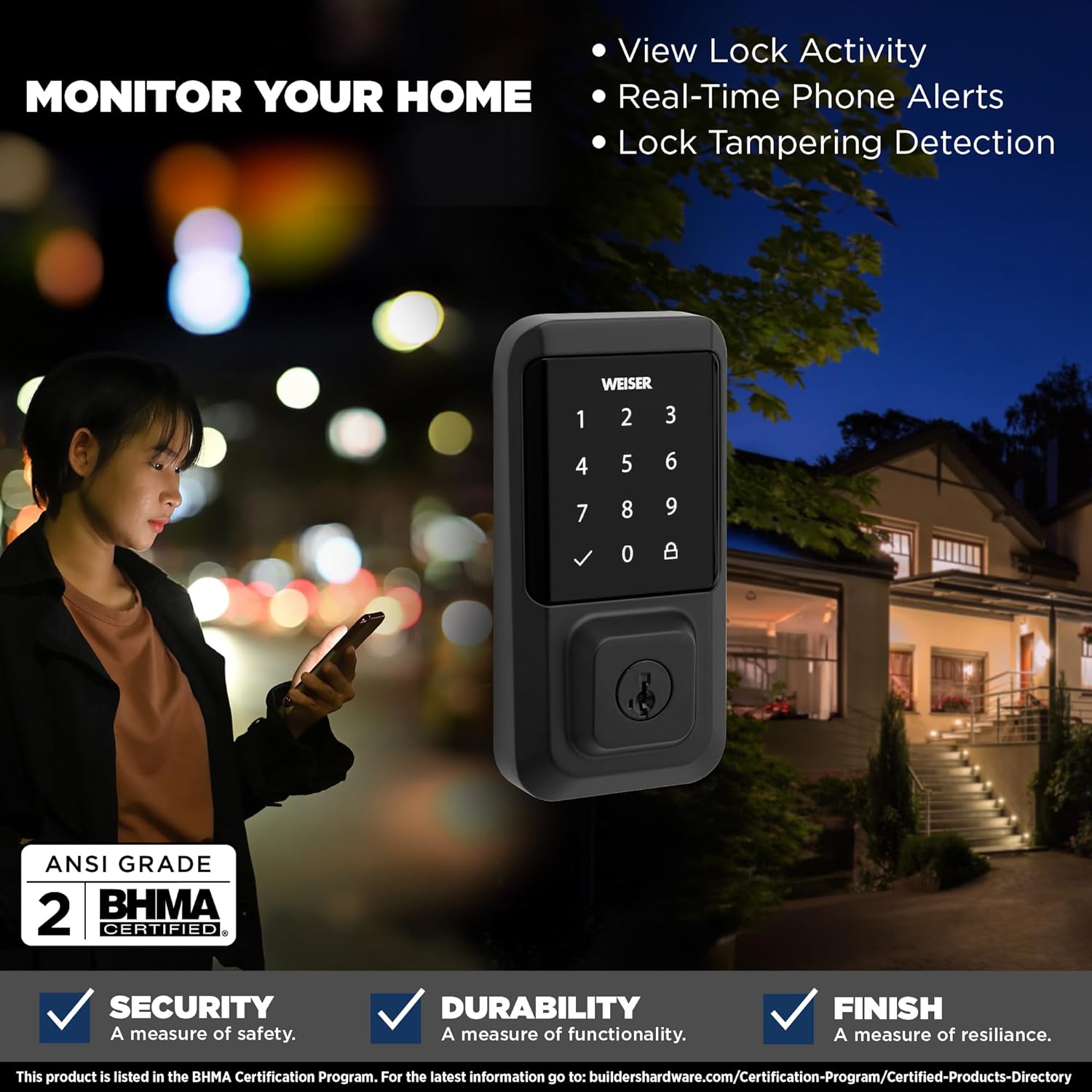
Figura 7: Integrazione della casa intelligente
Monitoraggio e avvisi
The Weiser app provides real-time monitoring and alerts for your lock's activity.
- View Lock Activity: Access a detailed history of lock and unlock events, including who accessed the door and when.
- Real-Time Phone Alerts: Receive instant notifications on your smartphone for various events, such as lock/unlock actions or tamptentativi in corso.
- Blocca TampRilevamento del rumore: The lock is equipped with features to detect and alert you to potential tampring.

Figure 8: Monitor Your Home
Sicurezza SmartKey
The Weiser Halo Smart Lock features SmartKey Security, allowing you to re-key the lock yourself in seconds. This is useful if you've recently moved, lost keys, or wish to use a single key for multiple Weiser SmartKey compatible locks.
- Insert Existing Key: Insert your currently working key fully into the keyhole.
- Chiavi in mano: Turn the key 90 degrees clockwise (to the horizontal position).
- Inserisci lo strumento SmartKey: While holding the key in the horizontal position, insert the SmartKey tool firmly into the small hole next to the keyway.
- Remove Keys: Remove the SmartKey tool first, then remove the existing key.
- Inserisci nuova chiave: Insert your new key fully into the keyhole.
- Turn New Key: Turn the new key 90 degrees counter-clockwise (back to the vertical position).
- Prova nuova chiave: Remove the new key and test it to ensure the re-keying process was successful.

Figure 9: SmartKey Security Re-keying
Manutenzione
To ensure optimal performance and longevity of your Weiser Halo Smart Lock, follow these maintenance guidelines:
- Sostituzione della batteria: The lock requires 4 AA batteries. When the battery level is low, you will receive notifications through the Weiser app and potentially visual/audible alerts from the lock itself. To replace batteries, slide open the battery cover on the interior assembly, remove the old batteries, and insert new ones, ensuring correct polarity.
- Pulizia: Pulisci il touchscreen e le superfici esterne con un panno morbido eamp panno. Evitare detergenti abrasivi o solventi che potrebbero danneggiare la finitura.
- Allineamento della porta: Periodically check that your door and frame are properly aligned. Misalignment can cause the deadbolt to bind, leading to increased battery drain and reduced performance.
Risoluzione dei problemi
If you encounter issues with your Weiser Halo Smart Lock, refer to the following common problems and solutions:
| Problema | Possibile causa | Soluzione |
|---|---|---|
| Lock not responding / Dead battery | Le batterie sono scariche. | Replace all 4 AA batteries with new, high-quality alkaline batteries. |
| Lock frequently goes offline / Wi-Fi connectivity issues | Weak Wi-Fi signal; Router too far; Network interference. | Ensure the lock is within range of your Wi-Fi router. Consider a Wi-Fi extender if necessary. Check for network interference from other devices. Restart your router. |
| Keypad not responding to touch | Secure mode activated; Accidental touches prevented. | If 'Secure Mode' is enabled, the keypad may require a specific sequence (e.g., 4+6) to activate. Disable this feature in the app if not desired. Ensure hands are clean and dry. |
| Il catenaccio si blocca o non si estende completamente | Door/frame misalignment; Latch not installed correctly. | Check door and frame alignment. Ensure the strike plate is properly aligned with the deadbolt. Verify the latch was installed with the correct orientation. |
| Cannot add or delete user codes | Lock is offline; App synchronization issue. | Ensure the lock is connected to Wi-Fi and online in the Weiser app. Try closing and reopening the app. |
For further assistance, refer to the Weiser app's help section or contact Weiser customer support.
Specifiche
| Caratteristica | Dettaglio |
|---|---|
| Marca | Bianco |
| Nome del modello | Halo Touch Smart Lock Deadbolt |
| Numero di modello | 9GED25000-004 |
| Colore | Nero opaco |
| Materiale | Metallo |
| Tipo di blocco | Key Lock, Smart Lock |
| Caratteristica speciale | Touchscreen, Wi-Fi Enabled |
| Protocollo di connettività | Wifi |
| Metodo di controllo | Touch, Hand Control, SmartThings App |
| Fonte di alimentazione | 4 batterie AA (incluse) |
| Dimensioni articolo (L x P x A) | 2.88 x 1.19 x 5.63 pollici |
| Peso dell'articolo | 4 libbre |
| Compatibilità con le porte | 1-3/8" to 1-3/4" thick doors, adjustable backset (2-3/8" or 2-3/4") |
| Codici utente | Fino a 250 |
| Codice UPC | 059184399653 |
Garanzia e supporto
Weiser products are designed for durability and reliability. For specific warranty information regarding your Weiser Halo WiFi Smart Lock, please refer to the warranty card included with your product or visit the official Weiser website. For technical support, troubleshooting assistance, or to inquire about replacement parts, please contact Weiser customer service through their official channels.