
1. Prodotto finitoview
The RICOH Aficio MP C3003 is a versatile A3 Color Laser Multifunction Copier designed for fast-paced office environments. It integrates copy, fax, print, and scan functionalities, offering robust performance and connectivity options.
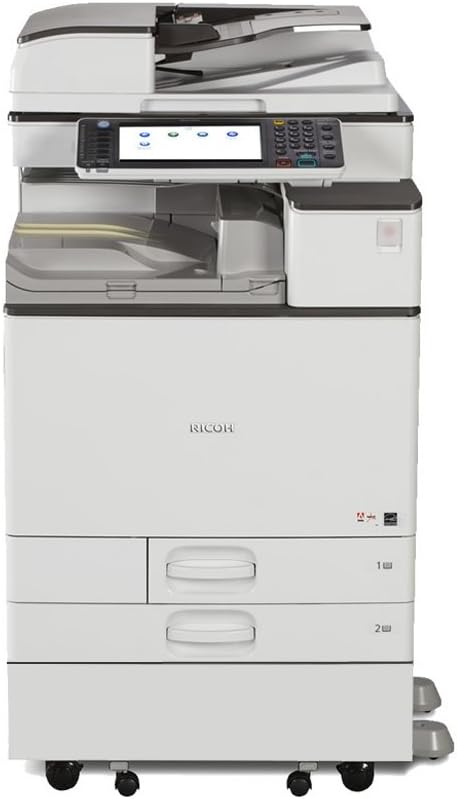
Immagine: Frontale view of the RICOH Aficio MP C3003 A3 Color Laser Multifunction Copier, showing its compact design, control panel, and paper trays.
Caratteristiche principali
- Standard features: Copy, Fax, Print, Scan, Auto Duplex, Network
- Print speed: Up to 30 pages per minute
- Maximum Paper Size: up to 12" x 18" via Bypass Tray
- Paper Input Capacity (std / max.): 1,200 sheets / 4,700 sheets with options
- Comes with Pre-installed PostScript 3 Supplement and full Manual
2. Guida all'installazione
2.1 Disimballaggio
- Carefully remove the copier from its packaging. Ensure all packing materials and protective tapes are removed.
- Place the copier on a stable, level surface with adequate space for ventilation and operation.
- Verify all included components are present: Ricoh Aficio MP C3003 unit, Toner Cartridges, Power Cord.
2.2 Accensione iniziale
- Connect the power cord securely to the copier and then to a grounded electrical outlet.
- Press the power button, usually located on the side or front panel, to turn on the device.
- Follow the on-screen prompts on the control panel to complete the initial setup, including language and date/time settings.
2.3 Connessione di rete
- Connect an Ethernet cable from the copier's Ethernet port to your network router or switch.
- Access the network settings from the control panel.
- Configure IP address settings (DHCP or Static IP) as per your network administrator's instructions.
- Install necessary printer drivers on your computers. Drivers are typically available on the manufacturer's website or included with the device.
3. Istruzioni per l'uso
3.1 Copia dei documenti
- Posizionare il documento originale con il lato stampato rivolto verso il basso sul vetro dello scanner o con il lato stampato rivolto verso l'alto nell'alimentatore automatico di documenti (ADF).
- Selezionare la funzione "Copia" dal pannello di controllo.
- Adjust settings such as number of copies, color/black & white, duplex, and paper tray.
- Premere il pulsante "Avvia" per iniziare la copia.
3.2 Stampa da un computer
- Dal computer, apri il documento che desideri stampare.
- Selezionare 'Stampa' dal menu dell'applicazione (ad esempio, File > Stampa).
- Choose the RICOH Aficio MP C3003 from the list of available printers.
- Adjust print settings as needed (e.g., paper size, orientation, color, duplex).
- Fare clic su "Stampa".
3.3 Scansione di documenti
- Posizionare il documento sul vetro dello scanner o nell'ADF.
- Selezionare la funzione 'Scansione' sul pannello di controllo.
- Scegli la destinazione della scansione (ad esempio, Scansione su e-mail, Scansione su cartella, Scansione su USB).
- Configurare le impostazioni di scansione come la risoluzione, file formato e modalità colore.
- Premere 'Avvia scansione'.
3.4 Invio di documenti via fax
- Posizionare il documento sul vetro dello scanner o nell'ADF.
- Select the 'Fax' function on the control panel.
- Inserire il numero di fax del destinatario utilizzando la tastiera.
- Regolare le impostazioni fax necessarie.
- Press 'Start' to send the fax.
3.5 Connettività mobile
The RICOH Aficio MP C3003 supports mobile printing and scanning. You can connect to the cloud from your smartphone, tablet, or other mobile device.
- Download the official RICOH mobile app from your device's app store.
- Ensure your mobile device is connected to the same network as the copier.
- Use the app to discover and connect to the copier for printing or scanning tasks.
4. Manutenzione
4.1 Sostituzione del toner
- Quando una cartuccia del toner è quasi vuota o in esaurimento, sul pannello di controllo verrà visualizzato un messaggio.
- Aprire il coperchio anteriore della fotocopiatrice.
- Locate the empty toner cartridge and carefully pull it out.
- Unpack the new toner cartridge, shake it gently, and insert it firmly into its slot until it clicks into place.
- Chiudere il coperchio anteriore.
4.2 Gestione del vassoio carta
- Estrarre il vassoio della carta desiderato.
- Adjust the paper guides to fit the size of the paper you are loading.
- Load the paper stack evenly, ensuring it does not exceed the maximum fill line.
- Spingere delicatamente il vassoio della carta nella fotocopiatrice finché non si blocca.
- Se richiesto, confermare il formato e il tipo di carta sul pannello di controllo.
4.3 Procedure di pulizia
- Esterno: Pulire le superfici esterne con un panno morbido, damppanno privo di lanugine. Non utilizzare detergenti abrasivi o solventi.
- Vetro dello scanner: Gently clean the scanner glass with a soft cloth moistened with glass cleaner. Ensure no residue is left.
- Rulli ADF: Refer to the detailed manual for instructions on cleaning ADF rollers to prevent paper jams and streaks.
5. Risoluzione Dei Problemi
| Problema | Possibile causa | Soluzione |
|---|---|---|
| Inceppamento della carta | Caricamento carta errato, corpo estraneo, rulli usurati. | Open covers as indicated on the control panel. Carefully remove jammed paper. Ensure paper is loaded correctly. |
| Nessun potere | Cavo di alimentazione scollegato, problema con la presa di corrente. | Check power cord connection to copier and outlet. Try a different outlet. |
| Scarsa qualità di stampa | Low toner, dirty scanner glass, fuser issue. | Replace toner cartridge. Clean scanner glass. If problem persists, contact support. |
| Errore di connessione di rete | Incorrect IP settings, faulty Ethernet cable, network issue. | Verify network cable connection. Check IP settings on copier and network. Restart copier and router. |
6. Specifiche
| Caratteristica | Dettaglio |
|---|---|
| Marca | RICOH |
| Nome del modello | C3003 |
| Tecnologia di stampa | Laser |
| Uscita della stampante | Colore |
| Velocità di stampa | Fino a 30 pagine al minuto |
| Formato carta massimo | 12" x 18" (via Bypass Tray) |
| Capacità massima del foglio di input | 1200 (standard) / 4700 (max with options) |
| Stampa fronte-retro | Auto-Duplex |
| Tecnologia di connettività | Etereo |
| Tipo di scanner | Pianale piatto |
| Risoluzione massima di stampa a colori | 1200 dpi |
| Colore dell'inchiostro | Ciano, Magenta, Giallo, Nero |
| Componenti inclusi | Ricoh Aficio MP C3003, Toner Cartridges, Power Cord |
| Dimensioni del prodotto | 19.29 x 16.5 x 4.09 pollici |
| Peso dell'articolo | 3.08 libbre (1.4 chilogrammi) |
| Data prima disponibilità | 16 agosto 2020 |
7. Informazioni sulla garanzia
The RICOH Aficio MP C3003 comes with a Garanzia limitata. Please refer to the warranty documentation included with your product for specific terms, conditions, and duration of coverage. Retain your proof of purchase for warranty claims.
8. Supporto
For technical assistance, service requests, or further inquiries regarding your RICOH Aficio MP C3003, please contact RICOH customer support.
- Supporto online: Visit the official RICOH support website for FAQs, drivers, and digital manuals.
- Supporto telefonico: Refer to the contact information provided in your product's packaging or on the official RICOH websito per i numeri di supporto regionali.
Always ensure you have your product model number (C3003) and serial number ready when contacting support.