
Introduzione
The Apple Pencil (2nd Generation) is designed to offer pixel-perfect precision with low latency, enhancing your experience on compatible iPads. It features a flat edge for magnetic attachment and charging, and supports a double-tap gesture for quick tool switching. This makes note-taking, drawing, and annotating feel natural and convenient. Key features include pressure and tilt sensitivity, and Apple Pencil Hover on newer Pro models.
This manual provides essential information for setting up, operating, maintaining, and troubleshooting your Apple Pencil (2nd Generation).
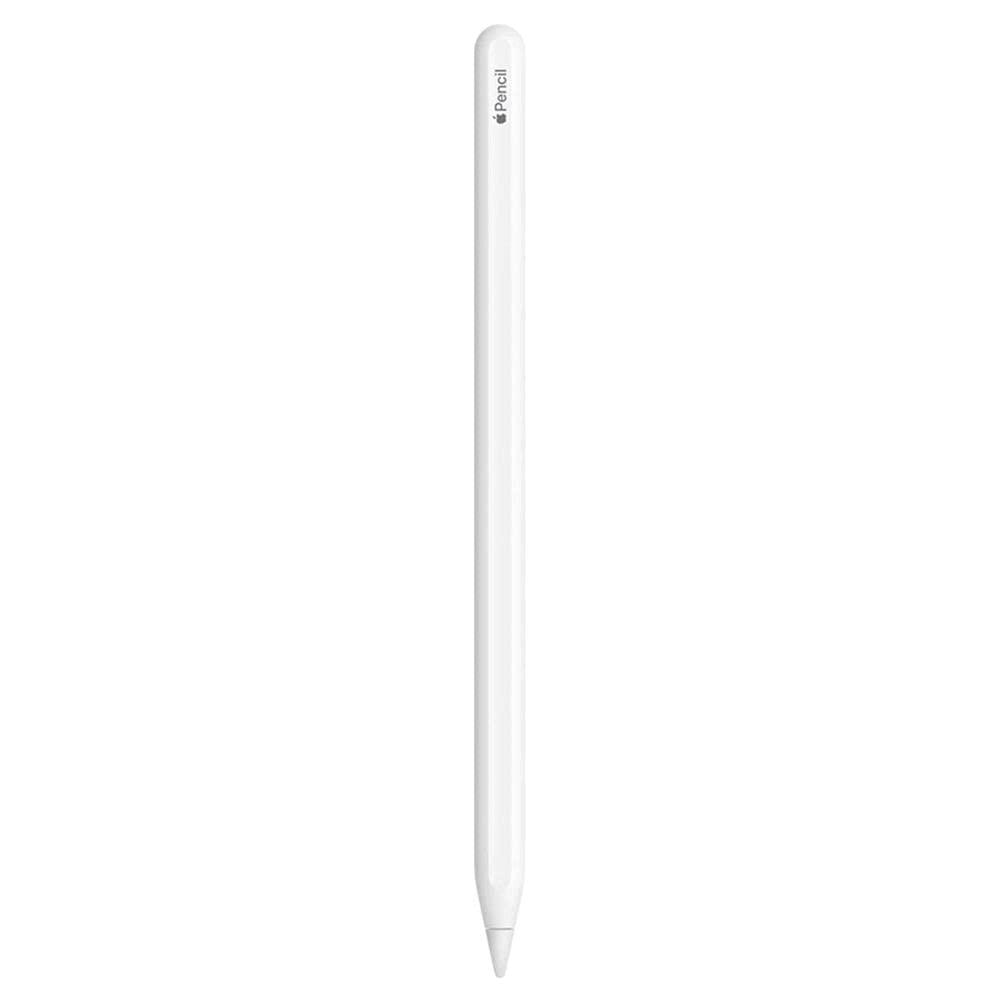
Figure 1: Apple Pencil (2nd Generation) in white.
Compatibilità
The Apple Pencil (2nd Generation) is compatible with the following iPad models:
- 11-inch iPad Pro (1st Generation and later)
- 12.9-inch iPad Pro (3rd Generation and later)
- iPad Air (4th Generation and later)
- iPad mini (6th Generation and later)
Ensure your iPad model is listed above for full compatibility and functionality.
Impostare
Pairing Your Apple Pencil
- Ensure your compatible iPad is updated to the latest iPadOS.
- Place your Apple Pencil (2nd Generation) on the magnetic connector located on the side of your iPad. The flat edge of the Apple Pencil should align with the magnetic strip on the iPad.
- A "Connect" button will appear on your iPad's screen. Tap it to pair your Apple Pencil.
- If the "Connect" button does not appear, ensure Bluetooth is enabled on your iPad (Settings > Bluetooth).
Charging Your Apple Pencil
The Apple Pencil (2nd Generation) charges wirelessly when magnetically attached to the side of your compatible iPad. The battery status will be displayed briefly on your iPad's screen when connected.
Istruzioni per l'uso
Utilizzo di base
- Disegno e scrittura: Use the Apple Pencil directly on your iPad's screen for precise input in drawing, note-taking, and creative applications.
- Sensibilità alla pressione: Apply more pressure for thicker lines or darker shading, and lighter pressure for finer details.
- Sensibilità all'inclinazione: Tilt the Apple Pencil to achieve shading effects, similar to a traditional pencil.
Double-Tap Gesture
The Apple Pencil (2nd Generation) features a customizable double-tap gesture. By default, a quick double-tap on the flat side of the pencil allows you to switch between tools (e.g., pen and eraser) in many applications. You can customize this gesture in your iPad's Settings > Apple Pencil.
Apple Pencil Hover (on compatible iPad Pro models)
On supported iPad Pro models, the Apple Pencil Hover feature allows you to preview your mark before you make it. Hold the Apple Pencil above the display to see a preview of your tool or mark, enhancing precision and control.
Manutenzione
- Pulizia: Wipe the Apple Pencil with a soft, lint-free cloth. Avoid using abrasive materials or harsh chemicals.
- Cura della punta: The Apple Pencil tip is designed for durability, but it can wear down over time with heavy use. Replacement tips are available from Apple. To replace, gently unscrew the old tip and screw on a new one.
- Magazzinaggio: When not in use, keep your Apple Pencil magnetically attached to your iPad to ensure it remains charged and ready. Avoid storing it in extreme temperatures.
Risoluzione dei problemi
Pencil Not Pairing or Connecting
- Ensure your iPad is compatible with Apple Pencil (2nd Generation).
- Check that Bluetooth is enabled on your iPad (Settings > Bluetooth).
- Make sure the Apple Pencil is correctly aligned and magnetically attached to the charging connector on your iPad.
- Riavvia l'iPad e prova ad associarlo di nuovo.
Matita non in carica
- Verify the Apple Pencil is securely attached to the magnetic connector on your iPad.
- Check your iPad's battery level. The Apple Pencil will not charge if the iPad's battery is critically low.
- Assicurati che il software del tuo iPad sia aggiornato.
Responsiveness Issues
- Check the Apple Pencil tip for wear. Replace if necessary.
- Ensure there are no screen protectors or cases interfering with the screen's sensitivity.
- Restart your iPad and the application you are using.
Specifiche
| Caratteristica | Dettaglio |
|---|---|
| Marca | Mela |
| Numero di modello | MU8F2AM/A |
| Colore | Bianco |
| Connettività | Bluetooth |
| Ricarica | Magnetic (Wireless) |
| Dimensioni (L x P x A) | 8.27 x 2.18 x 0.98 pollici |
| Caratteristiche | Pixel-perfect precision, Low latency, Tilt sensitivity, Pressure sensitivity, Double-tap gesture, Magnetic attachment |
| Codice UPC | 034722633598 |
Garanzia e supporto
Informazioni sulla garanzia
This Apple Pencil (2nd Generation) comes with a Garanzia limitata di 90 giorniSi prega di conservare la prova d'acquisto per eventuali reclami in garanzia.
Assistenza clienti
For further assistance, technical support, or to inquire about replacement parts, please visit the official Apple Support website or contact Apple Customer Service. You can find detailed support resources, FAQs, and contact options at supporto.apple.com.