
1. Introduzione
This manual provides detailed instructions for the Rii BT11 Ultra-Thin Bluetooth Wireless Keyboard. Please read this manual thoroughly before using the product to ensure proper operation and to maximize its lifespan. This keyboard is designed for use with various devices including Windows, Linux, macOS, iOS (touchpad function not supported), Android, tablets, and smartphones.

Immagine 1.1: anteriore view of the Rii BT11 Ultra-Thin Bluetooth Wireless Keyboard, showcasing its compact design and full AZERTY layout with integrated touchpad.
2. Contenuto della confezione
Verificare che tutti gli articoli siano presenti nel pacco:
- Rii BT11 Bluetooth Wireless Keyboard
- Cavo di ricarica USB
- Manuale dell'utente (questo documento)
3. Prodotto finitoview
Familiarize yourself with the keyboard's components and controls.
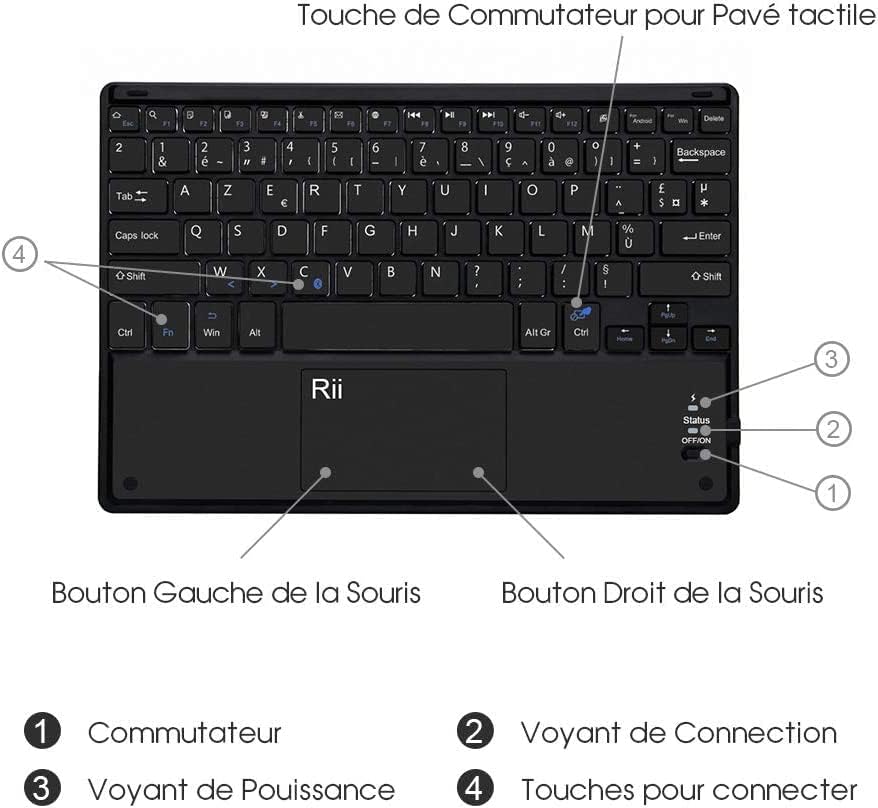
Image 3.1: Diagram of the Rii BT11 keyboard highlighting key features. (1) Switch, (2) Connection Indicator, (3) Power Indicator, (4) Connection Keys (Fn+Q/W/E for different OS), Left Mouse Button (under touchpad), Right Mouse Button (under touchpad), Touchpad Switch Key (Fn+Space).
- Interruttore: Power ON/OFF switch for the keyboard.
- Indicatore di connessione: LED light indicating Bluetooth connection status.
- Indicatore di alimentazione: Luce LED che indica lo stato di alimentazione e di carica.
- Connection Keys: Use with the Function (Fn) key to switch between operating systems (Fn+Q for iOS, Fn+W for Android, Fn+E for Windows).
- Pulsante sinistro del mouse: Integrated into the touchpad area.
- Tasto destro del mouse: Integrated into the touchpad area.
- Touchpad Switch Key: Fn + Spacebar to enable/disable the touchpad.
4. Impostazione
4.1 Ricarica della tastiera
Before initial use, fully charge the keyboard. Connect the supplied USB charging cable to the keyboard's charging port and the other end to a USB power source (e.g., computer USB port, USB wall adapter). The Power Indicator LED will illuminate during charging and turn off when fully charged.

Image 4.1: Information on the Rii BT11's battery specifications: 280mAh Lithium battery, less than 4 hours charging time, 40 hours uninterrupted working time, and 90 days standby time.
4.2 Associazione Bluetooth
Follow these steps to pair your Rii BT11 keyboard with your device:
- Assicurarsi che la tastiera sia completamente carica.
- Turn on the keyboard using the Interruttore (1) located on the side. The Power Indicator LED will light up briefly.
- Premere il tasto Fn chiave e uno dei Connection Keys (Q, W, or E) simultaneously to select the appropriate operating system mode for your device:
- Fn+Q: For iOS devices (iPad, iPhone). Note: Touchpad function is not supported on iOS.
- Fn+W: Per dispositivi Android.
- Fn + Mi: For Windows devices.
- Sul tuo dispositivo (tablet, smartphone, computer), vai alle impostazioni Bluetooth.
- Abilita il Bluetooth e cerca i dispositivi disponibili.
- Select "Rii BT11" from the list of found devices.
- If prompted, enter the pairing code displayed on your device using the Rii BT11 keyboard and press Entrare.
- Once successfully paired, the Connection Indicator LED will stop blinking and remain solid for a few seconds, then turn off to save power. The keyboard is now ready for use.
Note: The keyboard will automatically attempt to reconnect to the last paired device when powered on. If it fails to connect, repeat the pairing process.
5. Istruzioni per l'uso
5.1 Funzioni di base della tastiera
The Rii BT11 features a standard AZERTY keyboard layout. All standard typing functions operate as expected.
5.2 Funzionamento del touchpad
The integrated multi-touch touchpad allows for precise cursor control and gesture support on compatible operating systems (Windows, Android, Linux). The touchpad is not supported on iOS devices.
- Tocco con un solo dito: Fare clic con il pulsante sinistro del mouse.
- Tocco con due dita: Fare clic con il pulsante destro del mouse.
- Scorrimento con due dita: Scorri verso l'alto/il basso o verso sinistra/destra.
- Pizzica per ingrandire: Zoom in/out (supported on some applications/OS).
To enable or disable the touchpad, press Fn + Barra spaziatrice.

Image 5.1: A hand demonstrating the use of the multi-function touchpad on the Rii BT11 keyboard, highlighting its utility for navigation.
5.3 Tasti funzione (combinazioni Fn)
The keyboard includes dedicated function keys (F1-F12) and multimedia keys accessible via the Fn key. Refer to the key labels for specific functions.
| Combinazione | Funzione |
|---|---|
| Fn + Q | Passa alla modalità iOS |
| Fn + W | Passa alla modalità Android |
| Fn + E | Passa alla modalità Windows |
| Fn + Barra spaziatrice | Abilita/Disabilita il touchpad |
| Fn+F1-F12 | Multimedia and system control functions (e.g., volume, playback, brightness) |
5.4 Modalità risparmio energetico
To conserve battery life, the keyboard will enter sleep mode after 10 minutes of inactivity. To wake it up, press any key and wait approximately 3 seconds for it to reconnect.
6. Manutenzione
Proper maintenance ensures the longevity of your Rii BT11 keyboard.
- Pulizia: Utilizzare un panno morbido e asciutto per pulire la superficie della tastiera. Per lo sporco ostinato, leggermente dampen the cloth with water or a mild, non-abrasive cleaner. Do not use harsh chemicals or immerse the keyboard in liquid.
- Magazzinaggio: Conservare la tastiera in un luogo fresco e asciutto, lontano dalla luce solare diretta e da temperature estreme.
- Cura della batteria: Avoid fully discharging the battery frequently. Charge the keyboard regularly, especially if it will not be used for an extended period.
- Gestione: Avoid dropping the keyboard or subjecting it to strong impacts. Do not attempt to disassemble the keyboard.
7. Risoluzione Dei Problemi
If you encounter issues with your Rii BT11 keyboard, refer to the following common problems and solutions:
| Problema | Possibile causa | Soluzione |
|---|---|---|
| La tastiera non si accende. | Batteria scarica o interruttore di alimentazione spento. | Caricare la tastiera. Assicurarsi che l'interruttore di alimentazione sia in posizione "ON". |
| La tastiera non si connette tramite Bluetooth. | Not in pairing mode, incorrect OS mode, device Bluetooth off, or already paired with another device. |
|
| I tasti non rispondono. | Keyboard is in sleep mode, low battery, or connection issue. |
|
| Il touchpad non funziona. | Touchpad disabled, or device is iOS. |
|
| La tastiera si disconnette spesso. | Low battery, interference, or device too far. |
|
8. Specifiche
Key technical specifications for the Rii BT11 keyboard:
- Modello: Modello BT11
- Marca: RII
- Connettività: Bluetooth
- Disposizione: AZZERTY
- Sistemi operativi compatibili: Windows, Android, Linux/Ubuntu, iOS (keyboard only, touchpad not supported)
- Dispositivi compatibili: Laptop, Smartphone, Tablet, Smart TV
- Tipo di batteria: Lithium-ion (Lithium-polymer)
- Capacità della batteria: 280mAh
- Tempo di ricarica: < 4 ore
- Orario di lavoro: 40 hours (uninterrupted)
- Tempo di standby: 90 giorni
- Materiale: Plastica
- Dimensioni: Approximately 25.7cm x 17.2cm x 0.7cm (Ultra-thin design)
- Caratteristiche speciali: Ultra-thin, Multi-touch Touchpad, Power Saving Mode, Wide Compatibility

Image 8.1: The Rii BT11 keyboard showcasing its compact and ultra-thin profile, with dimensions of 25.7cm x 17.2cm x 0.7cm.

Image 8.2: Features of the Rii BT11 keyboard, including scissor keys for comfortable typing, durable ABS material construction, and design for quiet and comfortable typing.
9. Garanzia e supporto
For warranty information and technical support, please refer to the product packaging or contact Rii customer service directly. Information regarding spare parts availability and software updates is not provided in the product specifications.
For further assistance, please visit the official Rii websito o contattare i loro canali di assistenza clienti.