
Introduzione
Thank you for choosing the BEVA USB Barcode Scanner. This manual provides essential information for the proper setup, operation, and maintenance of your device. Please read it carefully to ensure optimal performance and longevity of the product.
This scanner is designed for ease of use, offering a plug-and-play experience without the need for complex driver installations. It is suitable for a wide range of applications, including retail stores, offices, logistics, warehouses, and libraries.
Prodotto finitoview
The BEVA USB Barcode Scanner is a robust and ergonomically designed device built for reliable performance.

Image: The BEVA USB Barcode Scanner shown from various perspectives, highlighting its ergonomic design.
Componenti chiave
- Finestra di scansione: The area through which the laser scans barcodes.
- Pulsante di attivazione: Activates the scanning laser.
- Buzzer & Indicator: Provides audible and visual feedback for successful scans and status.
- Porta USB: Connects the scanner to a host device via a USB cable.
- Anti-drop Silicone: Protective material for enhanced durability.

Image: A detailed diagram illustrating the main components of the BEVA USB Barcode Scanner, including the scan window, buzzer, indicator, anti-drop silicone, and USB port.
Istruzioni di installazione
The BEVA USB Barcode Scanner is designed for quick and easy setup.
- Collegare il cavo USB: Insert the USB cable from the scanner into an available USB port on your computer or host device.
- Installazione automatica del driver: The operating system will automatically detect the scanner and install the necessary drivers. No manual driver installation is required.
- Pronto per l'uso: Once the drivers are installed (typically within a few seconds), the scanner is ready for operation.

Image: The BEVA USB Barcode Scanner connected to a computer via its USB cable, demonstrating the simple plug-and-play setup process.
Istruzioni per l'uso
Operating the BEVA USB Barcode Scanner is straightforward.
Scansione di base
- Point the scan window at the barcode you wish to read.
- Press and hold the trigger button. A laser line will appear.
- Allineare la linea laser lungo l'intero codice a barre.
- Upon a successful read, the scanner will emit a beep and the indicator light will flash. The barcode data will be transmitted to your connected device.
Modalità di scansione
Lo scanner supporta diverse modalità di scansione per soddisfare diverse esigenze operative:
- Flicker Scan: For quick, individual scans.
- Scansione automatica: The scanner automatically detects and reads barcodes when presented within its field of view.
- Scansione continua: The scanner continuously emits the laser, reading barcodes as they pass through the beam.
Refer to the included quick setup guide or contact support for instructions on how to switch between these modes using specific configuration barcodes.
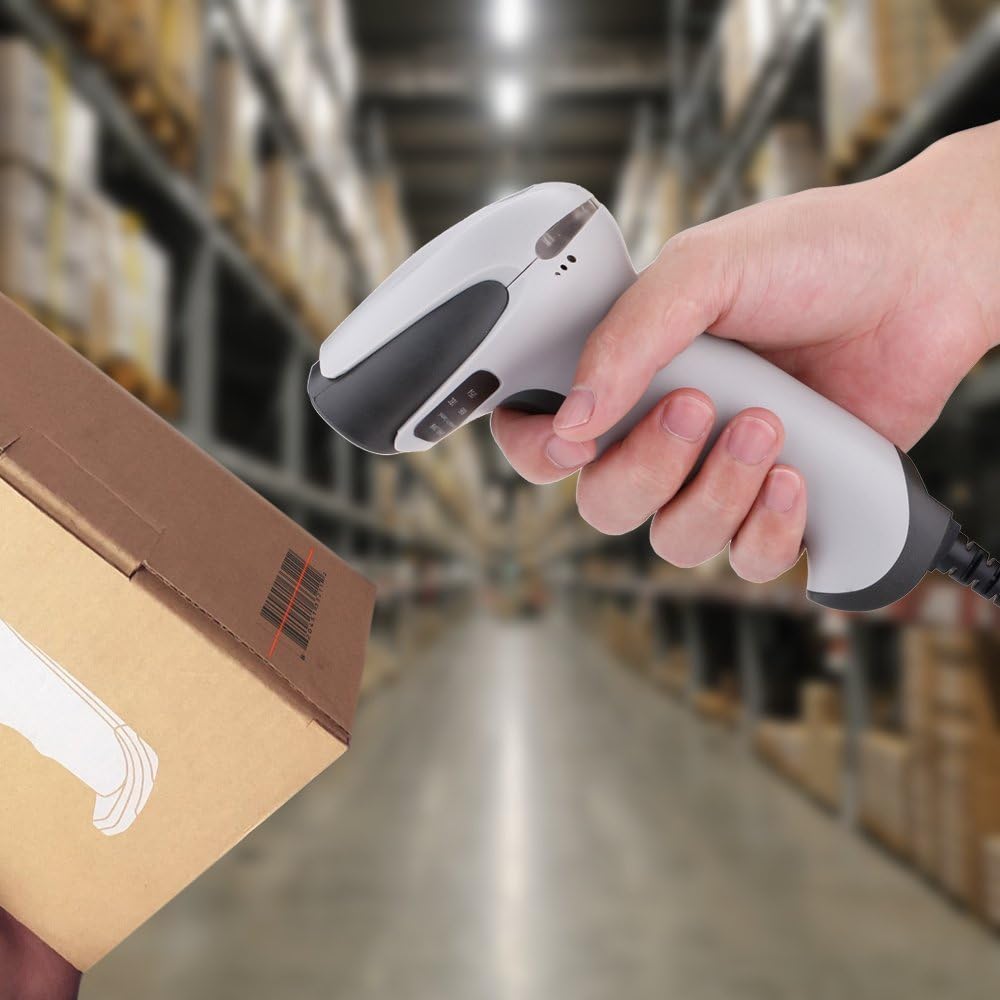
Image: A hand holding the BEVA USB Barcode Scanner, actively scanning a barcode on a package in a warehouse setting, demonstrating its practical application.

Immagine: Un collage mostraasing the BEVA USB Barcode Scanner being used in diverse environments such as retail checkout, office inventory, and logistics, highlighting its versatility.
Manutenzione
Proper maintenance ensures the longevity and consistent performance of your barcode scanner.
Pulizia
- Keep the scan window clean. Use a soft, lint-free cloth, slightly dampcon acqua o una soluzione detergente delicata, per pulire la superficie.
- Do not use abrasive cleaners or solvents, as these can damage the scanner's housing or scan window.
- Assicurarsi che nessun liquido penetri nel dispositivo.
Durata
The scanner is constructed with durable ABS and TPU materials, providing excellent shock resistance. It is designed to withstand drops from a height of up to 1.5 meters. The trigger button has a tested lifespan of 5 million presses.
Risoluzione dei problemi
If you encounter issues with your BEVA USB Barcode Scanner, please refer to the following common problems and solutions:
- Problemi di connessione: If the scanner does not respond when connected to a PC's USB port, scan the "Initialize Settings" barcode found on page 16 of the included manual. This can reset the scanner's connection parameters.
- Reading Accuracy: This product supports barcodes with a precision of 0.127mm or higher. For high-precision barcodes below 0.127mm, the response may be delayed or the barcode may not be recognized.
- Barcode Type Settings: The setup method varies depending on the type of barcode. If you have any questions during use, please contact customer support and attach an electronic data file of the barcode you are trying to scan.
- Handling Setting Barcodes: Scanning setting barcodes incorrectly can potentially disrupt system settings. Always confirm with customer support before changing settings.
- Supported Characters: This product only recognizes alphanumeric characters. Barcodes containing kana characters (hiragana/katakana) will not be read correctly.
For further assistance, please refer to the detailed troubleshooting section in the full product manual or contact BEVA customer support.
Specifiche
| Marca | Bevanda |
| Tecnologia di connettività | Cavo USB |
| Dimensioni del prodotto (P x L x A) | Dimensioni: 9.7 cm x 7 cm x 15.4 cm |
| Codice UPC | 658709023747 |
| Produttore | Bevanda |
| Interfaccia di comunicazione | Cavo USB |
| ASIN | B077GRDQGP |
Garanzia e supporto
BEVA is committed to providing high-quality products and customer satisfaction. For any questions, technical support, or warranty claims, please contact our customer service team through the retailer's platform or the official BEVA websito.
When contacting support, please provide your product model number (USB Barcode Scanner) and a detailed description of the issue to help us assist you more efficiently.