
1. Introduzione
This manual provides essential information for the safe and efficient use of your Alienware AW3418DW 34.1-inch Curved Gaming Monitor. This monitor features a WQHD (3440x1440) resolution, a 120Hz refresh rate (overclocked), and NVIDIA G-SYNC technology for an immersive gaming experience. Please read this manual thoroughly before operating the device.
2. Informazioni sulla sicurezza
- Always disconnect the power cable from the wall outlet before cleaning the monitor.
- Non esporre il monitor alla pioggia o all'umidità per evitare rischi di incendio o scosse elettriche.
- Non aprire il monitor casing. All'interno non sono presenti parti riparabili dall'utente. Per qualsiasi intervento di assistenza, rivolgersi a personale qualificato.
- Posizionare il monitor su una superficie stabile e piana per evitare che cada.
- Assicurare una ventilazione adeguata attorno al monitor. Non ostruire le aperture di ventilazione.
- Utilizzare solo l'adattatore di alimentazione e i cavi forniti con il monitor.
3. Contenuto della confezione
Verificare che tutti i componenti siano presenti nella confezione:
- Alienware AW3418DW Monitor
- Supporto per monitor (base e montante)
- Cavo di alimentazione
- Cavo DisplayPort
- Cavo HDMI
- Cavo USB 3.0 a monte
- Documentazione (Guida di installazione rapida, Informazioni sulla sicurezza)
4. Impostazione
4.1 Configurazione fisica
Carefully remove the monitor and its components from the packaging. Place the monitor face down on a soft cloth or cushion to prevent scratches.
Fissaggio del supporto
- Fissare il supporto al pannello del monitor finché non scatta in posizione.
- Attach the stand base to the stand riser and tighten the captive screw.

Figura 4.1: Fronte view of the Alienware AW3418DW monitor with its stand attached.

Figura 4.2: lato view of the Alienware AW3418DW monitor with its stand.
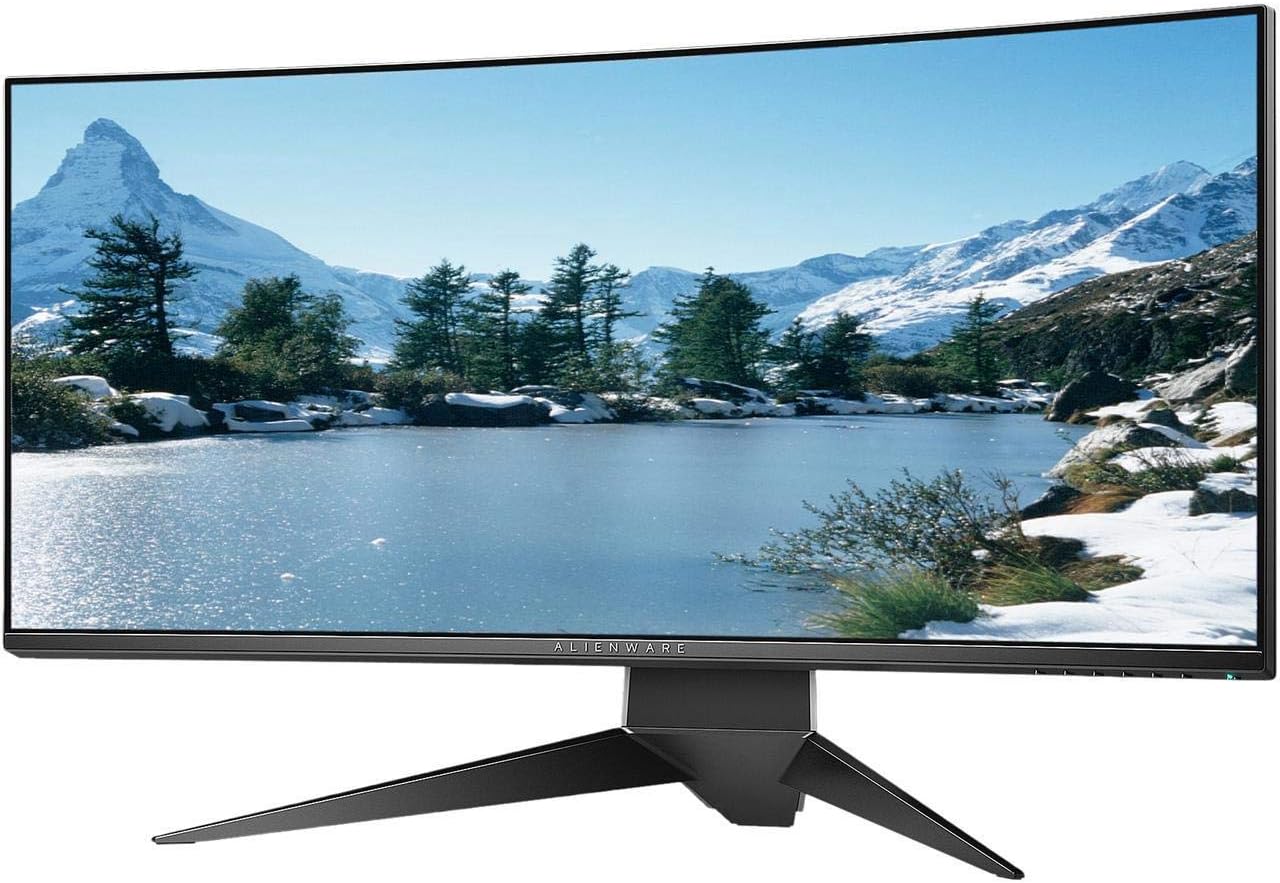
Figura 4.3: Posteriore view of the Alienware AW3418DW monitor showing the stand and AlienFX lighting.
Montaggio VESA
The monitor supports VESA mounting (100 x 100 mm). Remove the stand riser by pressing the release button and then attach the VESA-compatible mount to the monitor using appropriate screws. Ensure the mount can support the monitor's weight of 26.1 pounds (without stand).

Figure 4.4: Monitor dimensions for VESA mount compatibility.
4.2 Cavi di collegamento
Collegare i cavi necessari al monitor e al computer.
- Cavo di alimentazione: Connect the power cable to the monitor's power port and then to a wall outlet.
- Cavo video: Connect either the DisplayPort cable or the HDMI cable from your computer's graphics card to the corresponding port on the monitor. For optimal performance, especially for 120Hz refresh rate and G-SYNC, use the DisplayPort connection.
- Cavo USB upstream: Connect the USB 3.0 upstream cable from your computer to the monitor's upstream USB port to enable the monitor's USB hub functionality.
- Porte USB downstream: Connect your USB devices (e.g., keyboard, mouse, webcam) to the four USB 3.0 downstream ports on the monitor.
5. Istruzioni per l'uso
5.1 Accensione/spegnimento
Premere il pulsante di accensione situato sul monitor per accenderlo o spegnerlo. Il LED di alimentazione indicherà lo stato del monitor.
5.2 Navigazione su schermo (OSD)
The On-Screen Display (OSD) menu allows you to adjust various monitor settings. Use the control buttons, typically located on the bottom right or rear of the monitor, to navigate the OSD.
- Premere un pulsante di controllo per attivare il menu OSD.
- Utilizzare i pulsanti di navigazione (su/giù/sinistra/destra) per spostarsi tra le opzioni del menu.
- Premere il pulsante di selezione per confermare una selezione o accedere a un sottomenu.
- Utilizzare il pulsante Indietro/Esci per tornare al menu precedente o uscire dall'OSD.
5.3 Impostazioni di visualizzazione
Regola le impostazioni di visualizzazione in modo ottimale viewing and gaming performance.
- Risoluzione: Set your computer's display resolution to 3440x1440 for the native WQHD experience.
- Frequenza di aggiornamento: The monitor supports up to 120Hz refresh rate (overclocked). Ensure your graphics card drivers are updated and the refresh rate is set in your operating system's display settings or graphics control panel.
- NVIDIA G-SYNC: For tear-free and smooth gameplay, enable G-SYNC in your NVIDIA Control Panel. This feature synchronizes the monitor's refresh rate with your GPU's frame rate.
- Luminosità/Contrasto: Adjust these settings in the OSD menu to suit your environment and preference.
5.4 AlienFX Lighting
Customize the AlienFX lighting zones on your monitor through the OSD menu or Alienware Command Center software (if installed on your PC). You can select colors, effects, and synchronize lighting with other Alienware devices.
5.5 Utilizzo dell'hub USB
The monitor acts as a USB 3.0 hub, providing convenient access to four downstream USB ports for connecting peripherals. Ensure the USB upstream cable is connected to your computer for this feature to function.
6. Manutenzione
6.1 Pulizia del monitor
- Always unplug the monitor from the electrical outlet before cleaning.
- Utilizzare leggermente un panno morbido e privo di lanugine dampcon acqua o con un detergente per schermi non abrasivo.
- Non spruzzare il detergente direttamente sullo schermo.
- Pulisci delicatamente lo schermo per rimuovere polvere e macchie.
- Pulisci l'esterno casing con un panno morbido e asciutto.
6.2 Conservazione
If storing the monitor for an extended period, disconnect all cables, carefully disassemble the stand (if applicable), and store it in its original packaging in a cool, dry place.
7. Risoluzione Dei Problemi
Se riscontri problemi con il monitor, fai riferimento ai seguenti passaggi comuni per la risoluzione dei problemi:
- Nessuna visualizzazione: Ensure all power and video cables are securely connected. Check if the monitor is powered on and the correct input source is selected in the OSD.
- Sfarfallio/balbettio: Verify that your graphics drivers are up to date. Ensure G-SYNC is properly configured in the NVIDIA Control Panel. Check for interference from other electronic devices.
- Risoluzione/frequenza di aggiornamento non corretta: Adjust the display settings in your operating system or graphics control panel to the native resolution (3440x1440) and desired refresh rate (up to 120Hz).
- Pixel morti: The Alienware AW3418DW comes with a Premium Panel Guarantee. Refer to the warranty information for details on pixel policy.
- Porte USB non funzionanti: Ensure the USB 3.0 upstream cable is connected from the monitor to your computer.
8. Specifiche
| Caratteristica | Specificazione |
|---|---|
| Marca | Alienware |
| Numero di modello | AW3418DW |
| Dimensioni dello schermo | 34.1 pollici |
| Risoluzione | WQHD (3440 x 1440 pixel) |
| Proporzioni | 21:9 |
| Frequenza di aggiornamento | 120 Hz (overclockato) |
| Tempo di risposta | 4 millisecondi |
| Tecnologia di sincronizzazione adattiva | NVIDIA G-SYNC |
| Tipo di visualizzazione | LED IPS |
| Curvatura | 1900R |
| Luminosità | 300 cd/m² |
| Rapporto di contrasto | 1000:1 |
| Viewangolo di ing | 178 gradi |
| Connettività | 1x DisplayPort (1.2), 1x HDMI (1.4), 4x USB 3.0 Downstream, 1x USB 3.0 Upstream |
| Peso dell'articolo | 26.1 Pounds (without stand) |
| Tipo di montaggio | VESA Compatible (100 x 100 mm) |
9. Garanzia e supporto
Your Alienware AW3418DW monitor is covered by a 3 Years Limited Hardware Warranty E 3 Years Advance Exchange Service, compreso un Premium Panel Guarantee. The Premium Panel Guarantee ensures a free panel replacement during the limited hardware warranty period even if only one bright pixel is found.
For technical support, warranty claims, or additional information, please visit the official Alienware or Dell support website. You may also find updated drivers and firmware there.
Supporto online: www.dell.com/support