
Introduzione
This manual provides detailed instructions for setting up, operating, and maintaining your ASUS RT-AC58U AC1300 Dual Band Gigabit Wireless Router. Please read this guide thoroughly to ensure proper installation and optimal performance of your device.
The ASUS RT-AC58U is designed to deliver high-speed Wi-Fi connectivity with advanced features such as MU-MIMO technology, parental controls, and a versatile USB 3.0 port for enhanced network performance and management.
Cosa c'è nella scatola
Verifica che tutti gli articoli siano presenti nella confezione del prodotto:
- ASUS RT-AC58U AC1300 Dual Band Gigabit Wireless Router
- Adattatore di alimentazione
- Cavo Ethernet
- Guida rapida
- Scheda di garanzia
- Manuale dell'utente (questo documento)
- Software Drivers CD (if applicable)
Prodotto finitoview
The ASUS RT-AC58U router features a sleek design with four external antennas for improved Wi-Fi range and stability. It supports dual-band Wi-Fi (2.4 GHz and 5 GHz) and includes multiple ports for wired connections and USB devices.
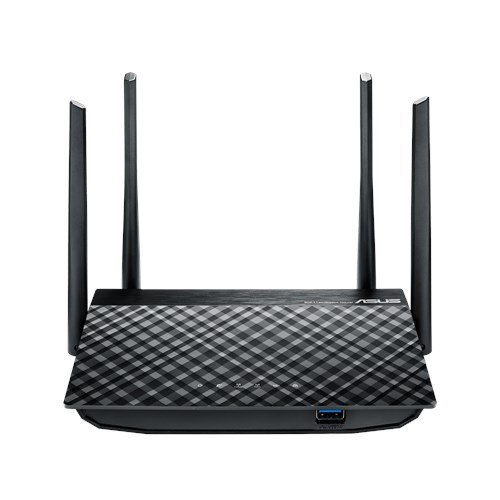
Figura 1: Fronte view of the ASUS RT-AC58U Router, showcasing its four external antennas and patterned top surface.
Caratteristiche principali:
- AC1300 Dual Band Wi-Fi: Simultaneous 2.4 GHz and 5 GHz bands for combined speeds up to 1300 Mbps.
- Tecnologia MU-MIMO: Enables multiple devices to connect at full Wi-Fi speed simultaneously.
- Processore potente: Equipped with a Qualcomm IPQ4018 (717 MHz, 4 cores) SOC and 128MB memory for efficient multi-device performance.
- Improved Wi-Fi Range: Four external antennas with AiRadar beamforming technology enhance signal coverage.
- Multi-purpose USB 3.0 Port: Offers 10x faster data transfers than USB 2.0 for file sharing and printer connections.
- Controllo genitori: Monitor and filter internet activities for family and children.
- Porte Ethernet Gigabit: Ensures fast wired connections for devices like PCs and gaming consoles.

Figure 2: Illustration highlighting the powerful processor of the ASUS RT-AC58U, contributing to higher network speeds.
Porte e indicatori:
Familiarize yourself with the ports and LED indicators on your router for easy setup and monitoring.
- Porta di alimentazione: Si collega all'alimentatore.
- Porta WAN: Si collega al modem per accedere a Internet.
- Porte LAN (x4): Si collega a dispositivi cablati come computer, console di gioco o smart TV.
- Porta USB 3.0: For connecting external storage devices or printers.
- Pulsante WPS: Per una connessione rapida e sicura ai dispositivi Wi-Fi.
- Pulsante di reset: Per ripristinare le impostazioni predefinite di fabbrica.
- Indicatori LED: Provide status updates for power, internet, Wi-Fi bands, LAN ports, and USB activity.
Impostare
Follow these steps to set up your ASUS RT-AC58U router:
- Disimballare il router: Remove the router and all accessories from the box.
- Posizionare il router: Place the router in a central location to maximize Wi-Fi coverage. Avoid placing it near obstructions or other electronic devices that may cause interference.
- Collegare le antenne: Ensure the four external antennas are securely attached and oriented vertically for optimal signal.
- Connettiti all'alimentazione: Plug the power adapter into the router's power port and then into an electrical outlet. Wait for the power LED to light up.
- Connetti al modem: Connect one end of the provided Ethernet cable to the WAN port (usually blue) on your router and the other end to your modem's Ethernet port. Ensure your modem is powered on and connected to the internet.
- Collegare un dispositivo (facoltativo): For initial configuration, you can connect a computer to one of the router's LAN ports (yellow) using another Ethernet cable. Alternatively, you can connect wirelessly using the default Wi-Fi network name (SSID) and password found on the router's label.
- Accedi al Web Interfaccia: Aprire un web browser on your connected device and navigate to
router.asus.comor192.168.1.1. Follow the on-screen instructions of the ASUS Web GUI to complete the internet setup wizard, set up your Wi-Fi network name and password, and configure an administrator password for the router.
Utilizzo del router
Once set up, your ASUS RT-AC58U router provides a robust network for your home or office. Here's how to utilize its key features:
Dual Band Wi-Fi (2.4 GHz and 5 GHz):
The router broadcasts two separate Wi-Fi networks. The 2.4 GHz band offers wider coverage and better penetration through walls, suitable for general browsing and devices further away. The 5 GHz band provides faster speeds and less interference, ideal for bandwidth-intensive tasks like 4K video streaming and online gaming, especially for devices closer to the router.

Figure 3: Demonstrates multiple users enjoying full Wi-Fi speeds simultaneously, thanks to the router's multi-device performance capabilities.
Tecnologia MU-MIMO:
Multi-User, Multiple-Input, Multiple-Output (MU-MIMO) technology allows the router to communicate with multiple compatible devices simultaneously, rather than sequentially. This significantly improves network efficiency and speed, especially in environments with many connected devices.
Controllo genitori:
Accedi al router web interface to configure parental control settings. You can set schedules for internet access, block specific websites or applications, and monitor internet usage for connected devices. This helps create a safer online environment for your family.
USB 3.0 Port Functionality:
The USB 3.0 port allows you to connect various devices:
- Archiviazione di rete (NAS): Connect an external hard drive or USB flash drive to create network-attached storage, allowing all connected devices to access files.
- Condivisione stampante: Collega una stampante USB al router per renderla accessibile a tutti i dispositivi della tua rete.
- 3G/4G USB Dongle Support: Use a compatible 3G/4G USB dongle as a primary or backup internet connection.
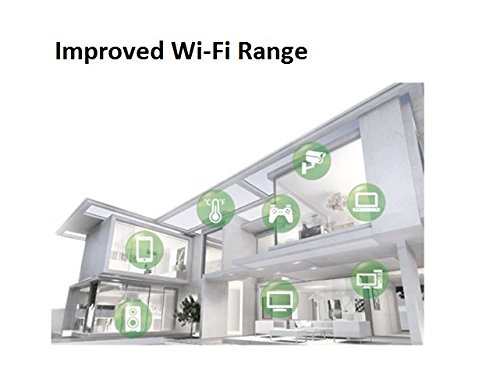
Figure 4: The ASUS RT-AC58U router connected to a Reliance Jio 4G dongle, demonstrating its capability to share mobile broadband internet across the network.
Manutenzione
Una manutenzione regolare garantisce la longevità e le prestazioni ottimali del router:
- Aggiornamenti del firmware: Controllare regolarmente e installare gli ultimi aggiornamenti del firmware dal supporto ASUS websito o tramite il router web interfaccia. Gli aggiornamenti del firmware spesso includono miglioramenti delle prestazioni, patch di sicurezza e nuove funzionalità.
- Riavvio del router: Se riscontri problemi di rete, prova a riavviare il router scollegando l'adattatore di alimentazione per 10 secondi e ricollegandolo.
- Ripristino di fabbrica: In case of persistent issues or if you forget your administrator password, you can perform a factory reset. Locate the Reset button (often a small pinhole) on the router, press and hold it for about 5-10 seconds until the power LED blinks, then release. This will restore all settings to their factory defaults, requiring you to reconfigure the router.
- Pulizia fisica: Keep the router free from dust by gently wiping it with a soft, dry cloth. Ensure ventilation openings are not blocked.
Risoluzione dei problemi
This section addresses common issues you might encounter with your ASUS RT-AC58U router.
Nessuna connessione internet:
- Controlla che il LED WAN sul router sia acceso. In caso contrario, assicurati che il cavo Ethernet del modem sia collegato saldamente alla porta WAN del router.
- Verifica che il modem funzioni correttamente e che la connessione Internet sia attiva.
- Riavvia sia il modem che il router.
- Accedi al router web interface and check the internet connection status. Run the setup wizard again if necessary.
Poor Wi-Fi Signal or Range:
- Ensure the router is placed centrally and away from large metal objects, concrete walls, or other electronic devices that can cause interference.
- Adjust the orientation of the external antennas.
- Note that the 5 GHz band offers higher speeds but has a shorter range and less penetration than the 2.4 GHz band. Consider connecting devices further away to the 2.4 GHz network.
- Aggiorna il firmware del router all'ultima versione.

Figure 5: An architectural diagram illustrating how the router's improved Wi-Fi range covers various rooms and floors within a home.
Slow Data Transfer Rates (Wired or Wireless):
- Ensure you are using Gigabit Ethernet cables (Cat5e or Cat6) for wired connections to fully utilize the router's Gigabit ports.
- For wireless connections, ensure your devices support 802.11ac and are connected to the 5 GHz band for optimal speed.
- Check for background applications or devices consuming significant bandwidth.
- Perform a speed test to verify your internet service provider's speed.
Dispositivo USB non riconosciuto:
- Ensure the USB device is properly formatted (e.g., NTFS, FAT32) and compatible with the router.
- Try connecting the USB device to a different port or restarting the router.
- Controllare il router web interface for USB application settings and ensure the USB device is enabled.
Specifiche
| Caratteristica | Dettaglio |
|---|---|
| Marca | Asus |
| Nome del modello | Asus AC1300 |
| Numero di modello | RT-AC58U |
| standard wireless | 802.11ac |
| Classe di banda di frequenza | Doppia banda (2.4 GHz, 5 GHz) |
| Velocità di trasferimento dati | Fino a 1300 Mbps (AC1300) |
| Tipo di antenna | Esterno (4 antenne) |
| Numero di porte | 4 x LAN, 1 x WAN, 1 x USB 3.0 |
| Tecnologia di connettività | Ethernet, Wi-Fi |
| Metodo di controllo | Applicazione, Web Interfaccia |
| Supporto del sistema operativo | Windows 10/8.1/8/7, Mac OS X 10.1/10.4/10.5/10.6/10.7/10.8 |
| Alimentazione elettrica | AC Input: 110V~240V (50~60Hz), DC Output: 12 V with max. 1.5 A current |
| Peso dell'articolo | 762 grammi |
| Codice UPC | 889349375334 |
Garanzia e supporto
Your ASUS RT-AC58U router comes with a manufacturer's warranty. Please refer to the included Warranty Card for specific terms and conditions, including warranty period and coverage details.
Per supporto tecnico, download di driver, aggiornamenti del firmware e risorse aggiuntive, visitare il supporto ufficiale ASUS websito. Lì puoi trovare anche FAQ e guide per la risoluzione dei problemi.
Supporto ASUS Websito: https://www.asus.com/support/
Video del prodotto finitoview
Video 1: Un breve riassuntoview of the ASUS RT-AC58U AC1300 Dual Band Gigabit Wireless Router's key features and benefits.