
Introduzione
This manual provides comprehensive instructions for the Comfast CF-912AC 1200Mbps Dual Band USB WiFi Network Adapter. Please read this guide carefully before installation and use to ensure optimal performance and proper operation of your device. This adapter is designed to provide high-speed wireless connectivity for various devices.
Caratteristiche
- Connettività wireless ad alta velocità: Supports IEEE 802.11a/b/g/n/ac WiFi standards for fast and reliable internet access.
- Dual-Band Performance: Achieves transfer speeds up to 300Mbps on the 2.4GHz band and 867Mbps on the 5.8GHz band, totaling 1200Mbps.
- WPS Security: Features a one-key WPS (Wi-Fi Protected Setup) button for quick and secure wireless network encryption (supports 64/128-bit WEP).
- Ampia compatibilità con i sistemi operativi: Fully compatible with Windows XP (32/64-bit), Vista (32/64-bit), Windows 7 (32/64-bit), Windows 8 (32/64-bit), Windows 8.1, and Windows 10.
- Interfaccia USB 3.0: Equipped with a USB 3.0 port, offering data transmission speeds up to 10 times faster than traditional USB 2.0, while remaining backward compatible with USB 2.0/1.1.
- Segnale stabile: Incorporates a powerful inner core with an RTL8812AC chip and two RTC5633 power amplifiers for stable, fluctuation-free signal transmission.
- Efficienza energetica: Designed for low power consumption, with a maximum power usage of only 5 watts.
- Area di copertura: Provides an indoor coverage range of approximately 100 meters and an outdoor range of up to 300 meters (actual range may vary based on environmental factors).
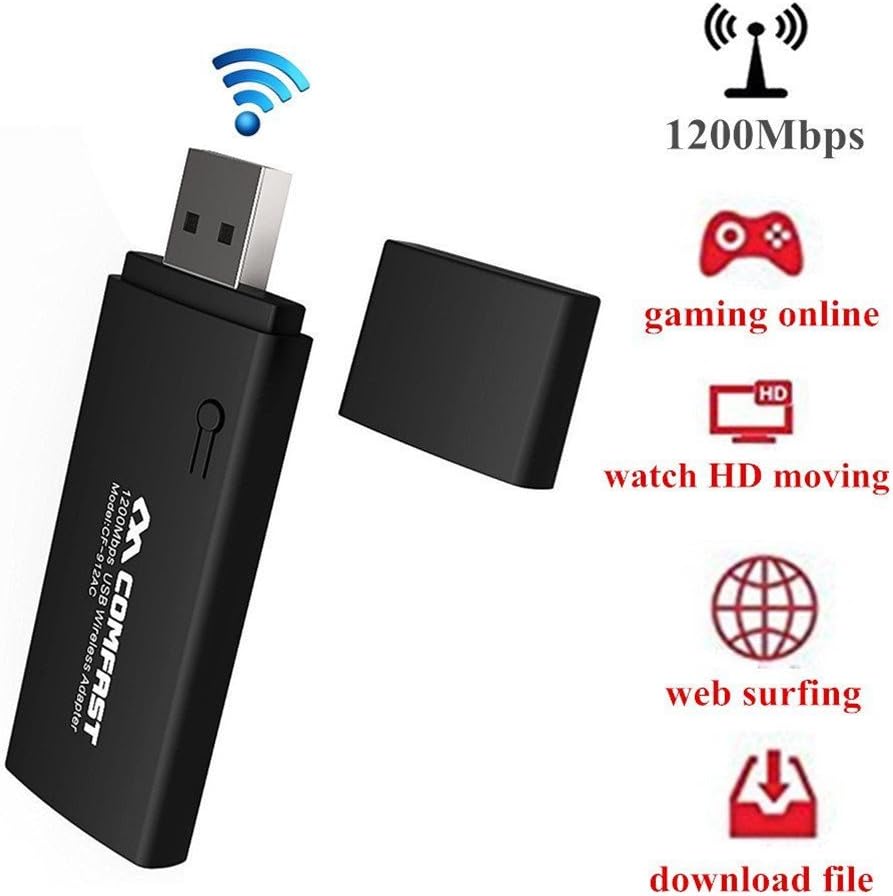
Image: The Comfast CF-912AC USB WiFi adapter highlighting its capabilities for high-speed activities like online gaming, HD video streaming, web browsing, and file download.

Image: The Comfast CF-912AC adapter demonstrating compatibility with a range of devices including PCs, laptops, smart TVs, IPTV boxes, DVB boxes, and smartphones/tablets.

Image: A visual comparison illustrating the faster transmission speed of USB 3.0 (867 Mbps) compared to USB 2.0 (64 Mbps) when using the Comfast CF-912AC adapter.

Image: A chart comparing wireless speeds: 802.11g at 54Mbps, 802.11n at 300Mbps, and 802.11ac (CF912AC) at 1167Mbps, highlighting the superior performance of the 802.11ac protocol.
Istruzioni di installazione
1. Installazione hardware
Insert the Comfast CF-912AC USB WiFi adapter into an available USB port on your computer. For optimal performance, use a USB 3.0 port if available.
- For Windows 7, 8, 8.1, 10: The operating system may attempt to install a generic driver automatically. Proceed to software installation if the device is not recognized or does not function correctly.
- For Windows XP/Vista: After inserting the adapter, if a "New Hardware Wizard" window appears, click "Cancel" to prevent automatic driver installation.
2. Installazione del software
The driver installation process is similar across Windows XP, Vista, and 7. The following steps use Windows XP as an exampon:
- Insert the provided driver CD into your computer's CD-ROM drive.
- Navigate to the CD drive in "My Computer" or "This PC" and double-click the installazione.exe icon to start the installation wizard.
- The setup process will begin. Click Prossimo to proceed through the installation steps.
- Follow the on-screen prompts. The installation typically takes a few seconds.
- Once the installation is complete, click Fine per uscire dalla procedura guidata.
After successful installation, your computer should recognize the Comfast CF-912AC adapter, and you will be able to connect to wireless networks.
Istruzioni per l'uso
Connessione a una rete wireless
- After installing the drivers, locate the wireless network icon in your system tray (usually in the bottom-right corner of your screen).
- Fare clic sull'icona per view reti wireless disponibili.
- Seleziona la rete Wi-Fi desiderata dall'elenco.
- Click "Connect" and enter the network security key (password) when prompted.
- Una volta effettuata la connessione, l'icona indicherà la corretta connessione e sarà possibile accedere a Internet.
Utilizzo di WPS (Wi-Fi Protected Setup)
The WPS button on the adapter allows for a quick and secure connection to a WPS-enabled router without manually entering the password.

Image: Illustration of using the WPS button on the Comfast CF-912AC adapter for a quick and secure wireless network setup with a compatible router.
- Premi il pulsante WPS sul tuo router wireless.
- Within two minutes, press the WPS button on your Comfast CF-912AC adapter.
- The adapter will automatically establish a secure connection with the router.
Creating a Wi-Fi Hotspot (AP Function)
The Comfast CF-912AC adapter can function as a soft Access Point (AP), allowing your computer to share its internet connection with other wireless devices like smartphones or tablets.

Image: The Comfast CF-912AC adapter being used to create a Wi-Fi hotspot, enabling other mobile devices to connect to the internet through the computer.
To enable this feature, you typically need to access the utility software installed with the adapter drivers. Look for an option like "AP Mode" or "SoftAP" within the utility. Follow the on-screen instructions to configure the hotspot name (SSID) and password.
Manutenzione
- Mantenere l'adattatore pulito e privo di polvere. Utilizzare un panno morbido e asciutto per la pulizia.
- Evitare di esporre il dispositivo a temperature estreme, umidità o luce solare diretta.
- Do not attempt to disassemble or repair the adapter yourself, as this will void the warranty and may cause damage.
- Quando non lo si utilizza, conservare l'adattatore in un luogo sicuro per evitare danni fisici.
Risoluzione dei problemi
- Nessuna connessione internet:
- Assicurarsi che l'adattatore sia inserito correttamente in una porta USB.
- Verify that the drivers are correctly installed. Check Device Manager for any error symbols.
- Confirm that your Wi-Fi network is active and broadcasting.
- Controlla attentamente la password Wi-Fi per verificarne l'accuratezza.
- Prova a riavviare il computer e il router.
- Velocità di connessione lenta:
- Ensure the adapter is plugged into a USB 3.0 port if your computer has one.
- Verificare la presenza di possibili interferenze da parte di altri dispositivi elettronici (ad esempio forni a microonde, telefoni cordless).
- Update the adapter drivers to the latest version from the Comfast websito.
- Avvicinati al router wireless per migliorare la potenza del segnale.
- Adattatore non rilevato:
- Prova una porta USB diversa sul tuo computer.
- Test the adapter on another computer to rule out a device malfunction.
- Reinstall the drivers completely.
Specifiche
| Marca | Comodo |
| Modello | CF-912AC |
| Interfaccia Hardware | USB, USB 2.0 (USB 3.0 compatible) |
| Dispositivi compatibili | Smart TV, Desktop PC, Laptop, Tablet, Smartphone |
| Protocollo di collegamento dati | IEEE 802.11a / b / g / n / ac |
| Velocità di trasferimento dati | Fino a 1200 Mbps (2.4 GHz: 300 Mbps, 5.8 GHz: 867 Mbps) |
| Sicurezza senza fili | 64/128-bit WEP, WPS |
| Sistemi operativi | Windows XP/Vista/7/8/8.1/10 (32/64-bit) |
| Produttore | Moobom |
| Numero di parte | 112509BENQA160 |
| UPC / GTIN | 889250872106 |
| ASIN | B01KX1M436 |
Garanzia e supporto
For warranty information and technical support, please refer to the documentation included with your product packaging or visit the official Comfast webluogo. Conserva la ricevuta di acquisto per eventuali richieste di garanzia.