
Introduzione
This manual provides essential information for the safe and efficient use of your Acer KA240H 24-inch Full HD Monitor. Please read this manual thoroughly before operating your monitor and retain it for future reference. This monitor is designed for general computing tasks, offering a 1920x1080 resolution display.
Informazioni sulla sicurezza
- Posizionare sempre il monitor su una superficie stabile e piana per evitare che cada.
- Non ostruire le aperture di ventilazione. Assicurarsi che vi sia spazio sufficiente attorno al monitor per un corretto flusso d'aria.
- Use only the power adapter and cables supplied with the monitor or specified by Acer.
- Tenere il monitor lontano da acqua, umidità e temperature estreme.
- If smoke, strange noises, or unusual odors occur, immediately unplug the monitor and contact qualified service personnel.
- Non tentare di riparare il monitor da soli. Per qualsiasi intervento di assistenza, rivolgersi a personale qualificato.
Contenuto della confezione
Verificare che tutti gli articoli siano presenti e in buone condizioni al momento del disimballaggio. Se alcuni articoli risultano mancanti o danneggiati, contattare il rivenditore.
- Acer KA240H Monitor Display Panel
- Base del supporto per monitor
- Supporto per monitor
- Cavo di alimentazione
- Cavo HDMI (può variare in base alla regione)
- Manuale dell'utente (questo documento)
Impostare
1. Assemblaggio del supporto del monitor
- Carefully place the monitor display panel face down on a soft, clean cloth to prevent scratches.
- Attach the stand neck to the monitor display panel by aligning the tabs and pushing until it clicks into place.
- Fissare la base del supporto al collo del supporto. Fissarla con la vite prigioniera situata sul lato inferiore della base.

2. Cavi di collegamento
Prima di effettuare qualsiasi collegamento, assicurarsi che il monitor e il computer siano spenti.
- Collegamento elettrico: Collegare il cavo di alimentazione all'ingresso di alimentazione del monitor e quindi a una presa elettrica dotata di messa a terra.
- Collegamento video:
- HDMI: Collegare un'estremità del cavo HDMI alla porta HDMI del monitor e l'altra estremità alla porta HDMI del computer.
- VGA: Connect one end of the VGA cable to the VGA port on your monitor and the other end to the VGA port on your computer. Tighten the screws on the VGA connector.
- Ingresso DVI: Connect one end of the DVI cable to the DVI port on your monitor and the other end to the DVI port on your computer.
Note: The monitor supports HDMI, VGA, and DVI inputs. Use only one video connection at a time.
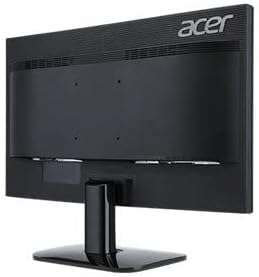
3. Accensione iniziale
After connecting all cables, power on your computer, then press the power button on the monitor. The monitor should automatically detect the input signal. If no image appears, refer to the Troubleshooting section.
Funzionamento del monitor
Pulsante di accensione e controlli OSD
The power button and On-Screen Display (OSD) control buttons are typically located on the bottom right bezel of the monitor. Refer to the diagram below for button identification.

- Accensione/spegnimento: Premere il pulsante di accensione per accendere o spegnere il monitor.
- Menu OSD: Press any OSD button (usually indicated by icons) to bring up the On-Screen Display menu.
- Navigazione: Use the arrow buttons to navigate through menu options.
- Selezione: Press the 'Menu' or 'Enter' button to select an option or confirm a setting.
- Uscita: Press the 'Exit' button to close the OSD menu.
Common OSD Settings
- Immagine: Regola luminosità, contrasto, nitidezza e temperatura del colore.
- Colore: Fine-tune color settings, including gamma and color space.
- Ingresso: Manually select the input source (HDMI, VGA, DVI) if auto-detection fails.
- OSD: Regola la lingua OSD, la trasparenza e il timeout.
- Gestione: Access information about the monitor, reset settings to factory defaults.
Manutenzione
Pulizia del monitor
- Prima di pulire il monitor, scollegarlo sempre dalla presa di corrente.
- Schermo: Utilizzare leggermente un panno morbido e privo di lanugine dampcon acqua o un detergente specifico per schermi. Non spruzzare il detergente direttamente sullo schermo.
- Esterno: Utilizzare un panno morbido e asciutto per pulire il monitor casing. Evitare l'uso di detergenti abrasivi o solventi.
Magazzinaggio
If storing the monitor for an extended period, unplug it, disconnect all cables, and store it in a cool, dry place, preferably in its original packaging.
Risoluzione dei problemi
| Problema | Possibile soluzione |
|---|---|
| Nessuna immagine sullo schermo |
|
| L'immagine è sfocata o distorta |
|
| Il monitor sfarfalla |
|
| Nessuna spia di alimentazione |
|
Specifiche
| Caratteristica | Dettaglio |
|---|---|
| Numero di modello | UM.FX0EE.005 |
| Dimensioni dello schermo | 24 pollici (61 cm) |
| Risoluzione | FHD 1080p (1920 x 1080 pixel) |
| Proporzioni | 16:9 |
| Frequenza di aggiornamento | Frequenza 60 Hz |
| Tempo di risposta | 5 millisecondi |
| Tipo di visualizzazione | GUIDATO |
| Tecnologia di connettività | HDMI, VGA, DVI |
| Tipo di montaggio | Supporto a parete (compatibile VESA) |
| Colore | Nero |
| Dimensioni dell'articolo (P x L x A) | 18"D x 0.78"W x 12"H (approximate, without stand) |
| Peso dell'articolo | 3.74 chilogrammi |
| Produttore | Acero |
Informazioni sulla garanzia
Your Acer KA240H monitor comes with a standard warranty. The warranty covers 1 anno di ricambi e manodopera from the date of purchase. Please retain your proof of purchase for warranty claims. For detailed terms and conditions, refer to the warranty card included with your product or visit the official Acer support websito.
This warranty does not cover damage caused by accident, misuse, abuse, improper installation or operation, natural disaster, or unauthorized modifications or repairs.
Supporto
If you encounter issues that cannot be resolved using the troubleshooting guide, or if you require further assistance, please contact Acer customer support. You can typically find support contact information, FAQs, and driver downloads on the official Acer websito.
Per le risorse di supporto più aggiornate, visitare: www.acer.com/support