1. Introduzione
This manual provides detailed instructions for the Rii i8 2.4GHz Wireless Touchpad Keyboard Mouse, model RT-MWK-08. This compact and versatile device integrates a full QWERTY keyboard with a multi-touch touchpad, offering convenient control for various systems including PCs, smart TVs, Android TV boxes, and gaming consoles. Please read this manual thoroughly before use to ensure proper operation and to maximize your experience with the product.
2. Contenuto della confezione
Dopo aver disimballato, verificare che siano presenti tutti i seguenti articoli:
- 1x Rii i8 Wireless Keyboard
- 1x USB Wireless Receiver
- 1x cavo dati di ricarica USB
- 1x Manuale utente
3. Impostazione
3.1. Carica del dispositivo
The Rii i8 keyboard comes with a built-in lithium-ion battery. Before initial use, it is recommended to fully charge the device. Connect the provided USB charging cable to the keyboard's charging port and the other end to a standard USB power source (e.g., computer USB port, USB wall adapter). The charging indicator light will illuminate during charging and turn off when fully charged.
3.2. Collegamento del ricevitore wireless USB
- Locate the USB wireless receiver, typically stored in a compartment on the back of the keyboard.
- Inserisci il ricevitore USB in una porta USB disponibile sul dispositivo di destinazione (PC, Smart TV, Android TV Box, ecc.).
- Turn on the Rii i8 keyboard using the power switch (usually located on the side or back).
- The device should automatically connect. No additional drivers are typically required for most operating systems.
The image displays the back of the Rii i8 wireless keyboard, highlighting the slot for the USB receiver and the included USB charging cable. The receiver is a small USB dongle that plugs into your device for wireless connectivity.
4. Istruzioni per l'uso
4.1. Funzioni della tastiera
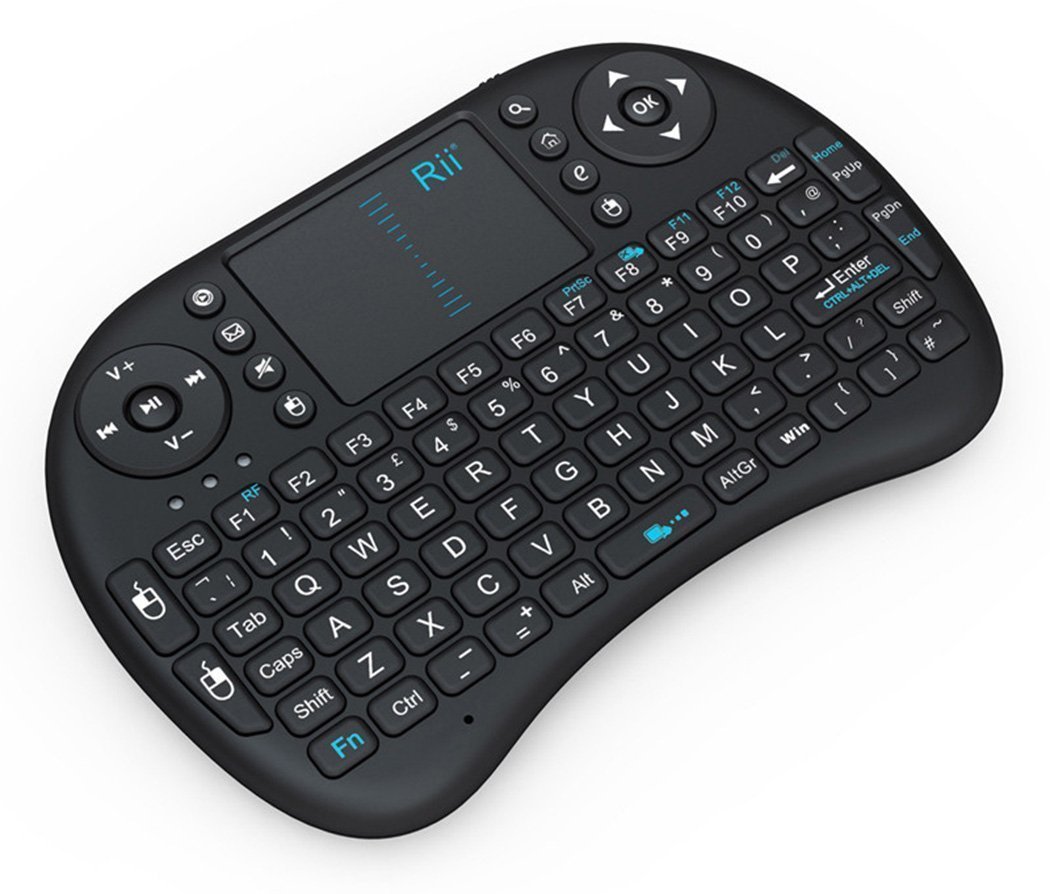
The Rii i8 features a standard QWERTY keyboard layout. All standard alphanumeric keys and symbols function as they would on a full-sized keyboard.
4.2. Funzioni del touchpad
The integrated touchpad supports multi-touch gestures for navigation:
- Tocco con un solo dito: Funziona come un clic con il pulsante sinistro del mouse.
- Tocco con due dita: Funziona come il clic destro del mouse.
- Scorrimento: Slide one finger up or down the right edge of the touchpad to scroll vertically, similar to a mouse scroll wheel.

This diagram shows how to use the touchpad for vertical scrolling by sliding a finger up or down. It also highlights dedicated buttons for volume control (V+, V-), previous/next song, play/pause, and quick access to music player, email, search, and browser functions.
4.3. Special Function (Fn) Keys
The keyboard includes a 'Fn' key which, when pressed in combination with other keys, activates additional functions. Refer to the diagram below for common Fn key combinations:

This image details the functionality of various Fn key combinations. For example, Fn + F1 adjusts mouse sensitivity, Fn + Enter is a Task Manager shortcut, Fn + F8 toggles the touchpad on/off, and Fn + Win activates the Start/Menu bar. It also shows shortcuts for adjusting mouse sensitivity, print screen, maximizing pages, opening development tools, and navigating text.

A user is shown holding the Rii i8 wireless keyboard, illustrating its compact size and ergonomic design for comfortable two-hand operation. The keyboard is being used in front of a television displaying a smart TV interface, indicating its suitability for media center control.
5. Compatibilità
The Rii i8 wireless keyboard is compatible with a wide range of operating systems and devices that support a standard USB interface:
- Windows 2000 / XP / 7 / 8 / CE
- Windows Vista
- Linux (Debian 3.1, Red Hat - Fedora, Ubuntu 8.10-8.10 * 9.0)
- Android OS (con interfaccia USB standard)
- PC, Mac, HTPC, Smart TV, Android TV Box, Projector, Tablet (with USB port), Notebook

This diagram illustrates the broad compatibility of the Rii i8 wireless keyboard, showing it can connect to and control a variety of devices including Home Theater PCs (HTPC), Android TV Boxes, projectors, tablets with USB ports, Smart TVs, and notebooks.
6. Manutenzione
6.1. Pulizia
Per pulire la tastiera, utilizzare un panno morbido e asciutto. Per lo sporco ostinato, utilizzare un panno leggermenteamp È possibile utilizzare un panno imbevuto di sapone neutro, assicurandosi che non penetri liquido nel dispositivo. Evitare detergenti abrasivi o solventi.
6.2. Cura della batteria
The built-in lithium-ion battery is not user-replaceable. To prolong battery life, avoid fully discharging the battery frequently. Charge the device when the low battery indicator appears. Store the device in a cool, dry place when not in use for extended periods.
7. Risoluzione Dei Problemi
- Nessuna risposta dalla tastiera:
- Assicurati che la tastiera sia accesa.
- Verificare che il ricevitore USB sia collegato saldamente al dispositivo.
- Verificare che la batteria della tastiera sia carica.
- Prova a collegare il ricevitore USB a un'altra porta USB.
- Assicurarsi che non vi siano forti interferenze wireless nelle vicinanze.
- Il touchpad non funziona correttamente:
- Ensure the touchpad is not disabled (check Fn+F8 combination).
- Pulisci la superficie del touchpad.
- If sensitivity is an issue, adjust it using Fn+F1.
- Low battery can affect touchpad performance; recharge the device.
- I tasti non rispondono:
- Ricaricare la tastiera.
- Ricollegare il ricevitore USB.
- Test on another device to rule out host system issues.
- Breve raggio d'azione:
- Assicurarsi che non vi siano ostacoli tra la tastiera e il ricevitore USB.
- Avoid using the device near other 2.4GHz wireless devices that may cause interference.
8. Specifiche
| Caratteristica | Dettaglio |
|---|---|
| Campo di funzionamento | Up to 15 meters (MAX), without signal disturbance and no direction limit |
| Gamma di frequenza | 2.403GHz ~ 2.480GHz |
| Volume operativotage | 3.3V |
| Volume di caricatage | 4.4V ~ 5.25V |
| Modulazione | GFSK |
| Canale | 78 canali |
| Potenza di trasmissione | Meno di +5dBm |
| Tasso di trasmissione | 1M bit/sec |
| Tolleranza di frequenza | +/- 30 ppm |
| Consumo energetico | 55 mA (acceso), 1 mA (sospensione) |
| Tipo di batteria | Batteria agli ioni di litio incorporata |
| Dimensioni dell'articolo | 15 x 10 x 2 cm (5.91"L x 3.94"W x 0.79"H) |
| Peso dell'articolo | 107 g (0.016 once) |
| Piattaforma hardware | PC; Mac; UNI; Linux |
| Materiale | Plastica |
| Colore | Nero |
9. Garanzia e supporto
For warranty information or technical support, please refer to the documentation included with your purchase or contact the retailer/manufacturer directly. Keep your proof of purchase for warranty claims.