Introduzione
This manual provides detailed instructions for the installation, operation, maintenance, and troubleshooting of your Clarion NX514 Car Navigation System. The NX514 is an advanced AV navigation unit featuring a 6.2-inch VGA display, SmartAccess Link for smartphone integration, Google Voice Search, Mapple Navi 5 for comprehensive navigation, and various media playback options including DVD, USB, SD, and Bluetooth.
Per garantire prestazioni ottimali e sicure, leggere attentamente il presente manuale prima di utilizzare il prodotto.
Impostare
Proper installation is crucial for the performance and safety of your navigation system. It is highly recommended that installation be performed by a qualified professional.
1. Disimballaggio e controllo dei componenti
Verificare che tutti i componenti siano presenti:
- Clarion NX514 Main Unit
- Antenna GPS
- Cablaggi (alimentazione, altoparlanti, ecc.)
- Hardware di montaggio
- Manuale dell'utente (questo documento)
2. Collegamenti elettrici
Connect the wiring harness to your vehicle's power supply, ground, and speaker outputs. Ensure all connections are secure to prevent malfunctions. The GPS antenna should be mounted in a location with a clear view del cielo per una ricezione ottimale del segnale.
For SmartAccess Link functionality, connect your smartphone via the HDMI input. An appropriate adapter may be required for certain iPhone models (e.g., iPhone 5s/5c/5).
3. Inserimento della scheda SD
Insert the provided 8GB SD card containing map data into the designated SD card slot on the unit. Ensure it is inserted correctly and securely.

Figura 1: Fronte view of the Clarion NX514 unit. This image shows the main display and control buttons, illustrating the general appearance of the device during setup.
Istruzioni per l'uso
1. Interfaccia di base e touchscreen
The Clarion NX514 features a 6.2-inch VGA touchscreen for intuitive control. Tap icons and menus to navigate through functions. Physical buttons are also available for common operations like volume control and menu access.
2. Google Voice Search
The system integrates Google Voice Cercare hands-free operation. To activate, press the voice command button (if available on your steering wheel or unit) and speak your command. You can search for destinations, points of interest, or control navigation functions. A smartphone is required for full voice recognition capabilities.
- Example Comandi: "Find a Japanese restaurant," "Navigate to [address]," "Change route."
- Gourmet Search: Access restaurant information from services like Gurunavi, Hot Pepper Gourmet, and Yahoo! JAPAN. You can narrow down destinations, view details, make calls (requires Bluetooth pairing with a smartphone), and set routes via voice.

Figure 2: Clarion NX514 demonstrating Google Voice Search. The image shows the navigation unit displaying a map, with speech bubbles illustrating voice commands for searching for Japanese food and filtering by price.
3. SmartAccess Link (Smartphone Integration)
Connect your iPhone or Android smartphone to the NX514 via the HDMI input to access various popular apps directly on the navigation screen. This allows for playback of music, videos, and other content from your smartphone. Ensure your smartphone is compatible and any necessary adapters are used.
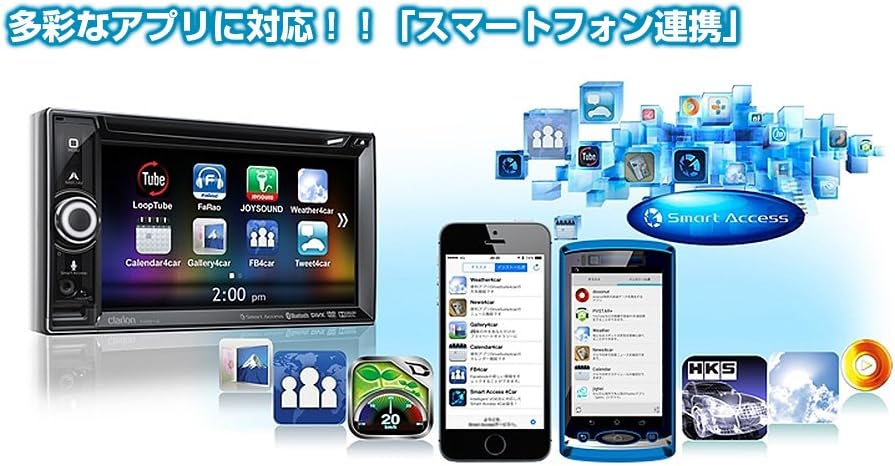
Figure 3: Clarion NX514 displaying various smartphone applications via SmartAccess Link. The image shows the unit's screen mirroring apps like YouTube, Calendar, and Weather, alongside two smartphones.
4. Navigation (Mapple Navi 5)
The Mapple Navi 5 system provides comprehensive navigation features designed to enhance your driving experience.
- Ricerca destinazione: Cercare destinations by address, name, or category.
- Tourism Navigation: Access a vast database of tourist spots, including recommended drive courses, seasonal attractions (flowers, seasonal fish, fruit picking), and local gourmet information.
- SA/PA & Roadside Stations: Find information on service areas, parking areas, and roadside stations across Japan.
- Indicazioni stradali: Follow clear visual and voice prompts for turn-by-turn directions.

Figure 4: Clarion NX514 showcasing Mapple Navi 5 features. This image highlights various tourism-related functions such as recommended drive courses, spot search, and information on SA/PA and local gourmet.
5. Riproduzione multimediale
The NX514 supports various media formats:
- Riproduzione DVD: Insert a DVD into the disc slot for video and audio playback.
- USB/scheda SD: Riproduci audio e video files stored on USB devices or SD cards.
- Audio Bluetooth: Stream music wirelessly from your Bluetooth-enabled smartphone or other devices.
- TV monosegmentale: Watch digital terrestrial television broadcasts (where available).

Figure 5: Clarion NX514 demonstrating Bluetooth phone and audio functions. The image shows the unit's screen displaying a phone dialer and a music playback interface, along with a smartphone connected via NaviCon and Bluetooth.
6. Telecomando al volante
If your vehicle is equipped with steering wheel controls, the NX514 can be integrated to allow safe and convenient operation of audio and navigation functions without taking your hands off the wheel. This includes volume adjustment, track skipping, and activating voice commands.
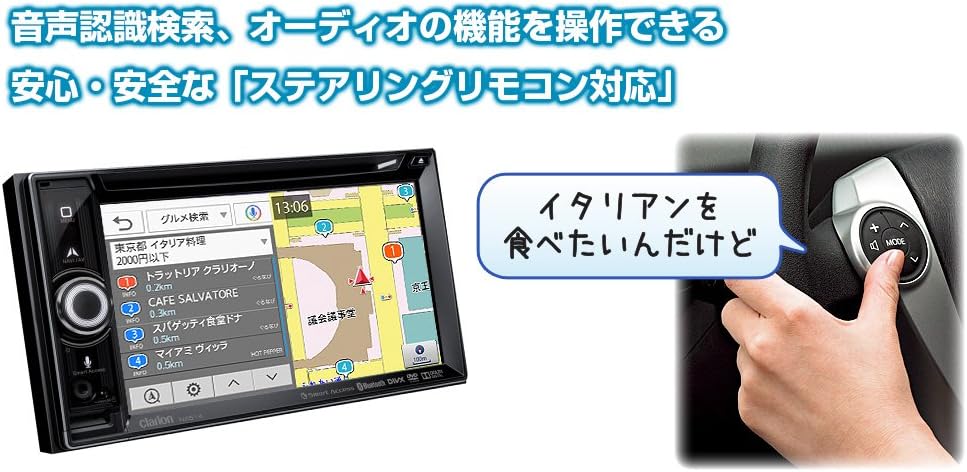
Figure 6: Clarion NX514 unit shown alongside a steering wheel with integrated remote controls. This illustrates the convenience of operating the navigation system using steering wheel buttons, including voice recognition activation.
Manutenzione
To ensure the longevity and optimal performance of your Clarion NX514, follow these maintenance guidelines:
- Pulizia dello schermo: Gently wipe the touchscreen with a soft, dry cloth. For stubborn smudges, use a cloth lightly dampened with a screen cleaner specifically designed for electronic displays. Avoid abrasive materials or harsh chemicals.
- Pulizia generale: Keep the unit free from dust and debris. Use a soft brush or compressed air to clean around buttons and crevices.
- Cura della scheda SD: Handle the SD card carefully. Avoid exposing it to extreme temperatures, moisture, or static electricity. Always ensure the unit is powered off or in a safe state before inserting or removing the SD card to prevent data corruption.
- Aggiornamenti del firmware: Periodically check the official Clarion websito per verificare la disponibilità di eventuali aggiornamenti del firmware, per garantire che il sistema disponga delle funzionalità e delle correzioni di bug più recenti.
Risoluzione dei problemi
If you encounter issues with your Clarion NX514, refer to the following common problems and solutions:
Nessuna alimentazione / L'unità non si accende
- Controllare tutti i collegamenti elettrici per accertarsi che siano saldamente fissati.
- Verificare il fusibile del veicolo collegato all'impianto audio dell'auto.
- Ensure the vehicle's ignition is in the ACC or ON position.
No GPS Signal / Incorrect Position
- Assicurarsi che l'antenna GPS sia montata in una posizione libera da ostacoli view del cielo.
- Avoid placing objects near the antenna that could block the signal.
- Allow a few minutes for the system to acquire satellites after starting the vehicle.
SD Card Errors / Map Data Not Loading
- Assicurarsi che la scheda SD sia inserita completamente e correttamente nello slot.
- The SD card contains critical map data. Avoid removing it while the unit is operating or during power fluctuations.
- If data corruption is suspected, contact Clarion support for assistance. Do not attempt to modify the SD card contents yourself, as this may void the warranty.
Problemi di connessione Bluetooth
- Ensure Bluetooth is enabled on both the NX514 and your smartphone.
- Eliminare le associazioni precedenti su entrambi i dispositivi e provare a ripetere l'associazione.
- Move your smartphone closer to the NX514 unit.
Touchscreen non responsivo
- Eseguire un soft reset dell'unità (fare riferimento alla procedura di reset specifica del dispositivo, solitamente tramite un piccolo pulsante di reset).
- Assicurarsi che lo schermo sia pulito e privo di detriti.
Specifiche
| Caratteristica | Specificazione |
|---|---|
| Marca | Chiarore |
| Nome del modello | NX514 |
| Dimensioni dello schermo | 6.2 pollici |
| Tipo di visualizzazione | LCD (VGA with high-brightness LED) |
| Caratteristiche | Voice Operation, Touchscreen |
| Connettività | Bluetooth, USB, HDMI |
| Tipo di mappa | City Tour (Mapple Navi 5) |
| Tipo di montaggio | Supporto per cruscotto |
| Archiviazione della memoria | 8 GB (scheda SD) |
| Peso del prodotto | 2000 grammi |
| Compatible Satellite System | GPS |
| Tipo di veicolo compatibile | Autovettura passeggeri |
Garanzia e supporto
Your Clarion NX514 Car Navigation System is covered by a manufacturer's warranty. Please refer to the warranty card included with your product for specific terms and conditions, including the warranty period and coverage details.
For technical support, service, or further inquiries, please contact Clarion customer service or visit the official Clarion websito:
Clarion Official Product Page (Japanese)
When contacting support, please have your product model number (NX514) and purchase information readily available.