
1. Introduzione
This manual provides detailed instructions for the setup, operation, maintenance, and troubleshooting of your Samsung Xpress C1860FW Wireless Color Laser Printer. This multifunction device integrates printing, copying, scanning, and faxing capabilities, offering versatile functionality for home and office environments.

Figura 1: Fronte view of the Samsung Xpress C1860FW printer.
2. Disimballaggio e installazione
2.1 Cosa c'è nella scatola
- Samsung Xpress C1860FW Multifunction Color Printer
- Cartucce toner (nero, ciano, magenta, giallo)
- Cavo di alimentazione
- Driver/Software CD
- Cavo USB
- Fax Line Cable
- Scheda di garanzia
- Scheda di registrazione del prodotto
- Guida di installazione rapida

Figure 2: Illustration of items included in the product packaging.
2.2 Passaggi di configurazione iniziale
- Disimballare la stampante: Estrarre con cautela la stampante dall'imballaggio. Rimuovere tutti i nastri protettivi e i materiali di imballaggio dall'esterno e dall'interno del dispositivo.
- Installare le cartucce del toner: Refer to the Quick Installation Guide for detailed steps on installing the toner cartridges. Ensure all red protective tabs are removed from the cartridges before installation to prevent operational issues.
- Caricare la carta: Open the paper tray and load the desired paper size and type. Adjust the paper guides to fit the paper securely.
- Connetti alimentazione: Collegare il cavo di alimentazione alla stampante e poi a una presa di corrente.
- Accensione: Premere il pulsante di alimentazione per accendere la stampante.
- Connessione di rete:
- Senza fili (Wi-Fi): Use the 4.3-inch color touch screen to navigate to the network settings and connect to your Wi-Fi network.
- Collegamento Ethernet: Collegare un cavo Ethernet dalla porta Ethernet della stampante al router o allo switch di rete.
- USB: Per una connessione diretta, utilizzare il cavo USB in dotazione per collegare la stampante al computer.
- Installazione del driver: Install the printer drivers and software from the included CD or download the latest versions from the Samsung (now HP) support websito.
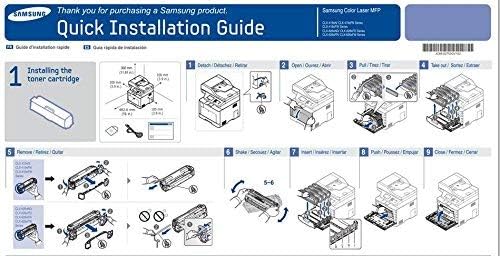
Figure 3: Excerpt from the Quick Installation Guide showing toner cartridge installation.
3. Istruzioni per l'uso
3.1 Pannello di controllo Sopraview
The Samsung Xpress C1860FW features a 4.3-inch color touch screen for intuitive operation. This screen allows access to print, copy, scan, and fax functions, as well as device settings.

Figura 4: dettagliata view of the printer's control panel and touchscreen interface.
3.2 Stampa
The printer supports color laser printing at speeds up to 19 pages per minute (ppm). Documents are processed quickly due to the built-in dual-CPU and 256 MB of memory.
- Da un computer: Send print jobs from your computer via USB, Ethernet, or Wi-Fi connection.
- From a USB Drive: Insert a USB flash drive into the dedicated USB port on the printer and use the touchscreen to select and print files.
3.3 Copying, Scanning, and Faxing
The Automatic Document Feeder (ADF) allows for hands-free copying, scanning, and faxing of up to 50 sheets.

Figure 5: The printer's Automatic Document Feeder in use for multiple pages.
- Copia: Place documents on the scanner glass or in the ADF, then select the copy function from the touchscreen.
- Scansione: Scan documents to your computer, email, or a USB drive. The printer supports scanning to email functionality.
- Fax: Connect the fax line cable to the printer's fax ports. Use the touchscreen to send and receive faxes.

Figura 6: Posteriore view displaying Fax, USB 2.0, and Ethernet ports.
3.4 Mobile and Cloud Printing
- Applicazione Samsung Mobile Print: Download the app for Android or iOS devices to print directly from your smartphone or tablet without driver installation or network configuration.
- NFC Tap & Print: Tap your NFC-enabled mobile device to the printer's NFC tag to automatically connect and print wirelessly.

Figure 7: NFC Tap & Print feature for quick mobile device connection.
- Google Cloud Print: Connect the printer to your Google Cloud Print account to print from any location using compatible devices such as smartphones, tablets, Chromebooks, or PCs.
4. Manutenzione
4.1 Toner Cartridge Information
The Samsung Xpress C1860FW uses polymerized toner, which contributes to vivid color and clarity. Replace cartridges when indicated by the printer's display.
- Toner nero: CLT-K504S (average yield: 2,500 pages)
- Color Toner: Cyan (CLT-C504S), Magenta (CLT-M504S), Yellow (CLT-Y504S) (average yield: 1,800 pages each)
4.2 Pulsante Eco
Press the one-touch Eco button on the control panel to customize output settings and reduce toner and paper consumption. Options include printing multiple pages on one sheet, skipping blank pages, or printing in grayscale.
5. Risoluzione Dei Problemi
5.1 Problemi comuni e soluzioni
- Grinding Noise During Operation: This can occur if the red protective tabs on the toner cartridges were not removed during initial setup. Power off the printer, remove the cartridges, and ensure all protective tabs are detached before reinserting them.
- Problemi di connettività (Wi-Fi/Ethernet):
- Verify that the printer is connected to the correct network.
- Restart the printer, your computer, and your network router.
- Assicurarsi che i driver della stampante siano installati e aggiornati correttamente.
- Errori di scansione: If scanning functions are intermittent or fail, try restarting the printer and the connected computer. Check network connections and ensure all necessary software components are running.
- Password amministratore dimenticata: Se il web administration password (default: sec00000) is forgotten, a factory reset may be required. Consult the official support resources for instructions on performing a full factory reset, as this may not be covered in basic user guides.
6. Specifiche
| Caratteristica | Specificazione |
|---|---|
| Nome del modello | C1860FW |
| Funzioni | Stampa, copia, scansione, fax |
| Tecnologia di stampa | Laser |
| Uscita della stampante | Colore |
| Velocità massima di stampa (colore) | 18 ppm |
| Velocità di stampa massima (monocromatica) | 18 ppm |
| Risoluzione massima di stampa a colori | 600-1200 dpi |
| Risoluzione massima di stampa in bianco e nero | 1200 dpi |
| Stampa fronte-retro | Automatico |
| Tipo di scanner | Pianale piatto |
| Velocità massima di copia (bianco e nero) | 18 ppm |
| Risoluzione massima di copia (colore) | 600 dpi |
| Risoluzione massima di copia (bianco e nero) | 1200 dpi |
| Capacità massima del foglio di input | 500 |
| Alimentatore automatico di documenti (ADF) | Yes (50 sheets) |
| Tecnologia di connettività | Ethernet, USB, Wi-Fi |
| Interfaccia Hardware | Ethernet, USB 2.0 |
| Capacità di archiviazione della memoria | 256 MB |
| Numero di processori | 2 |
| Dimensioni del prodotto | 16.8 x 16.5 x 17.6 pollici |
| Peso dell'articolo | 47.3 libbre |
| Dispositivi compatibili | Computer portatili, PC, smartphone |
7. Informazioni sulla garanzia
The Samsung Xpress C1860FW Wireless Color Laser Printer comes with a limited warranty. For specific terms and conditions, please refer to the warranty card included in the product packaging or visit the official support websito.
8. Informazioni di supporto
For technical assistance, driver downloads, and further support, please visit the official support website. As of recent changes, support for Samsung printers has transitioned to HP. You may need to contact HP support for assistance with this model.