
OMOTON FBA_3797733
Manuale di istruzioni della tastiera Bluetooth OMOTON
Modello: FBA_3797733
Marca: OMOTON
Introduzione
This manual provides comprehensive instructions for the setup, operation, maintenance, and troubleshooting of your OMOTON Bluetooth Keyboard. Designed for seamless connectivity, this keyboard offers a convenient and efficient typing experience across various Bluetooth-enabled devices.

Image: OMOTON Bluetooth Keyboard, showcasing its slim design and full QWERTY layout.
Caratteristiche principali:
- Connessione Bluetooth senza cavi: Connects wirelessly to your mobile devices, offering an operating distance of up to 10 meters.
- Super compatibilità: Compatible with a wide range of iPads, iPhones, and other Bluetooth-enabled tablets, laptops, and mobile phones, including iPad 10th Generation, iPad 10.2 (9th/8th/7th Generation), iPad Pro 13/12.9/11 inch, iPad Air 13/11 inch, iPad Air 10.9 inch (5th/4th Gen), iPad mini 6/5, and iPhone Pro/SE.
- Disposizione ragionevole: Features a QWERTY layout with dedicated hotkeys for functions like volume control, music playback, and brightness adjustment.
- Batteria a lunga durata: Provides up to 30 days of continuous use and features an automatic sleep mode for extended battery life (up to half a year between battery changes). Requires 2 AAA batteries (not included).
- Dimensioni perfette: Designed to be large enough for comfortable typing yet compact enough for portability.
Impostare
1. Installazione della batteria
- Individuare il vano batteria sul retro della tastiera.
- Aprire il coperchio del vano batterie.
- Inserire due (2) batterie AAA, assicurandosi della corretta polarità (+/-).
- Chiudere saldamente il coperchio del vano batterie.
2. Accoppiamento Bluetooth
Follow these steps to pair your OMOTON Bluetooth Keyboard with your device:
- Assicurarsi che sulla tastiera siano installate batterie nuove.
- Slide the power switch on the keyboard to the "ON" position. The power indicator light will illuminate briefly.
- Premere il pulsante "Connetti" sulla tastiera. La spia Bluetooth inizierà a lampeggiare, indicando che il dispositivo è in modalità di associazione.
- On your device (e.g., iPad, iPhone), go to Impostazioni > Bluetooth.
- Ensure Bluetooth is turned "ON". Your device will begin searching for nearby Bluetooth devices.
- Locate "Bluetooth Keyboard" (or a similar name) in the list of available devices and tap on it.
- Your device may display a PIN code. Type this PIN code on the OMOTON keyboard and press the Entrare chiave.
- Once successfully paired, the Bluetooth indicator light on the keyboard will turn off, and your device will show "Connected" next to the keyboard's name.

Image: Step-by-step visual guide for connecting the OMOTON Bluetooth Keyboard, from battery insertion to successful pairing.
Nota: The PIN code is randomly generated for security. If pairing fails, try repeating the steps.
Istruzioni per l'uso
Utilizzo di base
Once paired, the keyboard functions like a standard QWERTY keyboard. Simply open any application that requires text input (e.g., notes, email, web browser) e iniziare a digitare.
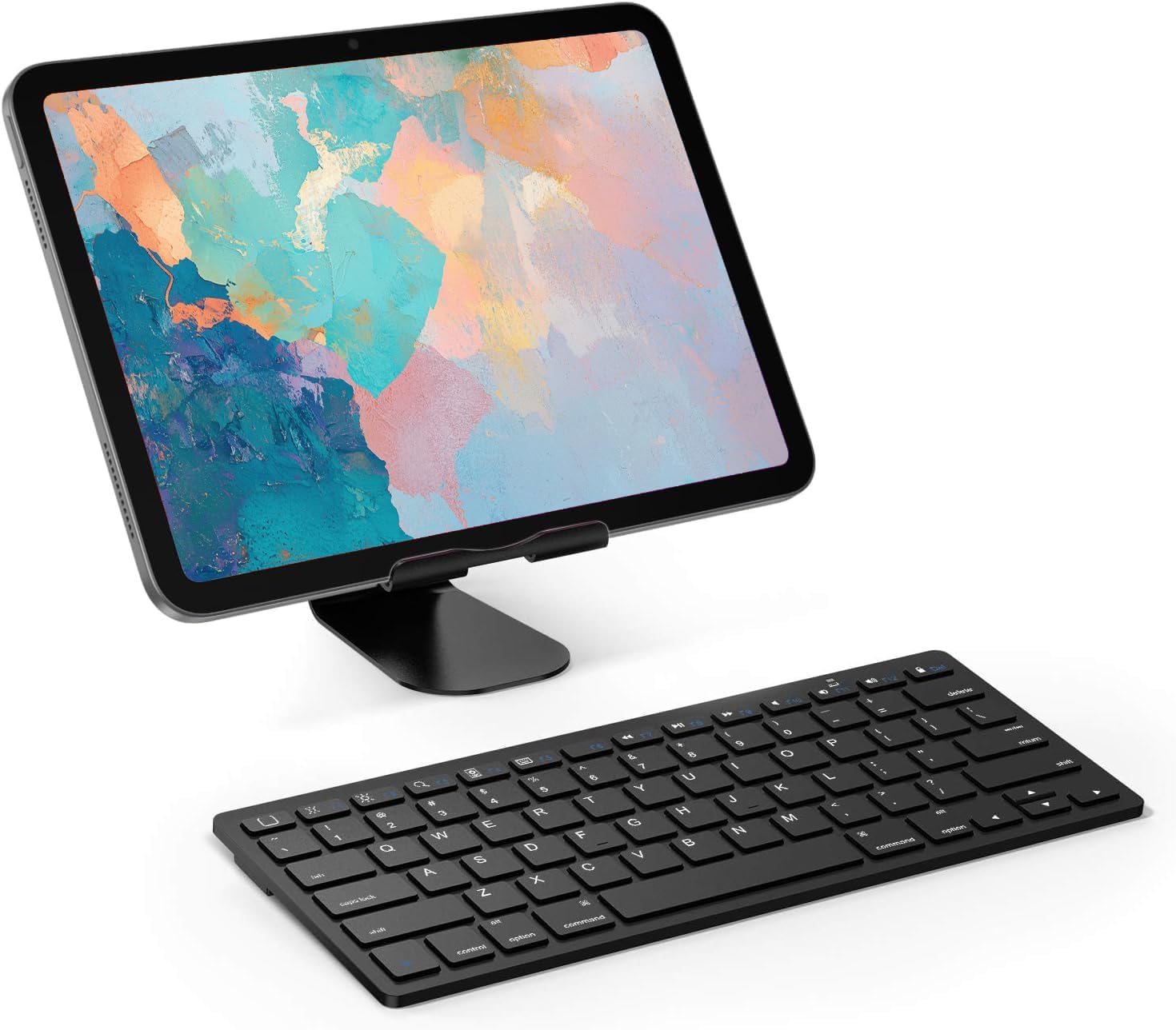
Image: The OMOTON Bluetooth Keyboard positioned in front of a tablet, demonstrating a typical usage scenario.
Tasti multimediali ottimizzati
The keyboard features a row of dedicated function keys (F1-F12) that provide quick access to various multimedia and system controls, specifically designed for iOS/iPadOS. These keys are typically activated by pressing them directly, or in some cases, in combination with the Fn chiave.
- Domanda 1: Schermata iniziale
- Domanda 2: Luminosità ridotta
- Domanda 3: Aumento luminosità
- Domanda 4: Cerca
- Domanda 5: Hide/Show Keyboard
- Domanda 6: Traccia precedente
- Domanda 7: Riproduci/Pausa
- Domanda 8: Traccia successiva
- Domanda 9: Disattiva volume
- Domanda 10: Abbassa il volume
- Domanda 11: Alza il volume
- Domanda 12: Schermata di blocco
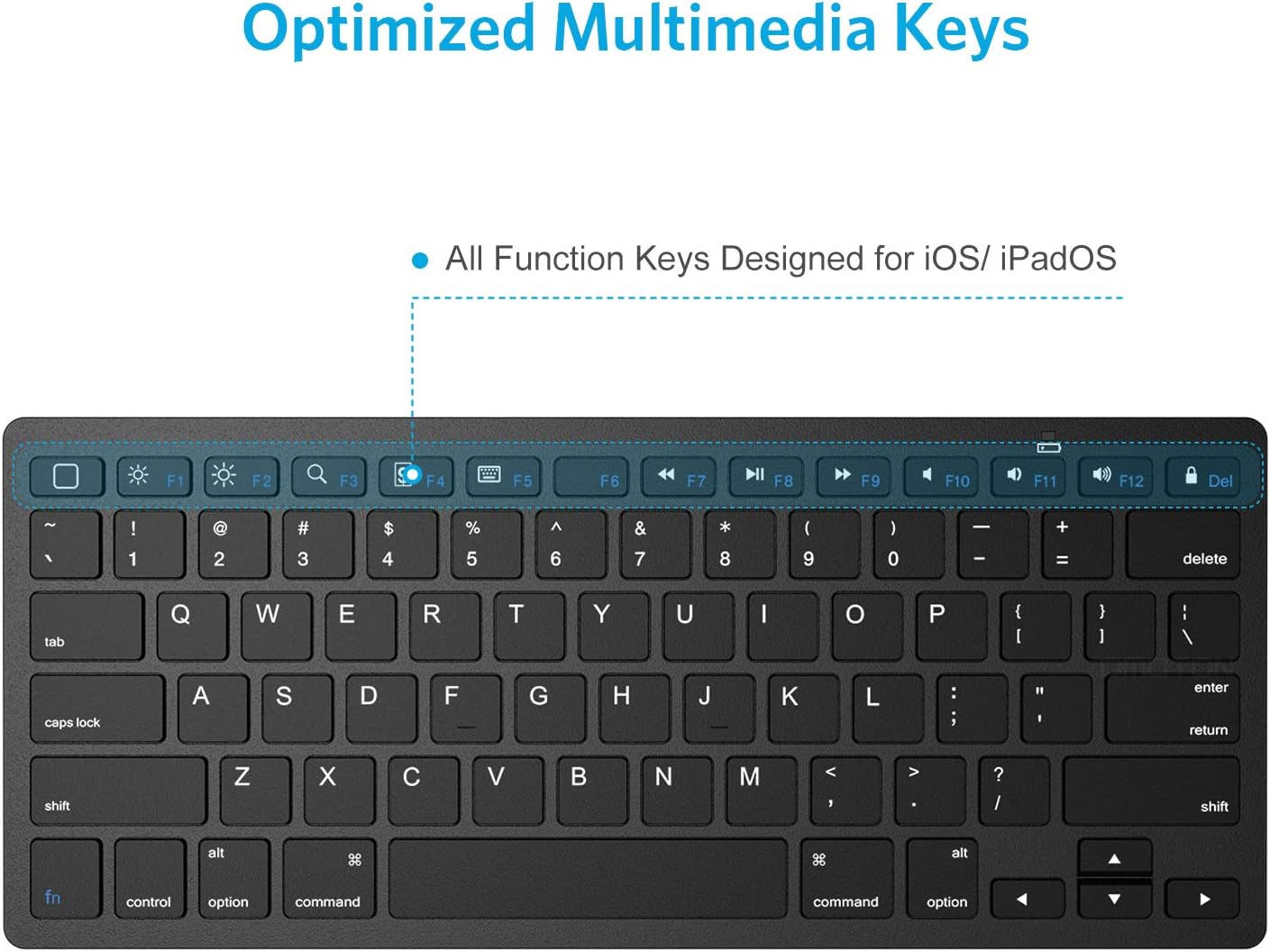
Immagine: Primo piano view of the OMOTON Bluetooth Keyboard, illustrating the dedicated multimedia function keys.
Modalità di risparmio energetico
To conserve battery life, the keyboard will automatically enter power saving mode after 10 minutes of inactivity. To wake the keyboard, simply press any key and wait for 2-3 seconds for it to reconnect to your device.
Manutenzione
Pulizia della tastiera
- Before cleaning, ensure the keyboard is turned off.
- Utilizzare un panno morbido e privo di lanugine leggermente dampcon acqua o una soluzione detergente delicata e non abrasiva.
- Gently wipe the surface of the keys and the keyboard body.
- Avoid getting moisture into any openings or between the keys.
- For dust or debris between keys, use compressed air.
Sostituzione della batteria
When the keyboard's performance degrades or it fails to connect, it may be time to replace the batteries. Refer to the "Battery Installation" section under Setup for detailed steps.
Risoluzione dei problemi
| Problema | Possibile causa | Soluzione |
|---|---|---|
| La tastiera non si accende. | Low or dead batteries; power switch off. | Replace AAA batteries. Ensure the power switch is in the "ON" position. |
| La tastiera non si connette al dispositivo. | Bluetooth not enabled on device; keyboard not in pairing mode; device too far; interference. | Ensure Bluetooth is ON on your device. Press the "Connect" button on the keyboard to enter pairing mode. Move keyboard closer to the device. Avoid strong electromagnetic interference. |
| Typing is delayed or unresponsive. | Keyboard in power saving mode; low battery; interference. | Press any key to wake the keyboard (wait 2-3 seconds). Replace batteries. Reduce interference. |
| Incorrect characters appear when typing. | Incorrect keyboard layout selected on device. | Check your device's keyboard settings and ensure the correct layout (e.g., QWERTY) is selected. |
| Hotkeys (F1-F12) are not working. | Device compatibility; incorrect usage. | Ensure your device supports these specific hotkey functions. Some functions may require the Fn key to be pressed simultaneously. |
Specifiche
| Caratteristica | Dettaglio |
|---|---|
| Numero di modello | FBA_3797733 |
| Dimensioni del prodotto | 11.22 x 4.72 x 0.24 pollici (285 x 120 x 6 mm) |
| Peso dell'articolo | 9.9 once |
| Tecnologia di connettività | Bluetooth 3.0 |
| Campo di funzionamento | Fino a 10 metri / 33 piedi |
| Numero di chiavi | 78 keys (including 13 iPad Hot keys) |
| Fonte di alimentazione | 2 batterie AAA (non incluse) |
| Durata della batteria | 30 days continuous use; up to 6 months in standby (with automatic sleep mode) |
| Materiale | Plastica superiore |
| Colore | Nero |
| Caratteristica speciale | Tasti di scelta rapida e tasti multimediali |
| Dispositivi compatibili | iPad 10th Generation, iPad 10.2 (9th/8th/7th Gen), iPad Pro 13/12.9/11 inch, iPad Air 13/11 inch, iPad Air 10.9 inch (5th/4th Gen), iPad Mini (All models), iPad Pro 10.5 inch/9.7 inch, and other Bluetooth-enabled devices. |

Image: Detailed dimensions of the OMOTON Bluetooth Keyboard, including length, width, and thickness.
Garanzia e supporto
For specific warranty information regarding your OMOTON Bluetooth Keyboard, please refer to the product packaging or visit the official OMOTON websito. I termini e le condizioni della garanzia possono variare.
If you encounter any issues not covered in this manual or require further assistance, please contact OMOTON customer support through their official channels. Contact information can typically be found on the product packaging or the OMOTON brand websito.