
Testualmente 97765
Verbatim Store 'n' Go Micro Plus USB 2.0 Flash Drive (Model 97765) - User Manual
1. Introduzione
This manual provides instructions for the Verbatim Store 'n' Go Micro Plus USB 2.0 Flash Drive, Model 97765. This compact and rugged portable storage device is designed for convenient data transfer and storage of various file types, including documents, photos, music, and videos. Its design incorporates a flexible rubber cover to protect the USB connector and a built-in key ring for easy attachment to key chains or other items.
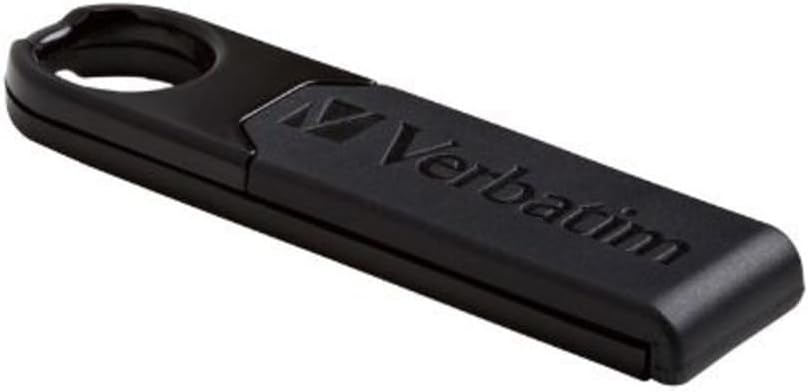
Image 1.1: The Verbatim Store 'n' Go Micro Plus USB 2.0 Flash Drive in its closed position, showcasing its compact black design and integrated key ring.
2. Contenuto della confezione
Verifica che il tuo pacco contenga il seguente articolo:
- Verbatim Store 'n' Go Micro Plus USB 2.0 Flash Drive (4GB)
3. Caratteristiche del prodotto
- USB 2.0 Interface for data transfer.
- Ruggedized System in Package (SIP) design, encapsulating and protecting electronic components from water, dust, and debris.
- Flexible protective cover shields the USB connector and is designed to withstand rough handling.
- Large carrying ring for easy attachment to key-rings, carabiners, notebook binders, or day planners.
- Password protection software available for download (compatible with Windows operating systems only).
- Compatible with both PC and Mac operating systems.
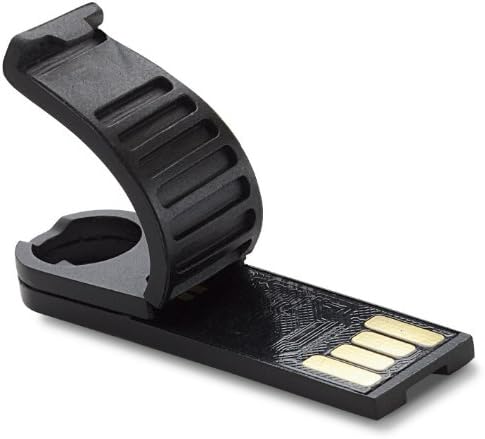
Image 3.1: The Verbatim Store 'n' Go Micro Plus USB 2.0 Flash Drive with its flexible protective cover opened, revealing the USB connector.
4. Impostazione
The Verbatim Store 'n' Go Micro Plus USB 2.0 Flash Drive is a plug-and-play device, requiring no special driver installation for most modern operating systems.
- Connessione al computer: Carefully insert the USB flash drive into an available USB 2.0 or USB 3.0 port on your computer. The drive is backward compatible with USB 1.1 ports, but performance will be limited to USB 1.1 speeds.
- Riconoscimento automatico: Your operating system (Windows, macOS, Linux) should automatically detect the drive and make it available for use. A new drive letter (for Windows) or an icon on the desktop (for macOS) will typically appear.
5. Istruzioni per l'uso
5.1. Conservazione Files
Per conservare files on the flash drive:
- Open the flash drive's folder or icon on your computer.
- Trascina e rilascia files or folders from your computer into the flash drive's window. Alternatively, copy files from your computer and paste them into the flash drive's window.
5.2. Accesso Files
Per accedere files stored on the flash drive:
- Connect the flash drive to your computer as described in the Setup section.
- Open the flash drive's folder or icon.
- Naviga verso il desiderato filee aprirli.
5.3. Rimozione sicura dell'unità
Always safely remove the USB flash drive to prevent data corruption:
- Finestre: Click the "Safely Remove Hardware and Eject Media" icon in the system tray, then select the Verbatim drive. Wait for the "Safe to Remove Hardware" message before physically disconnecting.
- Mac OS: Drag the flash drive icon from the desktop to the Trash, or right-click (Control-click) the icon and select "Eject". Wait for the icon to disappear before physically disconnecting.
6. Manutenzione
- Protezione fisica: Keep the flexible protective cover closed when the drive is not in use to shield the USB connector from dust, dirt, and physical damage.
- Pulizia: If necessary, gently wipe the exterior of the drive with a soft, dry cloth. Avoid using liquid cleaners or solvents.
- Backup dei dati: Regularly back up important data stored on the flash drive to another storage medium to prevent data loss.
- Evitare condizioni estreme: Do not expose the drive to extreme temperatures, humidity, or strong magnetic fields.

Image 6.1: Multiple Verbatim Micro Plus USB drives attached to a keychain, demonstrating their portability and the utility of the integrated carrying ring.
7. Risoluzione Dei Problemi
- Unità non riconosciuta:
- Prova a collegare l'unità a una porta USB diversa del computer.
- Test the drive on another computer to determine if the issue is with the drive or the computer's USB ports.
- Assicurarsi che l'unità sia completamente inserita nella porta USB.
- Riavvia il computer.
- Velocità di trasferimento lente:
- Ensure you are using a USB 2.0 or higher port for optimal performance. Connecting to a USB 1.1 port will result in slower speeds.
- Close other applications that might be using system resources or accessing other storage devices.
- Defragment your computer's hard drive (Windows only) if it is heavily fragmented, as this can affect overall system performance.
- Corruzione dei dati:
- Always use the "Safely Remove Hardware" option before disconnecting the drive.
- Avoid disconnecting the drive during data transfer operations.
8. Specifiche
| Caratteristica | Dettaglio |
|---|---|
| Numero di modello | 97765 |
| Capacità di archiviazione della memoria | 4 GB |
| Interfaccia Hardware | USB 2.0 |
| Tecnologia di connettività | USB |
| Colore | Nero |
| Piattaforma hardware | Per PC, Mac |
| Dimensioni del prodotto | 1.76 x 0.08 x 0.48 pollici |
| Peso dell'articolo | 0.352 once |
| Produttore | Parola per parola |
9. Garanzia e supporto
9.1. Informazioni sulla garanzia
This Verbatim product is covered by a Garanzia limitata a vita. For specific terms and conditions, please refer to the warranty documentation included with your purchase or visit the official Verbatim websito.
9.2. Supporto tecnico
For technical assistance, product information, or to download the optional password protection software, please visit the official Verbatim support website or contact their customer service department. Contact details can typically be found on the Verbatim websito o confezione del prodotto.
Nota: Password protection software is compatible with Windows operating systems only.
Ask a question about this manual
Ask about setup, troubleshooting, compatibility, parts, safety, or missing instructions. Manuals+ will review the question and use this page’s manual context to help answer it.