
Introduzione
This manual provides essential information for the proper setup, operation, and maintenance of your Hitachi Touro Desk Dx3 2TB External Hard Drive. Please read these instructions carefully before using the device to ensure optimal performance and longevity.
Contenuto della confezione
Verificare che tutti gli articoli siano presenti nel pacco:
- Hitachi Touro Desk Dx3 2TB External Hard Drive
- Cavo dati USB 3.0
- AC Power Adapter (EURO plug)
- Guida rapida (se inclusa)
Prodotto finitoview
The Hitachi Touro Desk Dx3 is a 2TB external desktop hard drive designed for reliable data storage and backup. It features a stylish, stackable design and SuperSpeed USB 3.0 connectivity for fast data transfers, while also being backwards compatible with USB 2.0.

Figura 1: Davanti view of the Hitachi Touro Desk Dx3. This image displays the sleek, black, vertically ribbed casing of the external hard drive. A small, rectangular indicator light is visible towards the bottom center of the front panel, signifying power or activity status.
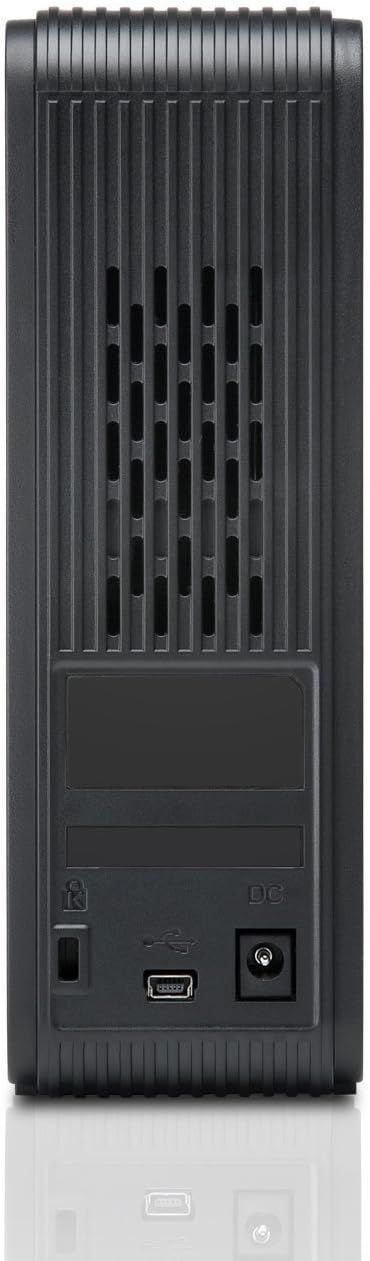
Figura 2: Indietro view of the Hitachi Touro Desk Dx3. This image shows the rear panel of the hard drive, which includes the DC power input port on the right, the USB 3.0 data port in the center, and a security lock slot on the left. Ventilation grilles are visible across the top portion of the back panel.
Impostare
Per configurare il tuo disco rigido esterno, segui questi passaggi:
- Collegare l'adattatore di alimentazione: Plug the AC power adapter into the DC power input port on the back of the Touro Desk Dx3. Then, plug the other end of the power adapter into a wall outlet. The drive will power on automatically.
- Collegare il cavo USB: Connect one end of the supplied USB 3.0 data cable to the USB port on the back of the Touro Desk Dx3. Connect the other end of the USB cable to an available USB port on your computer. For optimal performance, use a USB 3.0 port.
- Riconoscimento del sistema operativo: Your computer's operating system (Windows or macOS) should automatically detect and install the necessary drivers for the hard drive. The drive will appear as a new storage device in 'My Computer' (Windows) or 'Finder' (macOS).
- Formattazione iniziale (facoltativa): The drive comes pre-formatted. If you wish to reformat the drive or partition it, refer to your operating system's disk management tools. Nota: la riformattazione cancellerà tutti i dati presenti sull'unità.
Operativo
Once connected, your Touro Desk Dx3 is ready for use.
- Trasferimento dati: Trascina e rilascia files or folders to and from the Touro Desk Dx3 icon on your desktop or in your file explorer. The USB 3.0 interface allows for rapid data transfer speeds.
- Backup: Use your operating system's built-in backup utilities or third-party software to create backups of your important files on the external drive.
- Rimozione sicura: Always safely eject the hard drive before disconnecting it from your computer. In Windows, right-click the drive icon in the system tray and select 'Eject'. In macOS, drag the drive icon to the Trash or click the Eject button next to the drive in Finder. This prevents data corruption.
Manutenzione
Proper maintenance ensures the longevity of your device.
- Pulizia: Use a soft, dry, lint-free cloth to clean the exterior of the drive. Do not use liquid cleaners or aerosols.
- Condizioni ambientali: Store and operate the drive in a cool, dry environment, away from direct sunlight, extreme temperatures, and high humidity. Avoid placing the drive near strong magnetic fields.
- Movimentazione fisica: Handle the drive with care. Avoid dropping it or subjecting it to strong impacts, as this can damage the internal components.
Risoluzione dei problemi
In caso di problemi, fare riferimento alle seguenti soluzioni comuni:
- Unità non riconosciuta:
- Assicurarsi che l'adattatore di alimentazione sia collegato saldamente sia all'unità sia a una presa di corrente funzionante.
- Verify the USB cable is firmly connected to both the drive and your computer. Try a different USB port or cable.
- Riavvia il computer.
- Check Disk Management (Windows) or Disk Utility (macOS) to see if the drive is detected but not assigned a drive letter or mounted.
- Velocità di trasferimento lente:
- Ensure you are connected to a USB 3.0 port on your computer for SuperSpeed performance. USB 2.0 ports will operate at slower speeds.
- Evitare di trasferire molti piccoli files simultaneously; large files transfer more efficiently.
- Chiudere le altre applicazioni che potrebbero utilizzare risorse di sistema o il bus USB.
- Spia di guida non accesa:
- Check the power adapter connection to the drive and the wall outlet.
- Prova una presa di corrente diversa.
Specifiche
| Capacità di archiviazione digitale | 2 TB |
| Interfaccia del disco rigido | USB 3.0 |
| Tecnologia di connettività | USB |
| Marca | Hitachi |
| Fattore di forma del disco rigido | 3.5 pollici |
| Dispositivi compatibili | Computer desktop |
| Tipo di installazione | Da tavolo |
| Colore | Nero |
Informazioni sulla garanzia
This product is covered by a limited warranty. For detailed information regarding warranty terms, conditions, and duration, please refer to the warranty card included in your product packaging or visit the official Hitachi support websito. Conservare la prova d'acquisto per eventuali reclami in garanzia.
Assistenza clienti
For further assistance, technical support, or to inquire about service, please visit the official Hitachi support websito o contattare il servizio clienti. Le informazioni di contatto sono in genere reperibili sul sito web del produttore. websito o nella documentazione del prodotto.