
1. Introduzione
This manual provides detailed instructions for the setup, operation, maintenance, and troubleshooting of your Inland Pro Bluetooth Optical Mouse (Model 07347). Please read this manual thoroughly before using the device to ensure proper functionality and to prevent damage.
The Inland Pro Bluetooth Optical Mouse offers wireless convenience and precise optical tracking for various computing tasks. Its ergonomic design aims to provide comfortable use.
2. Contenuto della confezione
Verifica che tutti gli articoli elencati di seguito siano presenti nella confezione del prodotto:
- Inland Pro Bluetooth Optical Mouse (Model 07347)
- Manuale dell'utente (questo documento)
- Note: 2 AAA batteries are required for operation and are not included.
3. Prodotto finitoview
The Inland Pro Bluetooth Optical Mouse is designed for ease of use and reliable performance. Key features include:
- Bluetooth Wireless Interface: Provides a cable-free connection to your compatible device.
- Optical Technology: Delivers accurate and responsive cursor control.
- Design ergonomico: Shaped for comfortable handling during extended use.
- Two Buttons and Scroll Wheel: Standard navigation controls for efficient interaction.
- 1000 DPI Sensor: Offers a fixed sensitivity for general computing tasks.
Componenti del mouse
Refer to the image below for an illustration of the mouse components.
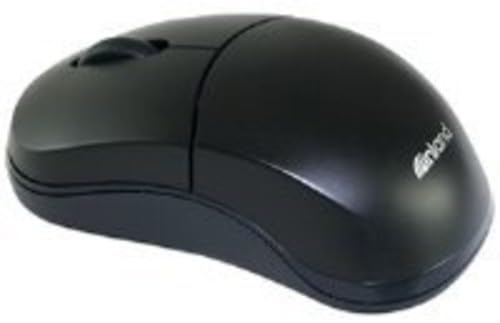
Figure 1: Inland Pro Bluetooth Optical Mouse (Model 07347). This image displays the top and side profile of the black optical mouse, highlighting its ergonomic shape and standard button layout.
- Pulsante clic sinistro
- Pulsante clic destro
- Rotella di scorrimento
- Sensore ottico (situato nella parte inferiore)
- Vano batteria (situato nella parte inferiore)
- Bluetooth Connection/Pairing Button (located on the underside)
- Power On/Off Switch (located on the underside)
4. Impostazione
4.1. Installazione delle batterie
- Ruota il mouse per accedere alla parte inferiore.
- Locate the battery compartment cover. Slide or lift the cover to open it.
- Inserire due (2) batterie AAA, assicurandosi che i terminali positivo (+) e negativo (-) siano allineati correttamente con le marcature all'interno del vano.
- Riposizionare saldamente il coperchio del vano batteria.
- Far scorrere l'interruttore di accensione/spegnimento in posizione "On".
4.2. Accoppiamento Bluetooth
Follow these steps to connect your mouse to a compatible device:
- Ensure the mouse has fresh batteries and is powered on.
- On your computer or device, enable Bluetooth and open the Bluetooth settings or device manager.
- Premere e tenere premuto il tasto Bluetooth Connection/Pairing Button on the underside of the mouse for approximately 3-5 seconds. An indicator light on the mouse (if present) may flash to indicate pairing mode.
- On your device, search for new Bluetooth devices. The mouse should appear as "Inland Pro Mouse" or a similar identifier.
- Select the mouse from the list of available devices to initiate the connection.
- If prompted for a passkey, enter "0000" or consult your device's Bluetooth instructions. Some devices may not require a passkey.
- Once connected, the mouse indicator light may stop flashing or turn solid, and your device should confirm the successful pairing.
Compatibilità Nota: This mouse is compatible with Windows 2000, Windows XP, Windows Vista, and Mac OS. Compatibility with other operating systems or specific Bluetooth adapters may vary.
5. Istruzioni per l'uso
After successful pairing, the mouse is ready for use.
- Moving the Cursor: Move the mouse across a flat, non-reflective surface to control the cursor on your screen.
- Clic sinistro: Premere il tasto sinistro per selezionare elementi, aprire collegamenti o attivare funzioni.
- Clic destro: Premere il tasto destro per aprire i menu contestuali o accedere ad opzioni aggiuntive.
- Rotella di scorrimento: Ruotare la rotellina di scorrimento verso l'alto o verso il basso per navigare tra i documenti e web pages. The scroll wheel can also be pressed as a middle click button for some functions.
6. Manutenzione
6.1. Pulizia del mouse
Per mantenere prestazioni e aspetto ottimali:
- Prima di pulirlo, assicurarsi che il mouse sia spento.
- Utilizzare un panno morbido e privo di lanugine leggermente damplucidato con acqua o una soluzione detergente delicata.
- Wipe the exterior surfaces of the mouse gently.
- Evitare l'uso di prodotti chimici aggressivi, detergenti abrasivi o umidità eccessiva, poiché potrebbero danneggiare il mouse.
- Non spruzzare i detergenti direttamente sul mouse.
6.2. Sostituzione della batteria
When the mouse's performance degrades or it stops responding, it may be time to replace the batteries. Follow the steps in Section 4.1 to replace the two (2) AAA batteries.
Nota: smaltire le batterie usate in modo responsabile, nel rispetto delle normative locali.
7. Risoluzione Dei Problemi
If you encounter issues with your Inland Pro Bluetooth Optical Mouse, refer to the following common problems and solutions:
- Mouse does not respond or cursor does not move:
- Ensure the mouse is powered on. Check the On/Off switch on the underside.
- Sostituisci le batterie con batterie AAA nuove.
- Ensure the mouse is within the effective range of your Bluetooth device (typically up to 10 meters).
- Verify that the mouse is properly paired with your device. If not, re-pair it following the steps in Section 4.2.
- Try connecting the mouse to a different Bluetooth-enabled device to rule out an issue with your primary device's Bluetooth adapter.
- Connection fails or mouse frequently disconnects:
- Ensure there are no other strong wireless signals or devices interfering with the Bluetooth connection.
- Turn the mouse off and then on again using the power switch on the underside. This can often re-establish the connection.
- Remove the mouse from your device's Bluetooth paired devices list and then re-pair it.
- Aggiorna i driver Bluetooth del tuo computer.
- If your device requests a code during pairing and none was provided, try common codes like "0000" or "1234". If issues persist, consult your device's operating system documentation.
- Il movimento del cursore è irregolare o impreciso:
- Pulire il sensore ottico sul lato inferiore del mouse con un panno morbido e asciutto.
- Use the mouse on a clean, uniform, non-reflective surface. Avoid highly reflective or transparent surfaces.
8. Specifiche
| Marca | Nell'entroterra |
| Numero di modello | 07347 |
| Tecnologia di connettività | Bluetooth, Wireless (2.4 GHz Radio Frequency, 802.11abg) |
| Tecnologia di rilevamento del movimento | Ottico |
| DPI (punti per pollice) | 1000 dpi |
| Numero di pulsanti | 2 (più clic della rotellina di scorrimento) |
| Colore | Nero |
| Compatibilità del sistema operativo | Windows 2000, Windows XP, Windows Vista, Mac OS |
| Batterie richieste | 2 x AAA (non incluso) |
| Peso dell'articolo | 109 grammi |
| Dimensioni del prodotto (L x P x A) | 20.32 x 6.35 x 18.29 cm (dimensioni approssimative della confezione) |
9. Garanzia e supporto
For warranty information, please refer to the documentation provided at the time of purchase or contact your retailer. Inland typically offers a limited warranty against defects in materials and workmanship.
For technical support or further assistance, please visit the official Inland websito o contattare il servizio clienti. I dettagli di contatto sono solitamente disponibili sulla confezione del prodotto o sul cartellino del produttore. websito.