
1. Impostazione
1.1 Disimballaggio e ispezione iniziale
Carefully remove your ASUS K52F-A2B laptop from its packaging. Inspect the laptop and all accessories for any signs of damage. The package should contain the laptop, AC adapter, power cord, and documentation.
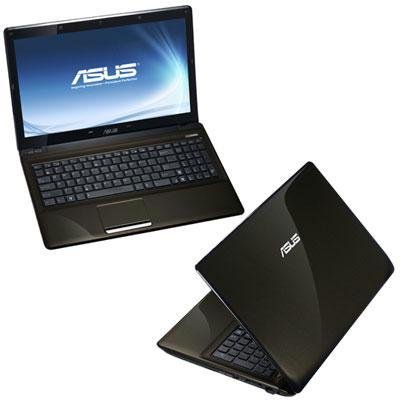
Image 1.1: The ASUS K52F-A2B laptop. This image shows the closed laptop from an angle, highlighting its dark brown finish and sleek design.
1.2 Collegamento dell'adattatore CA
Before initial use, connect the AC adapter to the laptop and a power outlet. This ensures the battery is charged and provides stable power for setup.
- Plug the AC adapter into the power connector on the side of your laptop.
- Collegare il cavo di alimentazione all'adattatore CA.
- Collegare l'altra estremità del cavo di alimentazione a una presa elettrica con messa a terra.
1.3 Accensione iniziale
Once the AC adapter is connected, open the laptop lid and press the power button. The laptop will begin its initial boot sequence. Follow the on-screen instructions to complete the operating system setup (Windows 7 Professional 64-bit).
2. Operating Your ASUS K52F-A2B Laptop
2.1 Accensione/spegnimento e modalità di sospensione
- Accensione: Premere il pulsante di accensione situato sopra la tastiera.
- Spegni: Click the Start button, then select 'Shut down'.
- Modalità risparmio: Close the laptop lid or select 'Sleep' from the Start menu. Press the power button or any key to wake the laptop.
2.2 Utilizzo della tastiera e del touchpad
The ASUS K52F-A2B features a full-sized keyboard and a multi-touch touchpad.
- Tastiera: Standard QWERTY layout with function keys (Fn) for brightness, volume, and other system controls.
- Touchpad: Supports multi-touch gestures for scrolling, zooming, and navigation. Refer to the operating system's help for detailed gesture information.
2.3 Collegamento di dispositivi esterni
Your laptop provides various ports for connecting external devices:
- Porte USB: Per collegare dispositivi USB come mouse, tastiere e dispositivi di archiviazione esterni.
- Porta HDMI: Connects to external displays or TVs for high-definition video and audio output.
- Porta VGA: Connects to older external monitors or projectors.
- Jack audio: Per cuffie e microfoni.
- Porta Ethernet: Per connessioni di rete cablate.
2.4 Using the Optical Disk Drive
The laptop includes a Super Multi Optical Disk Drive for reading and writing CDs and DVDs.
- Premere il pulsante di espulsione sull'unità per aprire il vassoio.
- Place a CD or DVD onto the tray with the label side facing up.
- Gently push the tray back into the laptop until it clicks shut.
3. Manutenzione
3.1 Pulizia del computer portatile
Una pulizia regolare aiuta a preservare l'aspetto e la funzionalità del portatile.
- Schermo: Utilizzare leggermente un panno morbido e privo di lanugine dampcon acqua o un detergente per schermi. Non spruzzare il liquido direttamente sullo schermo.
- Tastiera e Casing: Utilizzare un panno morbido e asciutto. Per lo sporco ostinato, un panno leggermente dampened with mild soap and water can be used. Ensure the laptop is powered off and unplugged before cleaning.
- Vents: Utilizzare aria compressa per rimuovere la polvere dalle prese d'aria di raffreddamento ed evitare il surriscaldamento.
3.2 Cura della batteria
Per massimizzare la durata e le prestazioni della batteria:
- Evitare di scaricare completamente la batteria frequentemente.
- Quando non lo si utilizza per lunghi periodi, conservare il computer portatile in un luogo fresco e asciutto.
- Se si prevede di non utilizzarla per un lungo periodo, caricare la batteria a circa il 50% prima di riporla.
3.3 Aggiornamenti software
Aggiorna regolarmente il sistema operativo e i driver per garantire prestazioni e sicurezza ottimali. Consulta il supporto ASUS website for the latest drivers for your K52F-A2B model.
4. Risoluzione Dei Problemi
This section addresses common issues you might encounter with your ASUS K52F-A2B laptop.
4.1 Problemi di alimentazione
- Il portatile non si accende: Ensure the AC adapter is securely connected to both the laptop and a working power outlet. Check if the power outlet is functional. If the battery is completely drained, allow it to charge for a few minutes before attempting to power on.
- Il portatile si spegne inaspettatamente: This could indicate overheating. Ensure cooling vents are clear and the laptop is on a hard, flat surface.
4.2 Problemi di visualizzazione
- Nessuna visualizzazione sullo schermo: Connect an external monitor to the VGA or HDMI port to check if the issue is with the laptop's internal display. Press Fn+F8 to toggle display output modes.
- Display scuro: Adjust screen brightness using the Fn+F5 (dim) and Fn+F6 (bright) function keys.
4.3 Problemi di connettività
- Wi-Fi non connesso: Ensure Wi-Fi is enabled (often via a function key, e.g., Fn+F2). Check network settings in Windows.
- Dispositivo USB non riconosciuto: Prova a collegare il dispositivo a una porta USB diversa. Assicurati che i driver del dispositivo siano installati.
4.4 Operating System Recovery
The ASUS K52F-A2B comes with Windows 7 Professional. For system recovery or reinstallation, it is recommended to use the recovery partition or create recovery media as instructed by ASUS. Note that official support for downgrading to Windows XP Pro may be limited, and recovery media for Windows 7 Pro might need to be created by the user.
5. Specifiche tecniche
| Caratteristica | Specificazione |
|---|---|
| Numero di modello | K52F-A2B |
| Processore | Intel Core i3-350M (2.26 GHz) |
| Sistema operativo | Windows 7 Professional a 64 bit |
| Display | 15.6-inch HD (1366x768) LED |
| Grafica | Intel GMA HD (Integrated) |
| Memoria RAM | 3 GB DDR3 1066MHz (Max 8GB) |
| Magazzinaggio | 320 GB Hard Drive (5400 RPM) |
| Unità ottica | DVD SuperMulti |
| Connettività wireless | 802.11bgn |
| Porti | HDMI, VGA, USB, Audio Jacks |
| Webcamma | 0.3 MP |
| Peso | 5.8 libbre |
6. Garanzia e supporto
6.1 Informazioni sulla garanzia
Your ASUS K52F-A2B laptop comes with the following warranty coverage:
- Garanzia globale di 2 anni
- 1-Year Accidental Damage Warranty
- 30-Day Zero Bright Dot Guarantee
- 2-way FREE shipping for repairs
6.2 Supporto tecnico
Per assistenza tecnica, download di driver o ulteriori informazioni, visitare il supporto ufficiale ASUS website. 24/7 technical support is available as part of your warranty.
For the most up-to-date support contact information, please refer to the documentation included with your product or visit www.asus.com/support.