
1. Introduzione
This manual provides comprehensive instructions for the installation, configuration, and operation of your SABRENT NT-WRLRT Wireless 802.11g Router. This device is designed to provide a wireless network solution for Small Office/Home Office (SOHO) environments, enabling shared internet access, file sharing, and secure wireless connectivity.
2. Contenuto della confezione
Si prega di verificare che tutti gli articoli elencati di seguito siano presenti nel pacco:
- SABRENT NT-WRLRT 802.11g Wireless Cable/DSL Gateway Router
- Unità di alimentazione
- Long Range Performance Antenna
- Guida di installazione rapida
- Cavo di rete RJ-45
3. Prodotto finitoview
The SABRENT NT-WRLRT router integrates a wireless access point, a 4-port Ethernet switch, and a router into a single device. It supports 802.11g and 802.11b wireless standards, offering data rates up to 54Mbps.
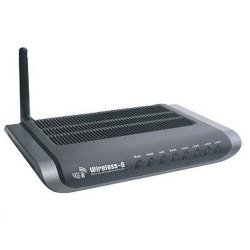
Figura 1: Davanti view of the SABRENT NT-WRLRT Wireless Router, showing indicator lights and ports.
Caratteristiche principali:
- Complies with IEEE 802.11g, IEEE 802.11b, IEEE 802.3, IEEE 802.3u standards.
- One 10/100M Auto-Negotiation RJ45 WAN port.
- Four 10/100M Auto-Negotiation RJ45 LAN ports with Auto MDI/MDIX support.
- Supports 54/48/36/24/18/12/9/6/11/5.5/3/2/1Mbps wireless LAN data transfer rates.
- Integrated NAT and DHCP server with static IP address distribution.
- Firewall integrato che supporta il filtro degli indirizzi IP, il filtro dei nomi di dominio e il filtro degli indirizzi MAC.
- Supports WEP, WPA/WPA2, and WPA-PSK/WPA2-PSK authentication with TKIP/AES encryption.
- Supports TCP/IP, PPPoE, DHCP, ICMP, NAT protocols.
- Remote and Web capacità di gestione.
4. Impostazione
4.1 Requisiti di sistema
- Broadband Internet connection (e.g., cable or DSL modem) with an RJ45 (Ethernet) connection.
- At least one computer with an installed network interface adapter.
- TCP/IP networking protocol installed on each computer.
- RJ45 Ethernet networking cable.
- Internet browser (e.g., Chrome, Firefox, Edge).
4.2 Installazione hardware
- Collegare l'antenna: Screw the provided antenna onto the antenna connector at the rear of the router.
- Connetti al modem: Connect one end of the RJ-45 networking cable to the WAN port on the router and the other end to your cable or DSL modem.
- Collegamento al computer (facoltativo per la configurazione iniziale): Connect one end of an RJ-45 networking cable to any of the LAN ports (1-4) on the router and the other end to the Ethernet port on your computer.
- Accensione: Connect the power adapter to the router's power input and then plug it into a standard electrical outlet. The power indicator light on the router should illuminate.
- Verifica connessioni: Wait for the router to initialize. Check the indicator lights for WAN, LAN, and WLAN to ensure proper connection status.
4.3 Accesso alla configurazione iniziale
Per accedere al router webinterfaccia di gestione basata su:
- Ensure your computer is connected to the router via an Ethernet cable or wirelessly (if the default wireless network is broadcasting).
- Aprire un web browser.
- Nella barra degli indirizzi, digitare l'indirizzo IP predefinito del router (solitamente
192.168.1.1or192.168.0.1, refer to the Quick Installation Guide for the exact default IP). - Press Enter. You will be prompted for a username and password. The default credentials are typically
adminsia per nome utente che per password. - Once logged in, you can proceed with configuring your network settings.
5. Istruzioni per l'uso
Connessione Internet 5.1
After initial setup, the router should automatically establish an internet connection if your modem is properly configured. You can verify the connection status through the router's web interfaccia.
- IP dinamico: Most cable modem users will use this setting. The router obtains an IP address automatically from your ISP.
- PPPoE: Common for DSL users. You will need to enter the username and password provided by your ISP.
- IP statico: Less common for home users. You will need to manually enter the IP address, subnet mask, gateway, and DNS server information provided by your ISP.
5.2 Connessione di rete wireless
To connect wireless devices (laptops, smartphones, tablets) to your router:
- Sul tuo dispositivo wireless, cerca le reti Wi-Fi disponibili.
- Select the network name (SSID) of your SABRENT NT-WRLRT router. The default SSID is usually "SABRENT" or similar, as indicated in the Quick Installation Guide.
- If prompted, enter the wireless security key (password). The default key is typically found on a label on the router or in the Quick Installation Guide.
- Once connected, your device should have internet access through the router.
6. Configurazione avanzata
Accedi al router web interfaccia di gestione per configurare le impostazioni avanzate.
6.1 Impostazioni di sicurezza wireless
It is highly recommended to configure wireless security to protect your network from unauthorized access.
- WEP (Wired Equivalent Privacy): An older, less secure encryption method.
- WPA/WPA2-PSK (Wi-Fi Protected Access - Pre-Shared Key): Recommended for stronger security. Choose WPA2-PSK with AES encryption for the best protection. You will set a passphrase (network key) for your wireless network.
- Wireless LAN ACL (Access Control List) Filtering: Allows you to specify which wireless devices (based on MAC address) are permitted or denied access to your network.
6.2 Network Settings (LAN & DHCP)
The router includes a built-in DHCP server that automatically assigns IP addresses to devices on your local network. You can configure the DHCP range or assign static IP addresses if needed.
6.3 Impostazioni del firewall
The integrated firewall provides protection for your network. You can configure:
- Filtraggio degli indirizzi IP: Block or allow specific IP addresses.
- Domain Name Filtering: Bloccare l'accesso a determinati websiti.
- Filtraggio degli indirizzi MAC: Controlla l'accesso alla rete in base agli indirizzi MAC dei dispositivi.
- Pass-through VPN: Allows VPN connections to pass through the router.
6.4 Aggiornamento del firmware
Controllare periodicamente il SABRENT website for firmware updates. Upgrading firmware can improve performance, add new features, or fix bugs. Follow the instructions provided with the firmware update carefully.
7. Manutenzione
Per garantire prestazioni ottimali e longevità del router:
- Posizionamento: Place the router in a central location, away from obstructions, large metal objects, and devices that emit radio frequency interference (e.g., microwaves, cordless phones).
- Pulizia: Mantenere il router pulito e privo di polvere. Utilizzare un panno morbido e asciutto per la pulizia. Non utilizzare detergenti liquidi.
- Ventilazione: Assicurare un adeguato flusso d'aria attorno al router per evitare il surriscaldamento. Non coprire le aperture di ventilazione.
- Ciclo di alimentazione: Se riscontri problemi di rete, prova a spegnere e riaccendere il router (scollega l'adattatore di corrente, attendi 10 secondi, quindi ricollegalo).
- Modifiche regolari della password: Change your router's administrative password and wireless network password periodically for enhanced security.
8. Risoluzione Dei Problemi
Questa sezione affronta i problemi più comuni che potresti incontrare.
8.1 Nessun accesso a Internet
- Controllare i cavi: Assicurarsi che tutti i cavi Ethernet siano collegati saldamente al router e al modem.
- Stato del modem: Verify that your cable/DSL modem is working correctly and has an active internet connection.
- Luci del router: Check the WAN indicator light on the router. If it's off or blinking abnormally, there might be an issue with the connection to your modem or ISP.
- Ciclo di alimentazione: Power cycle both your modem and router. Unplug both devices, wait 30 seconds, then plug in the modem first. Once the modem is fully online, plug in the router.
- Configurazione del router: Accedi al router web interface and check the WAN settings. Ensure they match the connection type provided by your ISP (Dynamic IP, PPPoE, Static IP).
8.2 Impossibile connettersi alla rete wireless
- Trasmissione SSID: Ensure the router is broadcasting its SSID. Check the wireless settings in the web interfaccia.
- Password senza fili: Double-check that you are entering the correct wireless security key (password). Passwords are case-sensitive.
- Potenza del segnale: Avvicinatevi al router per migliorare la potenza del segnale.
- Adattatore wireless: Ensure your device's wireless adapter is enabled and functioning correctly.
- Riavvio del router: Riavviare il router.
8.3 Velocità wireless lenta
- Interferenza: Reduce interference from other wireless devices or electronics. Try changing the wireless channel in the router's settings.
- Distanza/Ostacoli: Move devices closer to the router and minimize physical obstructions.
- Firmware: Assicurati che sul router sia installato il firmware più recente.
- Congestione della rete: Too many devices or high-bandwidth activities on the network can slow down speeds.
9. Specifiche
| Caratteristica | Descrizione |
|---|---|
| Marca | SABRENTÀ |
| Numero di modello | NT-WRLRT |
| standard wireless | IEEE 802.11g, IEEE 802.11b |
| Standard Ethernet | IEEE 802.3, IEEE 802.3u |
| Velocità di trasferimento dati | Fino a 54 Mbps |
| Porte WAN | 1 x 10/100M Auto-Negotiation RJ45 |
| Porte LAN | 4 x 10/100M Auto-Negotiation RJ45 (Auto MDI/MDIX) |
| Protocolli di sicurezza | WEP (64/128-bit), WPA/WPA2, WPA-PSK/WPA2-PSK (TKIP/AES) |
| Caratteristiche speciali | WPS, Built-in NAT, DHCP Server, Firewall (IP/Domain/MAC Filtering), VPN Pass-through, Remote/Web Gestione |
| Tecnologia di connettività | Senza fili, Ethernet |
| Dispositivi compatibili | Personal computer |
| Metodo di controllo | Remoto |
10. Garanzia e supporto
For warranty information and technical support, please refer to the official SABRENT website or contact SABRENT customer service directly. Details regarding warranty periods and support channels are typically provided with your product documentation or on the manufacturer's websito.
SABRENT Ufficiale Websito: www.sabrent.com