
1. Introduzione
Welcome to the Hot Wheels Velocity X PC game. This manual provides essential information to help you install, play, and troubleshoot the game. Prepare to navigate Monument City, engage in high-speed races, and complete challenging missions.

Image 1: The official cover art for Hot Wheels Velocity X, featuring a green racing car against a backdrop of a futuristic city skyline.
2. Requisiti di sistema
Before installing, ensure your computer meets the minimum system requirements for optimal performance.
- Sistema operativo: Windows 95, Windows 98, Windows Me (Later Windows versions may require compatibility mode).
- Processore: Pentium II 300 MHz or equivalent.
- Memoria RAM: Dimensioni: 64 MB.
- Spazio sul disco rigido: 500 MB free.
- Scheda video: 8 MB DirectX compatible 3D accelerator card.
- Scheda audio: DirectX compatible sound card.
- Unità CD-ROM: 8x speed.
- Ingresso: Keyboard, Mouse.
3. Installazione
Follow these steps to install Hot Wheels Velocity X on your PC:
- Insert the Hot Wheels Velocity X game CD into your computer's CD-ROM drive.
- If the installer does not launch automatically, navigate to "My Computer," right-click on your CD-ROM drive icon, and select "Open." Then, locate and double-click "Setup.exe" or "Install.exe."
- Follow the on-screen prompts to complete the installation process. This typically involves accepting the license agreement, choosing an installation directory, and selecting components.
- Once installation is complete, you may be prompted to restart your computer. It is recommended to do so.
- A shortcut to the game will be placed on your desktop or in your Start Menu.
4. Funzionamento del gioco
4.1 Avvio del gioco
Double-click the Hot Wheels Velocity X shortcut on your desktop or select it from the Start Menu to launch the game.
4.2 Menu principale
From the main menu, you can access various game options:
- Nuovo gioco: Start a new campallineare.
- Carica gioco: Continue a previously saved game.
- Opzioni: Adjust graphics, sound, and control settings.
- Multigiocatore: Engage in local multiplayer modes.
- Uscita: Esci dal gioco.
4.3 modalità di gioco
Hot Wheels Velocity X offers several modes of play:
- Modalità Storia: Embark on 30 missions across six distinct levels in Monument City to defeat a criminal gang.
- Modalità gara: Compete in various races against AI opponents.
- Modalità Battaglia: Engage in vehicular combat using power-ups.
- Stunt Challenge: Perform daring stunts and earn points.
- Multigiocatore: Challenge a friend in head-to-head racing, battle mode, or stunt challenges.

Image 2: A dynamic in-game screenshot showing a yellow Hot Wheels car defying gravity on a looped track, highlighting the game's stunt capabilities.
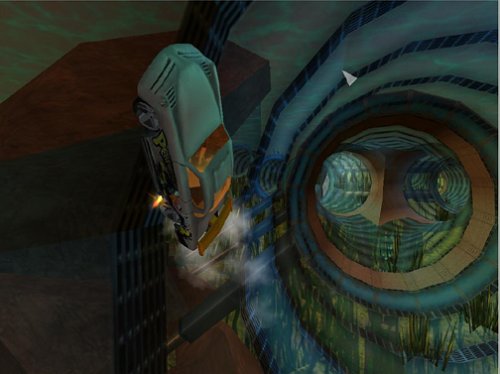
Image 3: An in-game view of a white Hot Wheels car navigating a vibrant, patterned tunnel, showcasing the diverse track designs.
4.4 Controlli
Default keyboard controls are as follows. These can be customized in the Options menu.
- Accelerare: Tasto freccia su
- Freno/Retromarcia: Tasto freccia giù
- Steer Left: Tasto freccia sinistra
- Steer Right: Tasto freccia destra
- Use Power-up: Barra spaziatrice
- Freno a mano: Tasto Maiusc sinistro
- Look Back: Tasto C.
- Metti in pausa il gioco: Tasto Esc

Image 4: An action shot from the game featuring a white Hot Wheels car with custom decals, racing on an elevated track against a vibrant sunset.

Image 5: A high-resolution gameplay image showing a Hot Wheels car executing a wall ride on a complex track structure, with the city visible below.
4.5 Saving and Loading
The game typically features an auto-save function at key points. You can also manually save your progress through the in-game pause menu. To load a game, select "Load Game" from the main menu and choose your desired save file.
5. Manutenzione
Per garantire la longevità e le prestazioni ottimali del tuo gioco, tieni presente i seguenti suggerimenti per la manutenzione:
- Cura del disco: Keep the game CD clean and free of scratches. Store it in its original case when not in use.
- Aggiornamenti di sistema: Ensure your operating system and graphics drivers are up to date. This can improve game compatibility and performance.
- Spazio su disco: Periodically check that you have sufficient free hard drive space for game saves and temporary files.
- Software antivirus: Keep your antivirus software updated and perform regular scans to prevent malware interference.
6. Risoluzione Dei Problemi
If you encounter issues while playing Hot Wheels Velocity X, refer to the following common solutions:
- Il gioco non si avvia:
- Verifica che il tuo sistema soddisfi i requisiti minimi.
- Ensure the game CD is clean and properly inserted.
- Try running the game in compatibility mode for Windows 95/98/Me. Right-click the game shortcut, select "Properties," then "Compatibility."
- Aggiorna i driver della scheda grafica.
- Performance Issues (Lag, Low FPS):
- Chiudere le altre applicazioni in esecuzione in background.
- Lower the game's graphical settings in the Options menu.
- Ensure your graphics drivers are updated.
- Problemi audio:
- Check your computer's volume settings and in-game sound options.
- Assicurati che i driver della scheda audio siano aggiornati.
- Verify your sound card is DirectX compatible.
- I controlli non rispondono:
- Ensure your keyboard and mouse are properly connected.
- Check the in-game control settings for any reconfigurations.
- Restart the game and your computer.
Per ulteriore assistenza, consultare la sezione Supporto.
7. Specifiche
| Caratteristica | Dettaglio |
|---|---|
| Titolo | Hot Wheels Velocity X - PC |
| Marca | THQ |
| Modello | Velocità X |
| Piattaforma | PC (Windows 95, Windows 98, Windows Me) |
| Data di rilascio | 21 ottobre 2002 |
| Produttore | THQ |
| Peso dell'articolo | 4.8 once |
| Dimensioni del prodotto | 7.76 x 5.24 x 1.26 pollici |
| Codice UPC | 752919490976 |
| ASIN | B00006C7EP |
| Valutazione ESRB | Tutti |
8. Informazioni sulla garanzia
This product is subject to the standard warranty terms provided by the manufacturer, THQ, at the time of purchase. Please refer to the documentation included with your game disc or visit the official THQ website (if available) for detailed warranty information, including coverage period and conditions. Keep your proof of purchase for any warranty claims.
9. Supporto
For technical support or further inquiries regarding Hot Wheels Velocity X, please consider the following resources:
- Produttore Websito: Visit the official THQ website for potential FAQs, patches, or contact information. (Note: THQ has undergone significant changes since the game's release; current support may be limited).
- Forum online: Community forums dedicated to classic PC games or Hot Wheels games may offer solutions from other players.
- Supporto al rivenditore: If purchased recently, your retailer may offer limited support or return options.