
1. Okwu mmalite
This manual provides instructions for setting up, operating, and maintaining your QUASIO Wireless Keyboard and Mouse Combo (Model MK258). This combo offers a full-size ergonomic keyboard and a precise optical mouse, designed for comfort and efficiency in various computing environments.
2. Ihe ngwugwu
- 1 x Igwefoto ikuku
- 1 x Igwe ikuku ikuku
- 1 x USB Receiver (echekwara na ngalaba batrị òké)
- 1 x Akwụkwọ ntuziaka onye ọrụ
3. Ntuziaka Nhazi
3.1 Ntinye batrị
-
Maka òké:
Slide open the battery compartment cover on the underside of the mouse. Insert one AA battery, ensuring correct polarity (+/-). Close the cover.
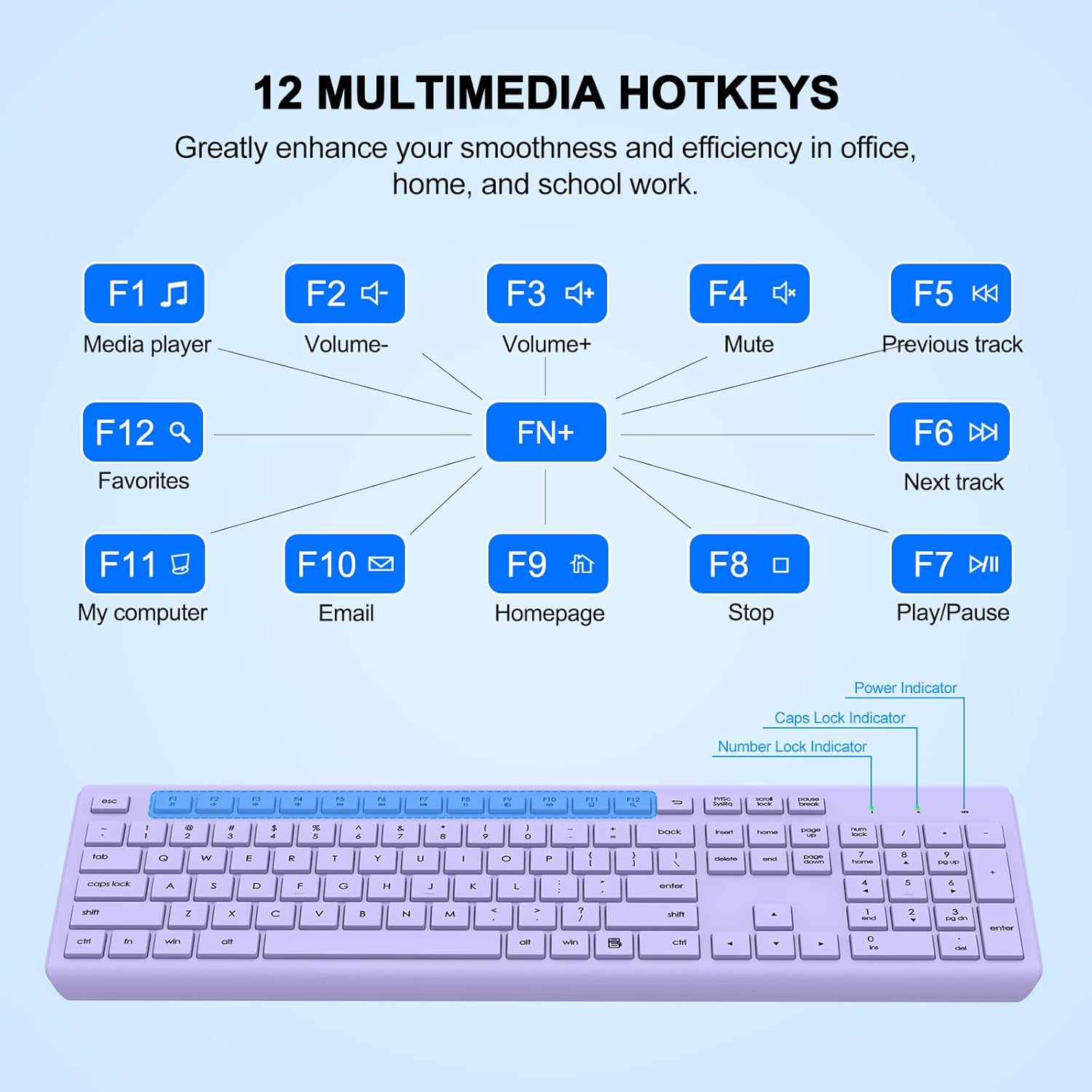
Image: The underside of the wireless mouse, highlighting the battery compartment and the slot where the USB receiver is stored. The ON/OFF switch is also visible.
-
Maka ahụigodo:
Locate the battery compartment on the underside of the keyboard. Insert one AAA battery, observing the correct polarity. Close the compartment cover.

Image: A diagram illustrating the smart power management features, showing the keyboard requires one AAA battery and the mouse requires one AA battery. It also highlights 365 days standby time and 400 hours working time.
3.2 Ijikọ ngwaọrụ
- Remove the USB receiver from the mouse's battery compartment.
- Plug the USB receiver into an available USB port on your computer (PC, Mac, Laptop, etc.).
- Turn on the mouse using the ON/OFF switch located on its underside.
- The keyboard and mouse are designed for plug-and-play functionality and should connect automatically within a few seconds. No additional software or drivers are typically required.

Image: An illustration demonstrating the 2-in-1 plug and play functionality, 2.4G wireless connection, and a 33ft (10m) wireless range for the keyboard and mouse combo.
4. Ntuziaka ọrụ
4.1 Ergonomic imewe
The keyboard features adjustable height tilt legs, allowing you to set an optimal typing angle for increased comfort and to help prevent wrist strain during prolonged use.

Foto: A view of the wireless keyboard on a desk, showing its foldable stand that allows for an 8-degree adjustable typing angle for ergonomic comfort.
4.2 Multimedia Shortcut Keys
The full-size keyboard includes 12 multimedia shortcut keys (F1-F12) that can be accessed by pressing the 'Fn' key in combination with the respective F-key. These keys provide quick access to functions such as play/pause, volume control, email, and more, enhancing work efficiency.

Image: A visual representation of the 12 multimedia hotkeys (F1-F12) on the keyboard, detailing their functions such as media player, volume up/down, mute, previous/next track, play/pause, stop, homepage, email, and 'My Computer'.
4.3 Quiet Typing and Clicking
The keyboard features soft membrane keys for a quiet and comfortable typing experience. The mouse utilizes silent micro-motion technology, ensuring clicks are almost completely silent. This design is ideal for shared workspaces, minimizing disturbance to others.

Image: A split image showing a close-up of the keyboard keys with a 'Smooth Typing' label and the mouse with a 'Noiseless Click' label, emphasizing the quiet operation of both devices.
4.4 Ndakọrịta zuru oke
The wireless keyboard and mouse set supports various operating systems, including Windows 11, 10, 8, 7, Mac OS, Chrome OS, and Linux. It is compatible with a wide range of devices such as laptops, desktop PCs, notebooks, Chromebooks, MacBooks, and iMacs.

Image: A computer screen displaying logos for Windows, Mac OS, and Linux, indicating wide compatibility for the wireless keyboard and mouse combo. Icons for PC, Desktop, Laptop, and TV are also shown.
5. Nlekọta
5.1 nnọchi batrị
When the devices stop responding or the performance degrades, it is time to replace the batteries. Refer to section 3.1 for battery installation instructions. The keyboard requires one AAA battery, and the mouse requires one AA battery.
5.2 Nhicha
The keyboard features a splash-proof design, making it easy to wipe clean after accidental water splashes. For general cleaning, use a soft, damp akwa . Zere iji kemịkalụ siri ike ma ọ bụ ihe na-emebi emebi.
6. Nchọpụta nsogbu
-
Enweghị nzaghachi sitere na ahụigodo/òké:
- Hụ na e tinyere ihe nnata USB n'ime ọdụ ụgbọ USB na-arụ ọrụ na kọmputa gị nke ọma.
- Check if the batteries in both the keyboard and mouse are correctly installed and have sufficient charge. Replace if necessary.
- Ensure the mouse's ON/OFF switch is in the 'ON' position.
- Gbalịa itinye ihe nnata USB n'ọdụ ụgbọ mmiri USB dị iche.
- Malitegharịa ekwentị gị na kọmputa.
-
Njikọ Lag ma ọ bụ Nkwụsị:
- Ensure the devices are within the 33ft (10m) wireless range of the USB receiver.
- Minimize interference from other wireless devices (e.g., Wi-Fi routers, cordless phones) by moving them further away.
- Ensure there are no large metal objects between the devices and the receiver that could block the signal.
-
Igodo Multimedia anaghị arụ ọrụ:
- Ensure you are pressing the 'Fn' key simultaneously with the desired F-key to activate multimedia functions.
7. Nkọwapụta
| Njirimara | Nkọwa |
|---|---|
| Ụdị | KWASIO |
| Nlereanya | MK258 |
| Teknụzụ Njikọta | Ikuku 2.4GHz (USB nnata) |
| Njirimara Pụrụ Iche | Ergonomic Design, Silent Keys/Clicks, Multimedia Hotkeys, Splash-Proof |
| Ngwa dakọtara | Laptop, Personal Computer, Windows (11/10/8/7), Mac OS, Chrome OS, Linux, MacBook Pro, MacBook Air, iMac, Tablet, Television, Smartphone, Chromebook, Notebook |
| Batrị ahụigodo | Batrị 1 x AAA (anaghị etinye ya) |
| Batrị òké | Batrị 1 x AA (anaghị etinye ya) |
| Nhazi ahụigodo | QWERTY, Full-Size with Numeric Keypad |
| Ikuku iche | Ruo 10m (33ft) |
| Igwe DPI | 1600 DPI |
8. Akwụkwọ ikike na nkwado
QUASIO products come with a 1-year worry-free warranty. Additionally, a 30-day no-reason refund policy is offered. For any issues or support inquiries, please contact QUASIO customer service. Even beyond the Amazon return period, assistance is available for product-related concerns.
For support, please refer to the contact information provided on the product packaging or the official QUASIO websaịtị.