
Okwu mmalite
This manual provides detailed instructions for the QUASIO Ergonomic Wireless Keyboard Mouse Combo. Designed for comfort and efficiency, this combo offers versatile connectivity and features to enhance your computing experience. Please read this manual thoroughly before use to ensure proper setup and operation.
Kedu ihe dị na Igbe ahụ
Mgbe ebupuchara, biko chọpụta na agụnyere ihe niile ndị a:
- Ergonomic Split Design Wireless Keyboard
- Ergonomic Vertical Wireless Mouse
- 2.4G USB Receiver (typically stored in the mouse battery compartment)
- USB-C eriri USB
- Akwụkwọ ntuziaka onye ọrụ

Image: Contents of the QUASIO Ergonomic Wireless Keyboard Mouse Combo package, including the split keyboard, vertical mouse, and USB receiver.
Ngwaahịa gafereview
Ergonomic Keyboard Design
The QUASIO wireless keyboard features an ergonomic design with a curved palm rest, soft foam padding, a wavy surface, and a split-key layout. This design promotes a natural wrist position, reducing fatigue during extended typing sessions. The keyboard also includes four foldable stands and three anti-slip rubber pads at the bottom, allowing for adjustable height to suit individual preferences.

Image: Diagram illustrating the ergonomic split design of the keyboard and optimal hand positioning for comfort.

Foto: Akụkụ profile of the keyboard demonstrating the four adjustable leg positions for varied typing angles.
Ergonomic Vetikal Mouse
The accompanying wireless vertical mouse is scientifically designed to conform to the natural shape of the hand and wrist. This vertical orientation reduces wrist strain, making it suitable for prolonged use. It offers three adjustable DPI settings (800/1200/1600) for precise cursor control and features optical tracking technology for smooth performance on various surfaces.

Image: Illustration of the ergonomic vertical mouse design, highlighting how it supports the natural hand position to prevent wrist pain.
Melite
Nhọrọ njikọta
This combo supports both Bluetooth and 2.4G USB wireless connection modes. It can connect to up to three devices simultaneously: two via Bluetooth and one via the 2.4G USB receiver. This allows for quick switching between connected computers, tablets, and smartphones.

Image: Visual representation of the keyboard and mouse connected to a laptop, tablet, and smartphone using 2.4G and Bluetooth channels.
Ntuziaka ijikọ
- For 2.4G USB Connection: Insert the 2.4G USB receiver (found in the mouse's battery compartment) into an available USB port on your device. The keyboard and mouse should connect automatically.
- For Bluetooth Connection (Keyboard):
- Gbanwuo ahụigodo.
- Press and hold the Bluetooth 1 (BT1) or Bluetooth 2 (BT2) button on the keyboard until the indicator light flashes, indicating pairing mode.
- On your device, go to Bluetooth settings and select the keyboard from the list of available devices to pair.
- For Bluetooth Connection (Mouse):
- Gbanwuo òké.
- Press the mode switch button on the bottom of the mouse to select BT1 or BT2.
- Press and hold the selected BT button until the indicator light flashes.
- On your device, go to Bluetooth settings and select the mouse from the list of available devices to pair.
For a visual guide on setting up the keyboard and mouse, please refer to the video below:
Video: A demonstration of the setup process for the QUASIO Ergonomic Wireless Keyboard Mouse Combo, including unboxing and connecting to a laptop.
Ntuziaka ọrụ
Mgbanwe ọtụtụ ngwaọrụ
To switch between connected devices, simply press the corresponding Bluetooth 1 (BT1), Bluetooth 2 (BT2), or 2.4G button on the keyboard or the mode switch button on the mouse. The devices will seamlessly transition between connections.
Ndozi DPI (Mouse)
The vertical mouse offers three DPI settings (800/1200/1600) to adjust cursor sensitivity. Press the DPI button on the mouse to cycle through the available settings and select your preferred speed.

Image: Diagram illustrating the DPI adjustment button and the different sensitivity levels available on the vertical mouse.
Ịchaji
Both the keyboard and mouse are rechargeable via the included USB-C charging cable. A full charge typically lasts 2-3 months, depending on daily usage. The devices feature intelligent power-saving functions, entering sleep mode after 30 minutes of inactivity to conserve battery life. Manual power switches are also available to turn them off when not in use.
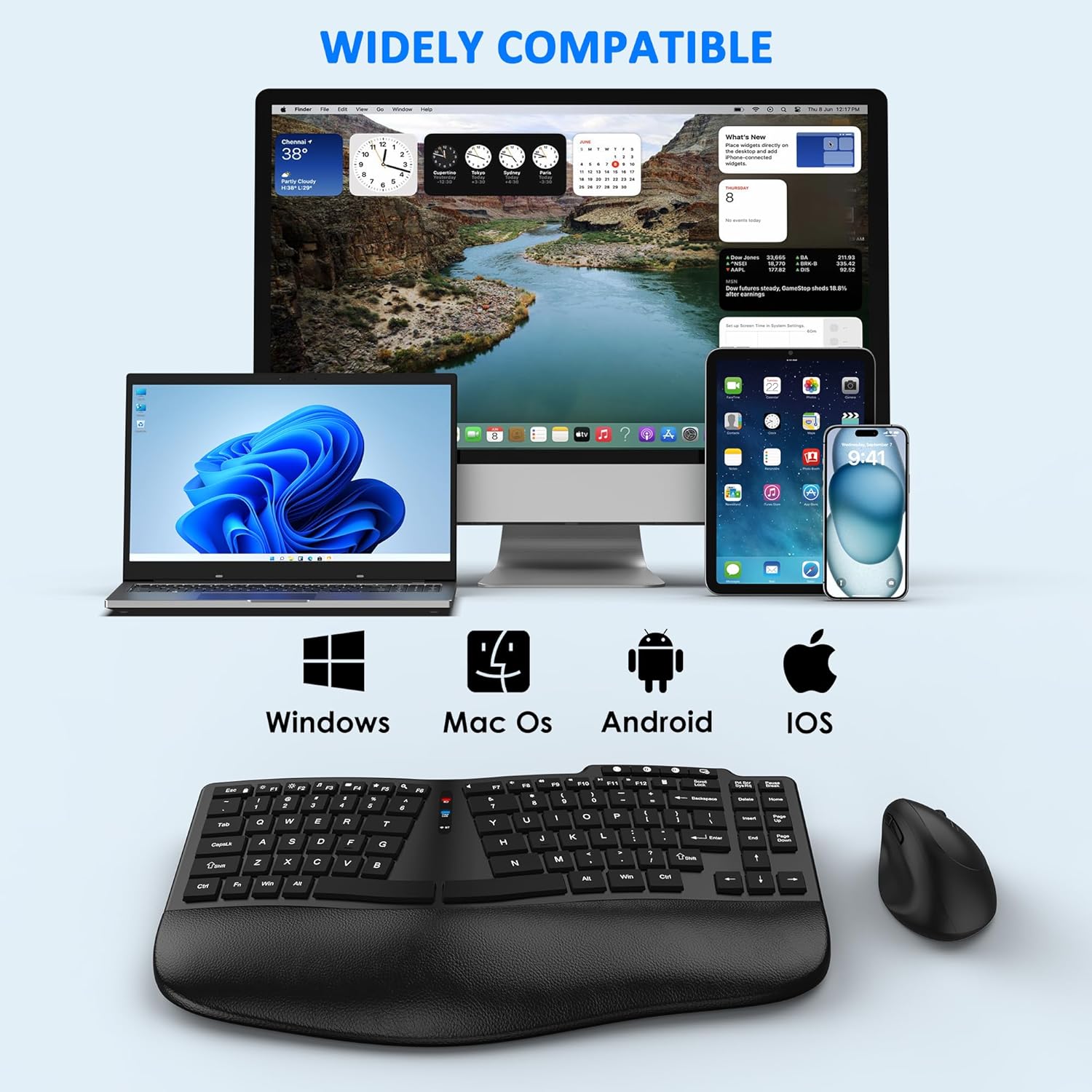
Image: The keyboard and mouse being charged via a USB-C cable, with indicator lights showing charging status.
Ndakọrịta
This wireless keyboard and mouse combo is compatible with a wide range of operating systems, including Windows 7 and above, Mac OS, Android, and iOS. It works effectively with desktops, Chromebooks, PCs, laptops, and smartphones.
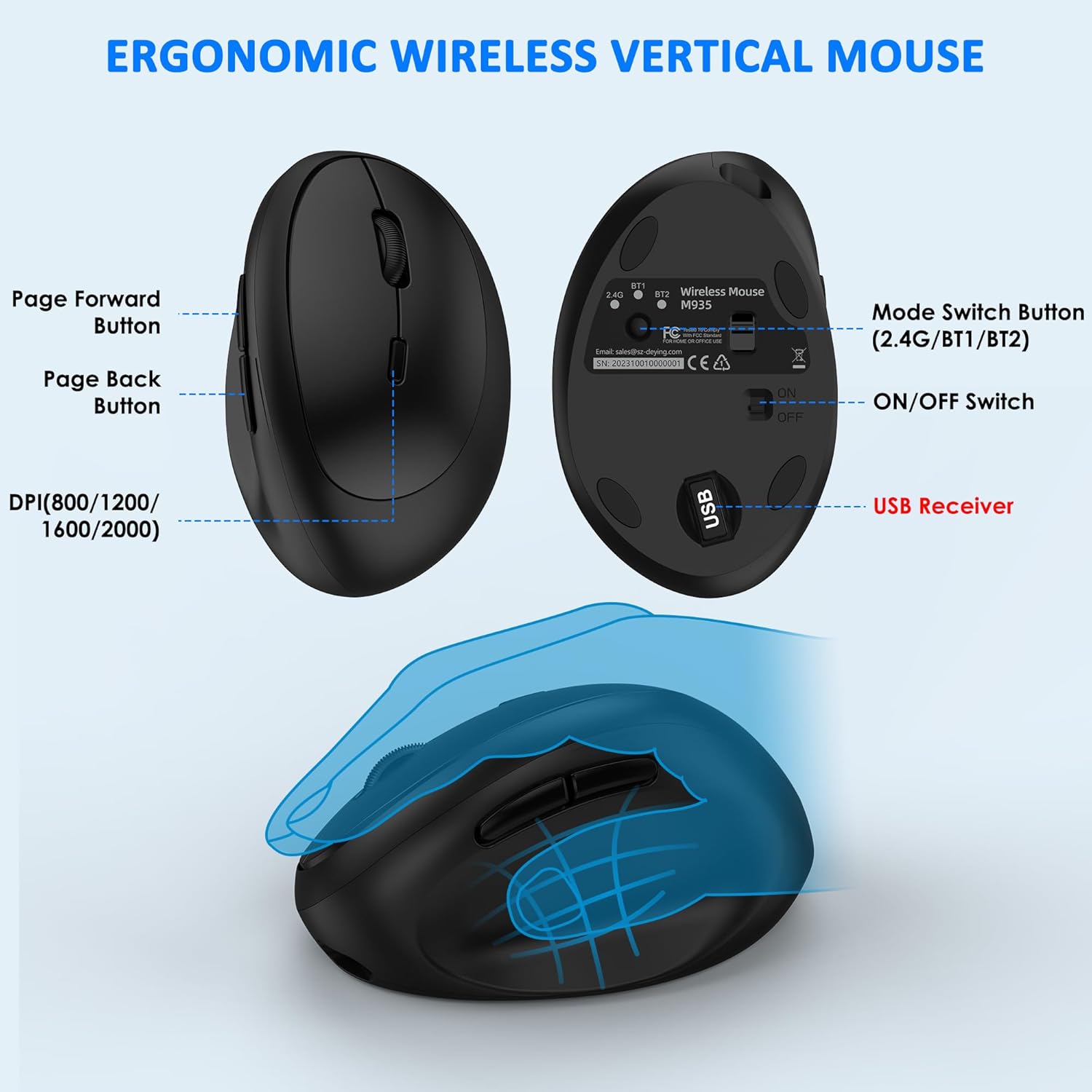
Image: Icons representing compatibility with Windows, Mac OS, Android, and iOS devices.
Nlekọta
To ensure the longevity and optimal performance of your QUASIO Ergonomic Wireless Keyboard Mouse Combo, follow these maintenance guidelines:
- Nhicha: Use a soft, dry cloth to wipe down the keyboard and mouse. For stubborn dirt, a slightly damp A pụrụ iji ákwà nwere ncha dị nro mee ihe, na-eme ka mmiri ghara ịbanye na ngwaọrụ ndị ahụ.
- Nchekwa: Chekwaa ngwaọrụ ndị a n'ebe dị jụụ, kpọrọ nkụ pụọ na ìhè anyanwụ kpọmkwem na oke okpomọkụ.
- Nlekọta batrị: Avoid fully discharging the batteries frequently. Charge them regularly to maintain battery health.
- Zere mbelata: Handle the devices with care to prevent damage from drops or impacts.
Nchọpụta nsogbu
If you encounter any issues with your QUASIO Ergonomic Wireless Keyboard Mouse Combo, please refer to the following common solutions:
- Okwu njikọ:
- Hụ na ngwaọrụ ndị ahụ agbajiri agbaji.
- Verify that the 2.4G USB receiver is securely plugged in, or that Bluetooth is enabled on your device and the correct channel is selected on the keyboard/mouse.
- Try re-pairing the devices according to the setup instructions.
- Lag or Unresponsive Input:
- Lelee maka ndabichi sitere na ngwaọrụ ikuku ndị ọzọ.
- Ensure the devices are within the effective operating range (typically up to 33 feet).
- For the mouse, try adjusting the DPI setting.
- Ịchaji nsogbu:
- Ensure the USB-C cable is properly connected to both the device and a power source.
- Gbalịa iji ọdụ ụgbọ USB dị iche ma ọ bụ nkwụnye odori.
Ọ bụrụ na nsogbu dịgidere, biko kpọtụrụ nkwado ndị ahịa maka enyemaka ọzọ.
Nkọwapụta
| Njirimara | Nkọwa |
|---|---|
| Akụkụ ngwaahịa | 14.8 x 8.3 x 1.6 sentimita asatọ |
| Ibu Ibu | 2.53 pound |
| ASIN | B0FCC2GQYP |
| Batrị | 1 Batrị na-abụghị ọkọlọtọ (gụnyere) |
| Teknụzụ Njikọta | 2.4Ghz Wireless, Bluetooth |
| Atụmatụ pụrụ iche | Ergonomic, Rechargeable, Wrist Rest |
| Ngwa dakọtara | Laptop, Personal Computer, Android, iOS |
| Onye nrụpụta | Na-ajụ |
| Agba | Nwa |
Akwụkwọ ikike na nkwado
All QUASIO items come with a 12-month warranty. If you encounter any issues or require support, even after the Amazon return period, please contact us via our after-sales email. We are committed to providing a satisfactory solution.
Maka enyemaka ọzọ, biko gaa na QUASIO Store on Amazon.