
Okwu mmalite
This manual provides detailed instructions for the installation, operation, and maintenance of your Fuers WiFi 120 dB Home Security Alarm System. Please read this manual carefully before use to ensure proper functionality and safety.

This image compares two versions of the alarm siren. The model on the right, indicated as 'NEW PRODUCT', features 2.4GHz WiFi connection, a 125dB on-site alarm, Tuya app control, and adjustable working hours. This represents the current Fuers WiFi 120 dB Home Security Alarm System.
Ihe ngwugwu
The Fuers WiFi 120 dB Home Security Alarm System package includes the following components:
- 1 x 120 dB Speaker/Siren
- 1 x Cdọ Ike
- 1 x Infrared Sensor (PIR Motion Detector)
- 2 x Njikwa anya
- Ihe mmetụta ọnụ ụzọ/windo 4 x
- 1 x Akwụkwọ ntuziaka
The system supports connection to up to 40 wireless detectors, 10 remote controls, and 10 magnetic door sensors.
Melite
Door/Window Sensor Installation
The magnetic sensor is designed for easy installation. Use the provided double-sided adhesive tape or screws to attach the sensor to door or window frames.
Ihe dị mkpa: Ensure the main sensor unit is aligned with the magnetic strip, and the gap between them is less than 10 mm for proper detection.
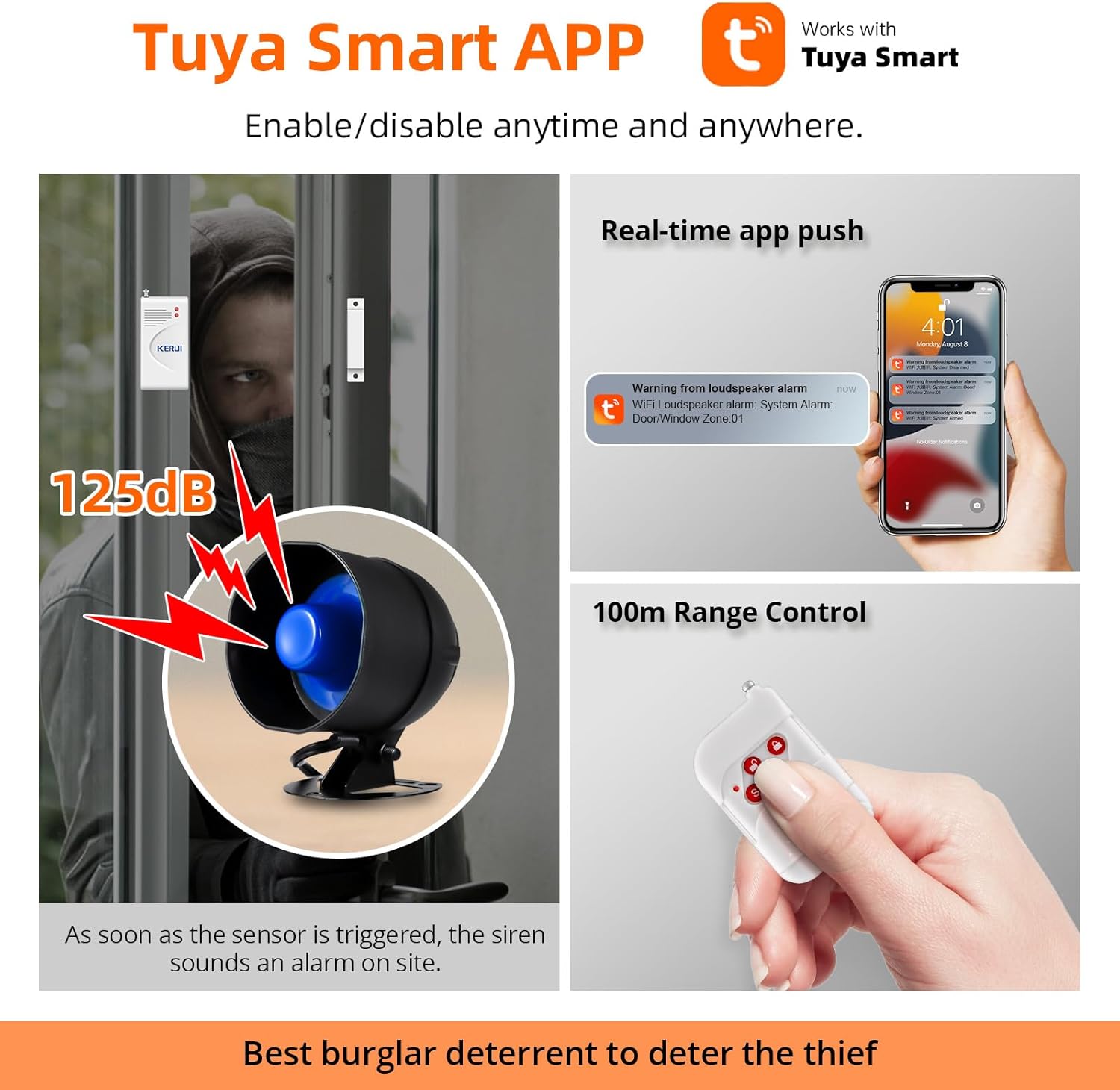
This image illustrates a door/window sensor installed on a door frame. When the door opens, separating the sensor and magnet, the siren (shown in blue) activates with a 125dB alarm. The image also shows a smartphone receiving a real-time push notification from the Tuya Smart app, indicating a triggered alarm.
Siren Installation

This diagram details the components of the alarm siren horn, including the siren speaker, adjustment screw, chassis installation point, screw hole, key settings, and power cable. It highlights the waterproof coverage of the unit. Note that the volume cannot be adjusted.
Mount the siren in a suitable location using the chassis installation points and screw holes. Connect the power cable to a power source.
Mara: The siren volume is fixed at 120 dB and cannot be adjusted.
Network Connection and App Setup
The Fuers alarm system operates on a 2.4 GHz Wi-Fi network. Ensure your smartphone is connected to a 2.4 GHz Wi-Fi network before proceeding.

This image provides a step-by-step guide for connecting the alarm system to your home Wi-Fi network. It shows smartphone screenshots for enabling Wi-Fi and Bluetooth, adjusting location services and privacy settings for the app, initiating network connection mode on the alarm system by holding the SET button, and finally adding the device within the Tuya Smart app by searching for it and entering the Wi-Fi password.
Gbaa mbọ hụ na ejikọrọ ekwentị gị na a Wi-Fi 2.4 GHz network. Bluetooth should also be enabled on your phone.
Turn on the location function on your mobile phone and grant the necessary permissions to the Tuya Smart app.
Jidesie ike SET button on the WiFi alarm siren. The siren will start ringing and switch to network connection mode.
Mepee "Tuya Smart" app. Tap "Add Device" (or the '+' icon). The app will search for nearby devices. Select your alarm system from the list and enter your Wi-Fi password to complete the connection.
Ntuziaka ọrụ
Ọrụ njikwa anya
Use the provided remote controls to arm, disarm, and trigger the panic alarm.
This image displays the remote control for the alarm system, indicating a 100-meter control range. The remote typically features buttons for arming, disarming, and an SOS/panic function.
- Ogwe aka: Activates the alarm system.
- Wepu ngwa agha: Deactivates the alarm system.
- SOS/Panic Button: Press the 'S' button on the remote control to immediately trigger the alarm in an emergency.
Njikwa ngwa Tuya Smart
The Tuya Smart app allows for remote control and monitoring of your alarm system from anywhere.

This image illustrates the intelligent remote control features available through the Tuya Smart app. It shows four time-controlled modes (e.g., Go to work, Making a party, Go to bed, Stand up) for automatic arming/disarming. The app interface also displays options for "Disarm," "Away arm," "Home arm," "Panic," and a log of activities, allowing comprehensive control and monitoring of the alarm system.
- Ozi gbasara oge: Receive instant alarm notifications on your smartphone when a sensor is triggered.
- Ogwe aka/Iwepu: Enable or disable the alarm system remotely via the app.
- Time-Controlled Modes: Set schedules for automatic arming and disarming (e.g., "Away arm" when leaving for work, "Home arm" when returning).
- Nleba anya elekere 24: The app continuously records an event history, which can be reviewed at any time. Push notifications can be disabled when you are home.
- SOS/Emergency: The app interface includes an SOS button for emergency situations.
Nlekọta na nlekọta
To ensure optimal performance and longevity of your Fuers alarm system, follow these maintenance guidelines:
- Nhicha: Wipe the devices with a soft, dry cloth. Avoid using abrasive cleaners or solvents.
- Ngbanwe batrị: The system components are powered by alkaline batteries. Replace batteries as needed to ensure continuous operation. Refer to individual component manuals for specific battery types and replacement procedures.
- Lelee njikọ: Periodically verify that all sensors are securely attached and that the Wi-Fi connection is stable.
Nchọpụta nsogbu
If you encounter issues with your Fuers WiFi 120 dB Home Security Alarm System, please refer to the following common solutions:
- Enweghị ọkwa:
- Gbaa mbọ hụ na ejikọrọ ekwentị gị na ịntanetị.
- Check if push notifications are enabled for the Tuya Smart app in your phone's settings.
- Verify that the alarm system is properly connected to your 2.4 GHz Wi-Fi network.
- Siren anaghị ada ụda:
- Ensure the siren is powered on and connected correctly.
- Confirm that the siren is paired with the main alarm system.
- Sensọ Anaghị Akpalite:
- Check the alignment and gap (less than 10 mm) between the magnetic sensor and its counterpart.
- Replace the sensor's battery if it is low.
- Ensure the sensor is properly paired with the alarm system.
- Okwu njikọ Wi-Fi:
- Confirm your router is broadcasting a 2.4 GHz Wi-Fi signal.
- Restart your router and the alarm system.
- Ensure the alarm system is within range of your Wi-Fi router.
- Repeat the network connection steps in the "Setup" section.
Nkọwapụta ngwaahịa
| Njirimara | Nkọwa |
|---|---|
| Ụdị | Ọkụ |
| Nọmba nlereanya | UKBLB00401 |
| Isi Iyi Ike | Akwanyere batrị |
| Teknụzụ Njikọta | Wi-Fi (naanị 2.4 GHz) |
| Ngwa dakọtara | Smartphone (Tuya Smart App) |
| Ụdị nwụnye | Nrapara onwe ya |
| Rtdị Alert | Audio (120 dB) & Motion (via PIR sensor) |
| Ngwakọta batrị | Alkaline |
| Akụkụ ihe (L x W x H) | 7 x 7 x 10 centimita |
Akwụkwọ ikike na nkwado ndị ahịa
For any questions or assistance regarding your Fuers alarm system, please refer to the user manual or contact customer support. We are committed to providing satisfactory service.
Please consult the official Fuers website or your purchase documentation for specific warranty details.