
1. Ngwaahịa gafereview
The Yealink CPE40 is an advanced expansion microphone designed to enhance the audio capabilities of the Yealink CP50 conference speaker. It features an 8-mic array with 360° omni-directional pickup, AI Noise Cancellation 2.0, and full-duplex communication, ensuring crystal-clear audio in various meeting environments. The CPE40 is ideal for expanding audio coverage in medium to large conference rooms, supporting daisy-chaining for extended reach.

N'ihu view of the Yealink CPE40 Conference Speaker, showcasing its compact design and top-mounted controls.
2. Kedu ihe dị na Igbe ahụ
Chọpụta na ihe niile dị na ngwugwu gị:
- Yealink CPE40 speaker with mic ×1
- 3m Cat5 Ethernet Cable ×1
- Ntuziaka mmalite ngwa ngwa ×1
- Cable Tie ×1
- Cable Organizer Cover ×1
- kposara ×1
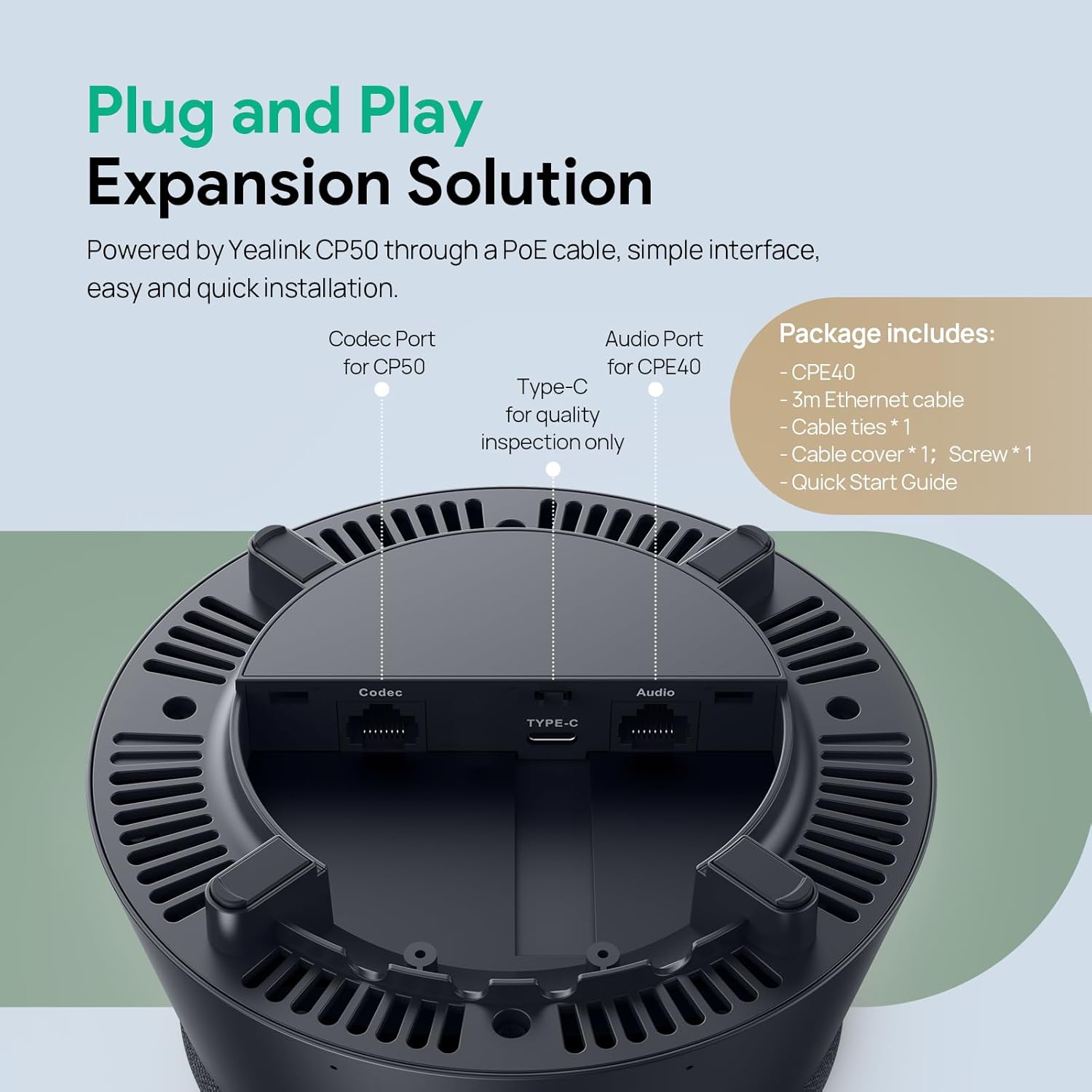
Image illustrating the CPE40's underside with port labels and a list of included package contents.
3. Atụmatụ igodo
- 360° Full-Room Coverage: Equipped with an 8-Mic Array speaker offering a 19ft pickup range. Each additional CPE40 expansion microphone can increase the sound reception range by 215 sq.ft. (suitable for 6-person groups).
- Mkpuchi mkpọtụ AI: Yealink AI Noise Cancel 2.0 technology effectively removes 95% of common distractions such as keyboard clicks, AC hum, and echoes, ensuring crystal-clear conference calls.
- Ọdịdiyo dị mma Studio: Features a 122dB full-range speaker with a 100Hz-20kHz frequency response and 48KHz sampling rate, providing natural and clear voice reproduction.
- Zero-lag Full-duplex Communication: Allows participants to speak and listen simultaneously without interruption on various UC platforms like Zoom and Teams.
- Daisy-chain Capability: Powered by the Yealink CP50, the CPE40 supports daisy-chaining up to 3 units for standard setups. For 4 or more units (up to 7), a Yealink 48V/2A adapter for the CP50 is required (sold separately).
- Nkwụnye & Kpọọ: Connects to the CP50 via an Ethernet cable for extended use with laptops (Windows 10+/macOS 13+/Chrome OS). The CP50 also features Bluetooth for seamless pairing with iOS/Android devices.
- Physical Mute Button: Includes a physical mute button with a status LED for convenient control during conferences.
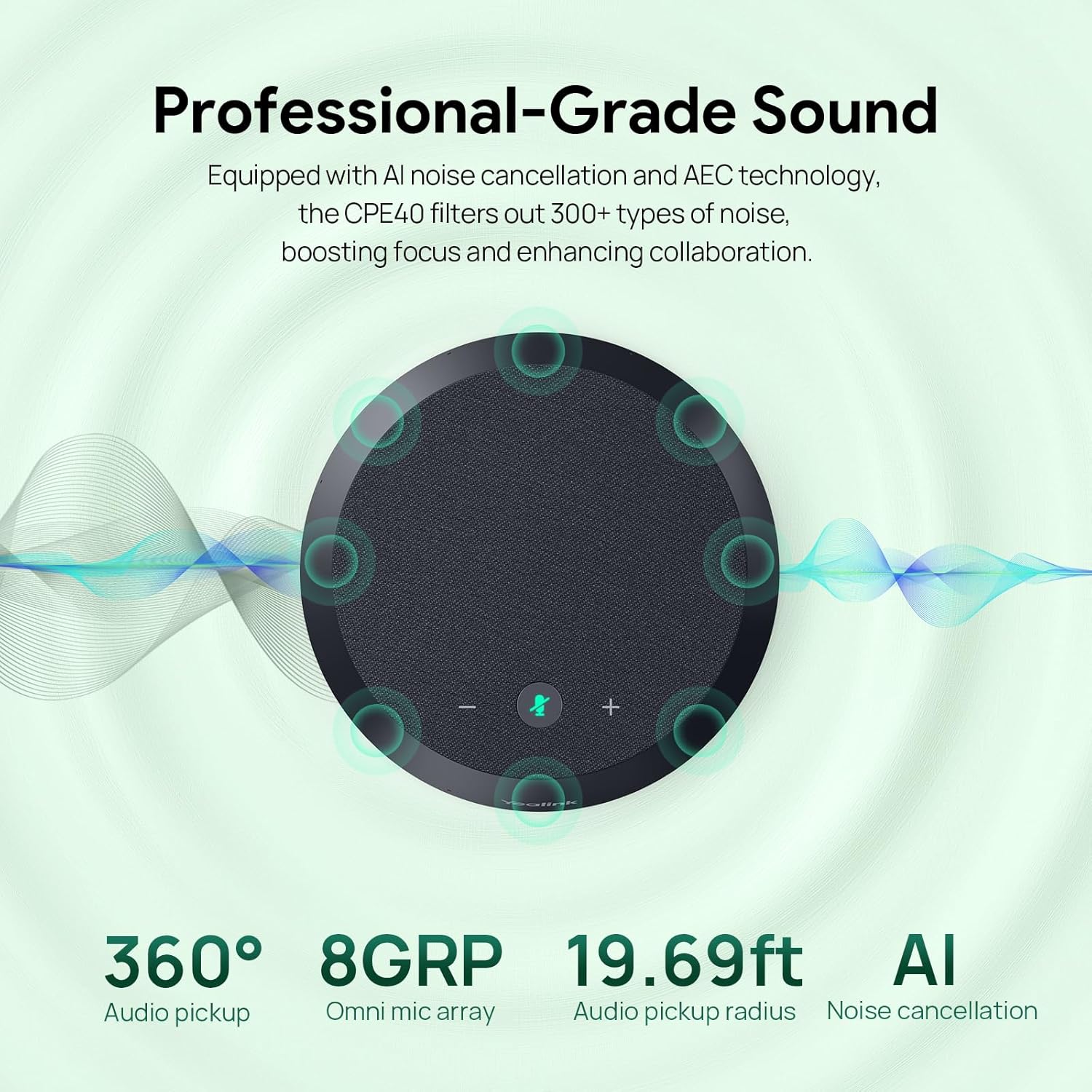
Diagram illustrating the 360° audio pickup, 8-mic array, 19.69ft audio pickup radius, and AI noise cancellation features of the CPE40.

Otu ngafe view of a meeting room setup, demonstrating the CPE40's seamless full-duplex communication and wide compatibility with platforms like Zoom and Teams.
4. Ntuziaka Nhazi
The Yealink CPE40 is designed for simple plug-and-play operation when connected to a Yealink CP50 speakerphone.
4.1 Initial Connection to CP50
- Locate the Ethernet port on the underside of your CPE40.
- Connect one end of the provided 3m Cat5 Ethernet Cable to the CPE40's Ethernet port.
- Connect the other end of the Ethernet cable to the designated expansion port on your Yealink CP50 speakerphone.
- Ensure the CP50 is powered on and connected to your computer or mobile device. The CPE40 draws power directly from the CP50.
4.2 Daisy-Chain Configuration (Multiple CPE40 Units)
For larger meeting spaces, you can daisy-chain multiple CPE40 units to a single CP50.
- Connect the first CPE40 to the CP50 as described in Section 4.1.
- To add a second CPE40, connect it to the expansion port on the first CPE40 using another Cat5 Ethernet cable.
- Repeat this process for additional CPE40 units, connecting each new unit to the previous one in the chain.
- Ihe dị mkpa: If you are daisy-chaining 4 or more CPE40 units (up to a maximum of 7), you must use a Yealink 48V/2A power adapter connected to the CP50 to ensure sufficient power supply. This adapter is sold separately.
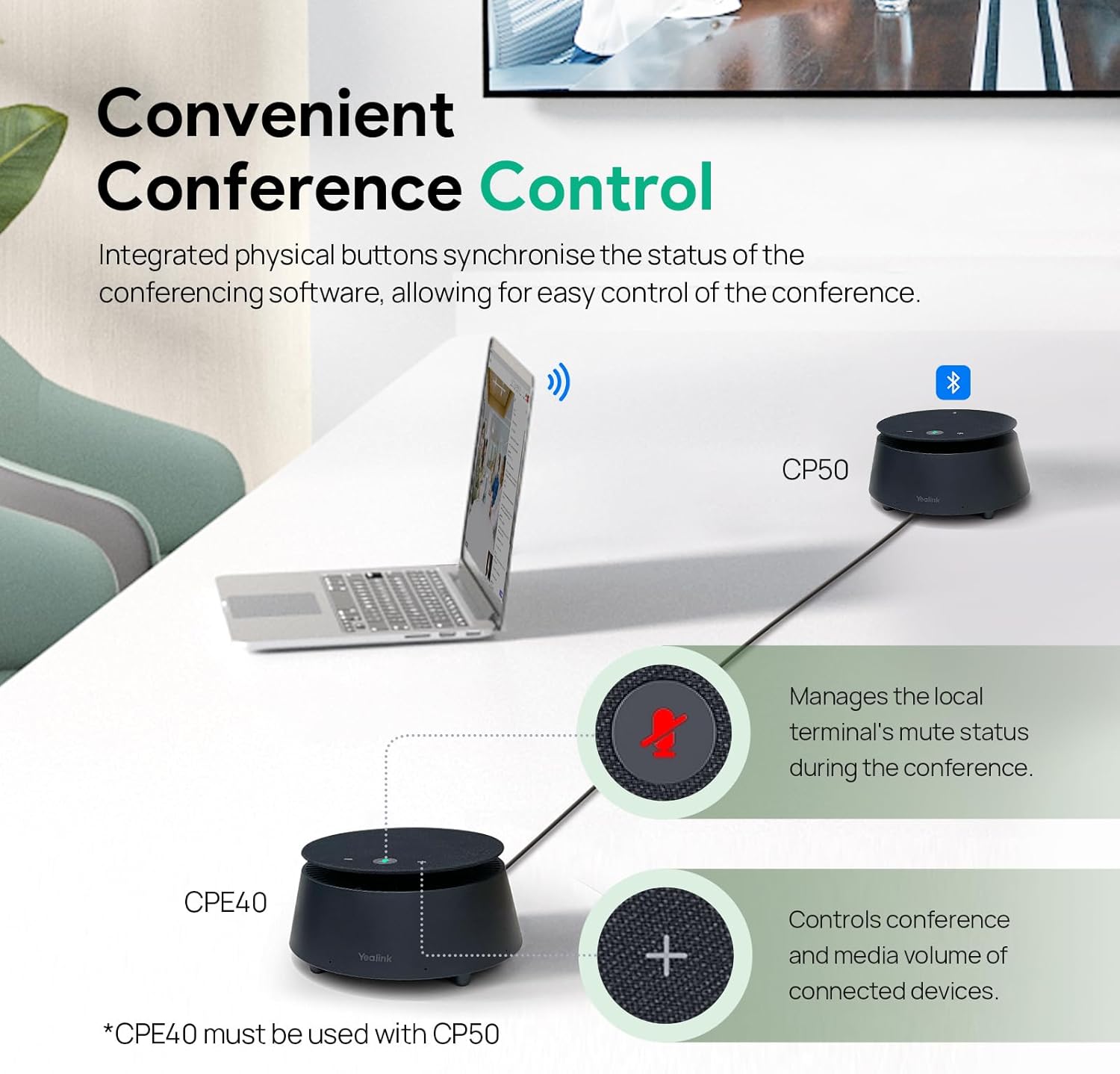
Diagram showing the connection of CPE40 to CP50 via Ethernet cable, highlighting the mute and volume controls.

Illustrations of how CPE40 units can be deployed in medium and large conference rooms to extend audio coverage, with a note about the optional power adapter for larger setups.
5. Operating Your CPE40
Once connected, the CPE40 operates in conjunction with your Yealink CP50, extending its audio pickup and output capabilities.
5.1 Njikwa ntọala
- Oghere bọtịnụ: The CPE40 features a physical mute button on its top surface. Press this button to mute or unmute the microphone. An LED indicator will typically change color (e.g., red for muted, green for unmuted) to show the current status. This button synchronizes with the mute status of your conferencing software.
- Njikwa olu: The CPE40 does not have independent volume controls. Volume adjustments for the entire conference system are managed via the connected Yealink CP50 or through your conferencing software/operating system.
5.2 Arụmọrụ ọdịyo
- Nbulite ntụzịaka nke omni: The 8-mic array provides 360° audio pickup, ensuring that voices from all directions in the meeting space are captured effectively.
- Mkpuchi mkpọtụ AI: The integrated AI Noise Cancel 2.0 actively filters out background noises, such as typing, air conditioning hum, and echoes, to deliver clear voice transmission.
- Full-Duplex Communication: The CPE40 supports full-duplex audio, allowing natural, simultaneous two-way conversation without audio clipping or interruptions.
6. Nlekọta na nlekọta
To ensure the longevity and optimal performance of your Yealink CPE40, follow these simple care guidelines:
- Nhicha: Use a soft, dry cloth to clean the exterior of the device. Do not use liquid cleaners, aerosols, or solvents, as they may damage the surface or internal components.
- Nkwanye: Place the CPE40 on a stable, flat surface in the center of your meeting area for optimal audio pickup. Avoid placing it near heat sources, direct sunlight, or in excessively dusty or humid environments.
- Ijikwa: Jiri nlezianya jikwaa ngwaọrụ ahụ. Zere idobe ya ma ọ bụ tinye ya na mmetụta siri ike.
- Nchekwa: Ọ bụrụ na ị na-echekwa ngwaọrụ ahụ ruo ogologo oge, kwụpụ eriri niile wee chekwaa ya n'ebe dị jụụ na nkụ.
7. Nchọpụta nsogbu
If you encounter issues with your Yealink CPE40, refer to the following common troubleshooting steps:
| Nsogbu | Ihe nwere ike ime | Ngwọta |
|---|---|---|
| No audio pickup from CPE40. | Incorrect cable connection; CPE40 not powered; Muted. | Ensure the Ethernet cable is securely connected to both the CPE40 and the CP50. Verify the CP50 is powered on. Check the mute button on the CPE40 and the CP50, and ensure it is not muted in your conferencing software. |
| Audio is distorted or unclear. | Environmental noise; Incorrect placement; Software settings. | Ensure the CPE40 is placed centrally in the room, away from direct noise sources. Verify that AI Noise Cancellation is active. Check audio settings in your conferencing software. |
| Daisy-chained units not working. | Improper connection; Insufficient power for multiple units. | Confirm all Ethernet cables are correctly connected in the daisy-chain. If using 4 or more CPE40s, ensure the Yealink 48V/2A power adapter is connected to the CP50. |
| Mute LED not responding. | Device not powered; Malfunction. | Check power connection to CP50. If the issue persists after verifying power and connections, contact support. |
8. Nka na ụzụ nkọwa
| Njirimara | Nkọwapụta |
|---|---|
| Nlereanya | CPE 40 |
| Ngwa dakọtara | Yealink CP50 Igwe okwu |
| Ụdị igwe okwu | 8-Mic Array, Omni-directional |
| Audio Pickup Range | 19.69 ụkwụ (6 mita) |
| Nkagbu mkpọtụ | AI Noise Cancel 2.0 |
| Mmepụta Ọkà Okwu | 122dB full-range speaker |
| Nzaghachi ugboro ugboro | 100Hz-20kHz |
| SampỌnụ ego | 48 kHz |
| Njikọta | Wired (Ethernet to CP50) |
| Isi Iyi Ike | Powered by CP50 (Corded Electric) |
| Daisy-chain Support | Up to 7 units (4+ units require optional 48V/2A adapter for CP50) |
| Akụkụ (L x W x H) | 15 x 15 x 7.5 cm |
| Ibu Ibu | 0.67 kilogram |
| Ihe onwunwe | Plastic (Aluminum casing for durability) |
| Agba | Nwa |
9. Akwụkwọ ikike na Ozi Nkwado
For detailed warranty information and technical support, please refer to the official Yealink website or contact your authorized Yealink reseller. The Quick Start Guide included in your package may also contain specific warranty terms and contact details.
Akụrụngwa dị n'ịntanetị: Visit the Yealink support portal for FAQs, firmware updates, and additional documentation.
Nkwado kọntaktị: If you require further assistance, please have your product model (CPE40) and serial number ready when contacting Yealink customer service.