
1. Okwu mmalite
1.1 Ngwaahịa gafereview
The QUASIO LPK66 is a full-size wired USB keyboard designed for enhanced visibility and comfortable typing. It features large print keys, a 7-color adjustable backlight, and retro-style round keycaps. This keyboard is compatible with various operating systems and is suitable for users who benefit from oversized letters and illuminated keys.

Image 1.1: The QUASIO LPK66 Large Print Backlit Wired USB Keyboard, showcasing its design and illuminated keys.
1.2 Atụmatụ
- Igodo Mbipụta Ukwuu: Characters are 4 times larger than on traditional keyboards for improved readability.
- 7-Ìhè azụ azụ: Features 7 distinct colors, 3 brightness levels, and 2 backlight modes for typing in various lighting conditions.
- Full-Size Ergonomic Design: Includes a numeric keypad and an ergonomic layout to reduce wrist fatigue.
- Igodo gburugburu ochie: Stylish design with removable keycaps for easy cleaning.
- Nkwụnye ma kpọọ: Simple USB-A connection requires no additional drivers.
- Ndakọrịta sara mbara: Supports Windows XP/Vista/7/8/10/X, Mac, Chrome-book, PC, and Laptop systems.
- Mpempe akwụkwọ dị jụụ: Effortless crater mechanism under each key provides a comfortable and silent typing experience.
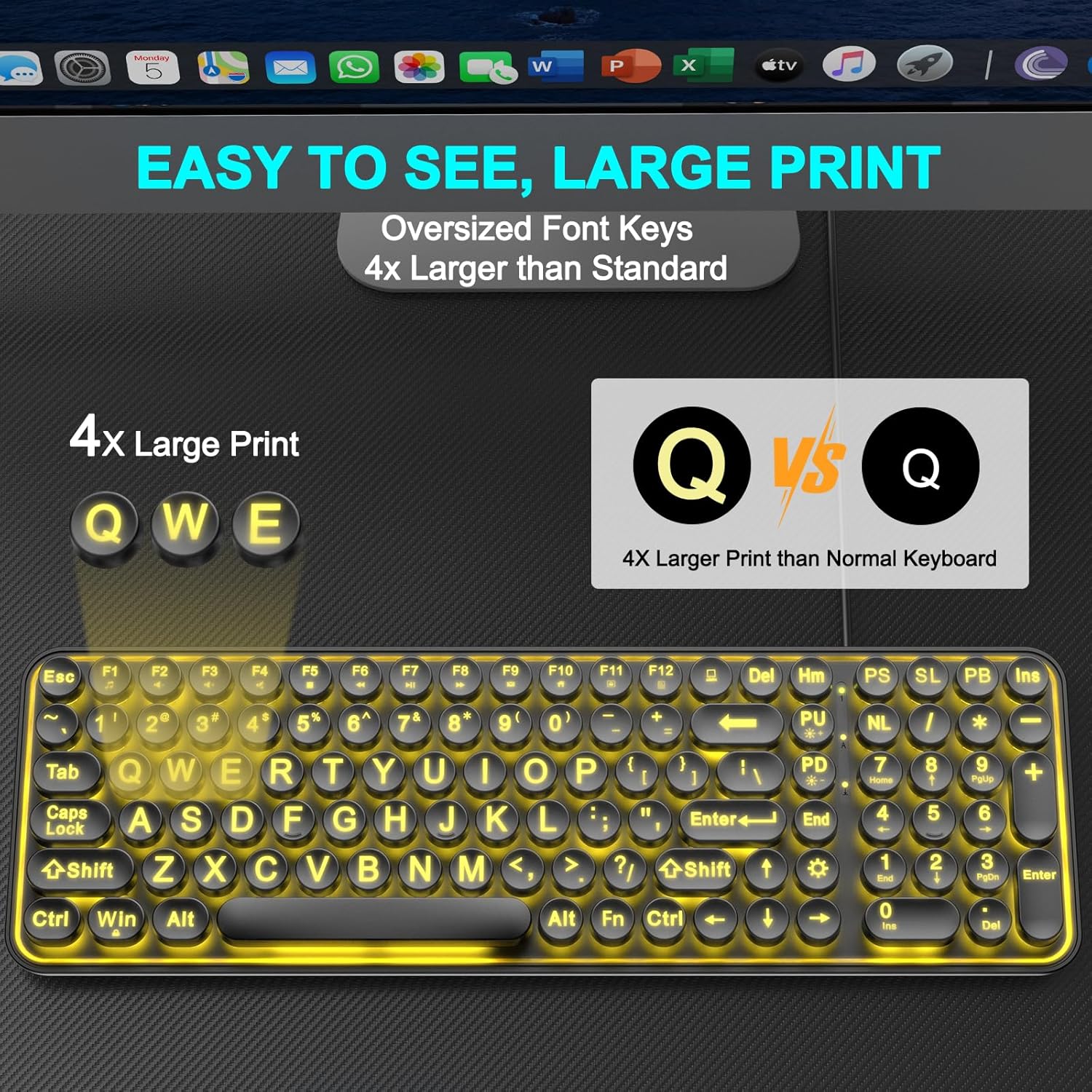
Image 1.2: A visual comparison highlighting the significantly larger print on the QUASIO LPK66 keyboard keys compared to standard keyboard keys.
2. Nhazi
Ihe ngwugwu 2.1
Biko chọpụta na ihe niile dị na ngwugwu gị:
- 1 x QUASIO LPK66 Keyboard
- 10 x Replacement Keycaps (for customization or replacement)
2.2 Jikọọ ahụigodo
The QUASIO LPK66 keyboard is a plug-and-play device, requiring no software installation.
- Locate an available USB-A port on your computer (desktop, laptop, or Chromebook).
- Insert the USB-A connector of the keyboard cable into the USB-A port.
- The operating system will automatically detect and install the necessary drivers. The keyboard will be ready for use within a few seconds.
Mara: For optimal performance, connect the keyboard directly to a USB port on your computer. Connecting through a USB expansion hub may occasionally affect functionality.

Image 2.1: The USB-A connector, illustrating the simple plug-and-play connection process for the keyboard.
3. Ntuziaka ọrụ
3.1 Ọrụ ahụigodo bụ isi
The QUASIO LPK66 functions as a standard full-size QWERTY keyboard. All keys operate as expected for typing text, numbers, and symbols. The numeric keypad on the right provides dedicated number entry.
Njikwa ọkụ azụ 3.2
The keyboard features an adjustable 7-color backlight with multiple modes and brightness levels.
- Ịgbanwe Agba nke Ọkụ Azụ: Pịa Fn igodo + Scroll Lock (SL) key to cycle through the 7 available backlight colors.
- Na-edozi ihie: Pịa Fn igodo + Page Up (PU) to increase brightness, and Fn igodo + Page Down (PD) to decrease brightness. There are 3 adjustable brightness levels.
- Turning Backlight On/Off: Pịa Fn igodo + Pause Break (PB) key to toggle the backlight on or off.

Image 3.1: The keyboard showcasing its ability to display 7 different backlight colors, allowing users to choose their preferred illumination.
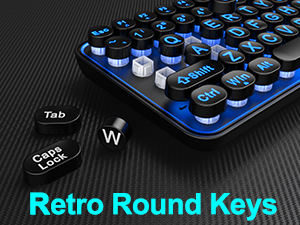
Image 3.2: A visual guide illustrating the use of the Fn key combined with Page Up (PU) and Page Down (PD) keys to adjust the backlight brightness through 3 levels.
3.3 Multimedia Functions
The keyboard includes 12 multimedia function shortcuts accessible via the Fn igodo na njikọta na igodo F1-F12.
| Ngwakọta igodo | Ọrụ |
|---|---|
| Fn + F1 | Igwe egwu egwu |
| Fn + F2 | Mpịakọta ọnụ |
| Fn + F3 | Elu elu |
| Fn + F4 | Ogbi |
| Fn + F5 | Kwụsị Mkpọghachi |
| Fn + F6 | Egwu gara aga |
| Fn + F7 | Gwuo/kwụsịtụ |
| Fn + F8 | Track na-esote |
| Fn + F9 | |
| Fn + F10 | Web Ihe nchọgharị |
| Fn + F11 | Mkpọchi ahụigodo |
| Fn + F12 | Ihe mgbako |

Image 3.3: A detailed diagram illustrating the 12 multimedia function shortcuts available by combining the Fn key with the F1-F12 keys.
4. Nlekọta
4.1 Ihicha ahụigodo
ihicha mgbe niile na-enyere aka ịnọgide na-arụ ọrụ na ọdịdị ahụigodo.
- Kwụpụ kiiboodu na kọmputa gị tupu ihicha.
- Jiri akwa dị nro na-enweghị ntụpọ dampejiri mmiri tinye ma ọ bụ ihe ngwọta dị nro iji hichaa igodo igodo na elu.
- Maka uzuzu na irighiri ihe n'etiti igodo, jiri ikuku abịakọrọ.
- Zere iji kemịkalụ siri ike, ihe nhicha ihe na-emebi emebi, ma ọ bụ oke mmiri mmiri.
4.2 Replacing Keycaps
The QUASIO LPK66 features removable round keycaps, allowing for deep cleaning or customization with the included spare keycaps.
- Gently pull the desired keycap upwards to remove it. A keycap puller (not included) can be used for easier removal.
- To replace, align the new keycap with the switch stem and press down firmly until it clicks into place.

Foto 4.1: nso nso view of the retro round keycaps, demonstrating their removable nature for cleaning or replacement.
5. Nchọpụta nsogbu
If you encounter issues with your QUASIO LPK66 keyboard, please refer to the following common problems and solutions:
- Ahụigodo Anaghị aza:
- Ensure the USB-A cable is securely plugged into a functioning USB port on your computer.
- Gbalịa ijikọ ahụigodo na ọdụ ụgbọ USB dị iche.
- If using a USB hub, try connecting the keyboard directly to the computer's USB port.
- Malitegharịa ekwentị gị na kọmputa.
- Ìhè azụ anaghị arụ ọrụ:
- Ensure the backlight is not turned off. Press Fn + PB ka ịgbanwee ọkụ azụ.
- Adjust the brightness using Fn + PU or Fn + PD.
- Igodo anaghị edebanye aha ma ọ bụ pịnye ugboro abụọ:
- Ensure the keycaps are properly seated. Remove and re-attach any problematic keycaps.
- Clean any debris or dust from under the keycaps using compressed air.
- Igodo mgbasa ozi anaghị arụ ọrụ:
- Gbaa mbọ hụ na ị na-pịa Fn key simultaneously with the desired F-key (F1-F12).
- Some operating systems or applications may require specific settings for multimedia keys. Check your system's keyboard settings.
6. Nkọwapụta
| Njirimara | Nkọwa |
|---|---|
| Nọmba nlereanya | LPK66 |
| Teknụzụ Njikọta | USB-A (Ejikọtara ya na waya) |
| Ngwa dakọtara | Laptop, Notebook, Personal Computer, Chromebook |
| Sistemu eji arụ ọrụ | Windows XP/Vista/7/8/10/X, Mac, Chrome OS |
| Nkọwa ahụigodo | Spill Proof, Wired, Backlit (7 colors), Hotkeys and Media Keys, Large print keyboard |
| Atụmatụ pụrụ iche | Backlit, Ergonomic, Large Print, Quiet |
| Nkwado agba azụ azụ kiiboodu | RGB (agba 7) |
| Ihe onwunwe | Plastic |
| Ibu Ibu | 1.17 pounds (approximately 530g) |
| Akụkụ ngwugwu | 16.57 x 9.96 x 1.65 sentimita (42.1 x 25.3 x 4.2 cm) |
7. Akwụkwọ ikike na nkwado
The QUASIO LPK66 keyboard comes with a Oge nkwado ọnwa 24 from the date of purchase. If you experience any issues or have questions regarding your product, please contact QUASIO customer support through the retailer's platform or the official brand website for assistance. Please provide your purchase details and a description of the issue to facilitate a prompt resolution.