
Okwu mmalite
Welcome to the world of retro gaming with your new Powkiddy RGB20S Handheld Arcade Game Console. This manual provides essential information to help you set up, operate, and maintain your device, ensuring a seamless and enjoyable gaming experience. The RGB20S is designed for portability and features a vast library of pre-loaded games, offering hours of entertainment for all ages.
Ihe ngwugwu
Biko chọpụta na agụnyere ihe niile edepụtara n'okpuru na ngwugwu gị:
- Game Console x 1
- Ịchaji eriri x 1
- Akwụkwọ ntuziaka onye ọrụ x 1
Nkọwapụta
| Njirimara | Nkọwa |
|---|---|
| Ihe onwunwe | Plastic + Electronic Components |
| Sistemu | Open Source System (Arkos) |
| Ihuenyo | 3.5-inch IPS Full-fit |
| Mkpebi | 640 x480 |
| Batrị | 3500mAh Lithium-ion |
| Ndụ batrị | Ruo awa iri abụọ |
| Oge Nchaji | Approx. 2 hours (supports 2.5A fast charging) |
| CPU | RK3326 1.5GHz Quad-core |
| Nchekwa ebe nchekwa | 16GB internal, 128GB game card included |
| Akụkụ ngwaahịa | 12 x 8.3 x 3 cm (4.72"L x 3.17"W x 1.18"H) |
| Ibu ngwaahịa | 240g (10.5 ounces) |
| Njikọta | Built-in WiFi 2.5G/5G + Bluetooth chip |
| UPC | 742491206591 |
Ngwaahịa gafereview
Nhazi njikwa
The Powkiddy RGB20S features an intuitive layout designed for comfortable and responsive gameplay. Familiarize yourself with the various buttons and ports:

Foto 1: N'ihu View of Powkiddy RGB20S. This image shows the front of the Powkiddy RGB20S, highlighting its 3.5-inch IPS screen, dual analog joysticks, D-pad, and action buttons (A, B, X, Y), along with Select and Start buttons.
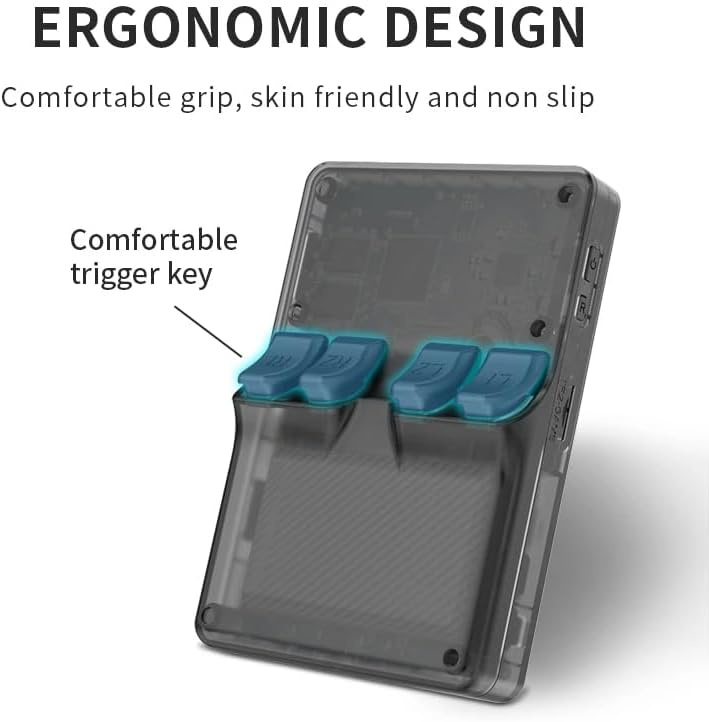
Ọgụgụ 2: N'azụ View and Trigger Keys. Azu view of the console reveals the four comfortable trigger keys (L1, L2, R1, R2) designed for an ergonomic grip during extended gameplay.
Atụmatụ igodo
- Cool Appearance: Features a retro 3D joystick design and a tiger shape, enhancing the gaming experience.
- Arụmọrụ mara mma: Powered by an RK3326 1.5GHz quad-core CPU for smooth gameplay and support for various mainstream emulator games. Includes a vibration motor for immersive feedback.
- Rich Game Types: Built-in 16GB memory with a 128GB game card preloaded with 20,000 classic games. Supports open-source ArkOS and multiple game formats.
- Batrị Lithium nke buru ibu: Built-in 3500mAh battery provides up to 8 hours of continuous use and supports quick charging.
- Multifunctional: Beyond gaming, it functions as a video player, music player, and e-book reader. High-quality speakers support various audio formats.
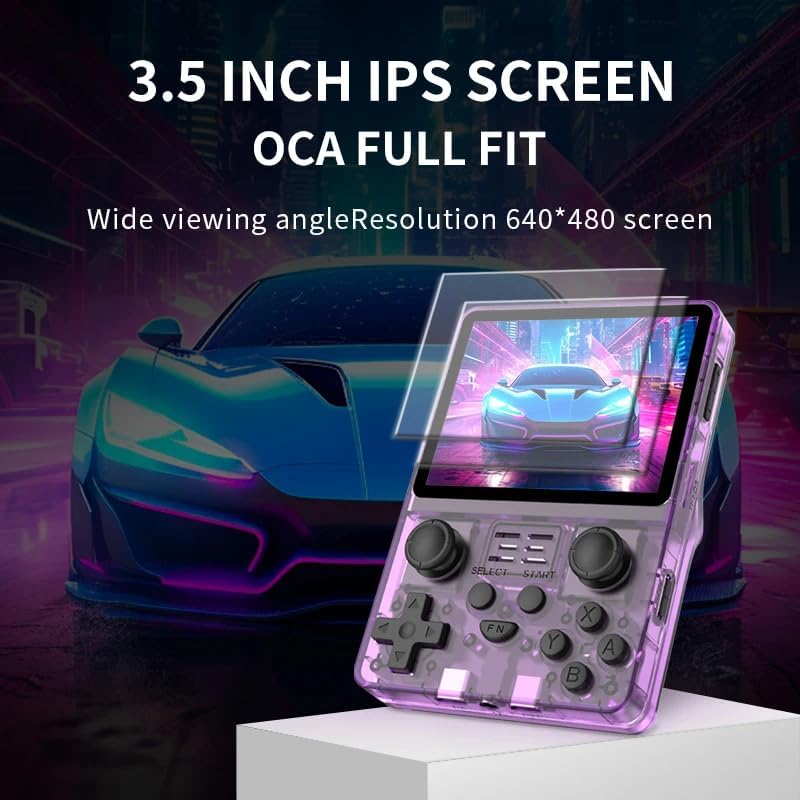
Figure 3: High-Definition IPS Screen. The 3.5-inch IPS screen features OCA full-fit technology, providing wide viewing angles and a resolution of 640x480 for clear visuals.

Figure 4: Wireless Connectivity. The console includes a built-in Wi-Fi 2.5G/5G + Bluetooth chip, enabling connectivity for various multimedia functions. Note: An extra wireless adapter may be required for Wi-Fi connection.
Melite
Ebo mbụ
Before first use, it is recommended to fully charge your Powkiddy RGB20S console. Connect the provided charging cable to the USB Type-C port on the device and plug the other end into a compatible USB power adapter (not included).
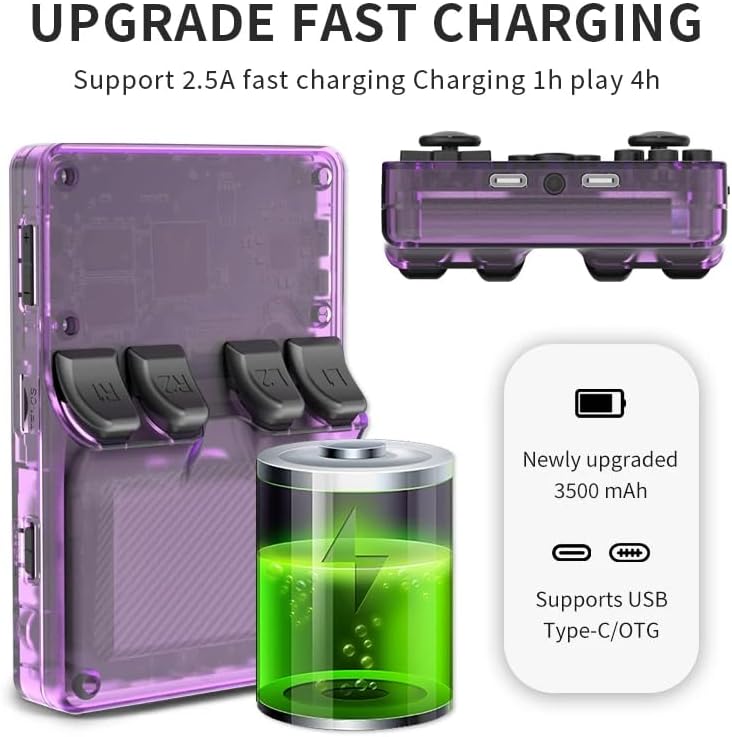
Figure 5: Fast Charging Feature. The device supports 2.5A fast charging, allowing for approximately 4 hours of play after 1 hour of charging. It features a 3500mAh lithium battery and a USB Type-C/OTG port.
Ịgbanyụ/ Gbanyụọ
To power on the console, press and hold the power button located on the side of the device until the screen illuminates. To power off, press and hold the power button again until the shutdown options appear, then select 'Power Off'. A quick press of the power button will put the device into sleep mode, preserving your game progress and battery life.
Ntuziaka ọrụ
Na-agagharị na System
Use the D-pad or analog joysticks to navigate through the main menu and game lists. The 'A' button typically acts as the selection/confirm button, while the 'B' button serves as the back/cancel button. The 'Select' and 'Start' buttons perform their traditional functions within games and can also be used for system-level shortcuts.
Nhọrọ na Egwuregwu Egwuregwu
The console comes pre-loaded with a vast library of games categorized by emulator. From the main menu, select your desired emulator (e.g., Arcade, Nintendo, PlayStation) and then browse the available games. Select a game to launch it. The system supports various mainstream emulator games, ensuring a wide range of titles.
Saving and Exiting Games
The open-source ArkOS system often supports in-game saving and quick save/load states. Refer to the specific emulator's controls for detailed saving procedures. To exit a game and return to the main menu, typically press a combination of buttons (e.g., 'Select' + 'Start' twice) as demonstrated in the product overview video. The sleep mode feature allows you to pause gameplay and resume quickly without fully powering down the device.
Nlekọta
Nhicha
To clean your console, use a soft, dry cloth. For stubborn smudges, a slightly damp cloth with a mild, non-abrasive cleaner can be used, ensuring no liquid enters the ports or buttons. Avoid harsh chemicals or abrasive materials.
Nlekọta batrị
To maximize battery life, avoid fully discharging the battery frequently. Charge the device regularly, even if not in constant use. Store the console in a cool, dry place when not in use for extended periods.
Nchọpụta nsogbu
If you encounter any issues with your Powkiddy RGB20S, please refer to the common problems and solutions below:
| Nsogbu | Ngwọta |
|---|---|
| Kọnsụl anaghị agba ọkụ | Ensure the battery is charged. Connect the charging cable and allow it to charge for at least 30 minutes before attempting to power on again. Try holding the power button for a longer duration (5-10 seconds). |
| Games not loading or crashing | Verify the game file is not corrupted. Some games may require specific emulator settings or may not be fully compatible. Ensure the game card is properly inserted. Restart the console. |
| Okwu ịchaji | Ensure you are using the provided charging cable and a compatible USB power adapter. The device can be particular about chargers; use a USB-C to USB-A cable. Check for debris in the charging port. |
| Poor game performance (lag, slowdowns) | Some more demanding games (e.g., N64, PSP) may experience performance issues. Try adjusting emulator settings like frame skipping if available. Ensure the console's firmware is up to date. |
Akwụkwọ ikike na nkwado
Your Powkiddy RGB20S Handheld Arcade Game Console comes with a standard manufacturer's warranty. For specific warranty terms, duration, and claim procedures, please refer to the warranty card included in your original packaging or contact the retailer where you purchased the product. For technical support or further assistance, please reach out to the customer service department of Astarama, the manufacturer.