
1. Okwu mmalite
Welcome to the ExtreLife MagSafe Wallet with Apple Find My technology. This manual provides essential information to help you get the most out of your new wallet, including setup instructions, feature explanations, and maintenance tips. This wallet is designed to securely hold your cards, provide a convenient phone stand, and offer tracking capabilities through Apple's Find My network.
Vidio 1: gafereview of the ExtreLife MagSafe Wallet, highlighting its features including Apple Find My compatibility and card storage.
2. Atụmatụ igodo
- Apple Find My Integration: Real-time Bluetooth tracking, Play Sound Alert, Left Behind notifications, and Lost Mode for enhanced security. (Note: Android devices are not supported.)
- 8-Card Smart Storage: Features 3 individual card slots designed to comfortably hold up to 8 cards.
- Adjustable Magnetic Wallet Stand: Robust hinge allows for flexible viewing angle na ma eserese na odida obodo ụdịdị.
- Strong Magnetic Force: Up to 4200 Gauss, ensuring a secure attachment to MagSafe-compatible iPhones or cases.
- Nchaji ikuku: Supports MagSafe or other wireless chargers. The battery lasts up to 4 months on a single charge.
- RFID Blocking: Advanced technology to protect your card information.
- Ihe onwunwe adịchaghị: Crafted from luxurious vegan leather.
3. Setup and Pairing with Apple Find My
Follow these steps to pair your ExtreLife MagSafe Wallet with your Apple device using the Find My app:
- Mee ka Nyocha Ihe Abụọ Dị Mkpa: Ensure Two-Factor Authentication is turned on for your Apple ID.
- Mee ka Chọta nke m na Bluetooth rụọ ọrụ: On your iPhone, go to Settings and ensure the 'Find My' app and Bluetooth are enabled.
- Power On Wallet: Short press the wallet's power button once to turn it on.
- Add Item in Find My: Open the 'Find My' app on your iPhone. Tap the 'Items' tab at the bottom, then tap the '+' icon to 'Add New Item'. Select 'Other Supported Item' and follow the on-screen prompts to connect your ExtreLife wallet.

Foto 1: Visual guide for pairing your ExtreLife wallet with the Apple Find My app.
4. Ojiji na arụ ọrụ
4.1 Ịgbakwunye na iPhone
The wallet features a strong magnetic array for secure attachment to MagSafe-compatible iPhones (iPhone 12 series and newer) or MagSafe-compatible cases. Simply align the wallet with the back of your iPhone or case until it snaps into place.

Foto 2: Demonstrating the strong magnetic force of the wallet when attached to an iPhone.
Nchekwa Kaadị 4.2
The wallet is designed with 3 individual card slots, capable of holding up to 8 cards. The outer slot allows for quick access, while inner slots provide additional security. The RFID-blocking technology helps protect your card data from unauthorized scanning.

Foto 3: Illustrating the card storage capacity and easy access design.
4.3 Adjustable Stand Function
The wallet features a robust hinge that allows it to fold into an adjustable stand. This enables hands-free viewing of your iPhone in both portrait and landscape orientations, making it convenient for watching videos, video calls, or multitasking.

Foto 4: The wallet functioning as an adjustable stand for an iPhone.
4.4 Chọta Atụmatụ M
Once paired, you can utilize the Apple Find My app to locate your wallet. Features include:
- Kpọọ ụda: Trigger an audible alert from your wallet to help locate it when nearby.
- Ọkwa Ndị A Na-ahapụ: Receive an alert on your iPhone if you leave your wallet behind.
- Ụdị efu: Mark your wallet as lost in the app to receive location updates and display a message to anyone who finds it.
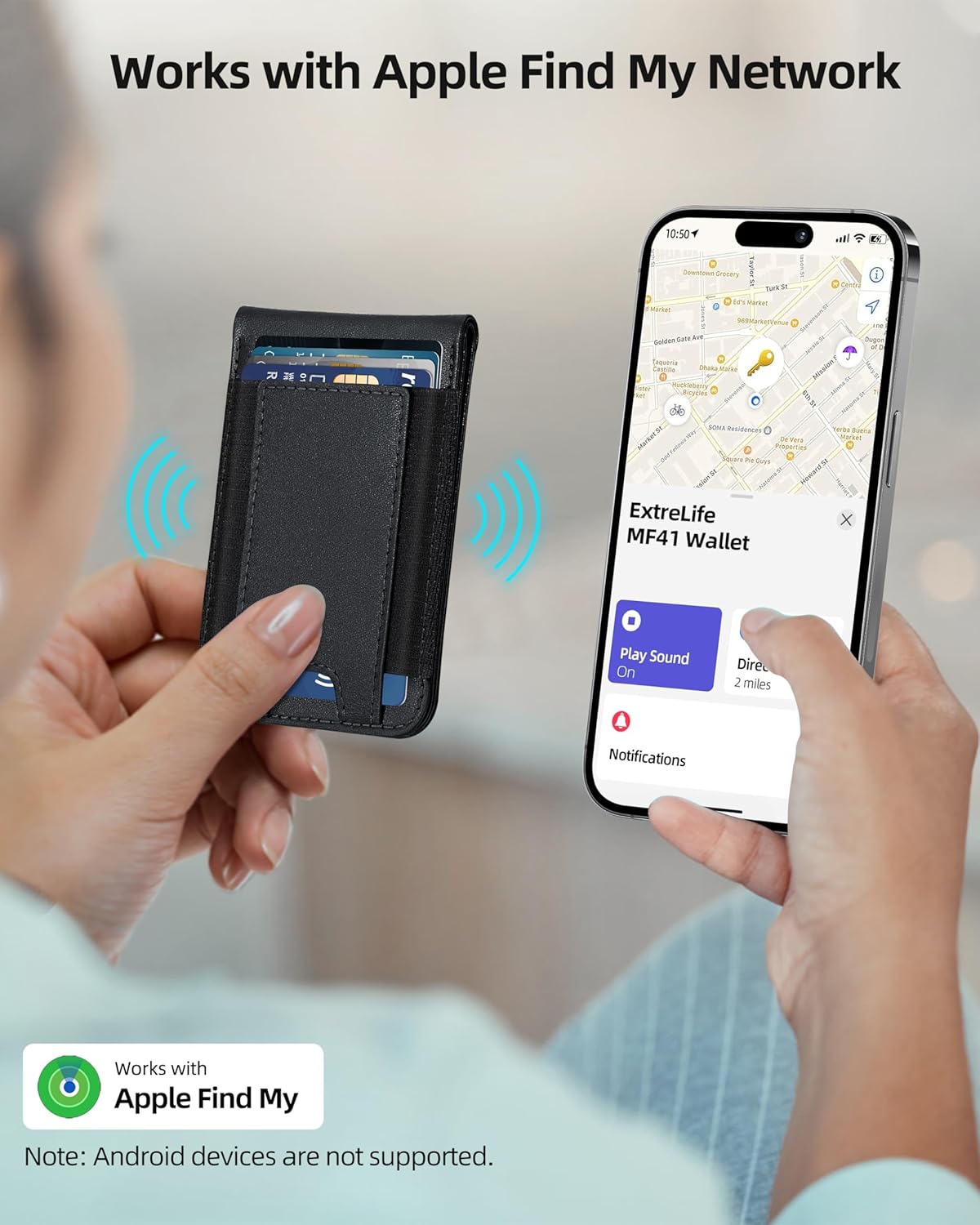
Foto 5: Tracking the wallet's location using the Apple Find My app.
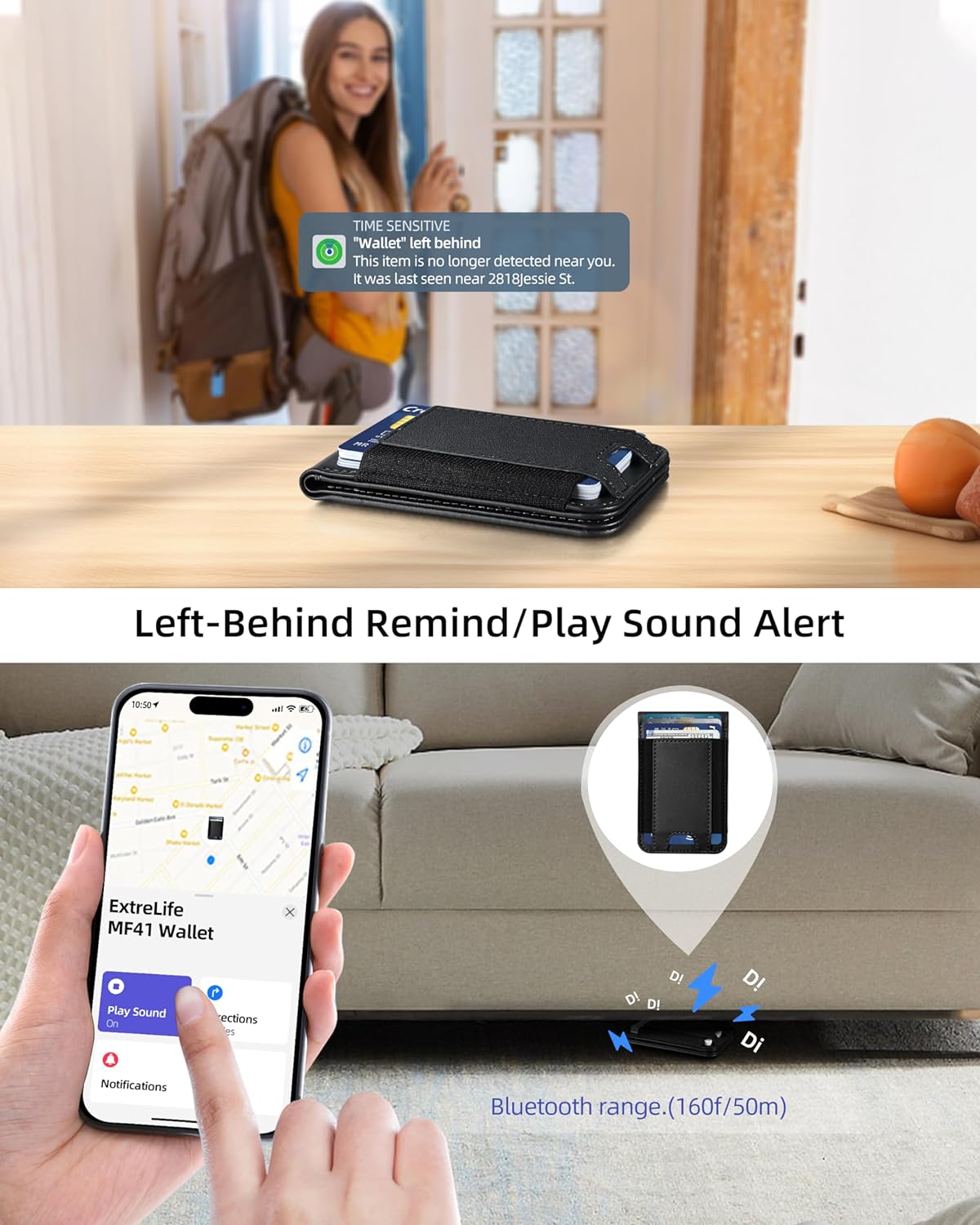
Foto 6: Onye bụbuample of a 'Left Behind' notification from the Find My app.
5. Ịchaji
The ExtreLife MagSafe Wallet is equipped with a rechargeable battery that lasts up to 4 months on a single charge. It supports wireless charging via MagSafe or other compatible wireless chargers. No proprietary charging cable is required.
- Place the wallet on a MagSafe or Qi-compatible wireless charging pad.
- The charging indicator light on the wallet will illuminate to show it is charging.
- Once fully charged, the indicator light may change or turn off, depending on the charger.
Mara: The charger is not included with the wallet.
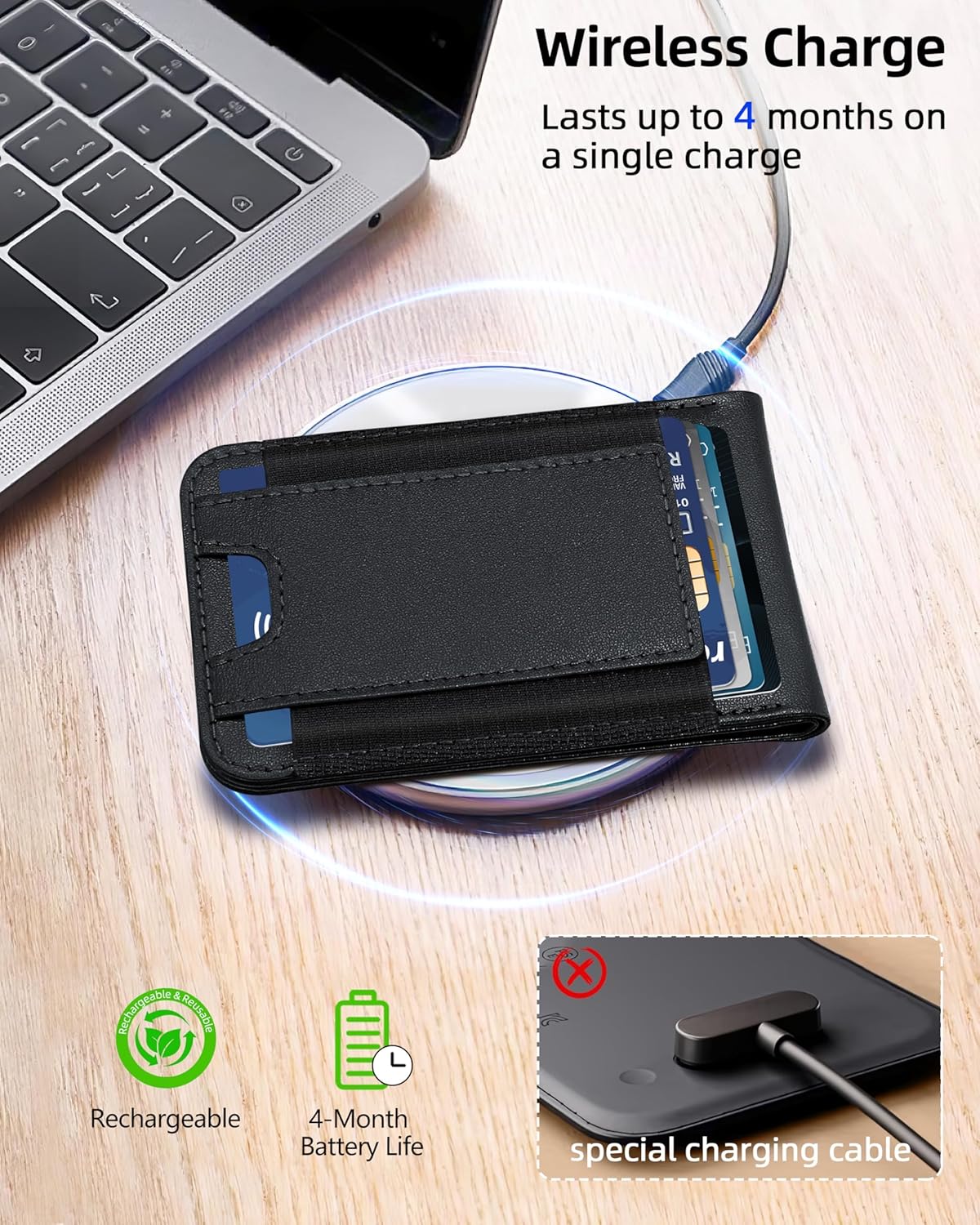
Foto 7: The wallet being charged wirelessly on a compatible charging pad.
6. Ndakọrịta
The ExtreLife MagSafe Wallet is compatible with the following devices:
- iPhone 17 Pro Max/17 Pro/17 Air/17
- iPhone 16 Pro Max/16 Pro/16 Plus/16
- iPhone 15 Pro Max/15 Pro/15 Plus/15
- iPhone 14 Pro Max/14 Pro/14 Plus/14
- iPhone 13 Pro Max/13 Pro/13
- iPhone 12 Pro Max/12 Pro/12
It is also compatible with MagSafe-enabled mobile phones and cases or magnet stickers.
Ekwekọrịtaghị na: iPhone 13/12 mini, Samsung S25/S24/S23, and non-magnetic cases.

Foto 8: Visual guide to device compatibility.
7. Nkọwapụta
| Njirimara | Nkọwa |
|---|---|
| Ụdị | ExtreLife |
| Aha Nlereanya | MF41 obere akpa |
| Agba | Oji oji |
| Ihe onwunwe | Akpụkpọ Anụ Adịgboroja |
| Ụdị | Obere obere |
| Ngwa gụnyere | Ihe njide kaadị |
| Ọnụọgụ nkeji | 8 Ọnụ |
| Ntuziaka nlekọta ngwaahịa | Wet Hichapụ Ọcha |
| Ụdị mmechi | Magnetik |
| Ọnụọgụ nke Ụlọ | 3 |
| Ibu Ibu | 0.11 kilogram |
8. Nlekọta
To ensure the longevity and appearance of your ExtreLife MagSafe Wallet, please follow these maintenance guidelines:
- Nhicha: Jiri nwayọọ, damp cloth (wet wipe) to gently clean the exterior of the wallet. Avoid harsh chemicals or abrasive materials.
- Nchekwa: Store the wallet in a cool, dry place away from direct sunlight and extreme temperatures.
- Zenarị ibubiga ihe ókè: While designed for up to 8 cards, consistently overstuffing the wallet may stretch the material and affect its slim profile and magnetic hold.
- Magnetic Care: Keep the magnetic surface clean and free from debris to ensure optimal attachment strength.
9. Nchọpụta nsogbu
If you encounter any issues with your ExtreLife MagSafe Wallet, please refer to the following common troubleshooting tips:
- Wallet Not Connecting to Find My:
- Ensure the wallet is powered on (short press the power button).
- Verify Bluetooth is enabled on your iPhone.
- Check that 'Find My' is enabled in your iPhone settings.
- Make sure your iPhone's operating system is up to date.
- Try restarting both your iPhone and the wallet.
- Njikọta Magnetik Na-adịghị Ike:
- Ensure your iPhone or case is MagSafe compatible. Non-MagSafe cases may reduce magnetic strength.
- Check for any debris or obstructions between the wallet and your iPhone/case.
- Avoid overstuffing the wallet, as this can affect its ability to lie flat and connect securely.
- Cards Difficult to Insert/Remove:
- The wallet is designed for a snug fit to secure cards. Over time, the material may loosen slightly.
- Ensure you are not exceeding the recommended 8-card capacity.
- Batrị anaghị achaji:
- Ensure your wireless charger is MagSafe or Qi-compatible and functioning correctly.
- Verify the wallet is correctly positioned on the charging pad.
- Check for any obstructions between the wallet and the charging pad.
10. Akwụkwọ ikike na nkwado
ExtreLife products are manufactured with high-quality standards. For specific warranty information, please refer to the product packaging or the official ExtreLife website. If you require further assistance or have questions not covered in this manual, please contact ExtreLife customer support through the following channels:
- Nkwado n'ịntanetị: Gaa leta ExtreLife Store on Amazon maka FAQ na nhọrọ kọntaktị.
- Nkwado email: Refer to your product's packaging for the dedicated customer service email address.
Please have your product model (MF41 Wallet) and purchase details ready when contacting support.