
QUASIO MK935
User Manual for QUASIO Ergonomic Wireless Keyboard Mouse Combo
Brand: QUASIO
Ụdị: MK935
Ngwaahịa gafereview
The QUASIO MK935 Ergonomic Wireless Keyboard Mouse Combo is designed to provide a comfortable and efficient computing experience. This combo features a split-design keyboard with a palm rest and an ergonomic vertical mouse, aiming to reduce wrist and arm strain during prolonged use. It supports versatile connectivity options including Bluetooth and 2.4G USB, allowing connection to up to three devices simultaneously. Both the keyboard and mouse are rechargeable, offering extended battery life and intelligent power-saving features.

Image: The QUASIO MK935 Ergonomic Wireless Keyboard and Mouse Combo, showcasing ya gbawara agbawa na agbakwunyere nkwụ ezumike.
Ntuziaka nhazi
1. Ihe ngwugwu
- Ergonomic Wireless Split Keyboard
- Ergonomic Wireless Vertical Mouse
- USB Receiver (typically stored in the mouse battery compartment)
- -Dị-C Nchaji USB
- Akwụkwọ ntuziaka onye ọrụ
2. Ịchaji ngwaọrụ
Both the keyboard and mouse are equipped with rechargeable batteries. Use the provided Type-C charging cable to charge them. A full charge typically lasts 2-3 months based on average daily usage.
- Connect the Type-C cable to the charging port on the keyboard and mouse.
- Jikọọ nsọtụ nke ọzọ nke eriri ahụ na isi iyi ike USB (dịka ọmụmaatụ, ọdụ ụgbọ USB kọmputa, ihe nkwụnye mgbidi).
- A red light indicates charging. The light will turn blue when fully charged.

Image: Illustration of the keyboard and mouse being charged via Type-C cable, showing charging indicators and battery capacities (500mAh for keyboard, 300mAh for mouse).
To conserve power, ensure the ON/OFF switches on both the keyboard and mouse are set to OFF when not in use for extended periods.
3. Connecting the Devices
The combo supports three connection modes: one 2.4G USB channel and two Bluetooth channels (BT1, BT2). This allows connection to up to three different devices simultaneously.

Image: Diagram showing the keyboard and mouse connected to a desktop, tablet, and smartphone via 2.4G USB and Bluetooth channels, illustrating multi-device connectivity.
2.4G USB Connection (Keyboard & Mouse)
- Locate the USB receiver, usually stored in the mouse's battery compartment.
- Tinye eriri USB n'ọdụ ụgbọ mmiri dị na kọmputa gị.
- Gbanye ahụigodo na òké ahụ site na iji ihe mgbanwe ON/OFF ha.
- For the keyboard, press the 2.4G button (usually indicated by a 2.4G icon) to switch to 2.4G mode.
- For the mouse, ensure the mode switch button on the bottom is set to the 2.4G icon.
- The devices should connect automatically.

Image: Visual representation of the keyboard and mouse connected to multiple devices using both Bluetooth and 2.4G wireless modes.
Bluetooth Connection (Keyboard & Mouse)
The keyboard and mouse each have two Bluetooth channels (BT1 and BT2).
- Gbanwuo ahụigodo na òké.
- Maka ahụigodo: Pịa ma jide ma BT1 or BT2 button for 3-5 seconds until the indicator light flashes rapidly, indicating pairing mode.
- Maka òké: Press the mode switch button on the bottom to select BT1 or BT2. Then, press and hold the selected Bluetooth button for 3-5 seconds until the indicator light flashes rapidly.
- Na ngwaọrụ gị (kọmputa, mbadamba, ama ama), mepee ntọala Bluetooth.
- Chọọ maka new devices. You should see "QUASIO Keyboard" and "QUASIO Mouse" (or similar names).
- Select the device to pair. Follow any on-screen prompts.
- Ozugbo ejikọtara ya, ọkụ ihe ngosi ahụ ga-akwụsị ịgbawa.
4. Keyboard Ergonomic Adjustments
The keyboard features a curved palm rest and adjustable stands for optimal comfort.
- The integrated palm rest is designed with soft foam padding to support your wrists.
- Four foldable stands on the bottom allow you to adjust the keyboard's tilt angle (e.g., 2.2°, 3.2°, 4.4°, 1.2°). Experiment with different angles to find the most comfortable position for your wrists and arms.

Oyiyi: Cross-ngalaba view of the keyboard palm rest, highlighting its layers of soft synthetic leather, high-density foam, and memory foam for comfort.

Image: Depiction of the four foldable stands on the keyboard's underside, showing various adjustable tilt angles for ergonomic positioning.
5. Mouse DPI Adjustment
The vertical mouse offers three DPI settings (800/1200/1600) to adjust cursor sensitivity.
- Press the DPI button on the mouse (usually located near the scroll wheel or on the top) to cycle through the available DPI settings.
- Select the setting that best suits your preference for cursor speed and precision.
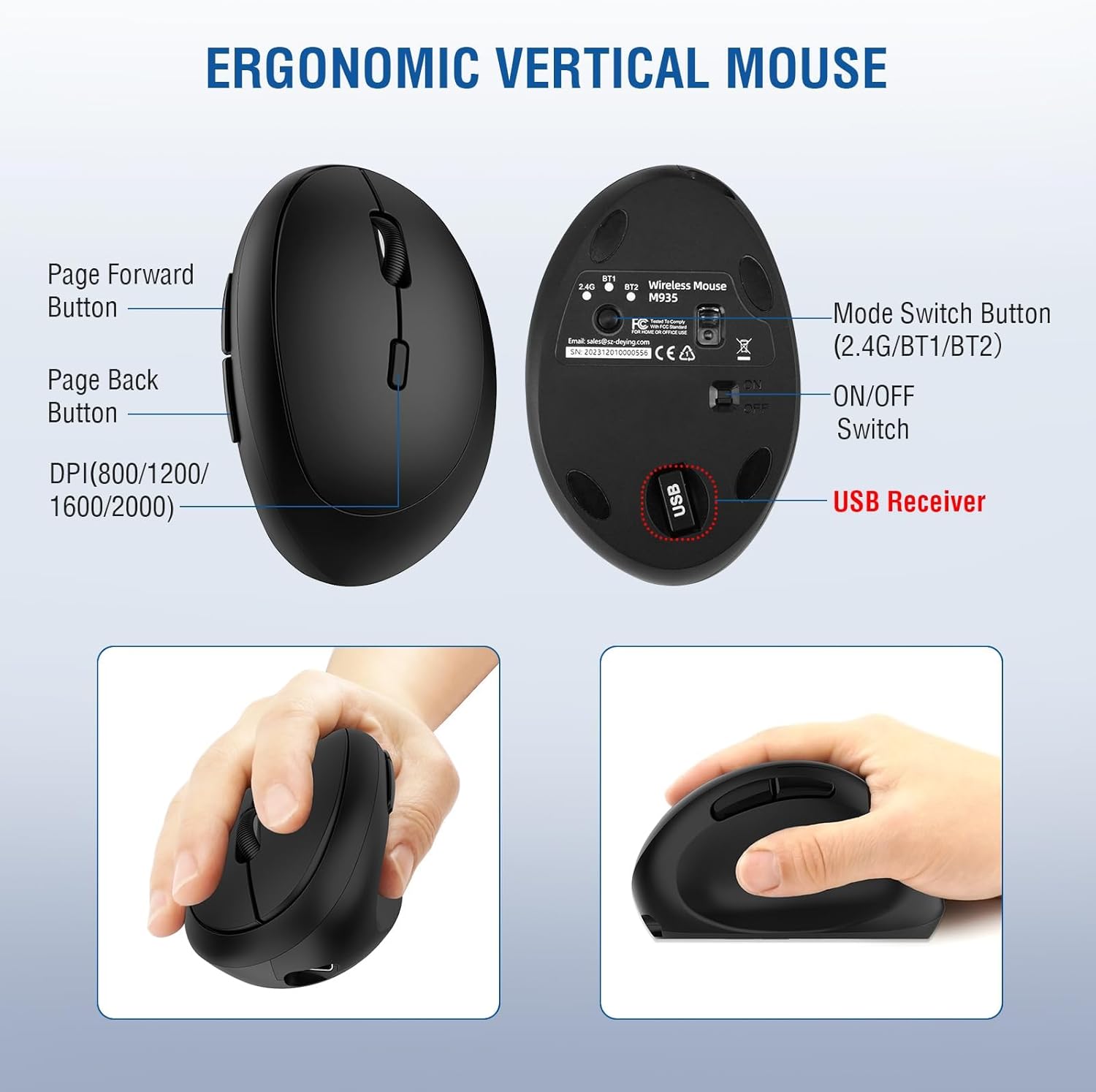
Foto: Zuru ezu view of the ergonomic vertical mouse, labeling its features including Page Forward/Back buttons, DPI settings (800/1200/1600/2000), Mode Switch Button, ON/OFF Switch, and USB Receiver location.
Ntuziaka ọrụ
1. Mgbanwe ọtụtụ ngwaọrụ
Once paired with multiple devices, you can quickly switch between them using the dedicated buttons on the keyboard and mouse.
- Ahụigodo: Pịa 2.4G, BT1, ma ọ bụ BT2 button to instantly switch to the corresponding connected device.
- Òké: Use the mode switch button on the bottom of the mouse to toggle between the 2.4G, BT1, and BT2 channels.
This feature is ideal for users who work across multiple platforms such as desktops, laptops, tablets, and smartphones.
2. Ergonomic Usage
The split design of the keyboard and the vertical orientation of the mouse are intended to promote a more natural and comfortable posture.
- Ahụigodo: Position your hands so that your wrists rest comfortably on the integrated palm rest. The split layout encourages a more natural hand and arm alignment, reducing pronation and ulnar deviation.
- Òké: Grip the vertical mouse with your hand in a handshake position. This reduces forearm twisting and wrist pressure compared to traditional horizontal mice.

Image: Illustration demonstrating how the ergonomic split keyboard helps reduce wrist and shoulder fatigue by promoting a more natural typing posture.

Image: Comparison showing the ergonomic vertical mouse promoting a natural hand position versus a traditional mouse, highlighting how it protects the wrist from pain.
3. Njikwa Ike
To maximize battery life, the devices feature intelligent power-saving functions:
- Ụdị ụra akpaka: After 30 minutes of inactivity, both the keyboard and mouse will automatically enter sleep mode. To wake them up, simply press any key on the keyboard or move/click the mouse.
- Gbanyụọ Ike ntuziaka: For longer periods of non-use (e.g., overnight or when traveling), use the ON/OFF switches on the keyboard and mouse to manually power them down.
Nlekọta
Proper care and maintenance will ensure the longevity and optimal performance of your QUASIO keyboard and mouse combo.
- Nhicha: Use a soft, dry, lint-free cloth to wipe down the surfaces of the keyboard and mouse. For stubborn dirt, slightly dampen akwa na mmiri ma ọ bụ dị nwayọọ, na-adịghị abrasive Cleaner. Zere oke mmiri mmiri.
- Nlekọta batrị: While the devices are rechargeable, avoid completely draining the battery frequently. Charge them when the low battery indicator appears. Do not expose the devices to extreme temperatures.
- Nchekwa: When not in use for extended periods, store the devices in a cool, dry place, away from direct sunlight and extreme temperatures. Ensure they are powered off.
Nchọpụta nsogbu
If you encounter any issues with your QUASIO keyboard and mouse combo, please refer to the following common solutions:
1. Okwu njikọ
- Ngwaọrụ anaghị ejikọta:
- Ensure both the keyboard and mouse are turned ON.
- For 2.4G connection, verify the USB receiver is securely plugged into a working USB port. Try a different USB port.
- For Bluetooth connection, ensure Bluetooth is enabled on your device and the keyboard/mouse are in pairing mode (flashing indicator light). Remove previous pairings from your device's Bluetooth list and try pairing again.
- Ensure the correct channel (2.4G, BT1, BT2) is selected on both the keyboard and mouse.
- Intermittent connection or lag:
- Move the devices closer to the USB receiver or your Bluetooth-enabled device.
- Avoid placing other wireless devices (e.g., Wi-Fi routers, cordless phones) too close, as they may cause interference.
- Ensure batteries are sufficiently charged.
2. Okwu Ịchaji
- Ngwaọrụ anaghị akwụ ụgwọ:
- Verify the Type-C charging cable is properly connected to both the device and the power source.
- Gbalịa ọdụ ụgbọ USB ma ọ bụ ihe nkwụnye ọkụ dị iche.
- Gbaa mbọ hụ na eriri chaja emebighị.
3. Unresponsive Keys/Mouse
- Hụ na ngwaọrụ ndị ahụ agbajiri agbaji.
- Check the connection (2.4G or Bluetooth) and try reconnecting.
- Malitegharịa ekwentị gị / ngwaọrụ.
- For the mouse, ensure the optical sensor on the bottom is clean and unobstructed.
Ọ bụrụ na usoro ndị a akwụsịghị nsogbu a, biko rụtụ aka na ngalaba akwụkwọ ikike na nkwado maka enyemaka ọzọ.
Nkọwapụta
| Njirimara | Nkọwa |
|---|---|
| Akụkụ ngwaahịa | 14.8 x 8.3 x 1.6 sentimita (Keyboard) |
| Ibu Ibu | 2.51 pound |
| Nọmba nlereanya | MK935 |
| Batrị | 1 batrị lithium polymer chọrọ (gụnyere) |
| Ụdị | KWASIO |
| Agba | Nwa |
| Teknụzụ Njikọta | Bluetooth, Wireless USB (2.4G) |
| Atụmatụ pụrụ iche | Ergonomic, Rechargeable, Wrist Rest, Split Design, Vertical Mouse, Multi-Device |
| Ngwa dakọtara | Laptop, Personal Computer, Smartphone, Tablet (Windows 7+, Mac, Android) |
| Ntọala DPI òké | 800/1200/1600 |

Image: Detailed dimensions of the full-size wireless keyboard and vertical mouse, showing measurements in inches.

Image: Visual representation of the product's wide compatibility with various devices including tablets, laptops, Android universal devices, phones, and Apple devices.
Akwụkwọ ikike na nkwado
QUASIO provides a 12-month warranty for this product. If you encounter any issues or require assistance, please contact our customer support team.
- Oge ikike: Ọnwa iri na abụọ site na ụbọchị ịzụrụ.
- Ndị ọrụ nlekọta ndị ahịa: For any inquiries or support needs, please contact us via the after-sales email provided with your purchase or through the seller contact options on the platform where you purchased the product.
- Mkpebi: We are committed to providing a satisfactory solution for any product-related concerns.

Image: Flowchart illustrating the recommended customer support process: contact seller first for issues, rather than sending back to warehouse, to receive a new product or refund.
Ask a question about this manual
Ask about setup, troubleshooting, compatibility, parts, safety, or missing instructions. Manuals+ will review the question and use this page’s manual context to help answer it.