
1. Okwu mmalite
This user manual provides detailed instructions for the setup, operation, and maintenance of your BL Android TV Box 11.0. Designed for an enhanced home entertainment experience, this device transforms your television into a smart hub, offering access to a wide range of streaming content, applications, and multimedia features. Please read this manual carefully before using the product to ensure optimal performance and longevity.
2. Ihe ngwugwu
Biko chọpụta na agụnyere ihe niile edepụtara n'okpuru na ngwugwu gị:
- Android TV Box (1 unit)
- Njikwa anya (otu nkeji)
- Ihe nkwụnye ike (otu nkeji)
- Eriri HDMI (otu nkeji)
- Akwụkwọ ntuziaka onye ọrụ (1 nkeji)

Image: All components included in the BL Android TV Box 11.0 package.
3. Nhazi
Follow these steps to set up your BL Android TV Box:
- Jikọọ eriri HDMI: Insert one end of the HDMI cable into the HDMI OUT port on the TV Box and the other end into an available HDMI input on your television.
- Jikọọ ihe nkwụnye ọkụ: Plug the power adapter into the DC IN port on the TV Box, then plug the other end into a power outlet.
- Jikọọ na netwọk: Once powered on, connect the TV Box to your network. You can use either Wi-Fi (2.4G/5G Dual Band) or an Ethernet cable for a wired connection. Navigate to 'Settings' > 'Network' to configure your connection.
- Ntọala izizi: Follow the on-screen prompts to complete the initial setup, including language selection, time zone, and Google account login.
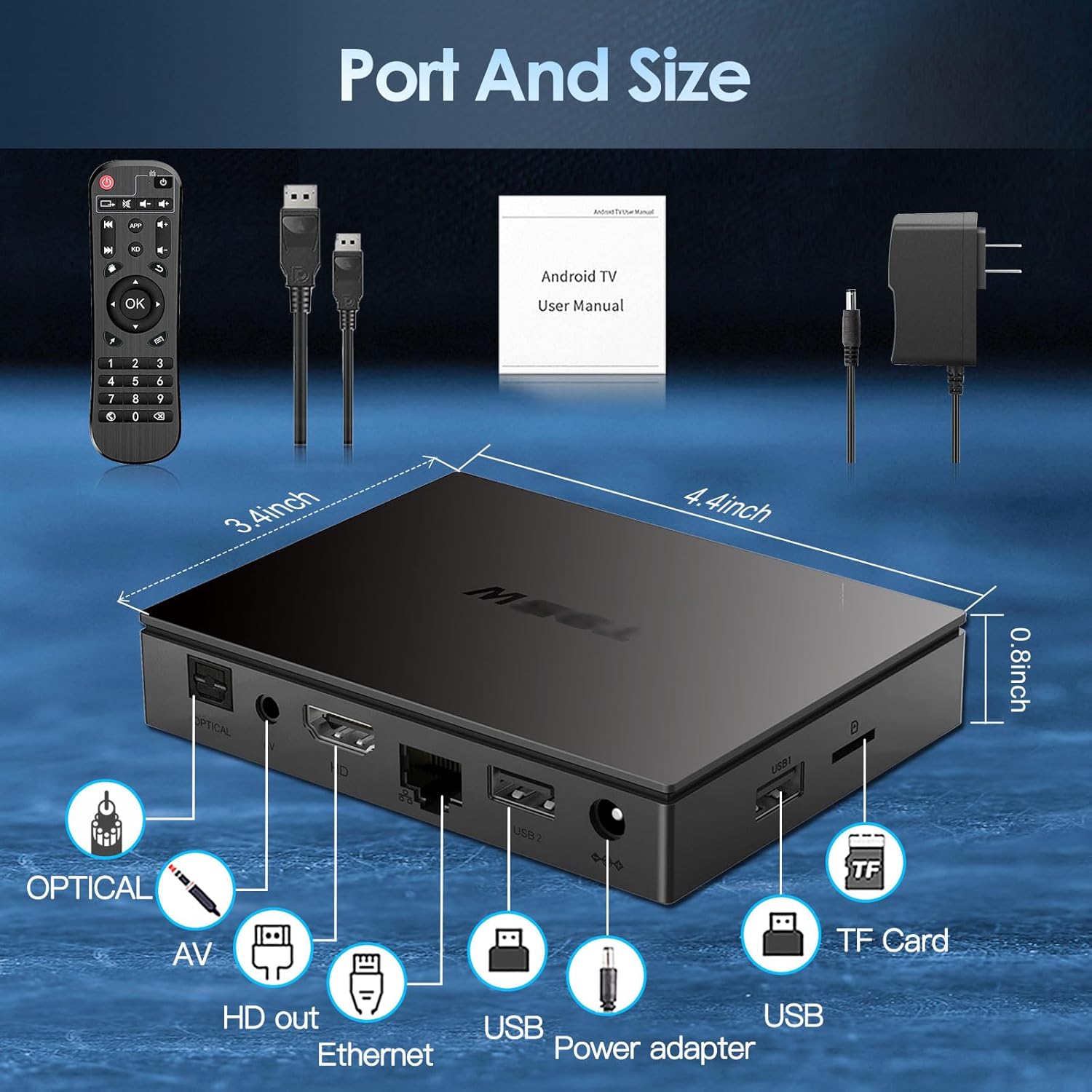
Image: Visual guide for connecting the BL Android TV Box to your television and power.
4. Ntuziaka ọrụ
Once set up, you can begin using your BL Android TV Box to access various features:
- Ntugharị: Use the included remote control to navigate through the Android 11.0 interface. The directional pad and 'OK' button are used for selection, while 'Back' and 'Home' buttons provide quick navigation.
- Nweta ngwa: The home screen displays pre-installed applications like YouTube, Netflix, Google Play Store, and Chrome. You can download additional apps from the Google Play Store.
- Ndabere mgbasa ozi: Gwuo mgbasa ozi mpaghara files from USB drives or TF cards connected to the TV Box. The device supports various video and audio formats.
- Ngosipụta ihuenyo: Utilize the wireless screen mirroring function to cast content from your smartphone or tablet to your TV. This feature supports Airplay, DLNA, and Miracast protocols.

Image: The user interface of the Android 11.0 operating system on the TV Box.

Image: Demonstration of wireless screen mirroring from mobile devices to the TV.
5. Atụmatụ
The BL Android TV Box 11.0 is equipped with advanced features for a superior entertainment experience:
- Powerful Amlogic S905W2 CPU: Powered by a Quad-Core Cortex-A35 processor, ensuring smooth performance, efficient image processing, and broad app compatibility.
- Ultra-High Definition Viewing: Supports 4K HDR10+ technology and the latest AV1 encoding, delivering realistic visuals, efficient video compression, and enhanced picture quality.
- Dual-Band Wi-Fi & Bluetooth 5.0: Features 2.4G/5G dual-band Wi-Fi for stable and fast wireless connectivity, and Bluetooth 5.0 for connecting peripherals like headphones, speakers, keyboards, and gamepads.
- Ngosipụta ihuenyo ikuku: Allows you to mirror content from your mobile devices to your TV, facilitating easy sharing of photos and videos.

Foto: Ofeview of the Amlogic S905W2 processor.
Image: Highlighting 4K HDR10+ video decoding capabilities.

Image: Connectivity options including Dual Wi-Fi and Bluetooth 5.0.
6. Nlekọta
To ensure the longevity and optimal performance of your BL Android TV Box, follow these maintenance guidelines:
- Nhicha: Jiri akwa dị nro dị nro hichaa mpụta ngwaọrụ ahụ. Zere iji ihe nhicha mmiri ma ọ bụ ihe na-ekpo ọkụ.
- Igwe ikuku: Ensure the TV Box is placed in a well-ventilated area to prevent overheating. Do not block the ventilation openings.
- Mmelite ngwanrọ: Periodically check for system updates in the 'Settings' menu to ensure you have the latest features and security patches.
- Gbanyụọ nke ọma: Always power off the device correctly before unplugging it to prevent data corruption.
7. Nchọpụta nsogbu
If you encounter issues with your BL Android TV Box, refer to the following common troubleshooting steps:
- Enweghị ike: Ensure the power adapter is securely connected to both the TV Box and a working power outlet. Try a different outlet if necessary.
- Enweghị Foto/Akara: Verify that the HDMI cable is correctly connected to both the TV Box and your television. Ensure your TV is set to the correct HDMI input source.
- Enweghị njikọ Wi-Fi: Check your router and ensure it is working correctly. Re-enter your Wi-Fi password in the TV Box settings. If issues persist, try restarting both the TV Box and your router.
- Njikwa anya anaghị aza: Check the batteries in the remote control and replace them if needed. Ensure there are no obstructions between the remote and the TV Box.
- App Freezing/Crashing: Try clearing the cache of the problematic app in 'Settings' > 'Apps'. If the issue persists, uninstall and reinstall the app.
- Ịrụ ngwa ngwa: Close unused applications running in the background. Consider performing a factory reset if performance issues are severe and persistent (Note: This will erase all data and settings).
8. Nkọwapụta
| Njirimara | Nkọwapụta |
|---|---|
| Nọmba nlereanya | BL-Android-TV-Box-11.0 |
| Sistemụ nrụọrụ | Android 11.0 |
| CPU | Amlogic S905W2 Quad-Core Cortex-A35 |
| RAM | 4GB |
| ROM | 32GB |
| Mmepụta vidiyo | 4Kx2K@60fps (HDMI 2.1) |
| Ndozi vidiyo | AV1, HDR10+, H.265, H.264, etc. |
| Njikọ Wi-Fi | 2.4G/5G Dual-Band Wi-Fi |
| Bluetooth | Bluetooth 5.0 |
| Ethernet | 10/100M |
| ọdụ ụgbọ mmiri | HDMI 2.1*1, USB 2.0*2, Optical, AV, Ethernet, TF Card Slot, Power Adapter Port |
| Akụkụ | 11.2L x 8.6W x 2.1H cm |

Image: Port layout and dimensions of the BL Android TV Box.
9. Akwụkwọ ikike na nkwado
Your BL Android TV Box 11.0 comes with a standard manufacturer's warranty. For specific warranty terms and conditions, please refer to the documentation provided with your purchase or contact the seller directly. If you require technical assistance or have questions not covered in this manual, please reach out to the customer support team of the brand BL. Contact information can typically be found on the product packaging or the brand's official websaịtị.