
1. Ngwaahịa gafereview
Thank you for choosing the PDP AIRLITE GLOW Wired Headset. This headset is designed to provide an immersive audio experience and clear communication for gaming on Xbox Series X|S, Xbox One, and Windows 10/11 PC. Its lightweight design and comfortable earcups ensure extended use without discomfort.
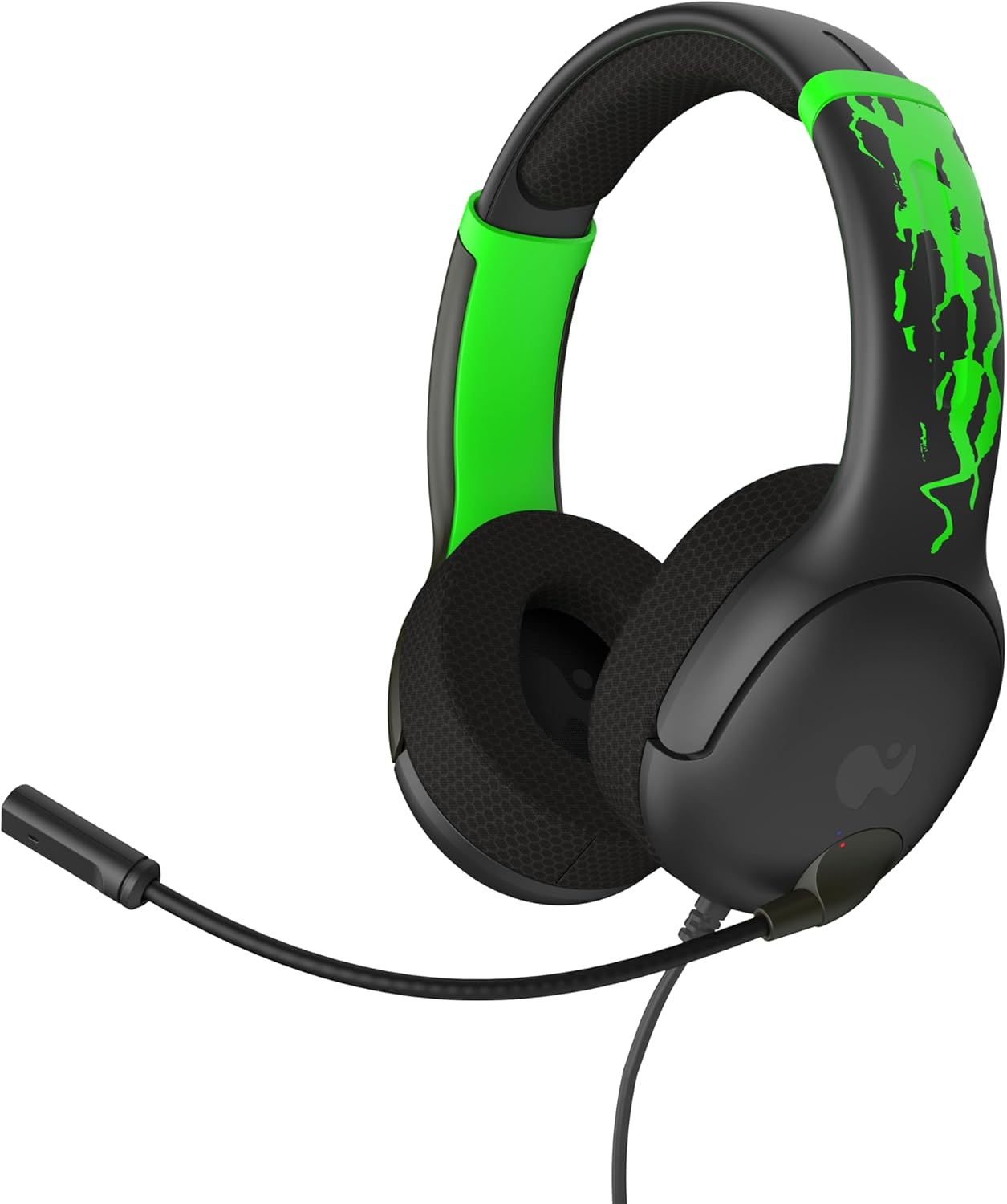
Foto 1: N'ihu view of the PDP AIRLITE GLOW Wired Headset.
Akụkụ ndị bụ isi:
- Unique design glows in the dark after exposure to light (for best results use UV light).
- Lightweight construction (7 oz) and soft padded earcups for all-day comfort.
- 40mm drivers with fine-tuned audio for immersive gameplay.
- Sleek, noise-canceling mic with flip-to-mute feature.
- Officially licensed by Xbox.
2. Nhazi ntuziaka
The PDP AIRLITE GLOW Wired Headset connects directly to your gaming controller or compatible device via a 3.5mm audio jack.
Connecting to an Xbox Controller:
- Ensure your Xbox console and controller are powered on.
- Locate the 3.5mm audio jack port on the bottom of your Xbox controller.
- Insert the 3.5mm audio plug from the headset firmly into the controller's audio jack.
- The headset should now be connected and ready for use. You may need to adjust audio settings on your Xbox console or controller for optimal sound and microphone levels.
Connecting to PC (Windows 10/11):
- Locate the 3.5mm audio jack on your PC. If your PC has separate ports for microphone and headphones, you may need a 3.5mm splitter (not included).
- Insert the 3.5mm audio plug from the headset into the combined audio jack or the appropriate headphone/microphone jacks.
- Access your PC's sound settings to ensure the headset is selected as the default input and output device. Adjust volume and microphone levels as needed.
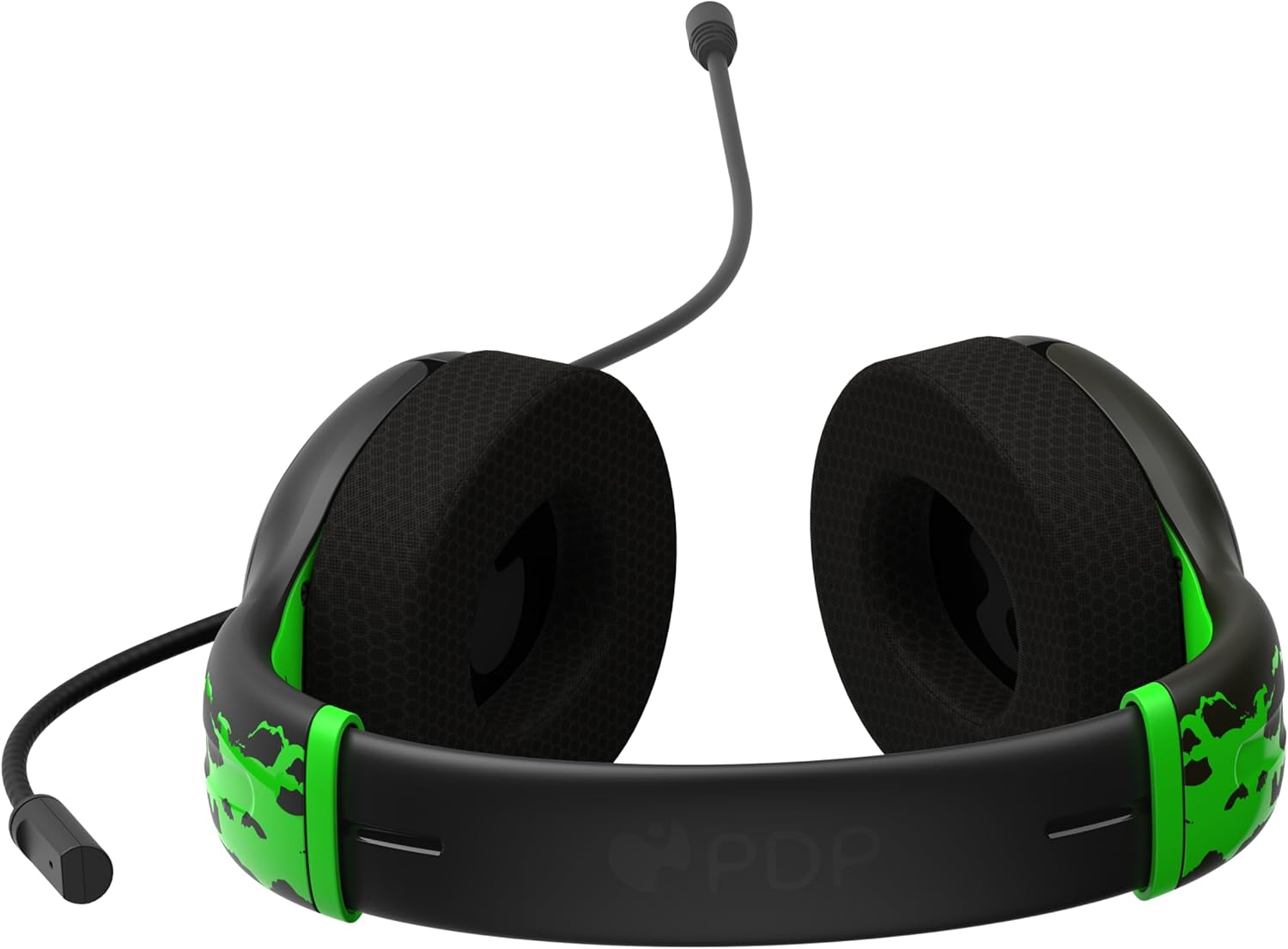
Figure 2: The 3.5mm audio jack for connecting the headset.
3. Ntuziaka ọrụ
Ọrụ igweokwu:
- Tụgharịa na-okwu: The headset features a convenient flip-to-mute microphone. To mute your microphone, simply flip the microphone boom arm upwards until it clicks into the vertical position. To unmute, flip the microphone boom arm back down to the speaking position.
- Igwe okwu na-agbanwe agbanwe: The microphone arm is flexible and can be adjusted to your preferred speaking distance for optimal voice clarity.
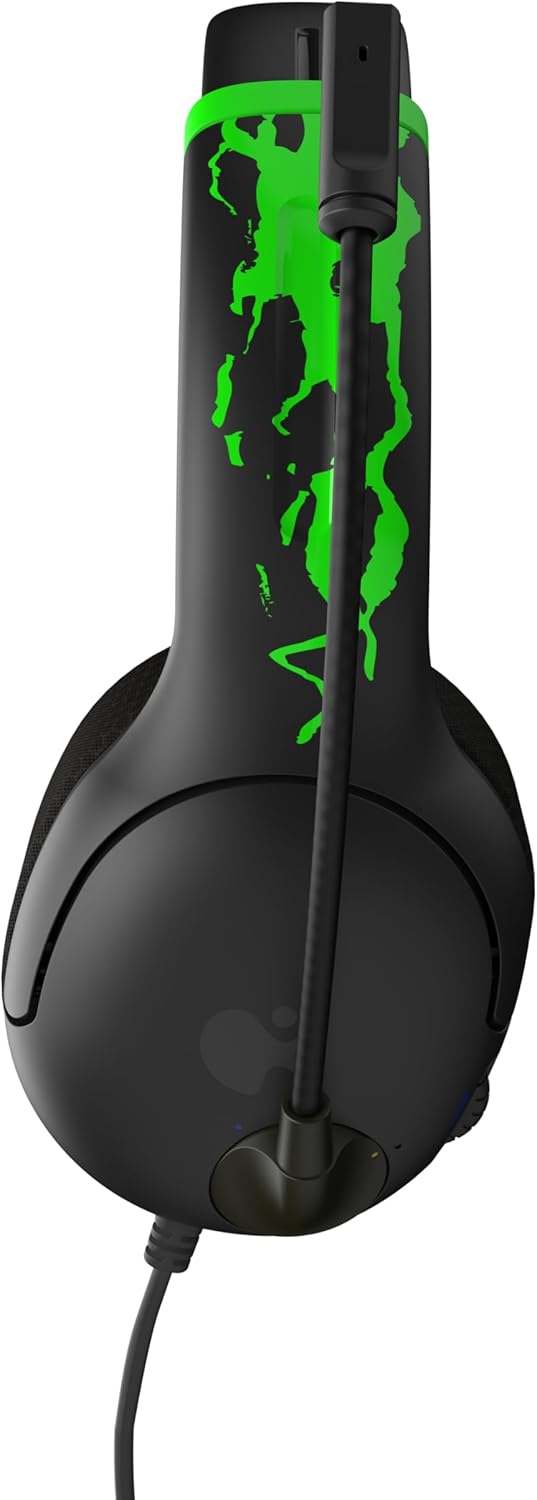
Figure 3: Microphone in the muted (upright) position.
Njikwa olu:
- The headset includes an on-ear volume control dial. Rotate the dial to increase or decrease the audio volume to your desired level.

Figure 4: Volume control dial located on the earcup.
Adjusting Headset Fit:
- The headband is adjustable. Gently slide the earcups up or down to find a comfortable and secure fit on your head.

Figure 5: Adjustable headband for a personalized fit.
4. Nlekọta na nlekọta
- Nhicha: Jiri ákwà dị nro ma kpọọ nkụ hichaa ekweisi ahụ. Zere iji kemịkalụ siri ike ma ọ bụ ihe ndị na-emebi ihe.
- Nchekwa: Chekwaa ekweisi n'ebe dị jụụ, kpọrọ nkụ na-adịghị na ìhè anyanwụ kpọmkwem na oke okpomọkụ.
- Nlekọta USB: Avoid sharply bending or twisting the cable to prevent internal damage.
- Glow Feature: For optimal glow effect, expose the headset's glow-in-the-dark elements to a light source (preferably UV light) before use in dark environments.
5. Nchọpụta nsogbu
| Nsogbu | Ngwọta |
|---|---|
| Enweghị ụda sitere na ekweisi. |
|
| Igwe okwu anaghị arụ ọrụ. |
|
| Headset feels uncomfortable. |
|
6. Nkọwapụta ngwaahịa
| Njirimara | Nkọwa |
|---|---|
| Aha Nlereanya | AIRLITE GLOW |
| Nọmba nlereanya | 049-015-JGR |
| Ụdị | PDP |
| Teknụzụ Njikọta | Ekwenyere (Jack 3.5mm) |
| Ngwa dakọtara | Xbox Series X|S, Xbox One, Windows 10/11 PC, Gaming Consoles, Desktops, Laptops |
| Ụdị ọkwọ ụgbọ ala ọdịyo | Onye ọkwọ ụgbọ ala dị ike (40mm) |
| Igwe okwu | Noise-canceling, Flip-to-mute |
| Ụdị njikwa | Volume Control (on-ear dial) |
| Ibu Ibu | 0.018 ounces (approximately 7 oz as per feature bullet) |
| Ihe onwunwe | Plastic |
| Njirimara Pụrụ Iche | Lightweight, Glow-in-the-dark design |
7. Akwụkwọ ikike na nkwado
For warranty information and customer support, please refer to the official PDP websaịtị ma ọ bụ kpọtụrụ ndị ahịa ha ozugbo. Debe ihe akaebe nke ịzụrụ ihe maka akwụkwọ ikike ọ bụla.
Nkwado n'ịntanetị: Gaa leta PDP Store on Amazon maka ozi ngwaahịa na akụrụngwa nkwado.
8. Videos ngwaahịa
AIRLITE GLOW Wired Headset for Xbox: Jolt Green 3D Video
This video provides a 3D view of the PDP AIRLITE GLOW Wired Headset in Jolt Green, showcasing its design and features. Note: This is a short preview vidiyo.
PDP Licensed Gaming Accessories Xbox Nintendo Playstation
Nfefeview ihe ngosi vidiyoasing various PDP licensed gaming accessories for Xbox, Nintendo, and PlayStation, including the AIRLITE GLOW headset.