
1. N'eluview
The FUERS G95 is an advanced GSM/WIFI dual-network smart home alarm system designed to provide comprehensive security for your property. It supports both 2.4GHz Wi-Fi and standard GSM SIM cards, offering flexible connectivity options. The system integrates with the Tuya Smart APP (Smart Life) and is compatible with Amazon Alexa and Google Assistant for convenient voice control.
This manual provides detailed instructions for setting up, operating, and maintaining your FUERS G95 alarm system.
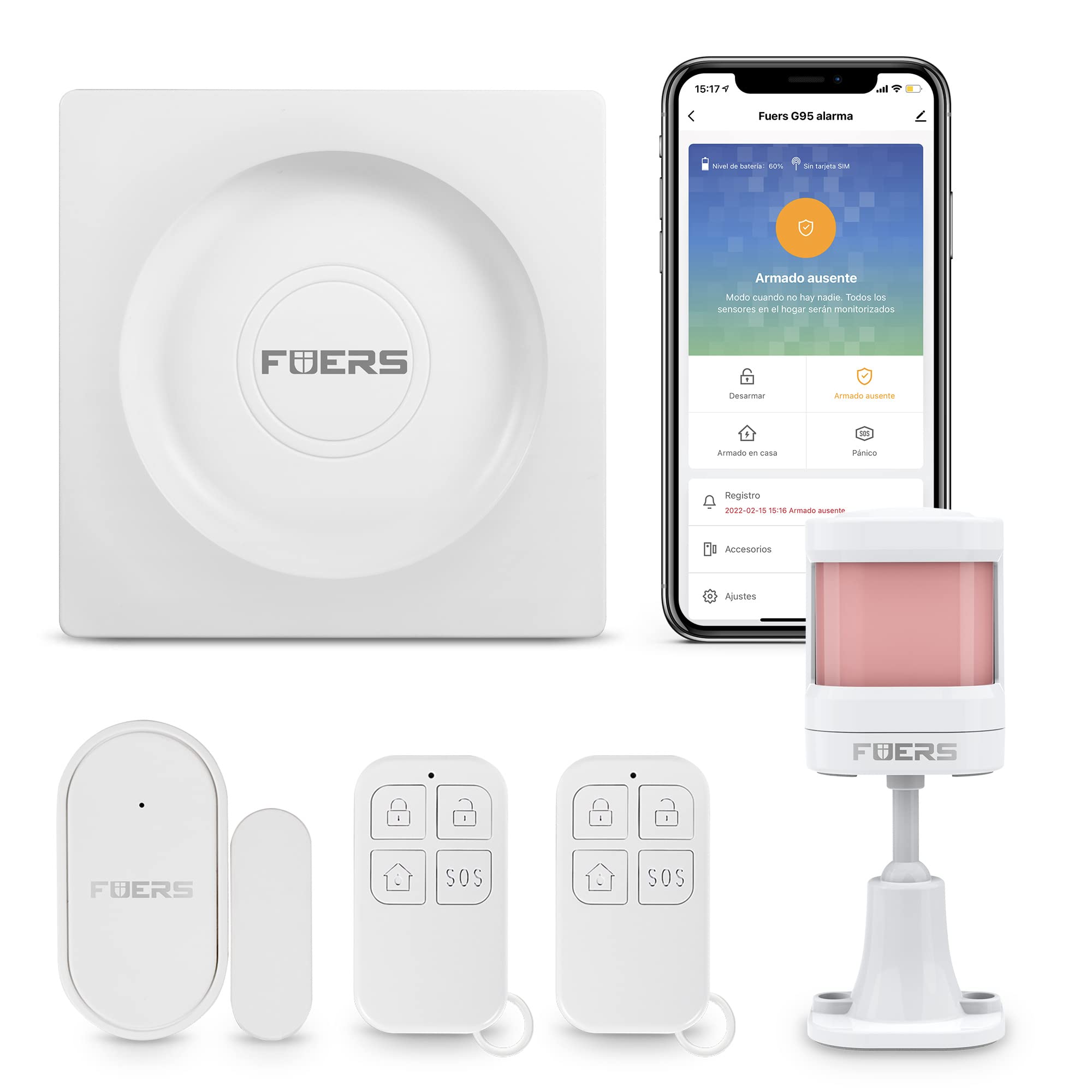
2. Ihe ngwugwu
Chọpụta na ihe niile dị na ngwugwu gị:
- 1 x FUERS G95 Alarm Host (GSM SIM card not included)
- 1 x Wireless Pet-Immune Infrared Detector (PIR Motion Sensor)
- 1 x Wireless Door/Window Sensor
- 2 x Njikwa anya
- 1 x EU Power Plug
3. Ngwa sistemu
The FUERS G95 system includes various components for comprehensive security:
- Onye ọbịa mkpu: The central unit that manages all sensors and communicates alerts.
- PIR Motion Detector (P20): Detects movement within its range, designed to be pet-immune to reduce false alarms.
- Door/Window Sensor (D30): Triggers an alarm when a protected door or window is opened.
- Remote Control (R10): Allows for convenient arming, disarming, and emergency functions.
- Ngwa ngwa nhọrọ: The system supports additional wired sirens, wireless indoor/outdoor sirens, smart plugs, and indoor cameras.


4. Ntuziaka Nhazi
4.1 nwụnye kaadị SIM
The FUERS G95 uses a Micro SIM card for GSM functionality. Ensure the SIM card is active and has sufficient credit for calls and SMS.
- Locate the SIM card slot on the side or back of the alarm host.
- Insert the Micro SIM card into the slot with the metal contacts facing down, ensuring it clicks into place.
- Do not force the SIM card. If it does not fit, verify it is a Micro SIM and oriented correctly.

4.2 Na-agbanye ike
- Connect the provided power adapter to the alarm host and plug it into a power outlet.
- The system will power on automatically. Wait for the indicator lights to stabilize.
4.3 App Installation and Pairing (Tuya Smart / Smart Life)
The FUERS G95 system is controlled via the Tuya Smart or Smart Life mobile application.
- Download the "Tuya Smart" or "Smart Life" app from your smartphone's app store (Google Play Store for Android, Apple App Store for iOS).
- Debanye aha maka akaụntụ ọhụrụ ma ọ bụ banye ma ọ bụrụ na ị nwere otu.
- N'ime ngwa ahụ, pịa "Tinye Ngwaọrụ" ma ọ bụ akara ngosi "+".
- Select "Security & Video Surveillance" > "Alarm (Wi-Fi)" or search for "G95".
- Follow the on-screen instructions to connect the alarm host to your 2.4GHz Wi-Fi network. Ensure your phone is connected to the same 2.4GHz Wi-Fi network during pairing.


4.4 Adding Sensors and Remotes
The system supports up to 100 sensors and 10 remote controls.
- In the Tuya Smart app, navigate to the G95 alarm system interface.
- Select "Accessories" or "Sensors" to enter the pairing mode.
- Activate the sensor (e.g., open a door/window for a door sensor, press the button on a remote, or trigger the PIR motion sensor). The alarm host will confirm successful pairing.
- You can customize the name and zone type for each added sensor within the app.
5. Ntuziaka ọrụ
5.1 Na-eji ngwa agha na mwepu
You can arm or disarm the system using the remote control, the mobile app, or via SMS/phone call.
- Ogwe aka: Activates all sensors. Any triggered sensor will initiate an alarm.
- Wepu ngwa agha: Deactivates all sensors, allowing free movement without triggering an alarm.
- Ogwe aka ụlọ: Activates perimeter sensors (e.g., door/window sensors) while allowing movement within the home (e.g., motion sensors are disarmed).
5.2 Zone Types
The G95 supports 6 types of defense zones, configurable via the app:
- Nkịtị: Triggers an immediate alarm when activated.
- igbu oge: Provides a delay before triggering the alarm, allowing time to disarm the system upon entry.
- Oge awa 24: Always active, even when the system is disarmed (e.g., for smoke detectors).
- Ụlọ: Active only when the system is in Home Arm mode.
- 24-Hour Silent: Triggers a silent alarm (notifications only, no siren) 24/7.
- Home with Delay: Active in Home Arm mode with an entry delay.
5.3 ngosi mkpu
When an alarm is triggered, the system will:
- Sound the siren.
- Automatically dial up to 5 pre-set phone numbers sequentially.
- Send SMS notifications to pre-set numbers.
- Send push notifications to the Tuya Smart app.


5.4 Njikwa olu (Alexa/Google Home)
Integrate your FUERS G95 with Amazon Alexa or Google Home for hands-free control:
- Ensure your G95 is successfully paired with the Tuya Smart app.
- Mepee ngwa Alexa ma ọ bụ Google Home.
- Enable the "Tuya Smart" or "Smart Life" skill/service.
- Link your Tuya Smart account to Alexa/Google Home.
- Discover devices. You can now use voice commands to arm or disarm your system.
5.5 Timed Arm/Disarm
Schedule automatic arming and disarming times through the Tuya Smart app for daily routines.

6. Atụmatụ igodo
- Njikọ netwọkụ abụọ: Supports both 2.4GHz Wi-Fi and GSM SIM cards for reliable communication.
- Nkwado Mpaghara sara mbara: Up to 100 wireless defense zones with customizable types (Normal, Delay, 24-Hour, Home, 24-Hour Silent, Home with Delay).
- Nkwado ọtụtụ asụsụ: The system supports 11 international languages, configurable via the Tuya Smart app.
- Njikwa anya: Arm, disarm, and manage settings via phone calls, SMS, or the Tuya Smart app.
- Ngwakọta Smart Home: Dakọtara na Amazon Alexa na Google Assistant maka njikwa olu.
- Ọrụ mberede: One-key emergency button in the app triggers immediate siren and notifications.
- Sensor Naming: Customize names for each sensor (e.g., "Front Door," "Living Room PIR") for clear notifications.
- Timed Arm/Disarm: Schedule automatic security routines.
- Low Battery Reminders: Receive app notifications for low battery levels on connected sensors.
- Ike Outage Nchedo: Built-in rechargeable lithium battery provides backup power for 4-6 hours.
- Door/Window Unclosed Reminder: Prevents arming if doors or windows are left open, indicating which zones are affected.
- Alarm Log Review: Review alarm events and sensor status logs within the app.
- Ịkekọrịta ezinụlọ: Share control of the alarm system with family members through the app.

7. Nlekọta
7.1 Battery Low Reminders
The system monitors the battery levels of connected sensors and the main alarm host. You will receive notifications via the Tuya Smart app when a sensor's battery is low, prompting you to replace it.

7.2 Nhicha
Wipe the alarm host and sensors with a soft, dry cloth. Do not use liquid cleaners or abrasive materials.
7.3 Ndabere ike
The built-in rechargeable battery provides backup power. Ensure the alarm host is regularly connected to power to keep the internal battery charged.
8. Nchọpụta nsogbu
- Sistemụ anaghị ejikọta na Wi-Fi: Ensure your Wi-Fi network is 2.4GHz. The system does not support 5GHz Wi-Fi. Check Wi-Fi password and signal strength.
- Achọpụtaghị kaadị SIM: Verify the SIM card is a Micro SIM, correctly inserted, and active. Ensure it has credit for calls/SMS.
- Sensors not pairing: Ensure the alarm host is in pairing mode in the app. Activate the sensor correctly (e.g., open/close for door sensor, trigger for PIR).
- Mkpu ụgha: Check sensor placement. For PIR detectors, ensure they are not facing direct sunlight, heat sources, or areas with pets if not pet-immune. Adjust zone types as needed (e.g., use "Home Arm" or "Delay" zones).
- No app notifications: Check your phone's notification settings for the Tuya Smart/Smart Life app. Ensure the app has background data access and is not restricted by power-saving modes.
- Njikwa olu anaghị arụ ọrụ: Confirm the Tuya Smart/Smart Life skill is enabled and linked in your Alexa/Google Home app. Ensure device discovery is complete.
9. Nkọwapụta
| Njirimara | Nkọwapụta |
|---|---|
| Ụdị | Ọkụ |
| Nọmba nlereanya | FUERS-G95 |
| Teknụzụ Njikọta | Wireless (Wi-Fi 2.4GHz, GSM) |
| Isi Iyi Ike | Battery (Rechargeable Lithium) / AC Power |
| Ngwa dakọtara | Smartphone (Tuya Smart / Smart Life App), Amazon Alexa, Google Assistant |
| Rtdị Alert | Audio (Siren) and Motion (App/SMS/Call Notification) |
| Usoro njikwa | Remote Control, Smartphone App, SMS, Voice Control |
| Noise Level (Siren) | 85 decibel |
| Ihe mmetụta akwadoro | Up to 100 wireless sensors (door/window, PIR motion) |
| Supported Remote Controls | Up to 10 remote controls |
| Ngwakọta batrị | Alkaline (for sensors), Lithium (for main unit backup) |
10. Akwụkwọ ikike na nkwado
For warranty information, technical support, or any inquiries regarding your FUERS G95 alarm system, please refer to the official FUERS website or contact their customer service directly. Contact details are typically found on the product packaging or the manufacturer's official support page.
Biko dowe ihe akaebe nke ịzụrụ ihe maka akwụkwọ ikike.